

Managing user access to various systems, resources, and tools is one of the key responsibilities for IT and security teams.
This is critical to ensuring that the right users have access to the resources they need, while at the same time preventing unauthorized users from accessing files and systems.
Today, we’re checking out how Budibase can help us to manage user request workflows. Specifically, we’ll be exploring how our open-source, low-code platform makes it easy to build secure, professional system access request forms.
We’ll be covering:
- What is an access request form?
- How do user access request workflows work?
- How to build a system access request form in 4 steps
Let’s start with the basics.
What is an access request form?
A system access request form is a data collection UI that enables users to submit requests to gain access to resources, tools, data sets, or other software systems.
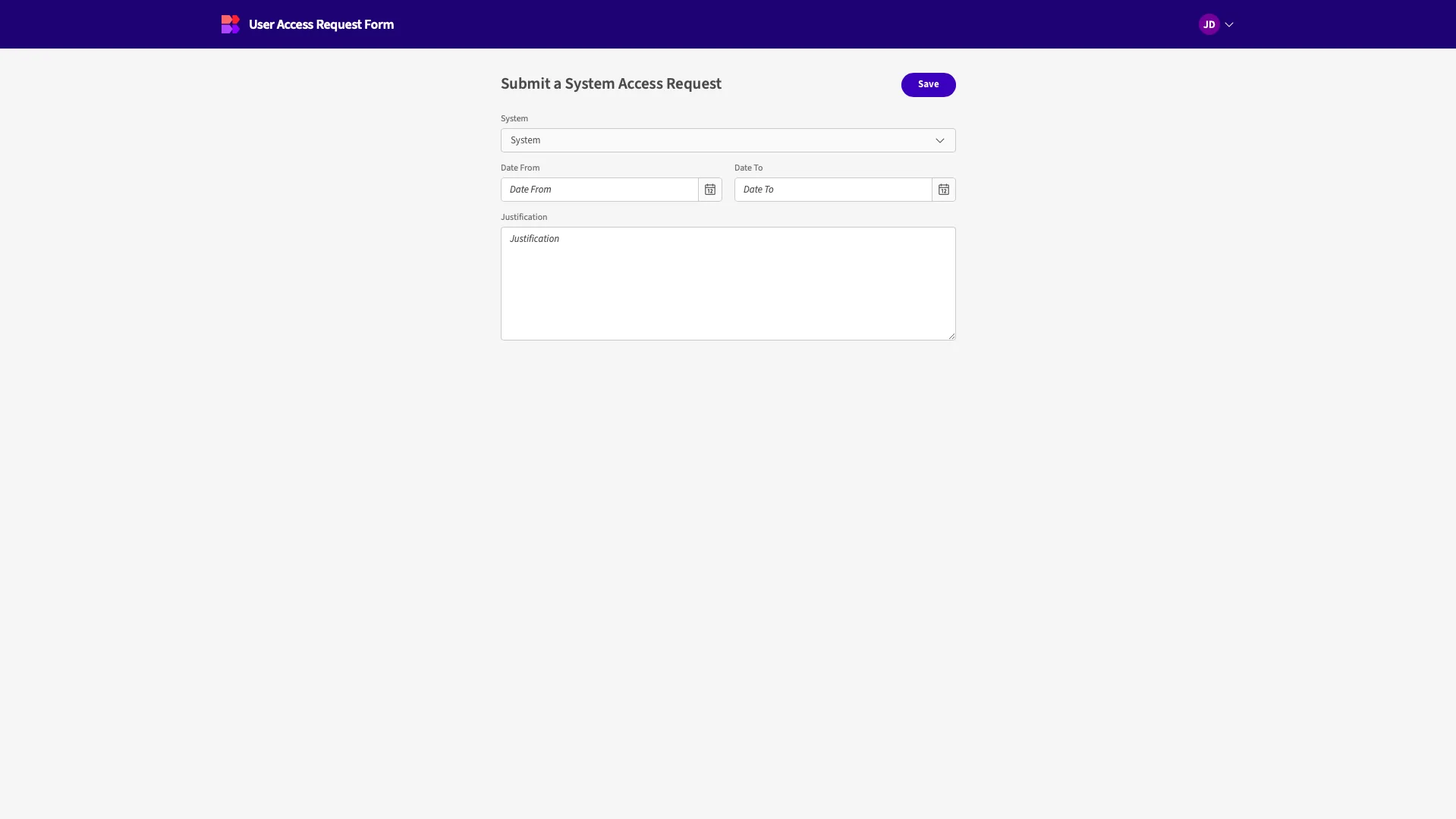
This provides a structured interface where they can provide the information that’s required to process their request, including their details, what resource they need to access, how long for, their justification, and other fields.
Often, the schema for this will differ depending on the type of resource that’s being requested, especially in relation to the security implications. For example, our information needs might be relatively small for routine requests, such as setting up accounts for core systems during employee onboarding.
Requests for other resources, such as certain internal databases or software systems, might require tighter controls and so have more complex form schemas.
In any case, the goal is to maintain security and access controls while providing users with a smooth experience for accessing resources when they need them.
How do user access request workflows work?
User access requests are a classic example of a request and approval workflow.
This is based around two user core roles, where one type of user can submit a request for a resource, and another can respond to either approve or reject this request.
However, in more complex workflows, we may have several different approver roles. This might be because we need to perform a multi-step approval, or because individual resources have their own owners, responsible for granting permissions.
For example, whichever team or user has admin rights for a particular resource will often be responsible for granting permissions. Depending on your organization, this could be centralized in the IT team, or it could be more distributed across functional departments.
Alternatively, routine access requests for certain low-risk systems and data might have automated approvals.
When an access request is approved, the next stage of the workflow is fulfillment. That is, actually granting access.
In many cases, this will be handled manually by the admin or resource owner, but we might also utilize automations for common system requests, triggering these based on status changes to our request record.
You might also like our guide to AI forms.
How to build a system access request form in 4 steps
With a solid grasp of what user request forms are and what they achieve, we can next turn our attention to how we can build a request form of our own in Budibase.
Budibase is fully optimized for busy IT teams that need to build secure, professional workflow tools, offering extensive external data support, autogenerated UIs, AI-powered automations, optional self-hosting, custom RBAC, and much more.
Sign up today to build along with this tutorial.
Join 300,000 teams running operations on Budibase
Get started for freeWe’re going to build a simple system access request form with a fixed schema, which will allow users to select a resource, provide a justification and a timeframe, and submit their request for approval.
Setting up our data model
We’re starting by creating a new Budibase Workspace. This is a collection of data sources, apps, and automation rules that can all interact with one another. When we create a new workspace, we’re prompted to add our first data source.
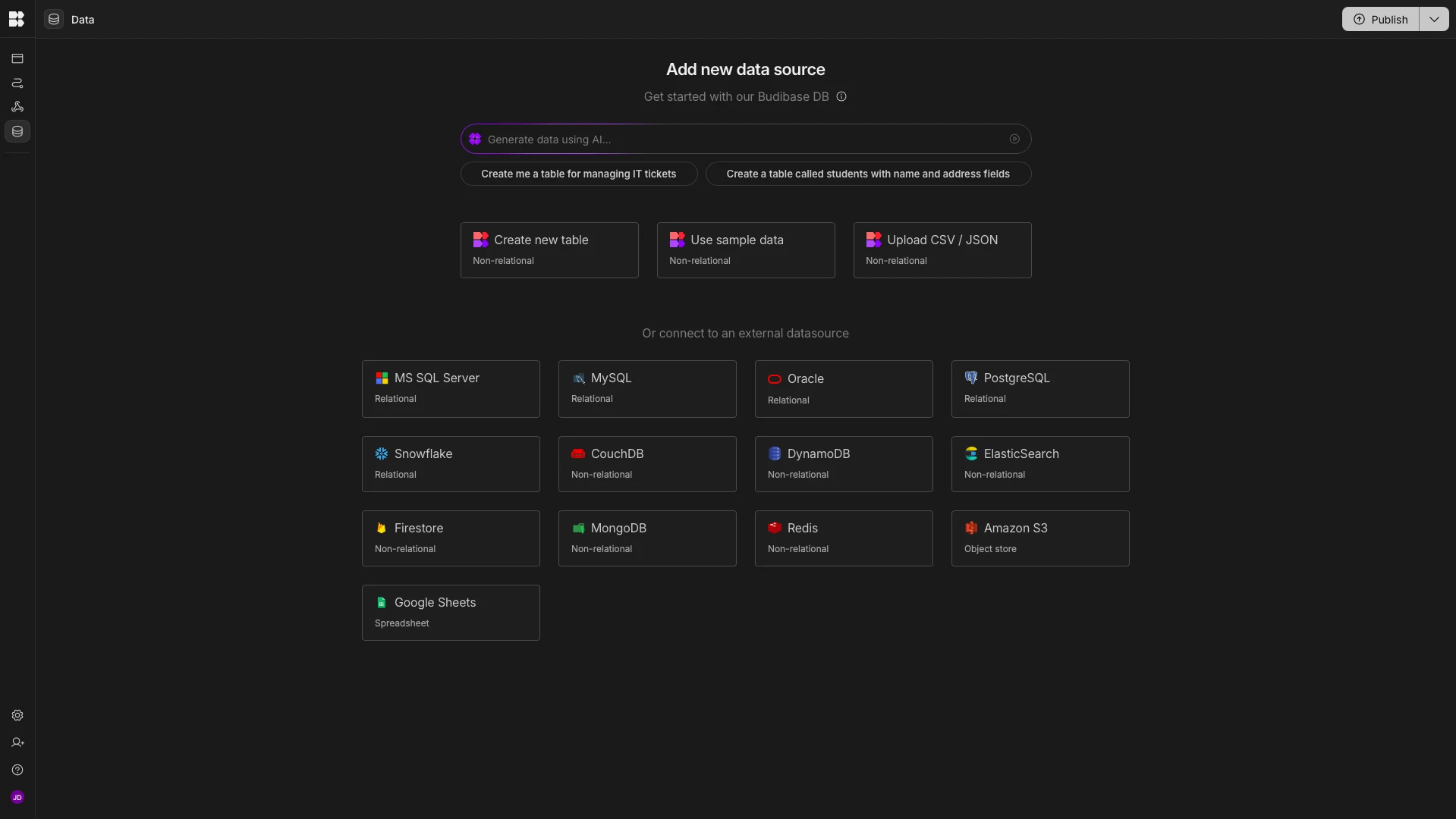
We’re going to select the option to create a new table in BudibaseDB by uploading a CSV.
The specific data we’re using is:
Date From,Date To,Justification,Status,System

2025-03-01,2025-03-10,Required to perform configuration changes for scheduled feature release,Pending,CRM

2025-04-05,2025-04-07,Access needed to diagnose and resolve a critical performance incident,Approved,ERP

2025-05-12,2025-05-20,Required to complete compliance verification for quarterly internal audit,Rejected,Inventory
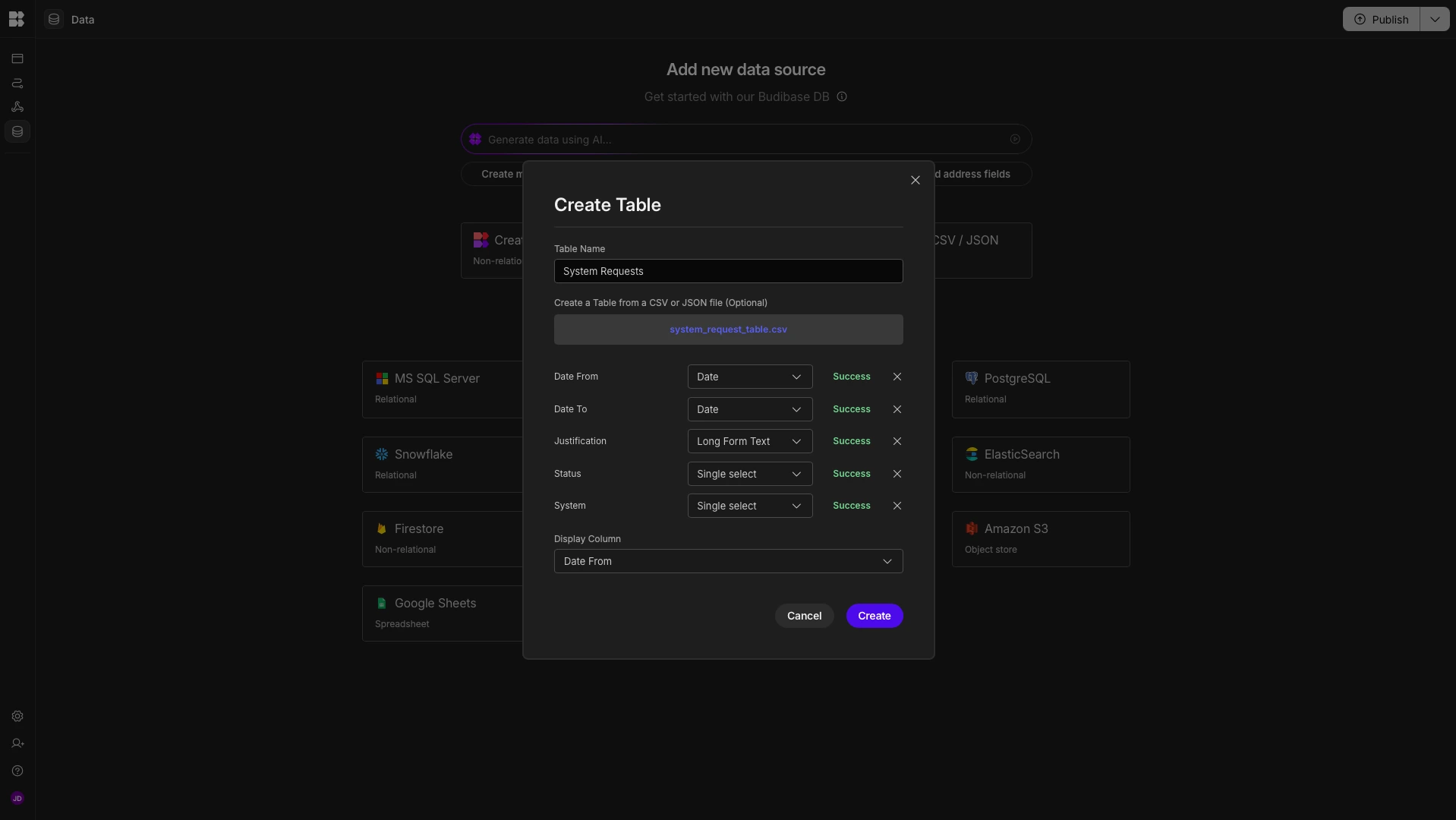
We’re calling our table System Requests, and setting our columns to the following data types:
- Date From - Date,
- Date To - Date,
- Justification - Long-Form Text,
- Status - Single Select,
- System - Single Select.
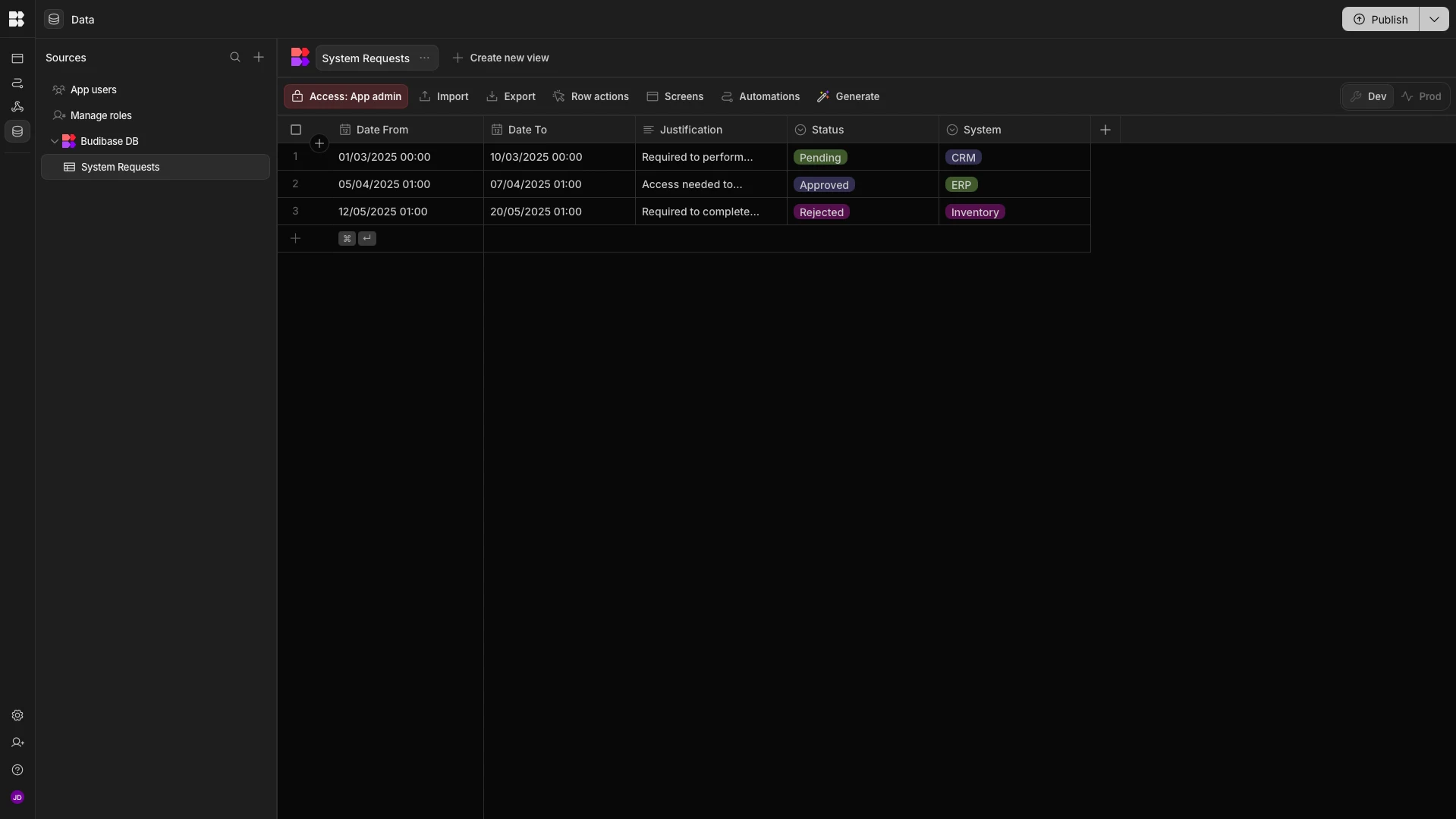
Here’s what this will look like in the Data section of our Workspace. The options for our two single-select columns are inherited from our dummy data. These are editable, but for demo purposes, we’ll leave them as they are.
Before we carry on, we’re going to make a few minor tweaks to our data model.
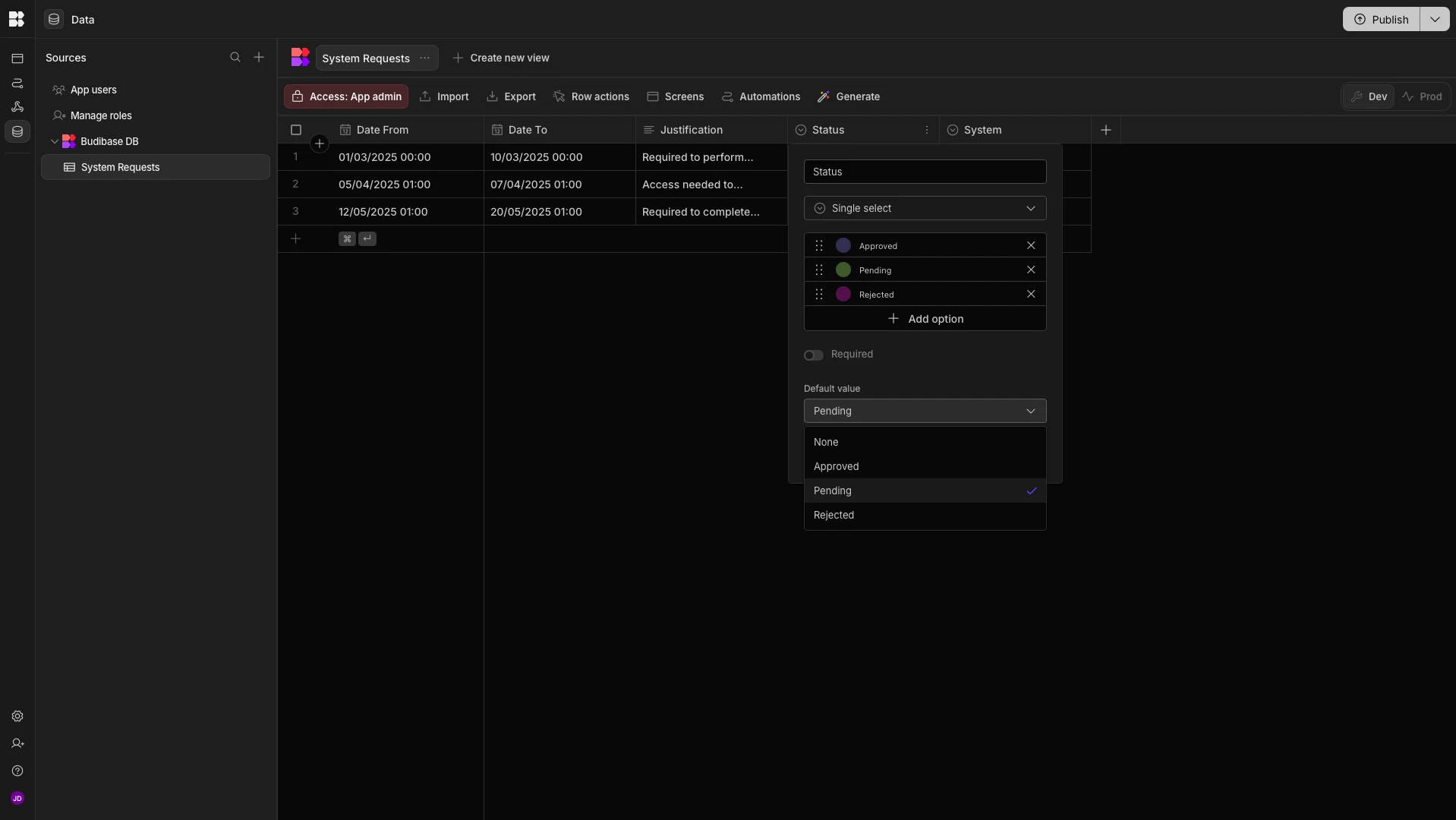
Firstly, we don’t want requestors to need to manually set a Status attribute at the point of submission.
To handle this, we’ll set its Default Value to Pending.
Next, we need some way of associating our system request form submissions with the appropriate user. To do this, we can use BudibaseDB’s Single User column.
We’ll start by hitting the + icon to add a new column. We’ll call this Requestor and choose Single User as our data type. We’re also going to enable the option to default to the current user.
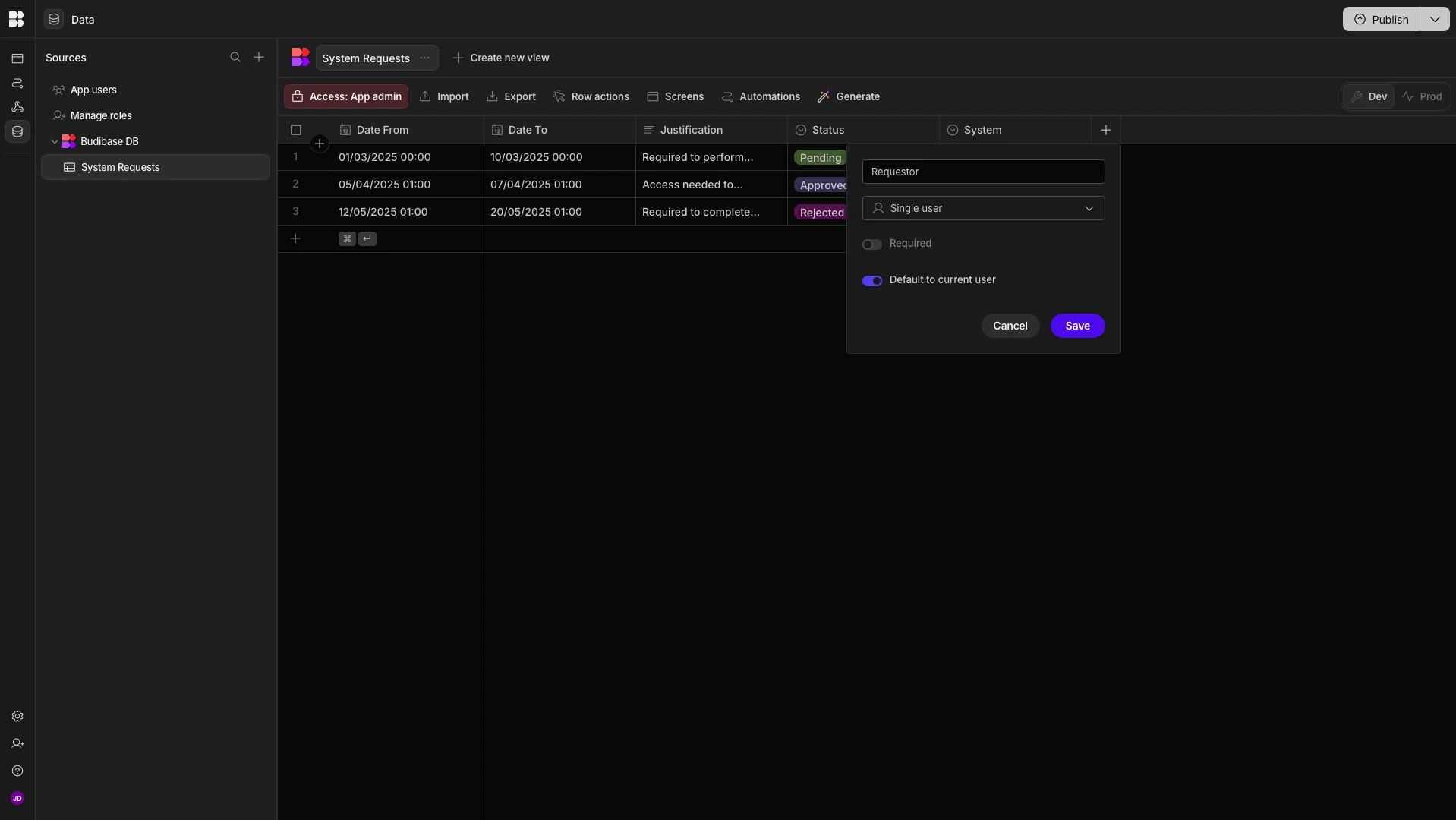
Now, each time a row is added, this column will automatically be linked to the relevant entry in Budibase’s internal users table.
Creating user roles
Next, we’re going to configure roles for our user request form.
Although we won’t be making extensive use of these today since we’re only building the form UI, user roles are a crucial part of access request workflows.
For example, this is what allows us to determine which users can submit or approve requests, or control which resources specific users can request.
So, it’s still important to demonstrate how this works.
To keep things simple, we’re going to create two user roles and grant them the following permissions.
Requestorswill be able to submit requests, but they’ll also have read access for their own submissions.Approverswill have full read and write access for all rows.
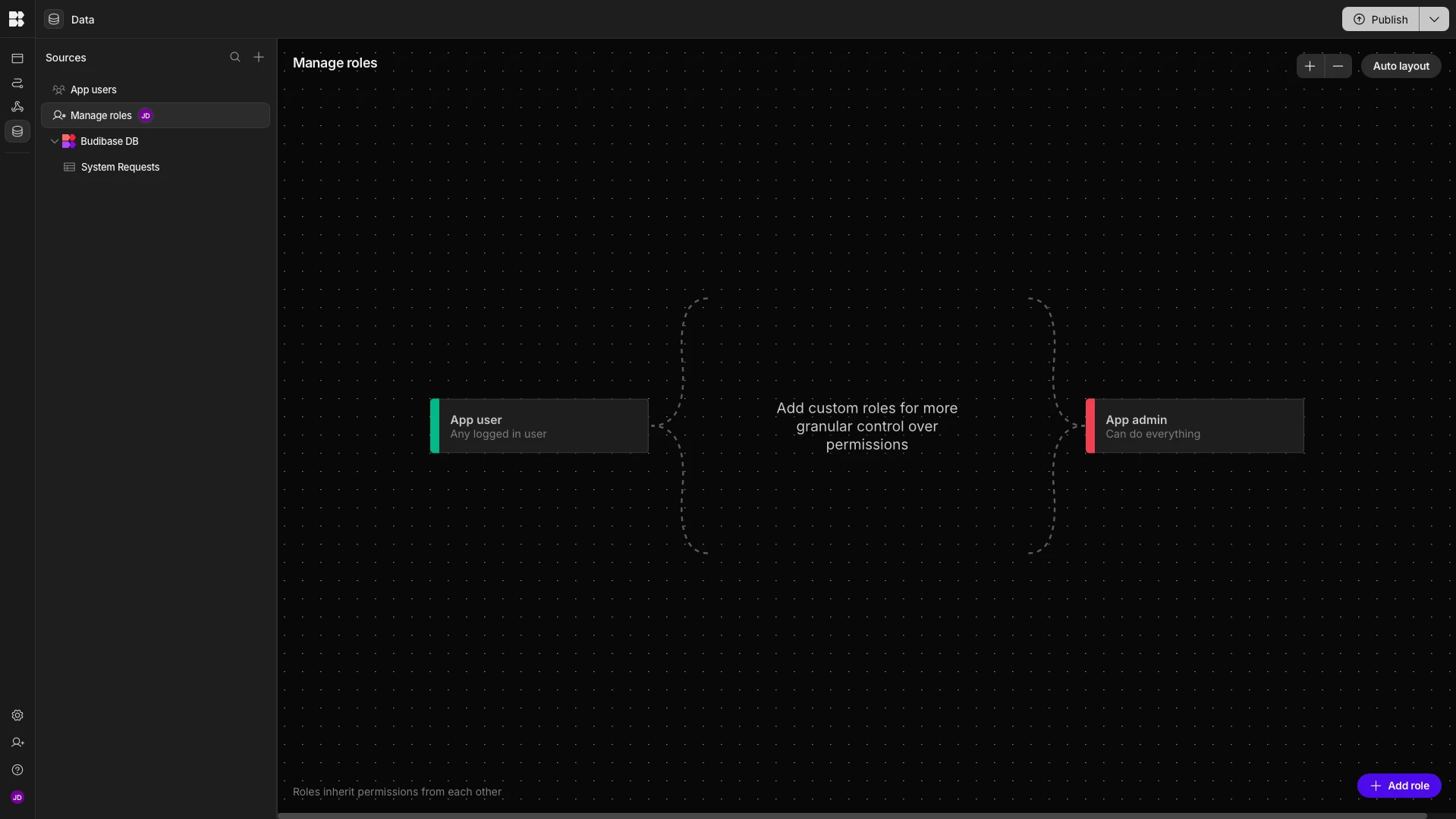
We’ll start by heading to the Manage Roles screen. Here, we can use the flow-based editor to add and configure user roles.
By default, we can see the App User and App Admin roles.
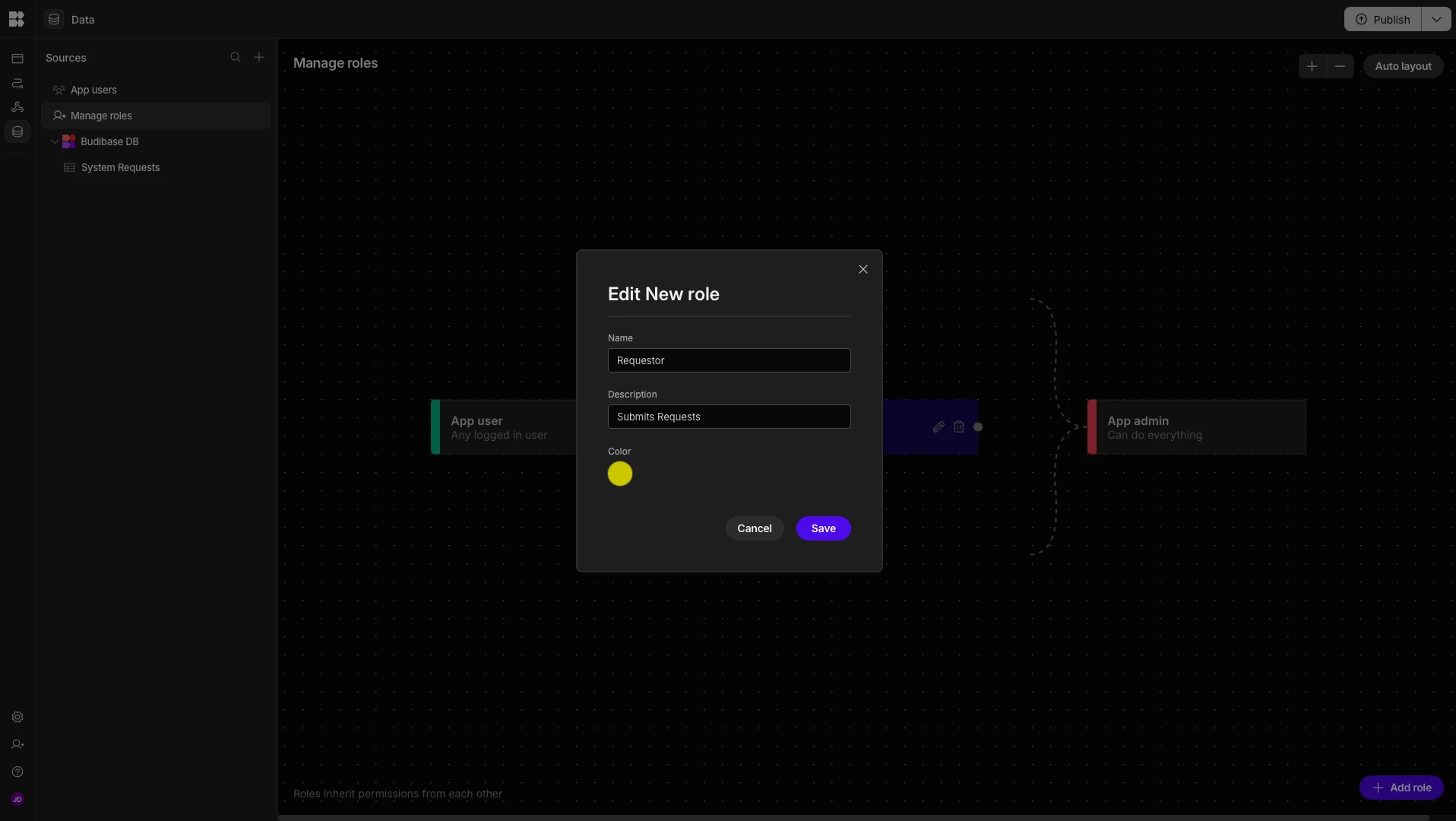
We’ll start by adding a role and calling it Requestor.
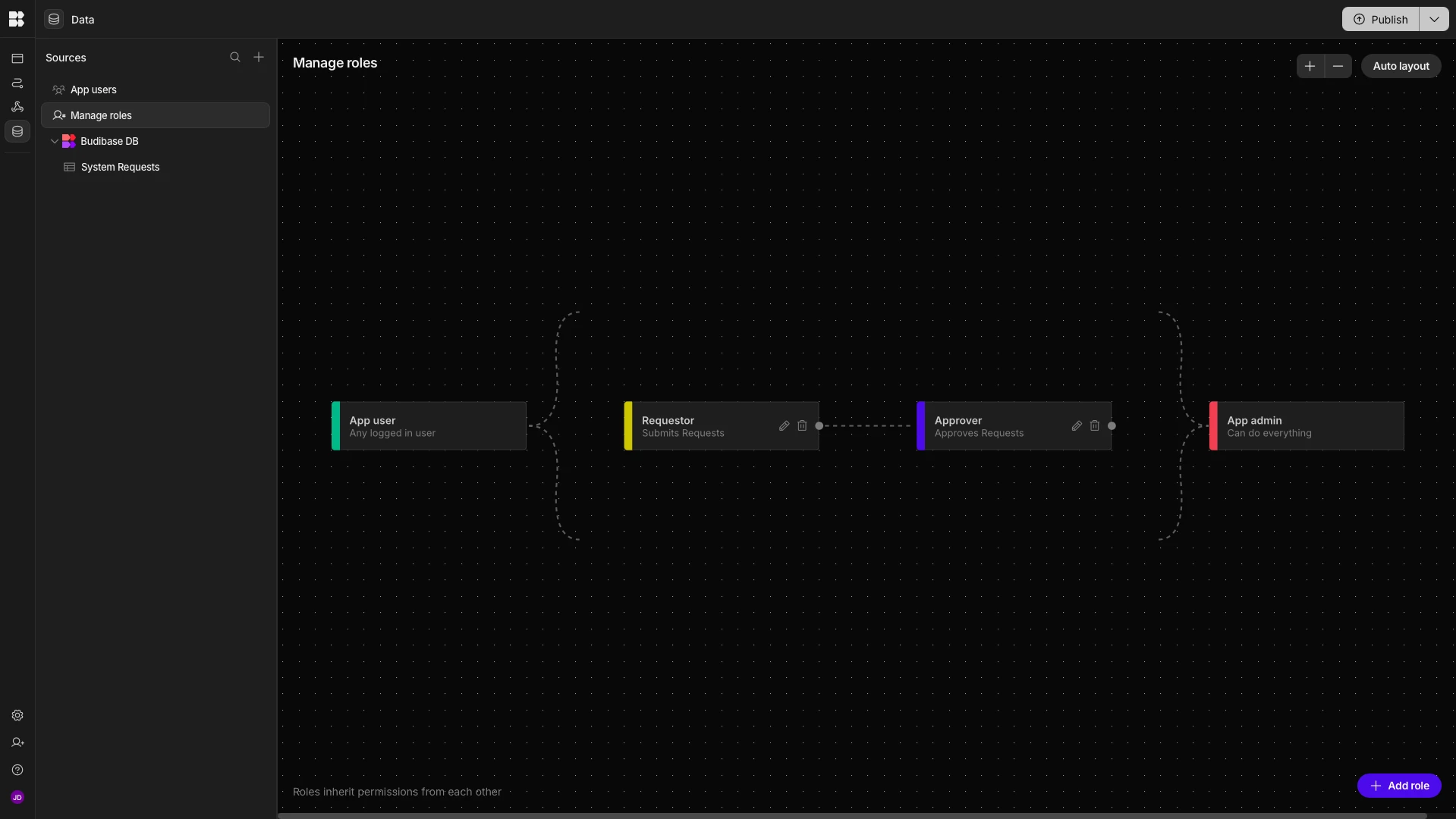
We’ll then add a second row and call it Approver, placing it to the right of our Requestor role.
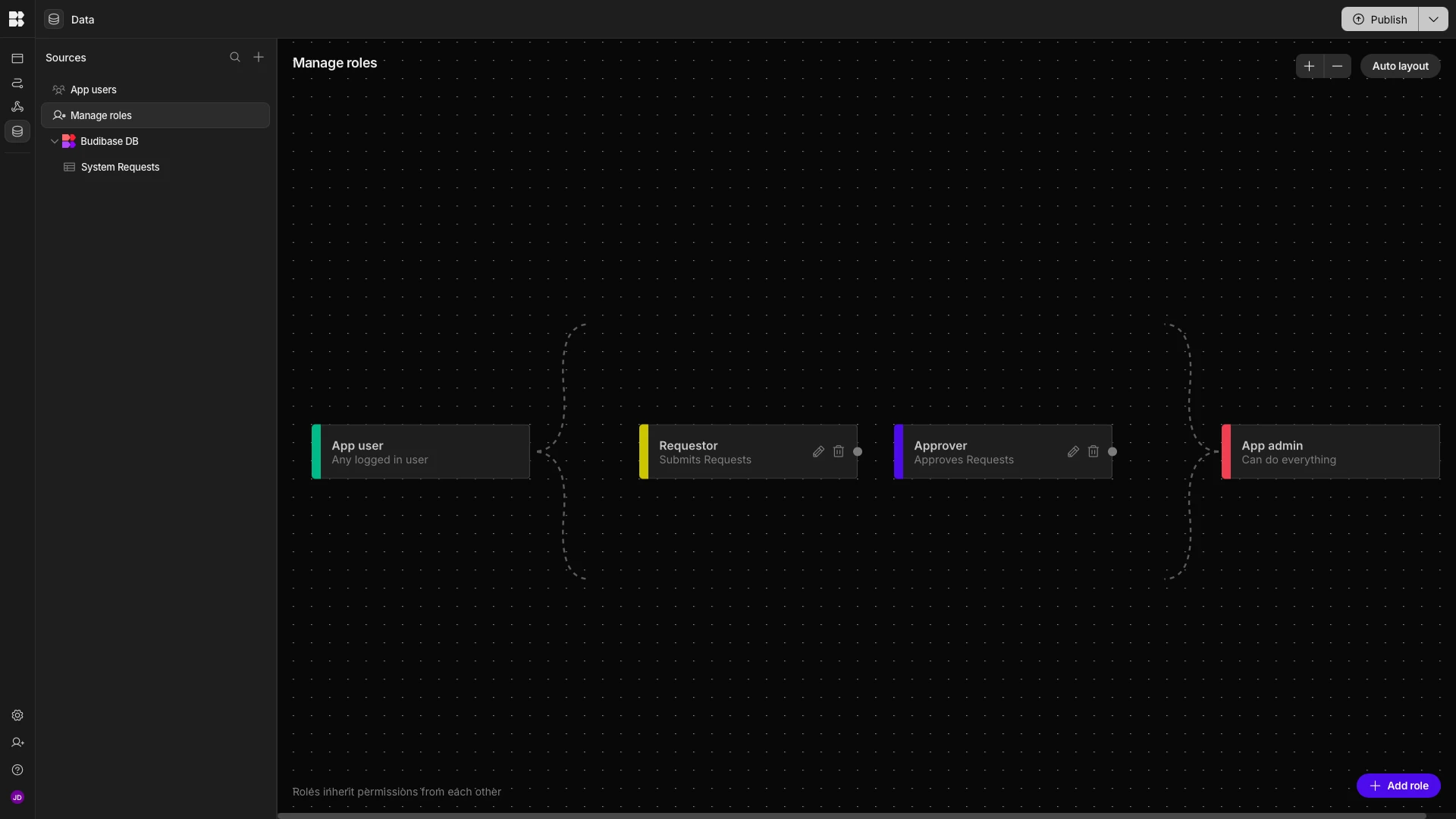
Lastly, we’ll draw a line between our two new roles so that Approvers will inherit all permissions from Requestors.
Next, we can head back to the Data section of our workspace to start configuring the permissions we described a second ago.
We’ll first create a View and call it Requestor.
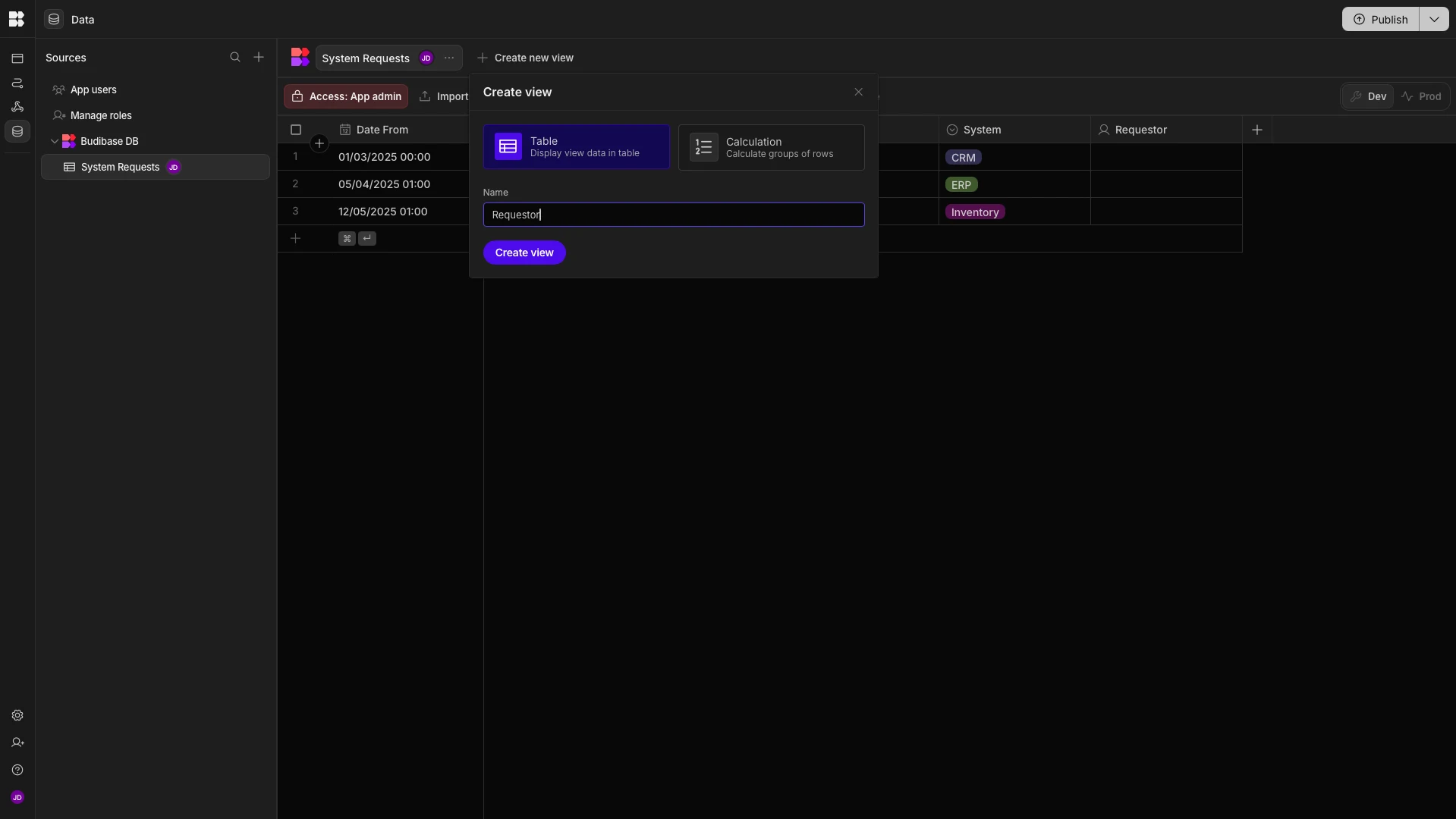
We’ll change the Access setting of this to our Requestor role.
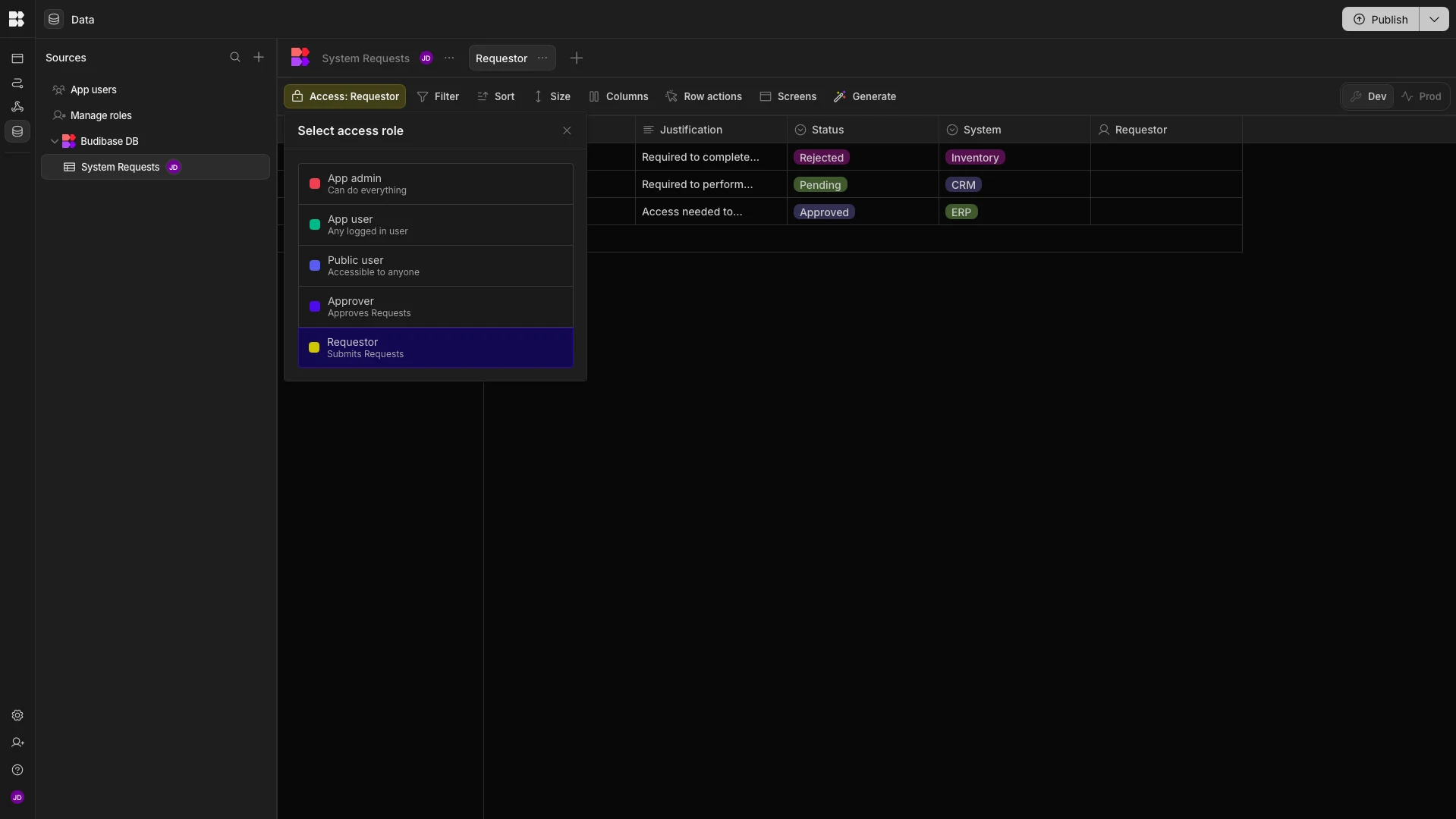
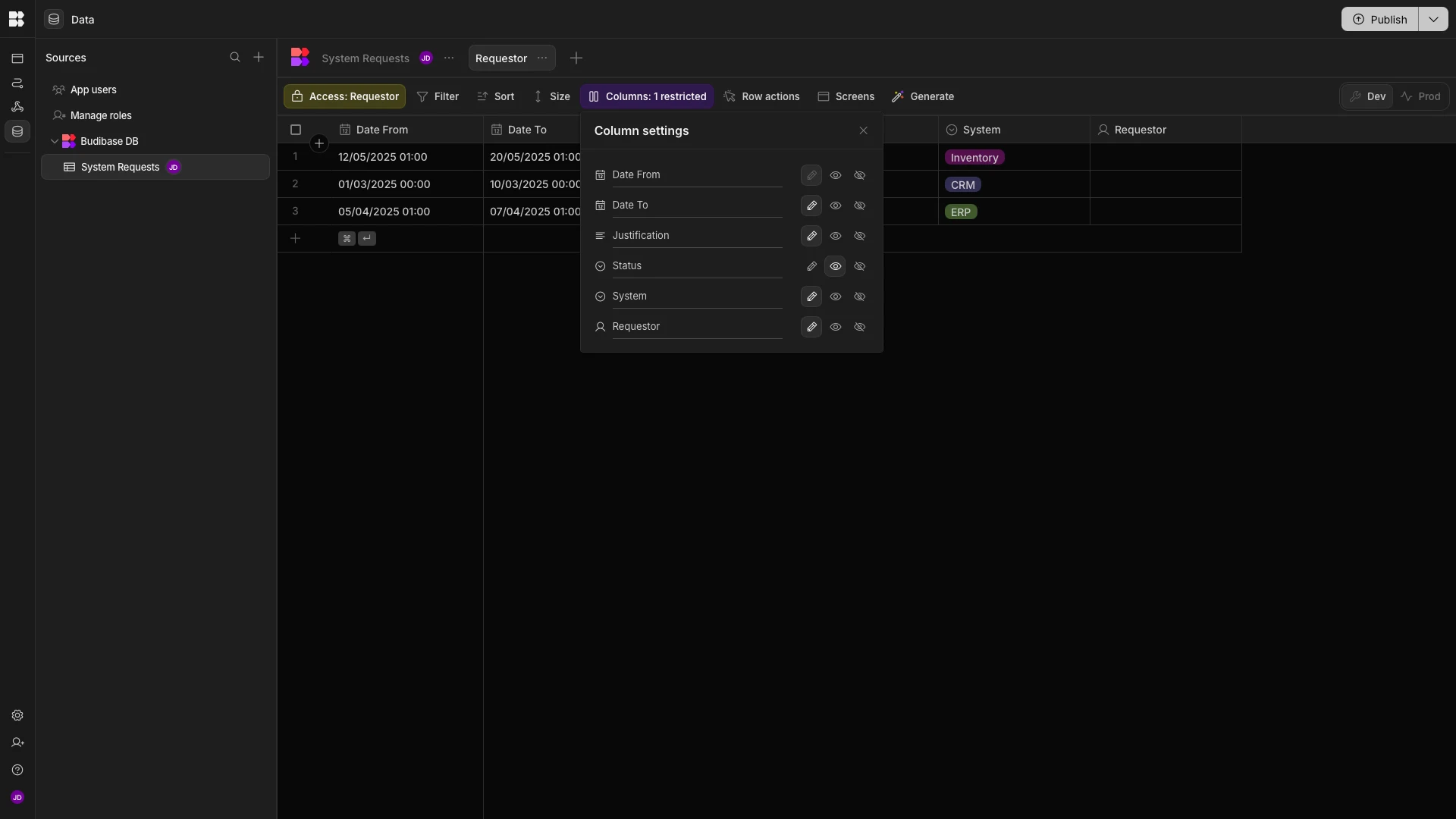
Under Columns, we’ll set Status to read-only.
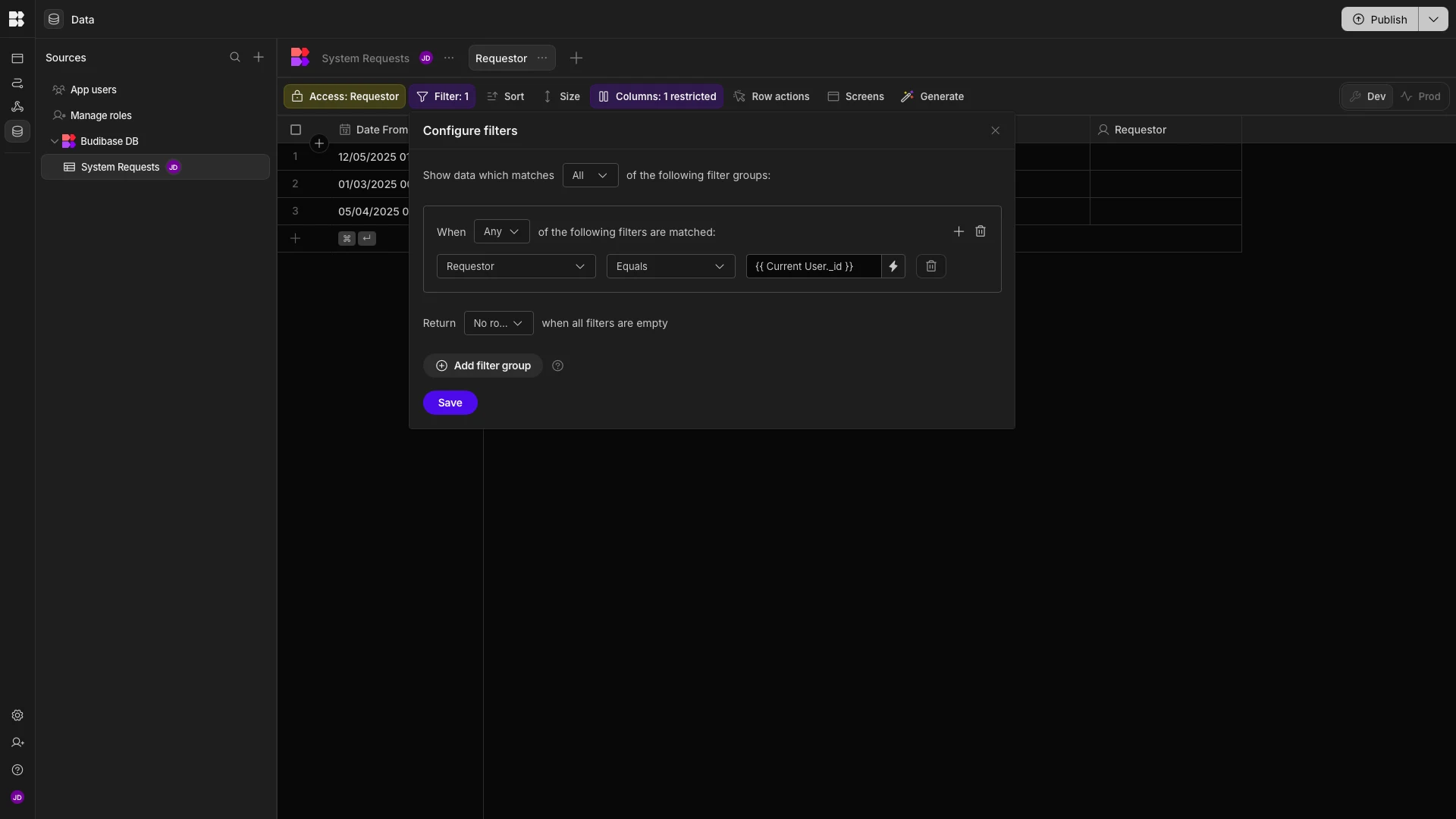
Then, we’ll add a filter so that this view only contains rows where Requestor equals {{ Current User._id }}.
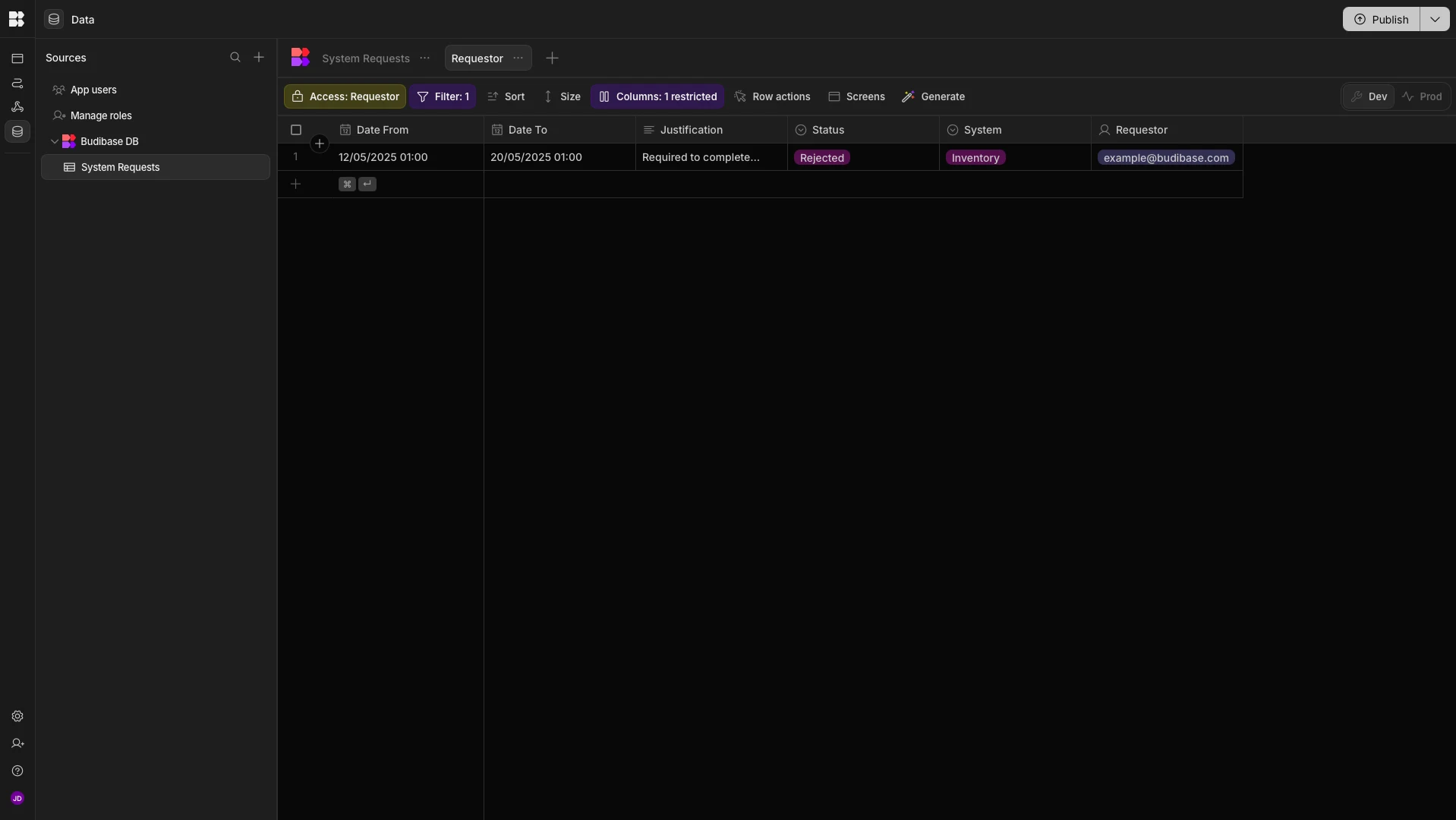
We’ve added ourselves to one of our rows to show how this will look.
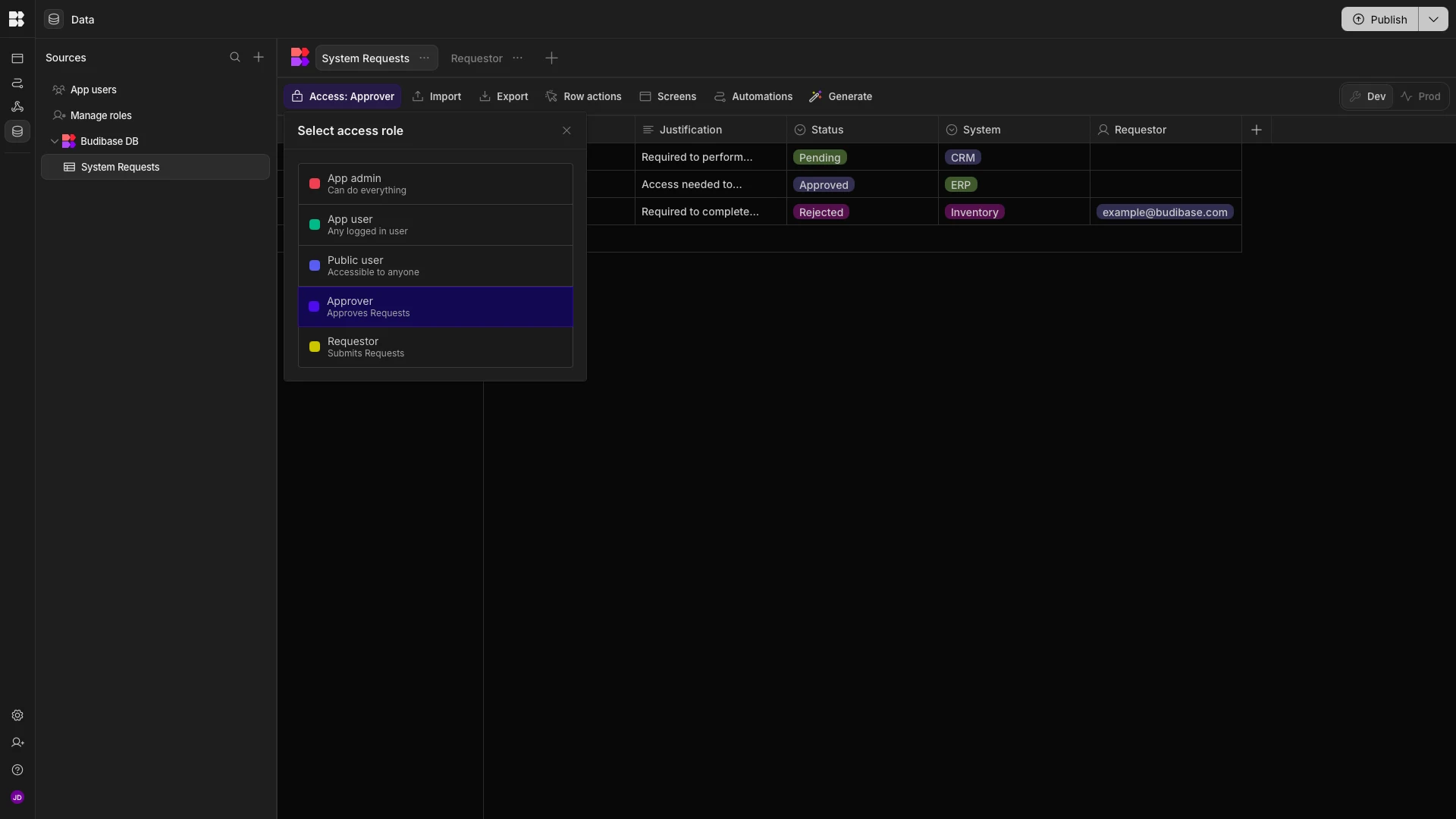
Then, back on our underlying System Requests table, we’ll set Access to Approver, giving users with this role full CRUD access for our table.
Autogenerating a request form
With our data model and RBAC configured, we can move on to creating the UI for our system access request form.
To do this, we’re going to start with one of Budibase’s autogenerated form UIs.
We’ll start by heading to the Apps section of our workspace.
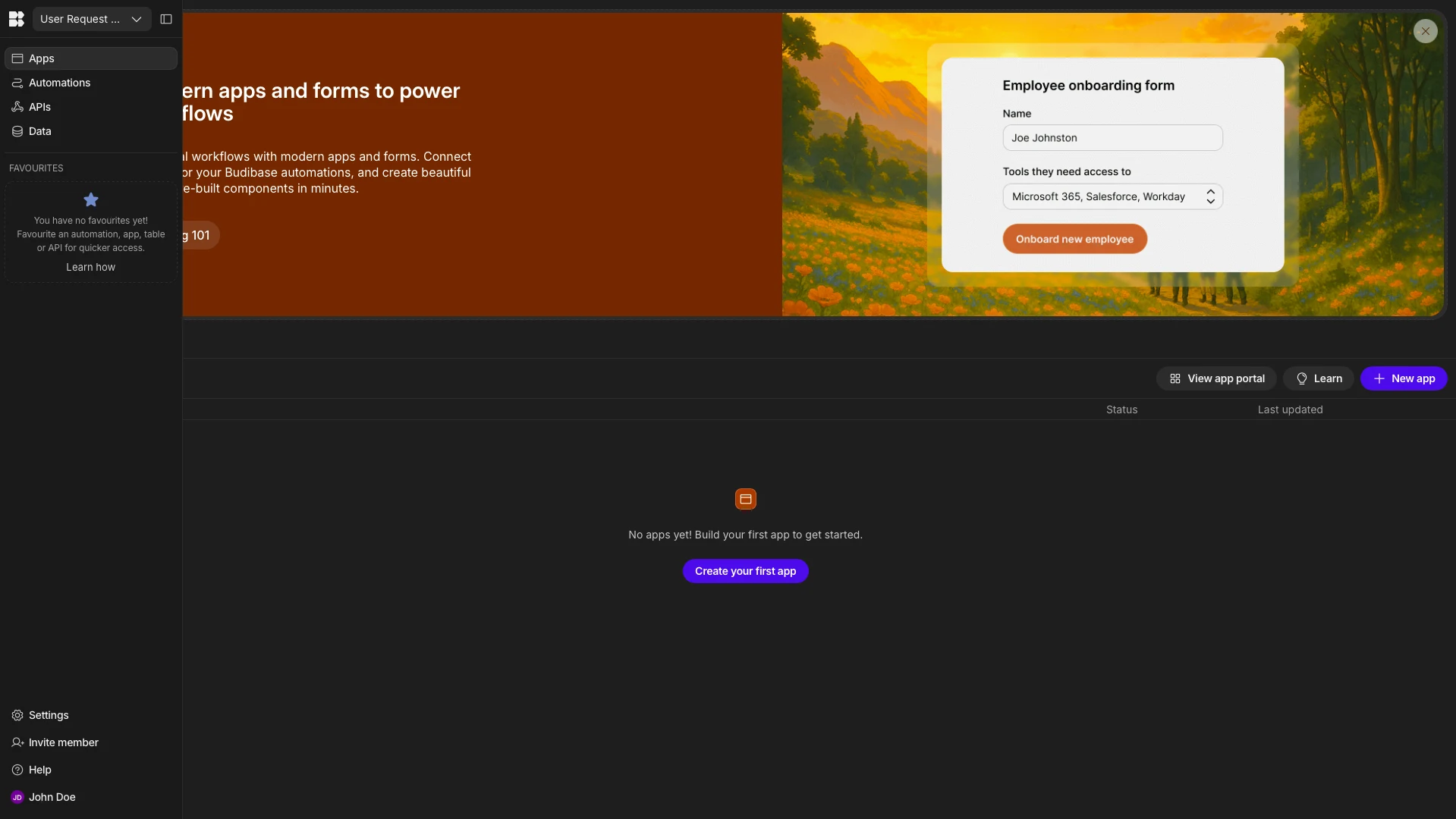
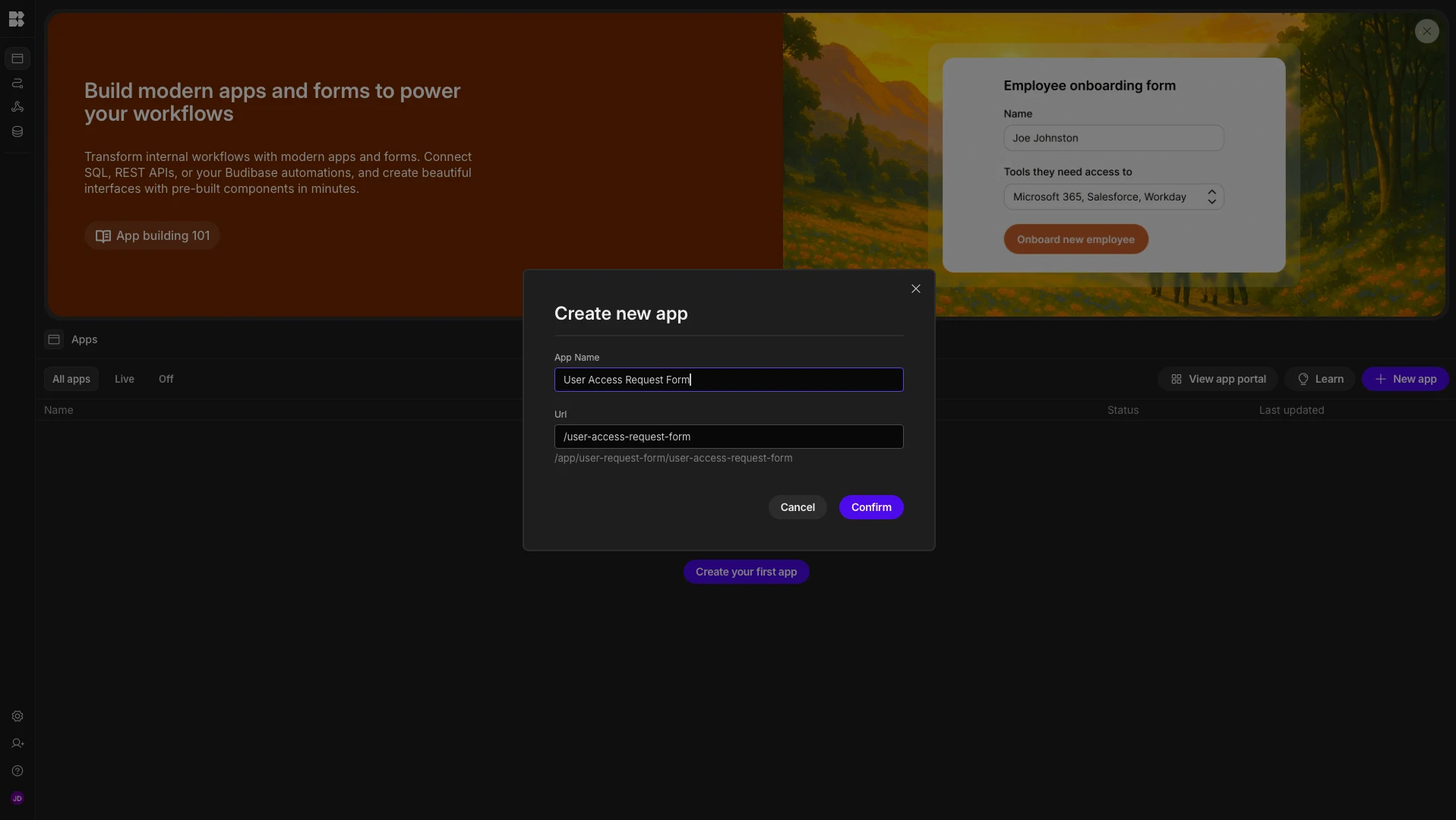
Here, we’ll create a new app, which we’ll call User Access Request Form.
This creates a new app with a blank screen, which we can simply delete. We’re then prompted to choose whether we’d like to start from scratch or use one of Budibase’s autogenerated layouts.
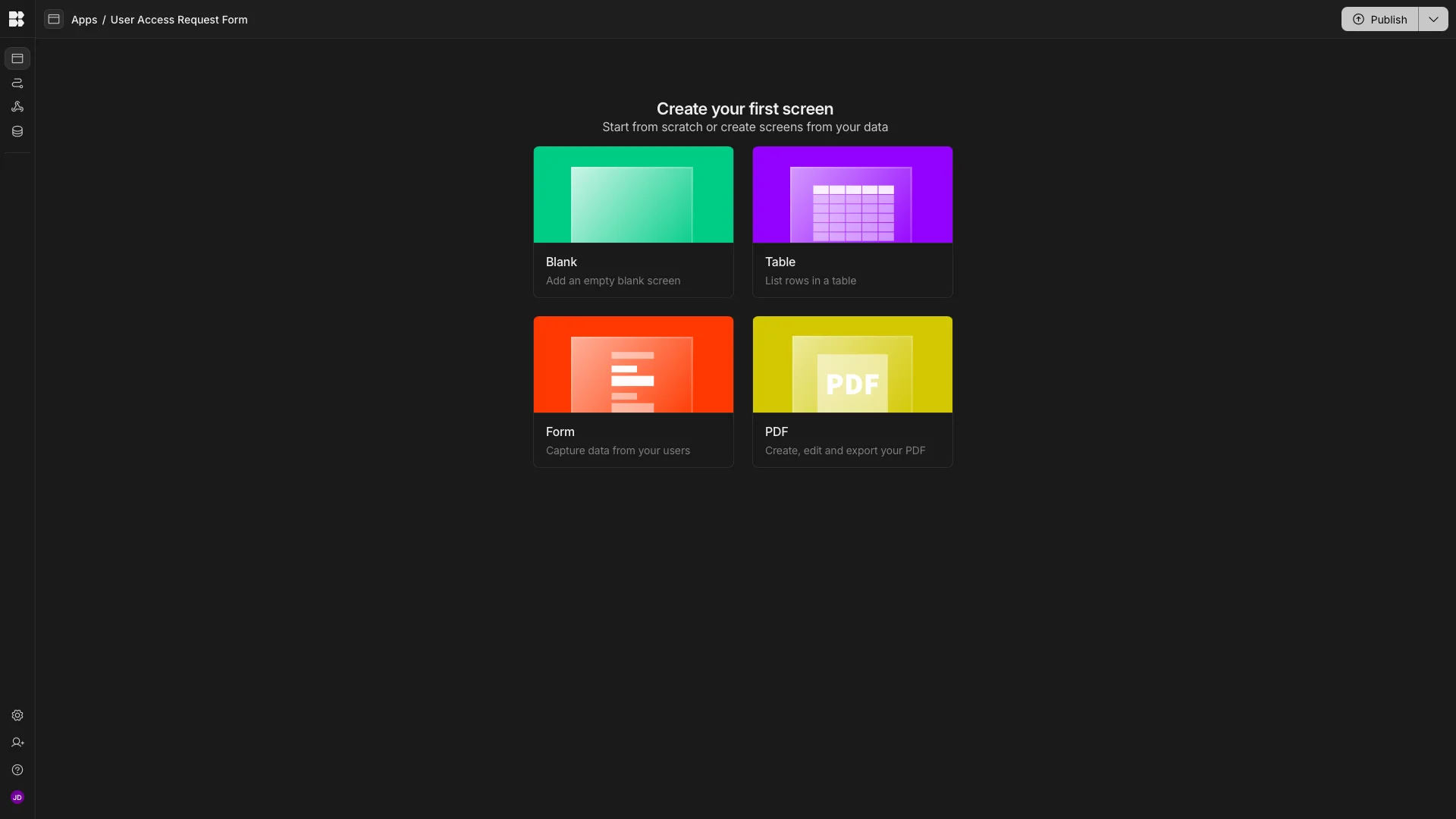
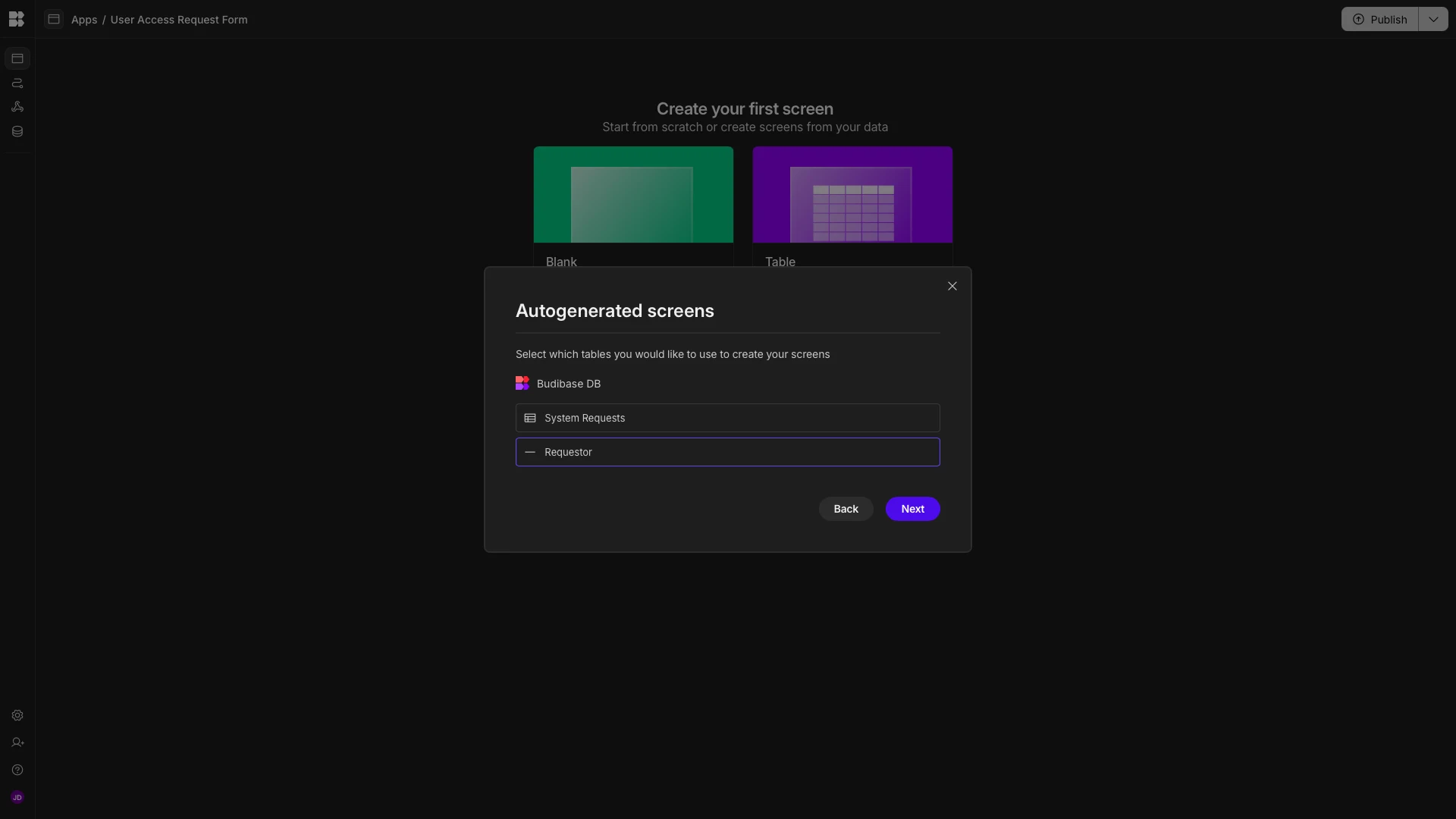
We’re choosing the option to generate a form. When we do so, we’ll be prompted to pick a data source to connect this to.
We’re using the Requestor view of our System Requests table.
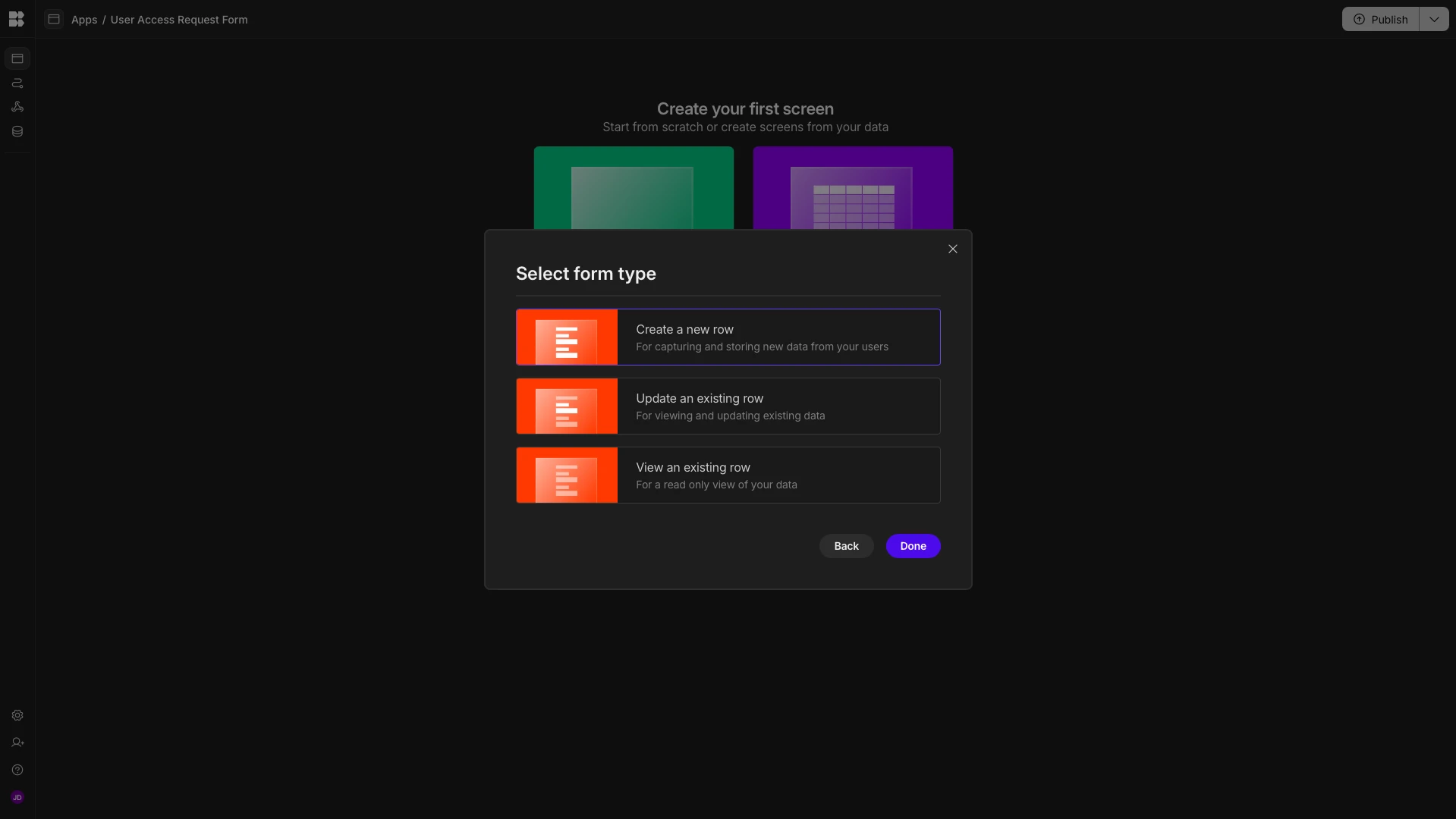
We can then choose which type of form we’d like to create. We’re picking the option to create a row.
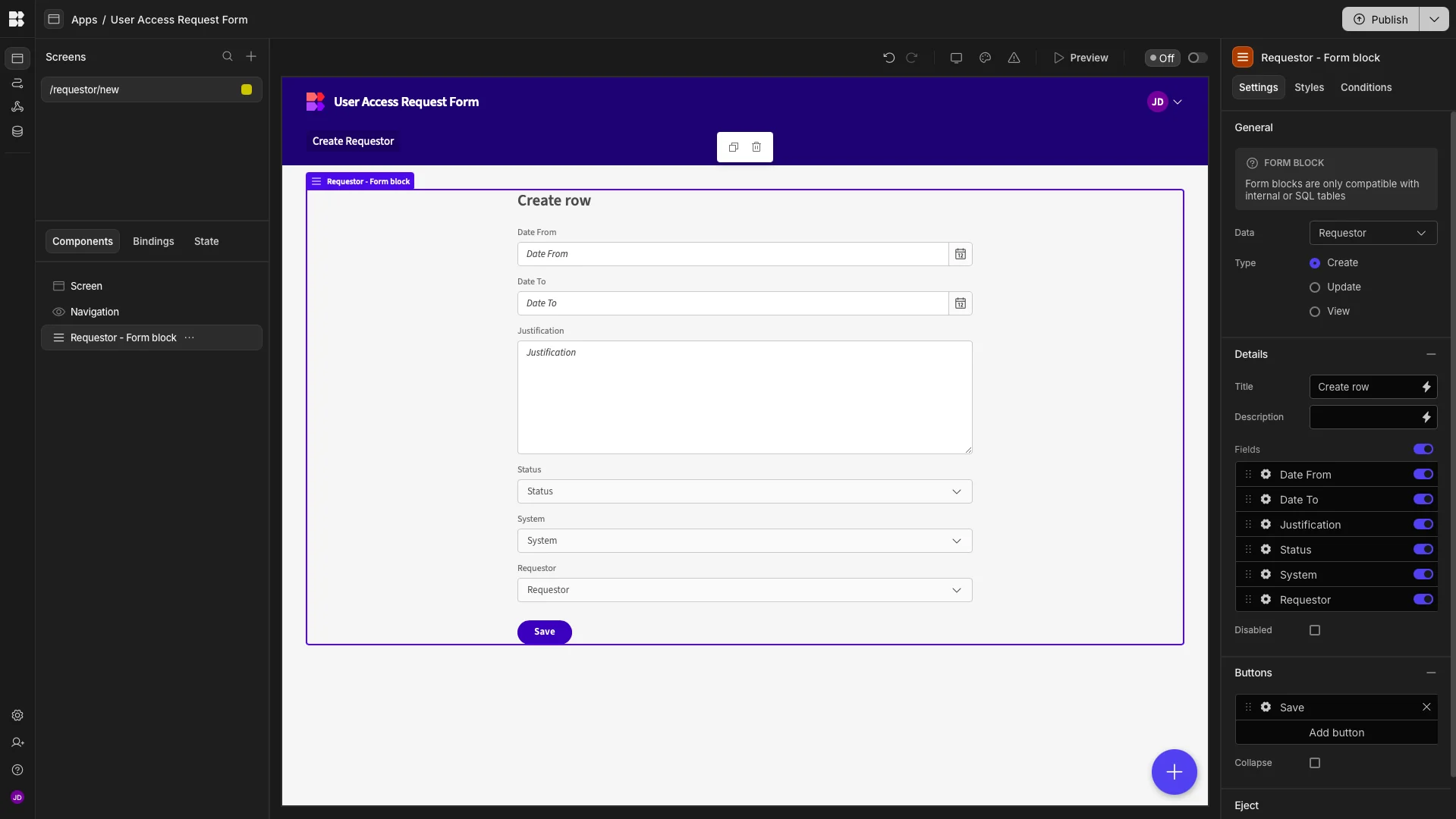
Here’s what our user access request form will look like out of the box.
Design tweaks and publishing
We’re only going to make a few minor changes to our form before we push it live for users. These are primarily to enhance the look and feel of our app.
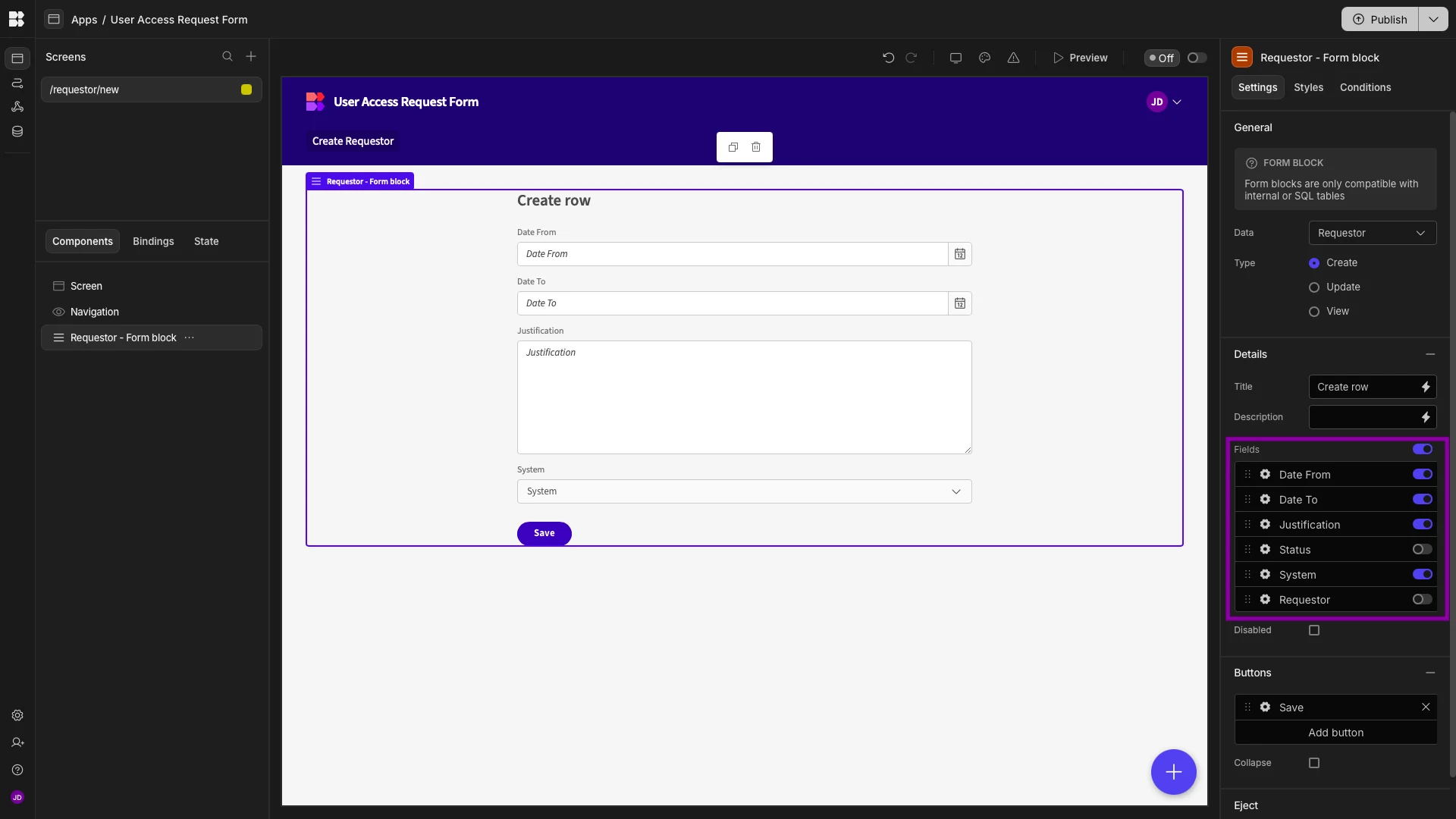
Firstly, we can disable the Status and Requestor fields, as these will be automatically populated using the default values that we set earlier.
Next, we’ll rearrange our remaining fields so that System is at the top.
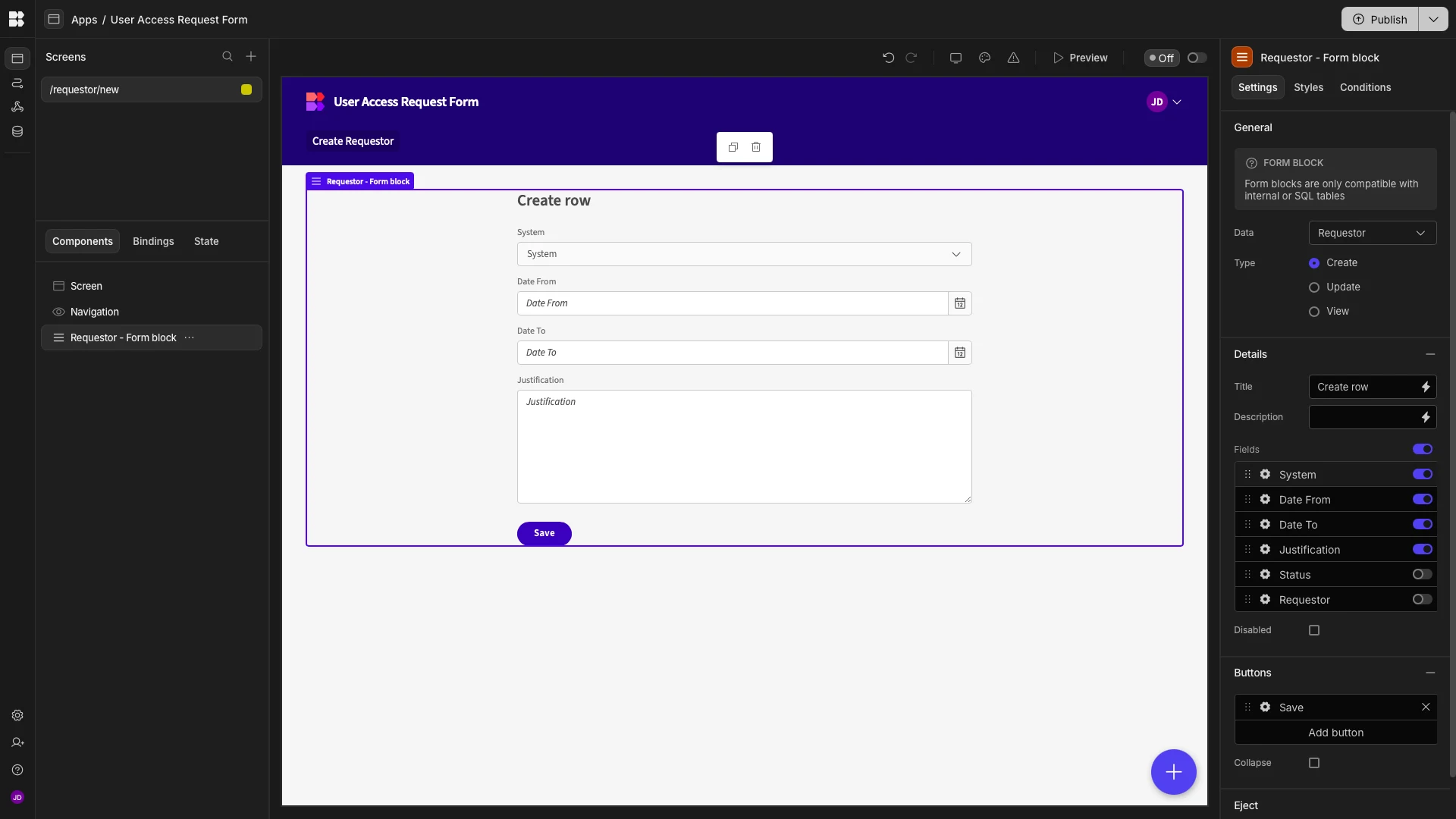
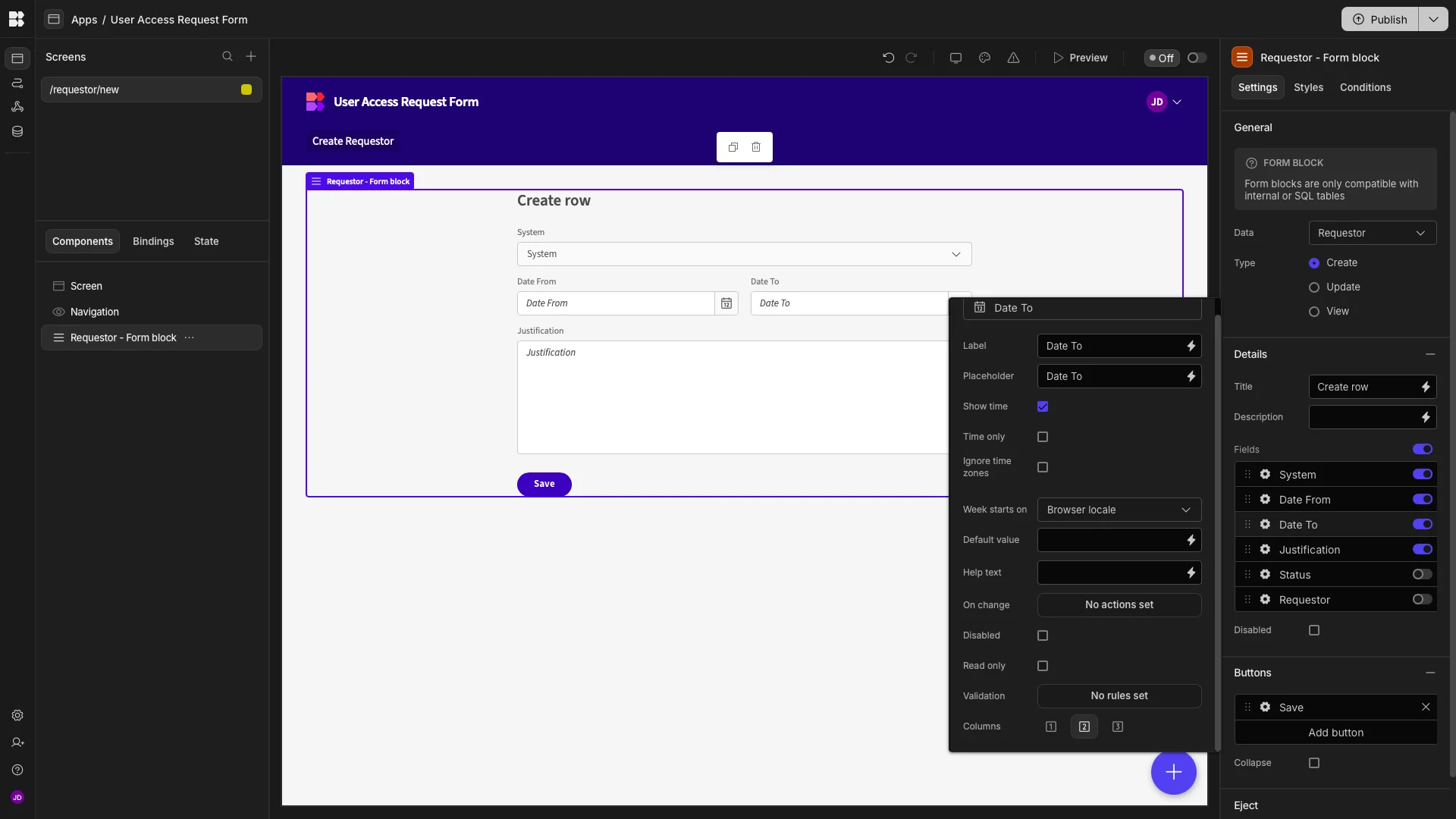
We’ll then arrange our two date pickers into columns within their settings menus.
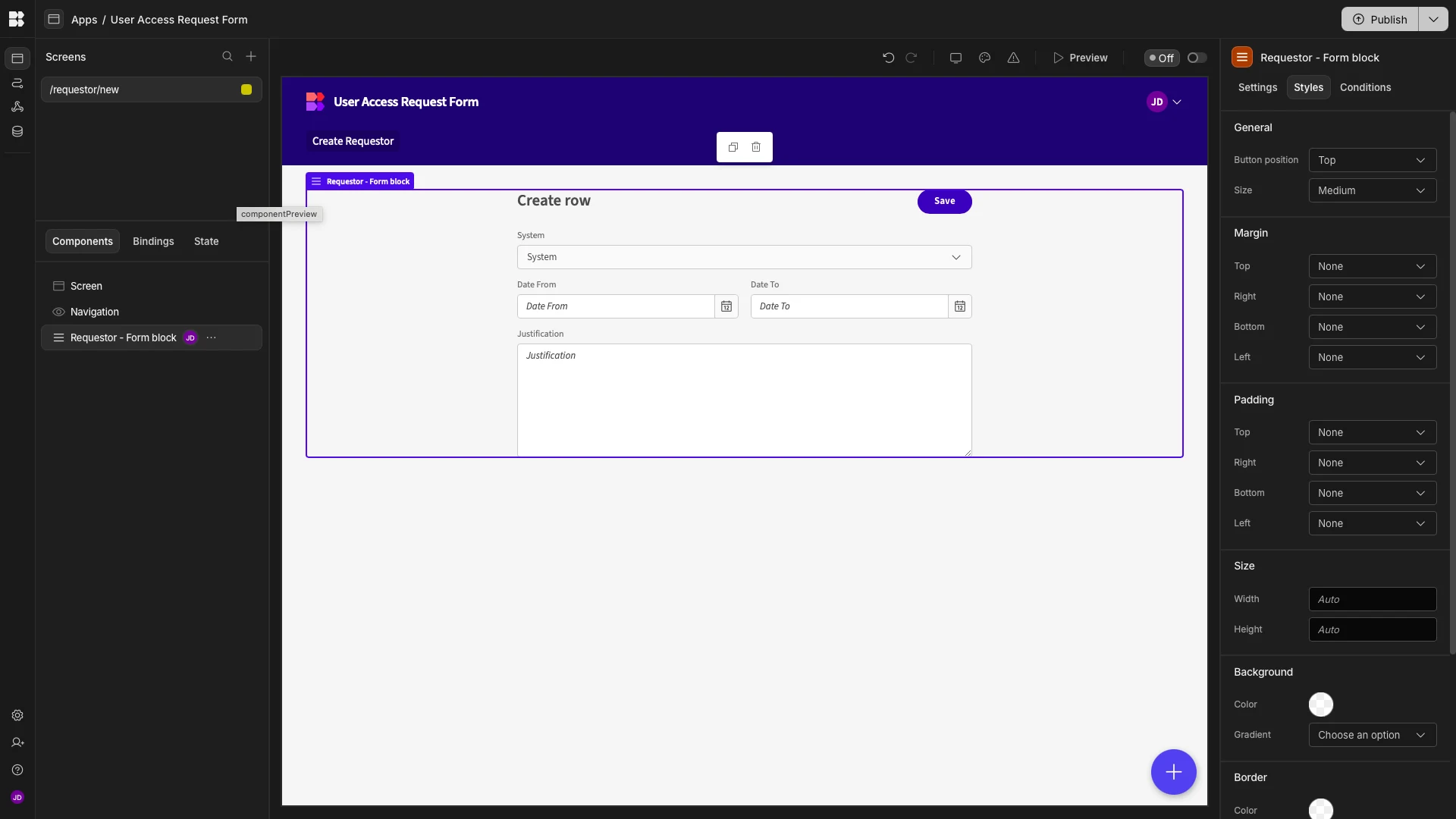
Under Styles, we’ll set our Button Position to Top.
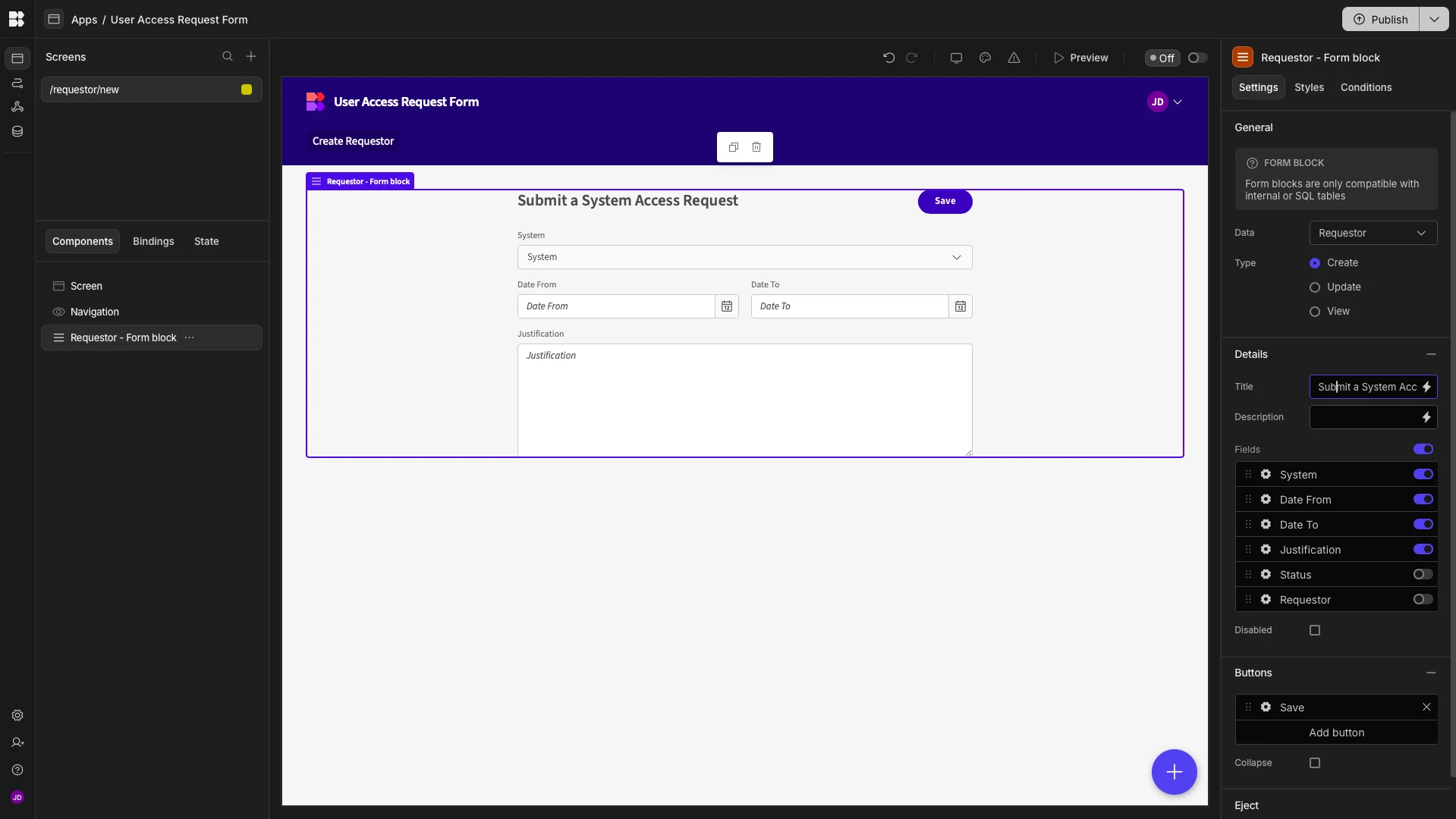
We can also update the title of our form to something more descriptive.
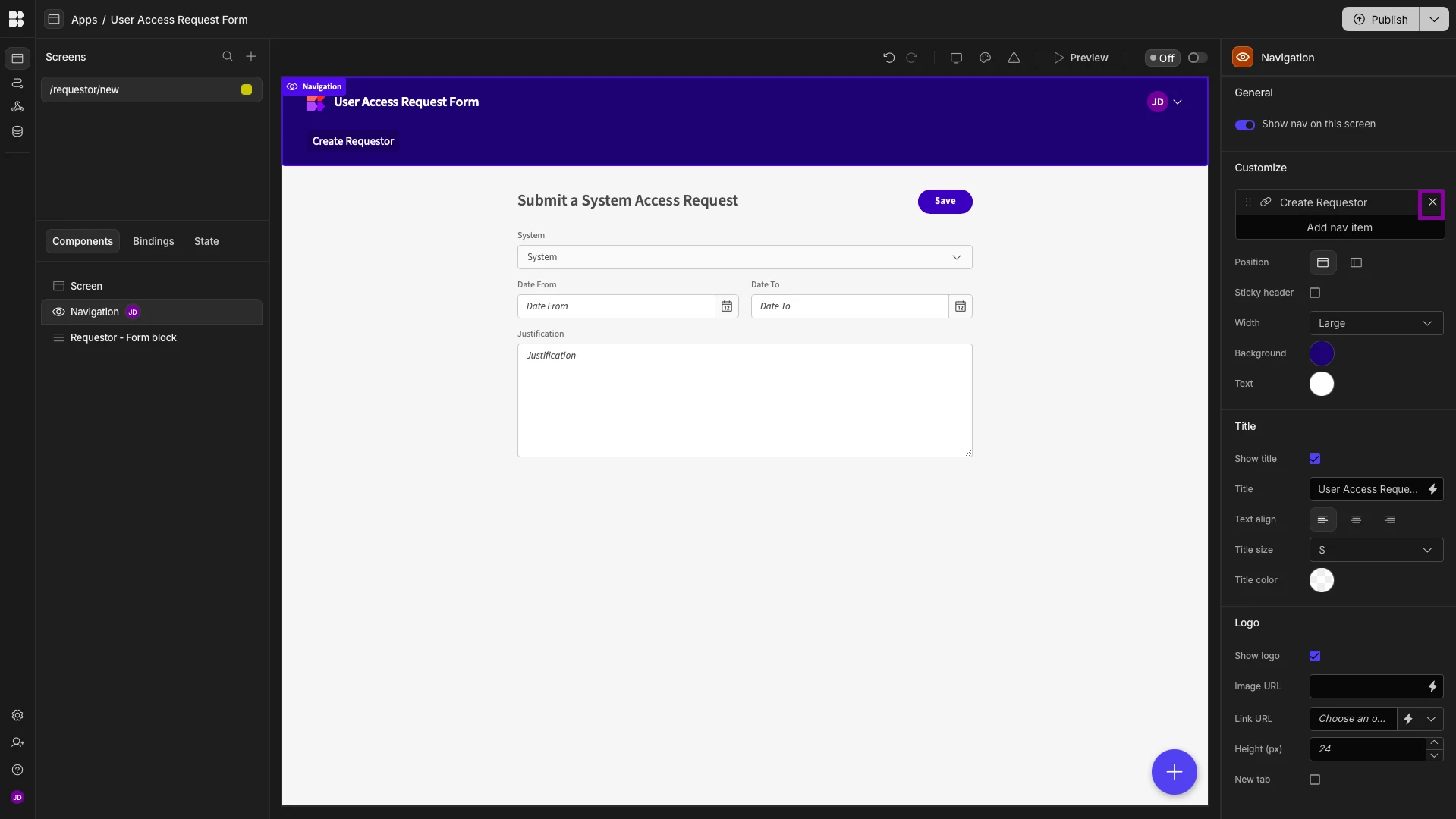
Then, we’ll head to Navigation where we’ll delete our menu item, as this is a single-screen app.
When we’re happy, we can hit Publish to push our Workspace live.
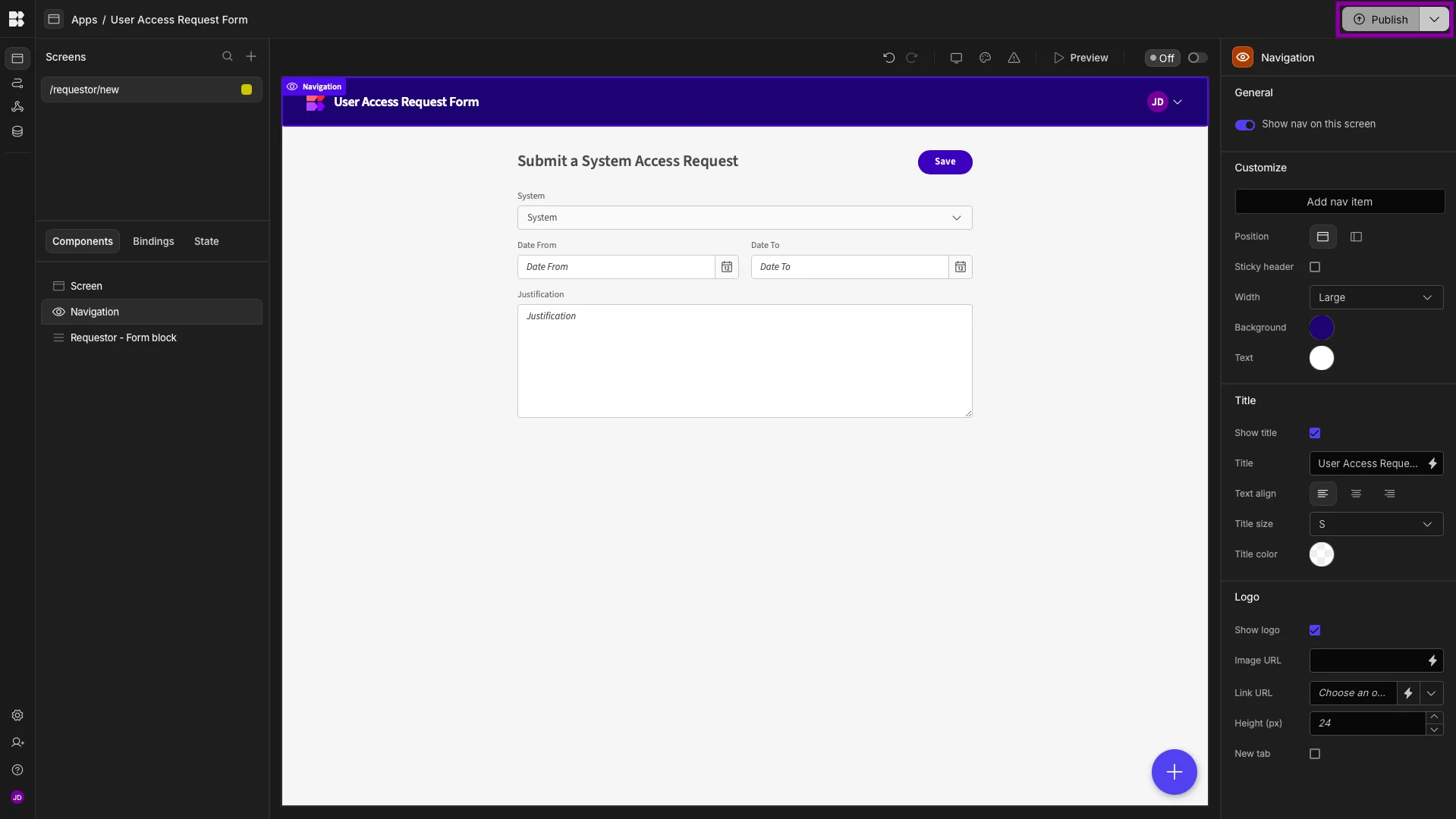
Here’s what our finished user access request form looks like.
Turn data into action with Budibase
Budibase is the open-source, low-code platform that empowers IT teams to turn data into action.
With connectors for a huge range of databases and APIs, autogenerated app screens, powerful AI-driven automations, optional self-hosting, custom RBAC, and much more, there’s never been a better way to build secure, professional solutions for managing internal workflows.
Take a look at our features overview to learn more.