

As everyone knows, demand for AI adoption has never been greater. However, many teams in large enterprises or other security-focused teams still struggle to achieve solutions that meet their wider requirements, especially around data residency and ownership.
Today, we’re exploring one option for aligning AI innovation with the need to retain control over our internal data and systems.
Specifically, we’re going to be building a Budibase Agent, powered by a Mistral LLM.
Along the way, we’ll be covering:
Let’s get started.
What is Mistral?
Mistral is a French AI start-up that offers a range of AI models, services, and tools, including agentic coding and agent builder tools.
As part of this, they offer several performant open-source and open-weight LLMs that are suitable for a variety of production use cases.
As a European, privacy-focused offering, Mistral models are particularly popular with organizations that want to deploy models on their own infrastructure or utilize EU-hosted cloud-based models.
These are available with a range of different parameter counts, meaning Mistral models can be highly suited to a range of different use cases.
Mistral is also the creator of Le Chat, a popular, highly customizable AI assistant.
On the whole, they are one of the leading players in the market for AI solutions for a range of different types of organizations and use cases.
What are we building?
Today, we’re using one of Mistral’s smaller models, Mistral Small 3, which provides a strong balance of performance and efficiency, perfect for common AI tasks.
We’re going to build an Agent on top of this using Budibase Agents. This will be used to triage incoming service requests and route them to the appropriate queue, depending on whether they relate to a known service or a request that will require a change to our environment.
We’ll be using three tables within Budibase’s internal database as a back-end for this - Service Requests, Tasks, and Change Reviews.
When a new row is added to our Service Requests table, the Agent will categorize it, sending requests for known services to the Tasks table, and those that require an element of change to Change Reviews.
It will also log its rationale and a confidence rating for its decision on the original Service Requests row.
We’ll trigger our Agent using a Budibase Automation with a Row Created trigger, meaning that it will be invoked each time a row is added to our Service Requests table, no matter how this occurs.
Let’s jump in.
How to build an AI agent with Mistral and Budibase
If you haven’t already, sign up for a Budibase account to start building along with this tutorial.
Join 300,000 teams running operations on Budibase
Get started for free1. Setting up our data layer
We’re starting with a new Budibase Workspace. When we create this, the first thing we’re prompted to do is set up our first data source.
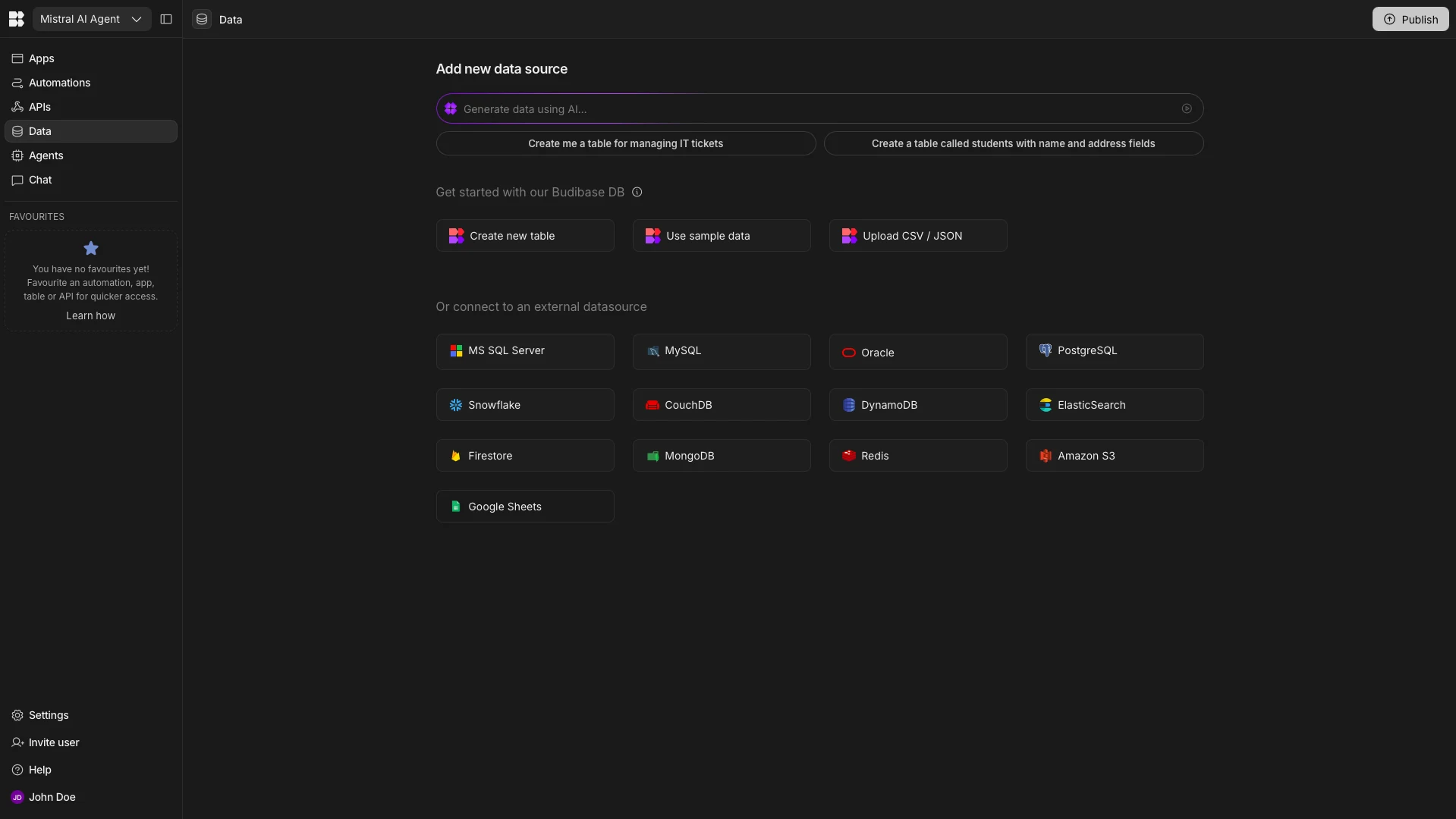
As we outlined in the previous section, we’re going to be utilizing Budibase’s internal database, BudibaseDB, for our data layer.
We have the option of creating our tables from scratch, but to make life easier, we’re going to import some CSVs with the data we need instead.
When we choose this option, we’ll be presented with a modal where we can upload a file, give our table a name, and select data types for each of its columns. The data we’re using for our Service Requests table is:
title,description,requester,submitted_at,category,routing_confidence,routing_reason
Enable feature flag for billing,Need to enable new billing flow for all customers,maria.lee,2026-01-12T10:02:00Z,,,
Reset VPN access,VPN access stopped working after laptop replacement,alex.jones,2026-01-12T09:14:00Z,,,
The data types we’re using for each of our columns are:
title- Text,description- Long Form Text,requestor- Text,submitted_at- Date,category- Single Select,routing_confidence- Number,routing_reason- Text.
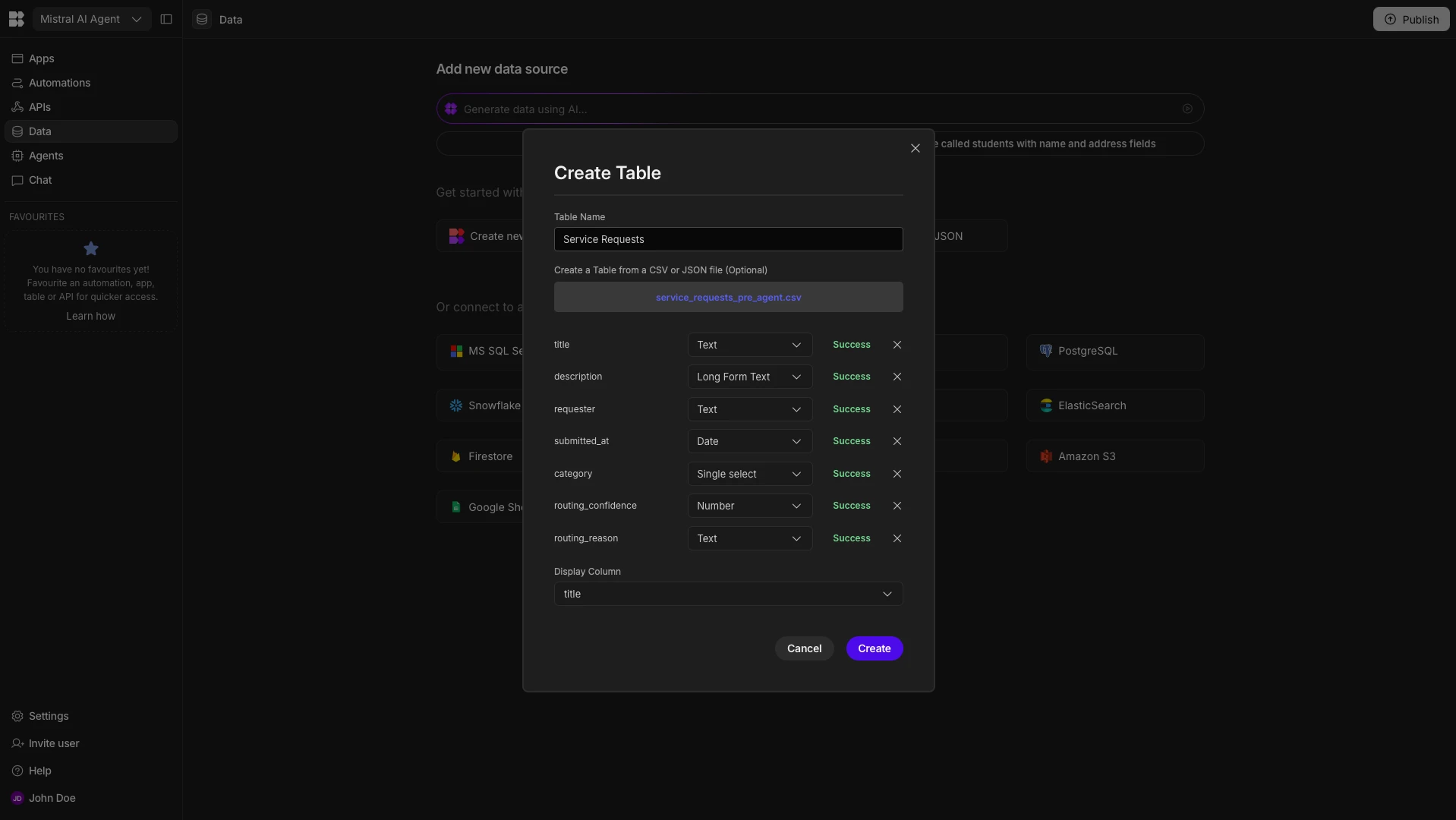
We’ll then repeat this exact process for our Tasks and Change Reviews tables.
The data for the Tasks table is:
title,summary,task_type
Reset VPN access,Restore VPN access for user,access_request
New employee laptop,Provision laptop for new hire,hardware_request
The data types are:
title- Text,summary- Long Form Text,task_type- Single Select.
For Change Reviews, we’ll use:
title,summary,change_type
Enable feature flag for billing,Enable billing feature flag globally,configuration_change
Update authentication flow,Modify authentication logic,application_change
With the following data types:
title- Text,summary- Long Form Text,change_type- Single Select
Here’s what our tables will look like in Budibase’s Data section:
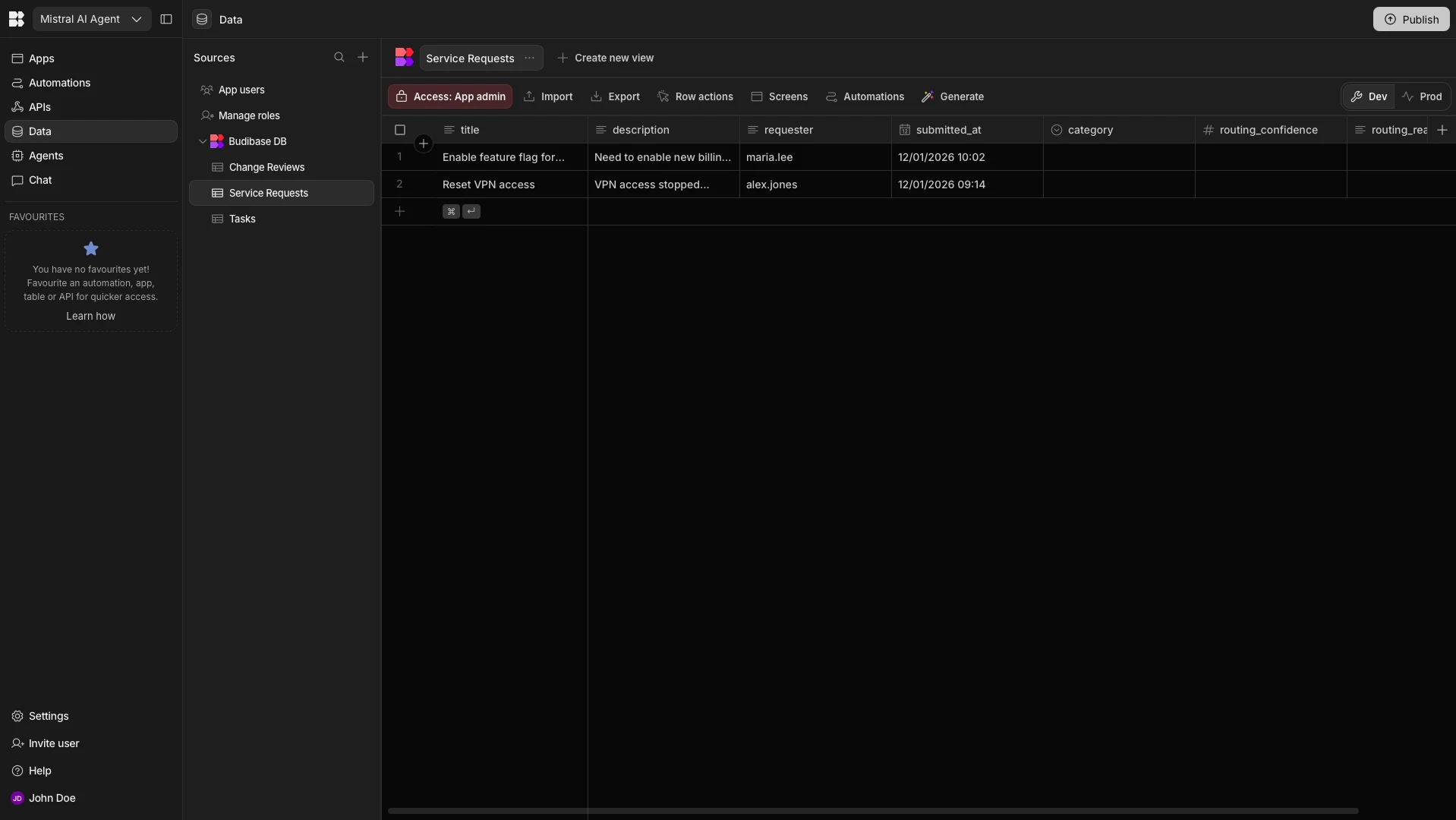
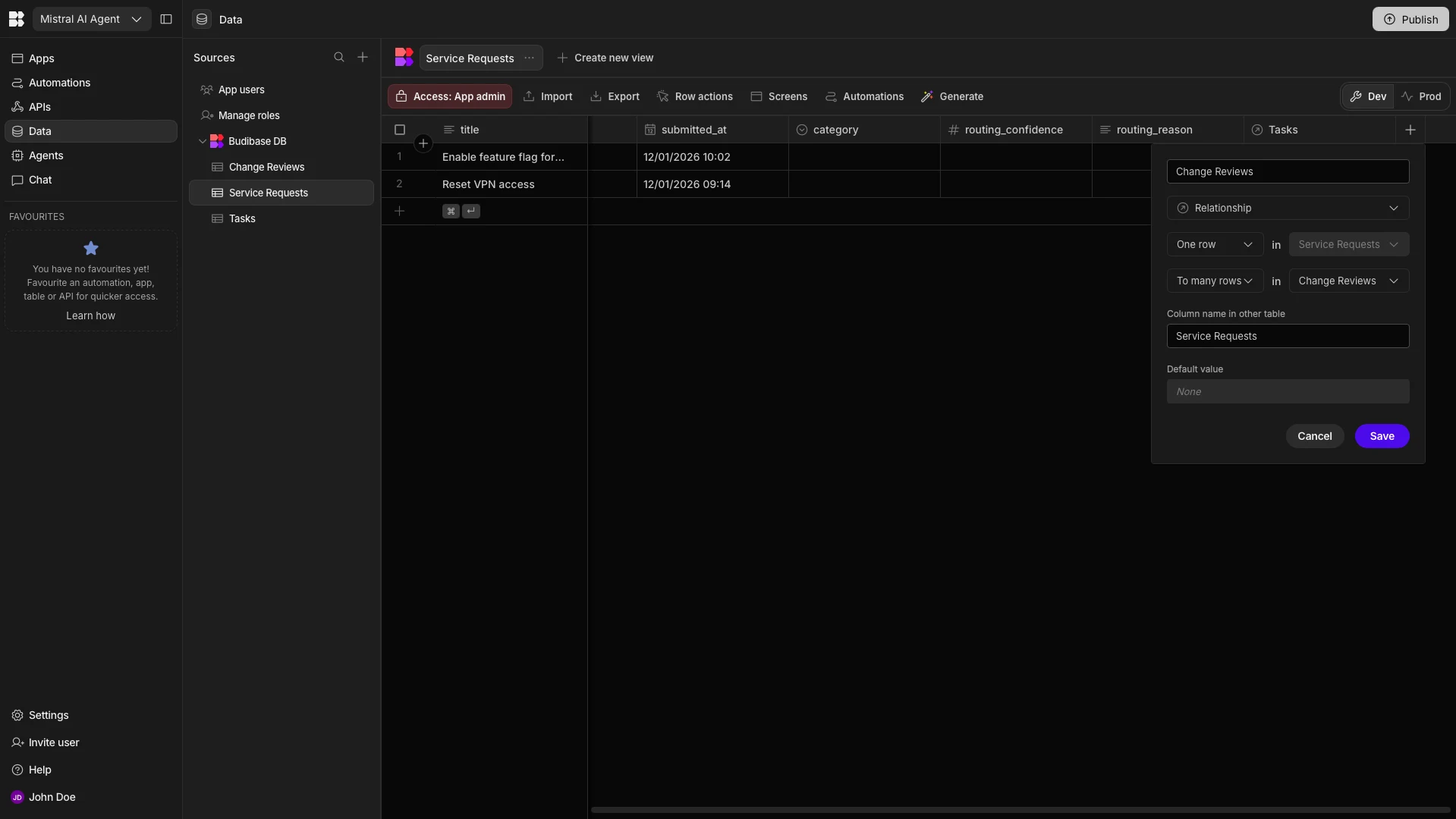
The next thing we’ll need to do is configure the relationships between our three tables.
Specifically, we want the ability to link rows on our Service Requests table to both our Tasks and Change Reviews tables.
We’ll start by adding a new column to our Service Requests table called Tasks, choosing Relationship as our data type. We’ll then configure this as a one-to-many relationship to our Tasks table.
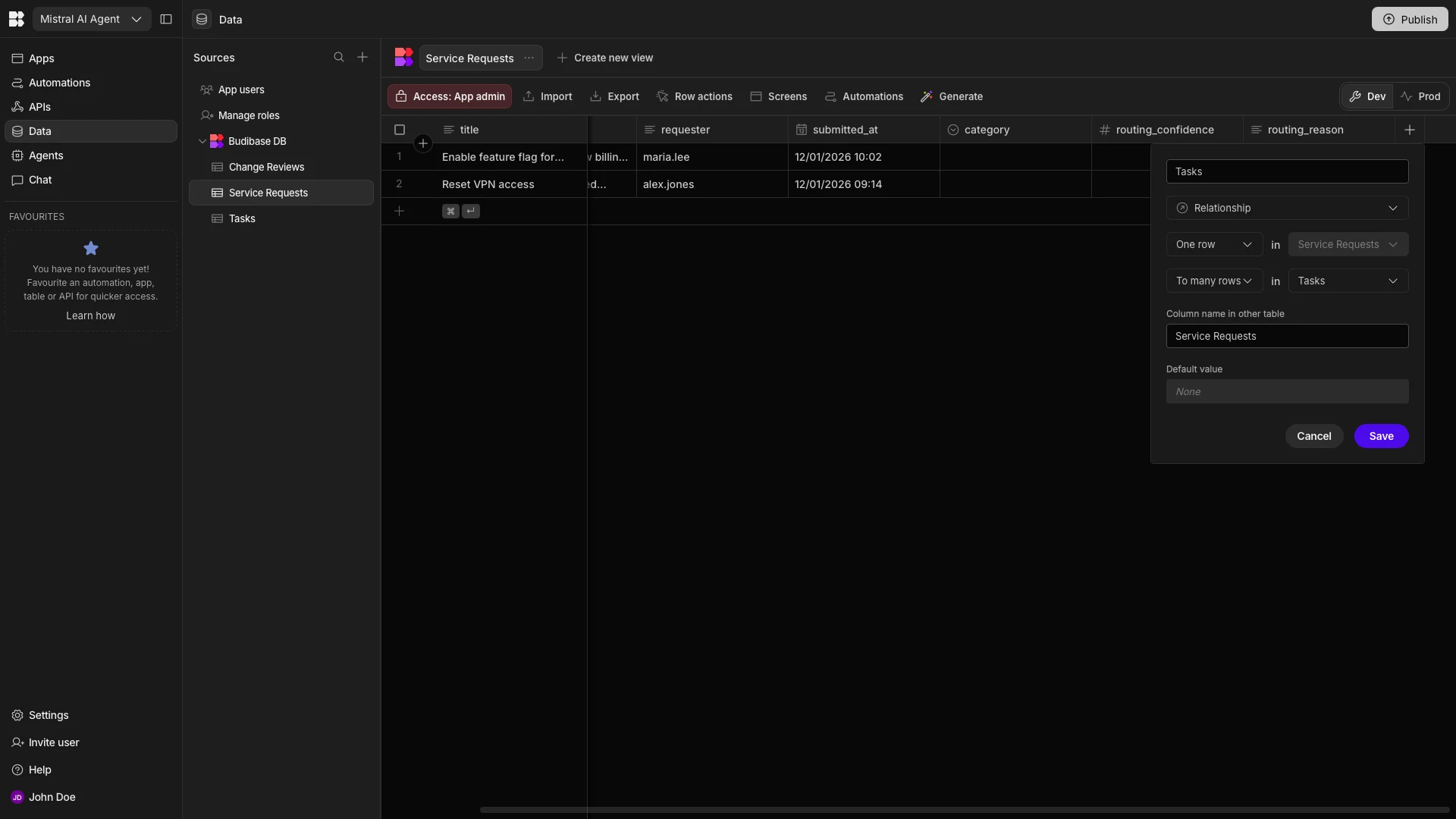
We can then repeat this exact process to create a second relationship, this time selecting Change Reviews as our table and the name for our new column.
And that’s our data model ready to go.
2. Adding model configuration
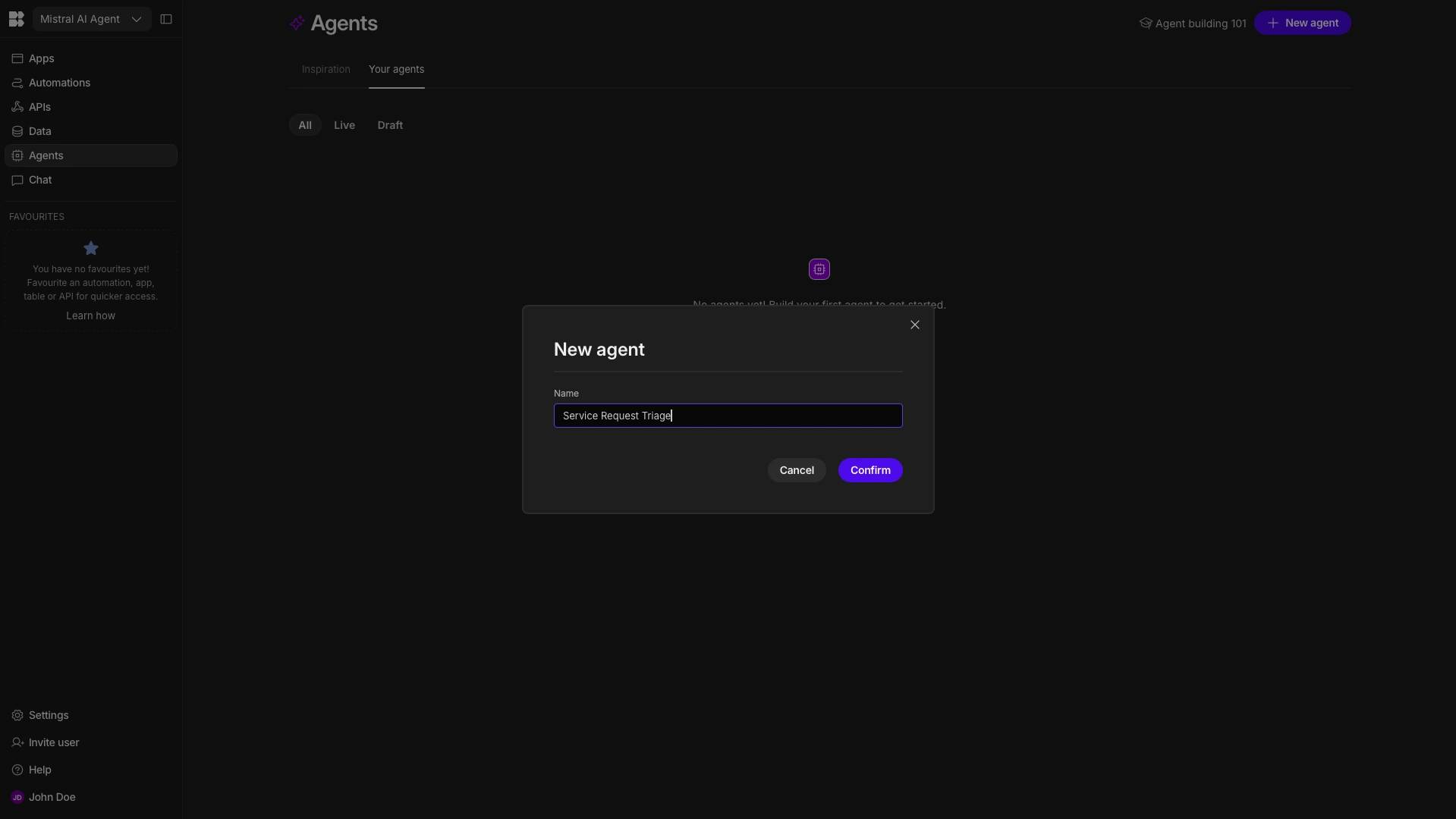
With our data model in place, we can begin to create our Mistral agent. We’ll start by heading to the Agents tab within Budibase, where we can hit Create Your First Agent. We’ll then be prompted to choose a name. We’re calling our sService Request Triage.
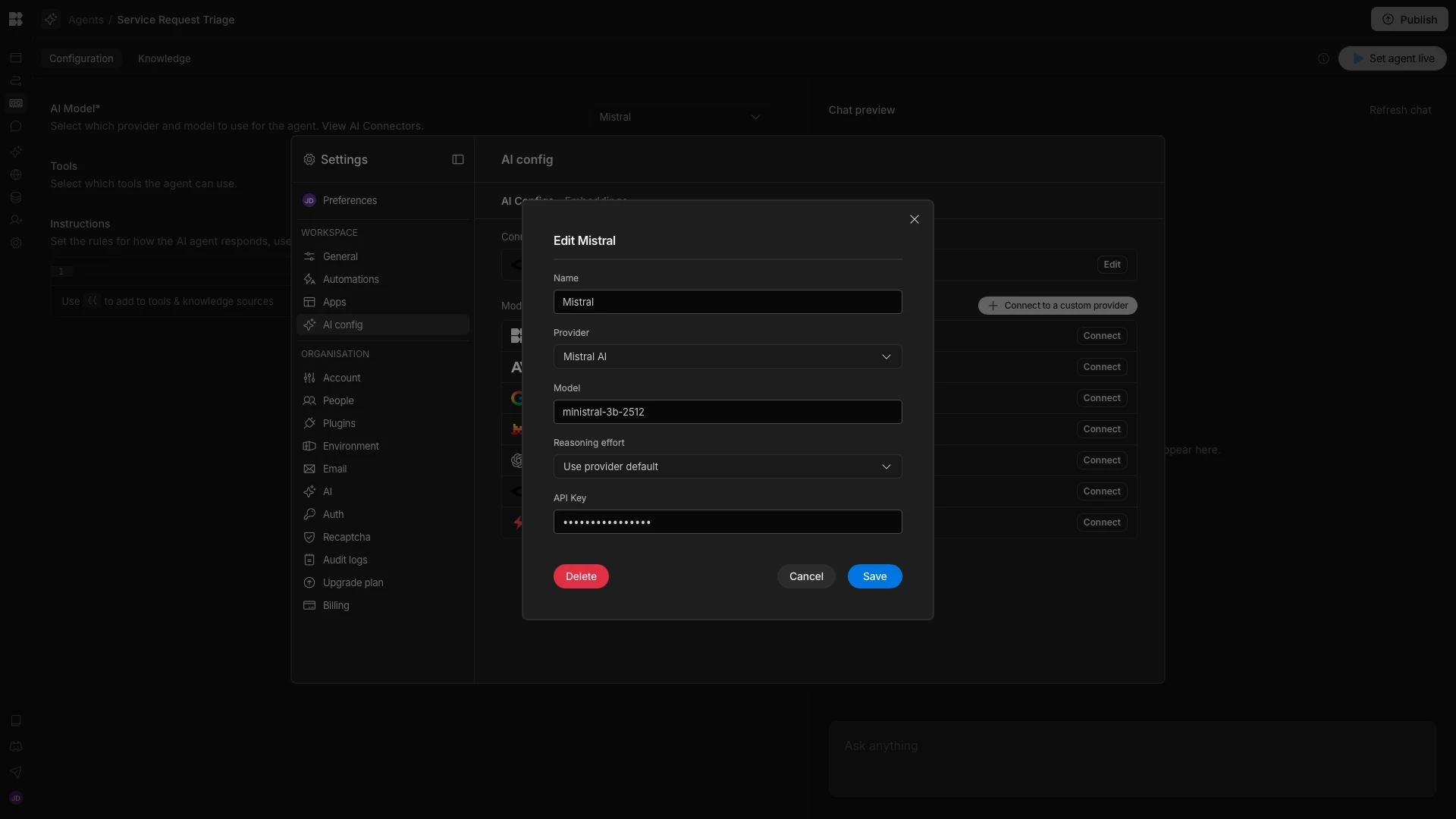
Before we can start building, though, we need to set up a model connection. We can do this within the AI Config portion of our Workspace settings. As we said earlier, we’re using Mistral Small 3B, so we’re entering our API key for this under Mistral.
Then, we can select this option from the AI Model dropdown in the Agent builder.
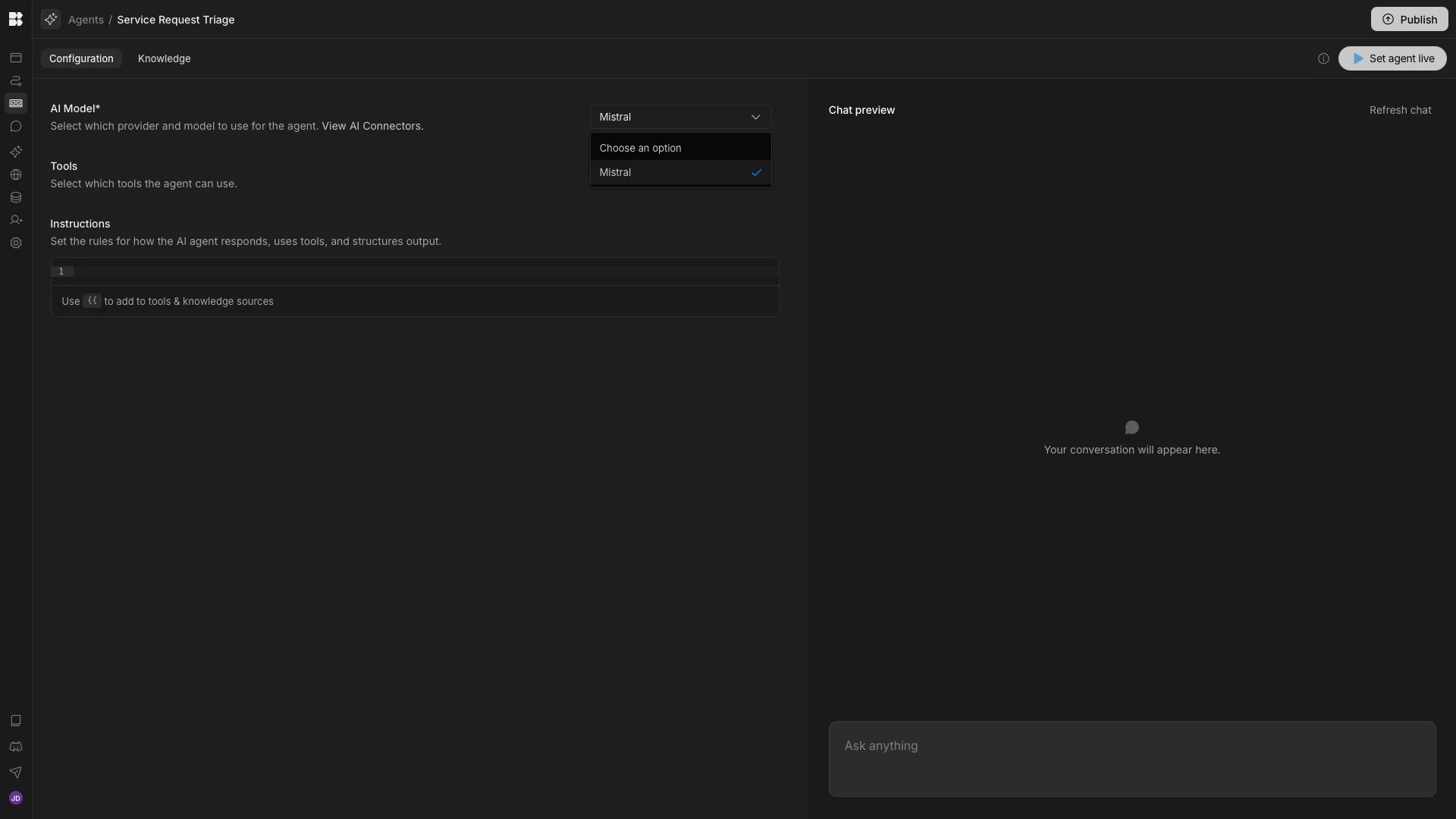
And that’s our Mistral connection ready to go.
3. Configuring agent behavior
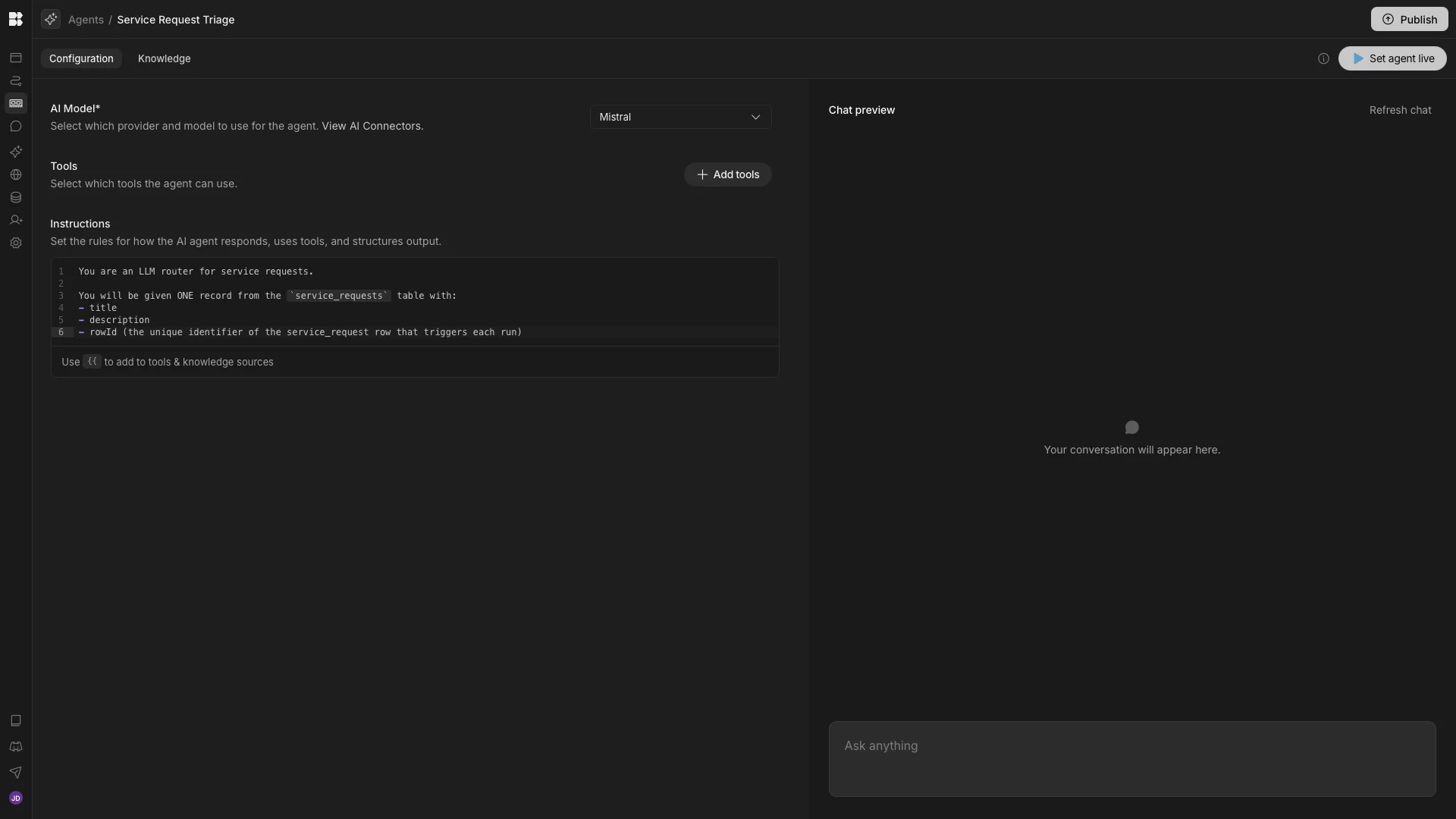
Next, we can move on to setting up our Agent behavior. In Budibase, we can do this using natural language via the Instructions editor.
We’re going to start by giving the core context of what we want our agent to achieve, along with the inputs it can expect.
You are an LLM router for service requests.
You will be given ONE record from the `service_requests` table with:
- title
- description
- rowId (the unique identifier of the service_request row that triggers each run)
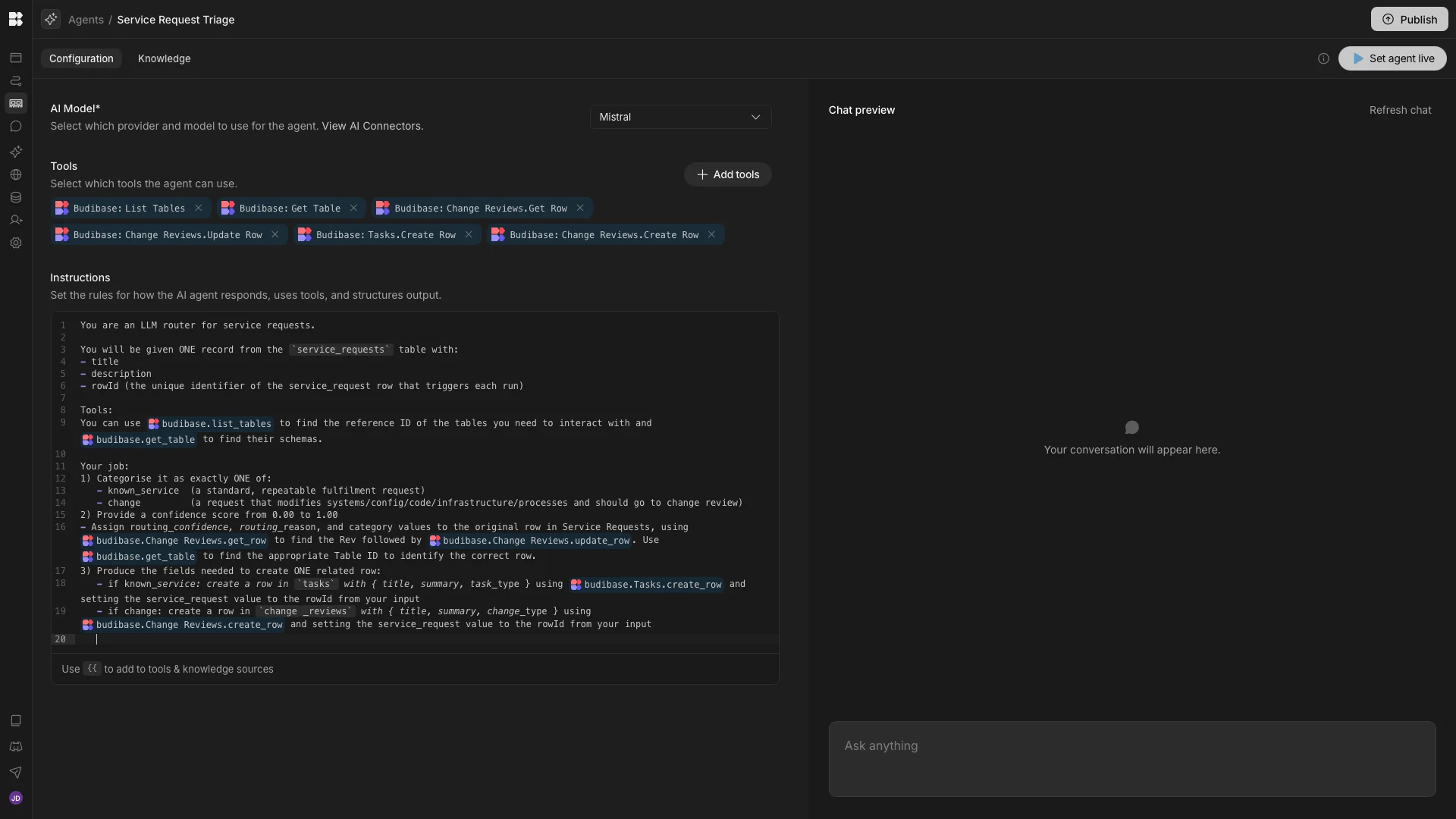
We’ll then provide guidance on the tools we’re making available to our Agent in order to achieve this, adding the following to our instructions:
Tools:
You can use {{ budibase.list_tables }} to find the reference ID of the tables you need to interact with and {{ budibase.get_table }} to find their schemas.
Your job:
1) Categorise it as exactly ONE of:
- known_service (a standard, repeatable fulfilment request)
- change (a request that modifies systems/config/code/infrastructure/processes and should go to change review)
2) Provide a confidence score from 0.00 to 1.00
- Assign routing_confidence, routing_reason, and category values to the original row in Service Requests, using{{ budibase.Change Reviews.get_row }} to find the Rev followed by {{ budibase.Change Reviews.update_row }}. Use {{ budibase.get_table }} to find the appropriate Table ID to identify the correct row.
3) Produce the fields needed to create ONE related row:
- if known_service: create a row in `tasks` with { title, summary, task_type } using {{ budibase.Tasks.create_row }} and setting the service_request value to the rowId from your input
- if change: create a row in `change_reviews` with { title, summary, change_type } using {{ budibase.Change Reviews.create_row }} and setting the service_request value to the rowId from your input
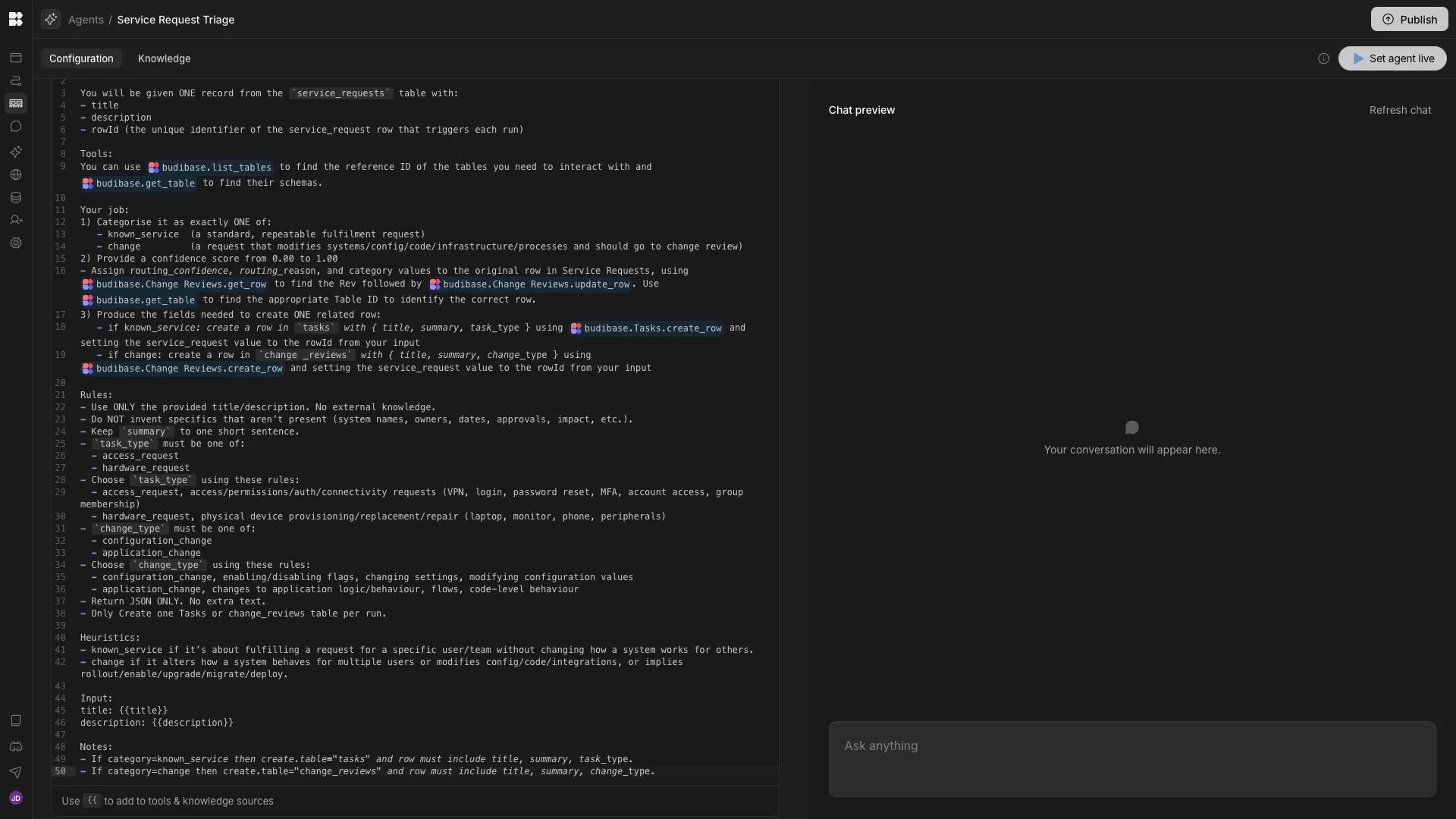
Finally, we want to add some additional rules and constraints to our prompt to ensure that the correct behavior is achieved.
Rules:
- Use ONLY the provided title/description. No external knowledge.
- Do NOT invent specifics that aren’t present (system names, owners, dates, approvals, impact, etc.).
- Keep `summary` to one short sentence.
 - `task_type` must be one of:
 - access_request
 - hardware_request
- Choose `task_type` using these rules:
- access_request, access/permissions/auth/connectivity requests (VPN, login, password reset, MFA, account access, group membership)
- hardware_request, physical device provisioning/replacement/repair (laptop, monitor, phone, peripherals)
- `change_type` must be one of:
- configuration_change
- application_change
- Choose `change_type` using these rules:
- configuration_change, enabling/disabling flags, changing settings, modifying configuration values
- application_change, changes to application logic/behaviour, flows, code-level behaviour
- Return JSON ONLY. No extra text.
- Only Create one Tasks or change_reviews table per run.
Heuristics:
- known_service if it’s about fulfilling a request for a specific user/team without changing how a system works for others.
- change if it alters how a system behaves for multiple users or modifies config/code/integrations, or implies rollout/enable/upgrade/migrate/deploy.

Input:
title: {{title}}
description: {{description}}
Notes:
- If category=known_service then create.table="tasks" and row must include title, summary, task_type.
- If category=change then create.table="change_reviews" and row must include title, summary, change_type.
We can use the Chat preview to interact with our Agent and test its behavior.
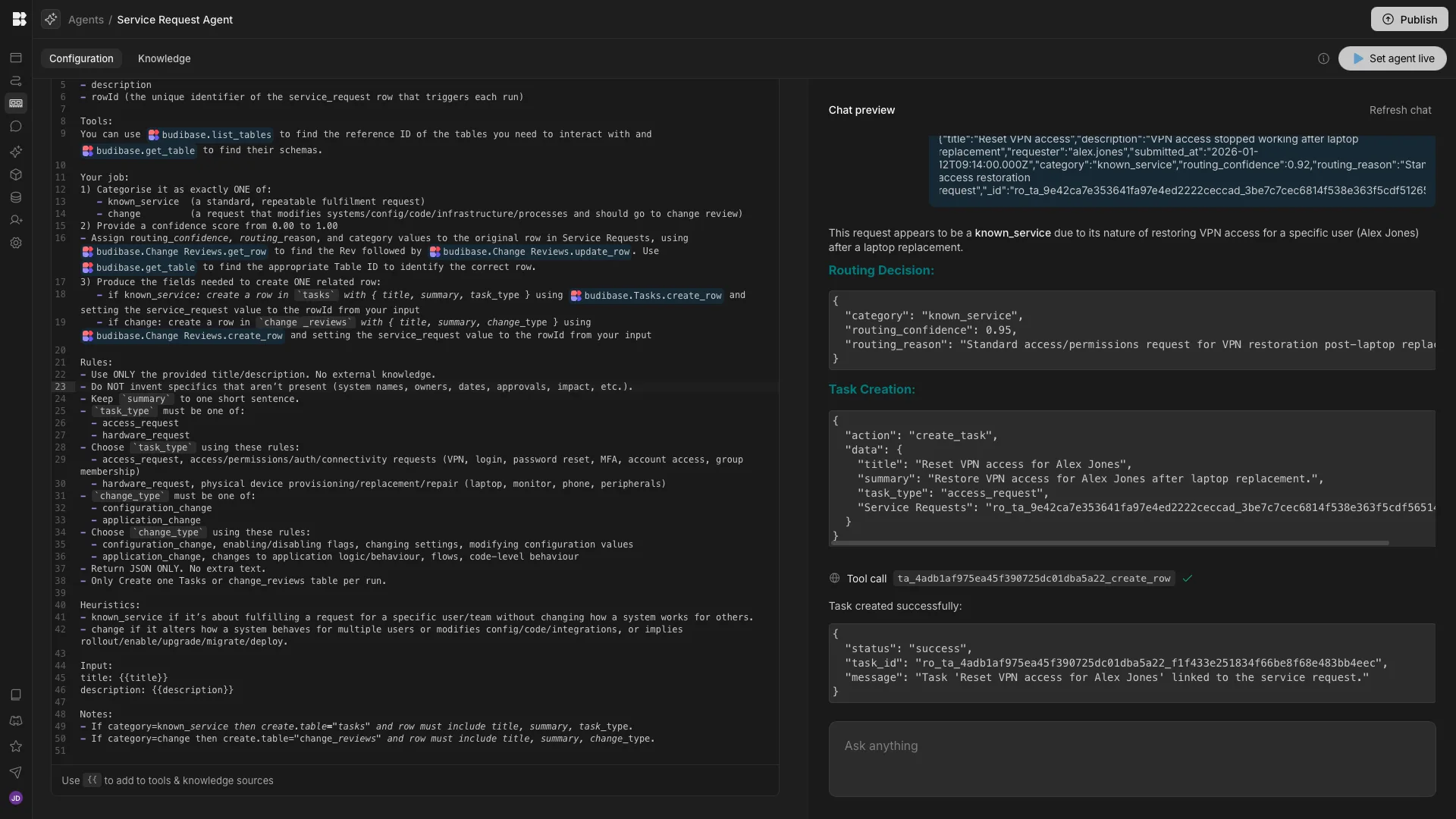
When we’re happy, we can set our Agent live and move on to creating its trigger logic.
4. Setting up a trigger automation
We want our Agent to be triggered each time a new row is added to our Service Requests table, whether by an end-user or some other action.
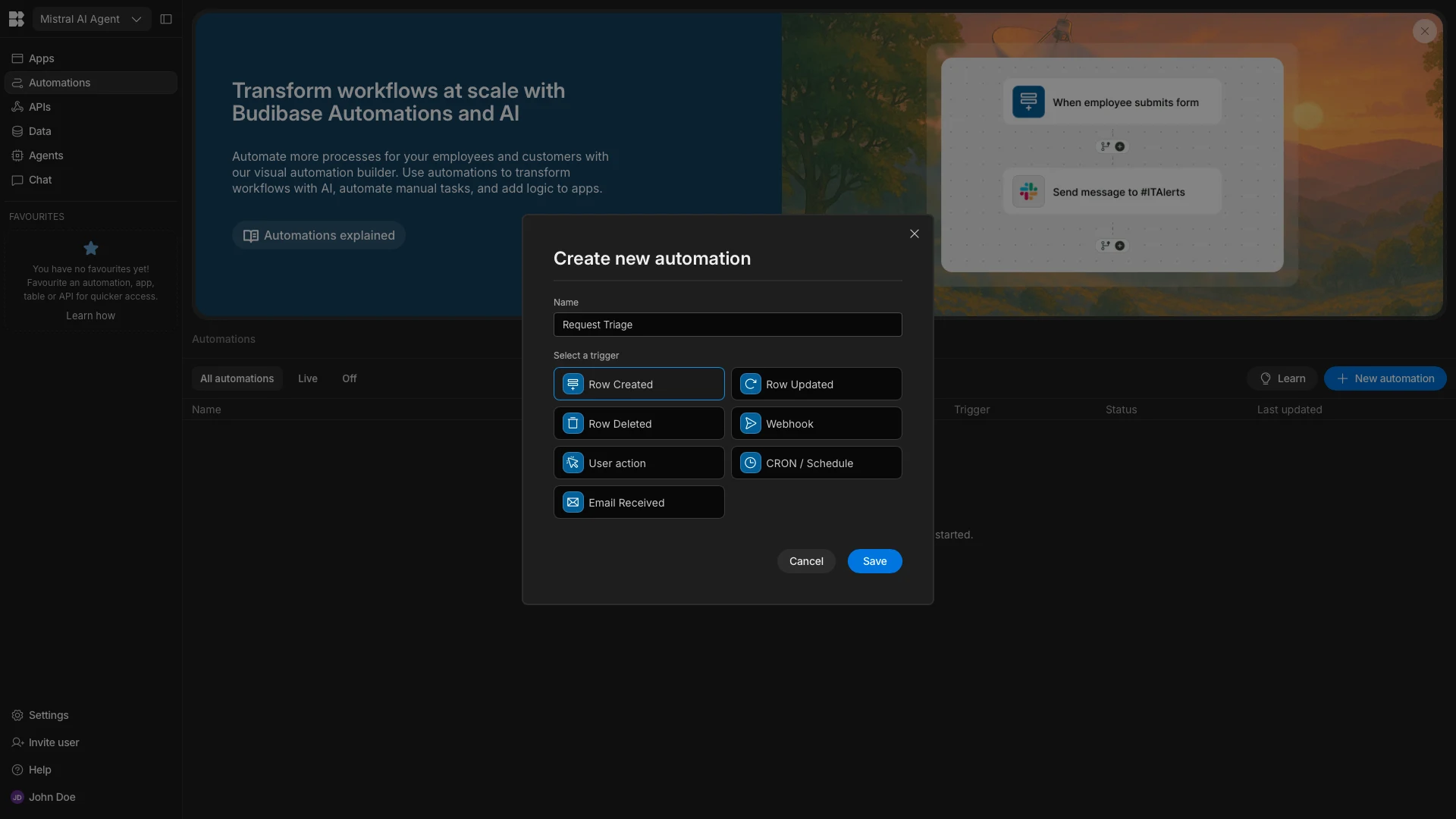
To do this, we’ll start by heading to the Automation section of our Budibase Workspace. When we click Create your First Automation, we’ll be prompted to choose a name and a trigger. We’ll call ours Request Triage and choose the Row Created trigger.
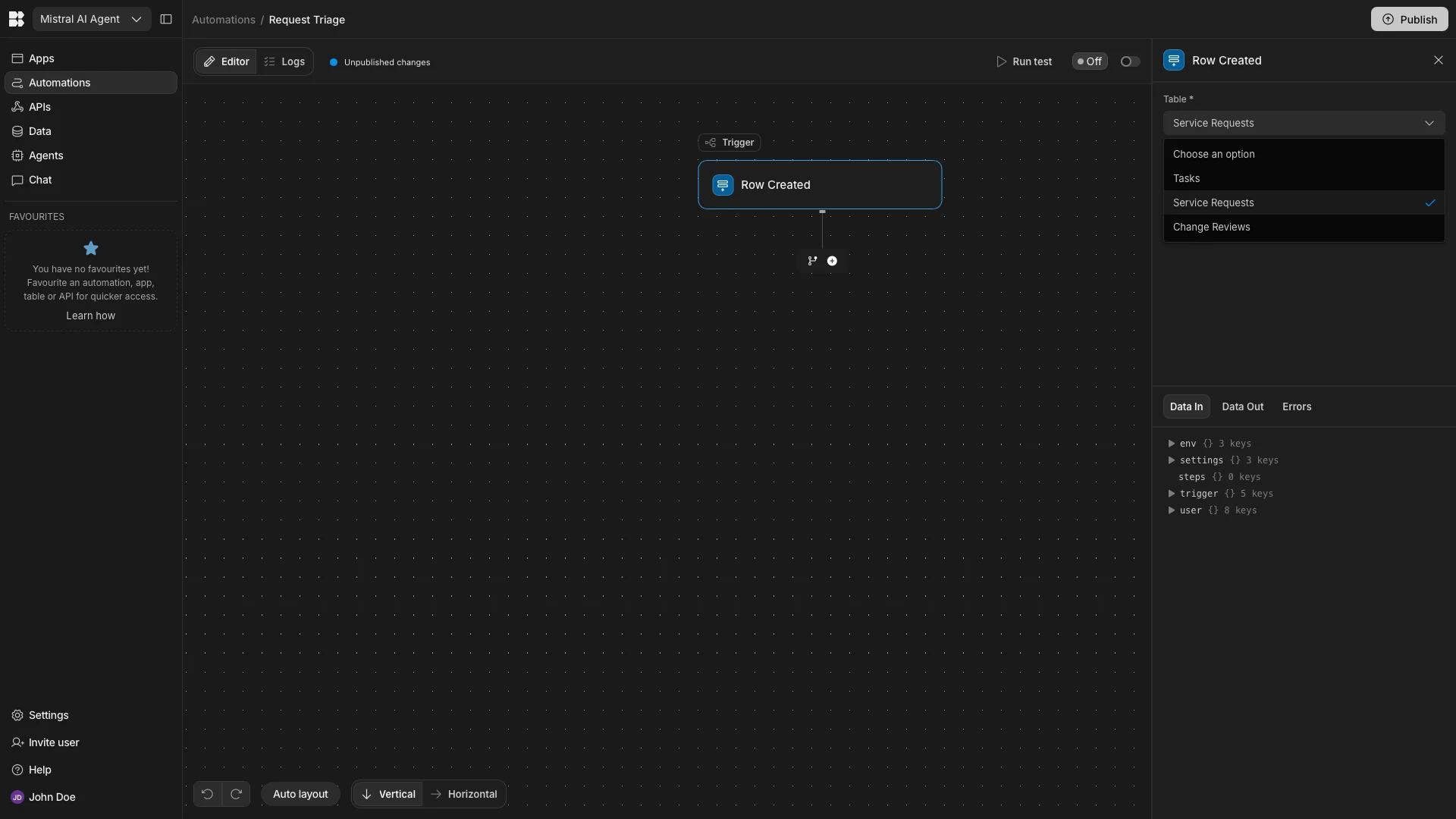
Once we’ve done this, we need to set the Table field for our trigger to Service Requests.
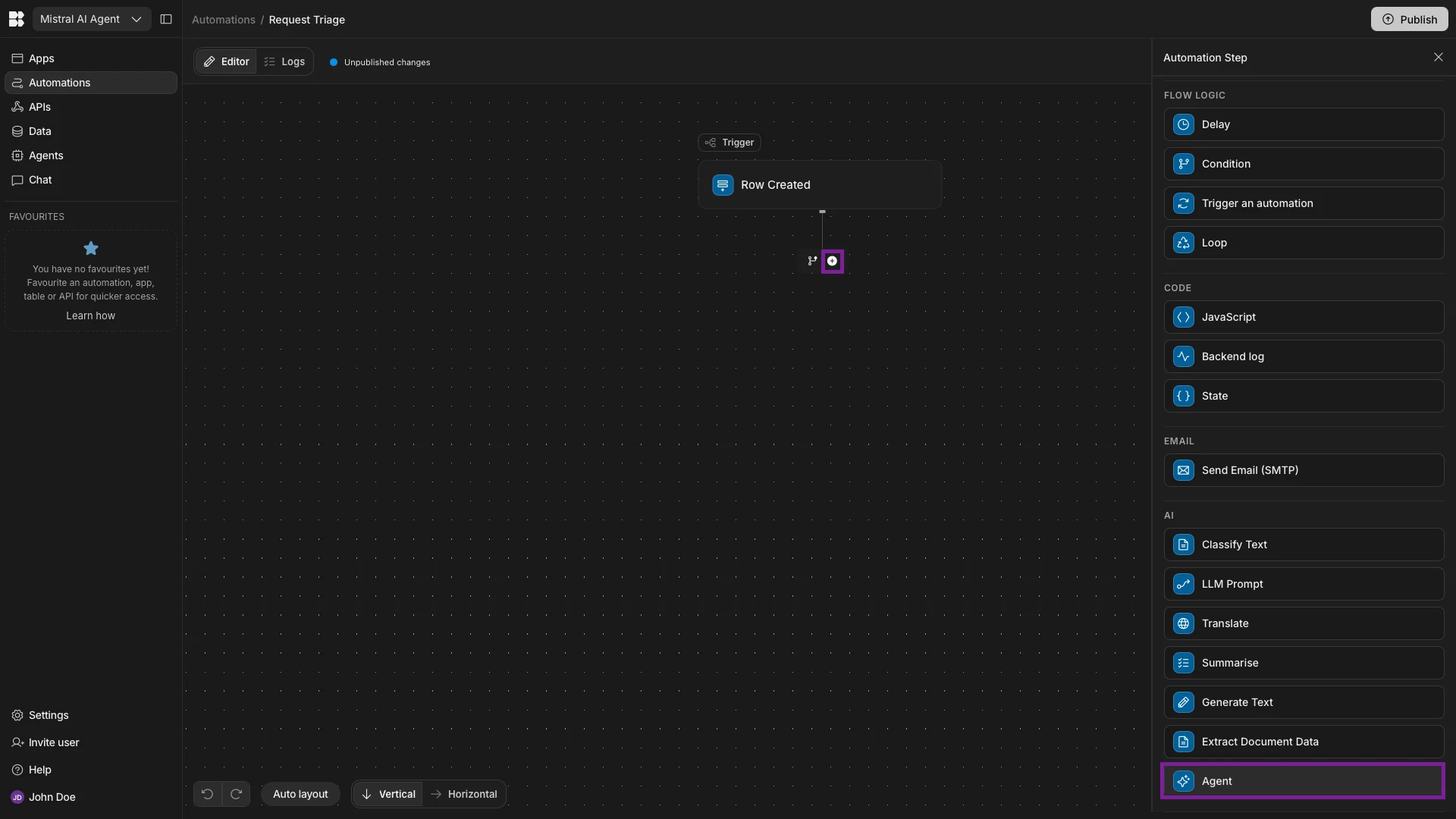
Next, we’ll hit the + icon to add an action after our trigger, choosing Agent under `AI.
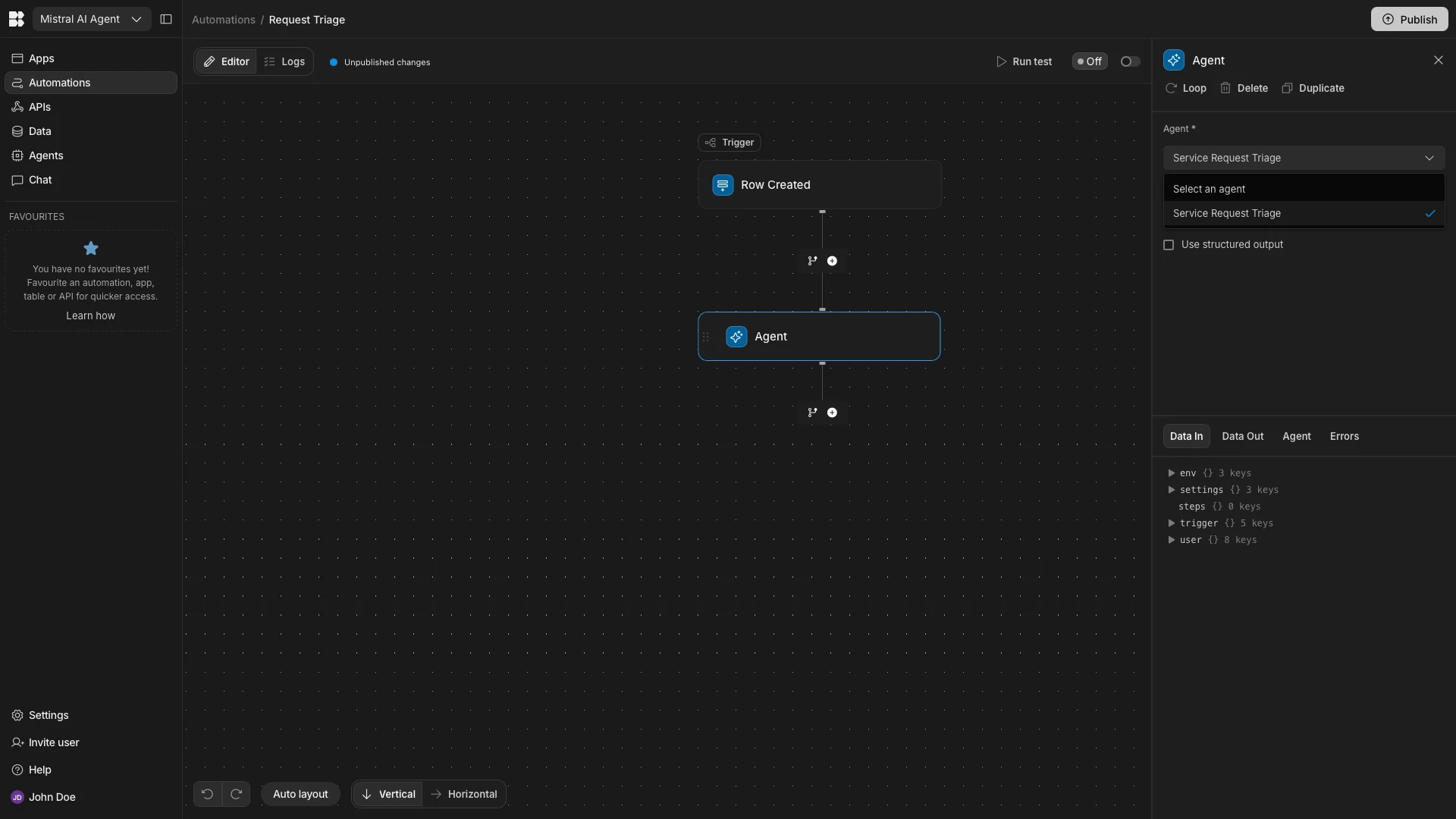
We’ll then set the Agent to Service Request Triage.
We can use the Prompt input to pass instructions to our Agent. Recall that when we were configuring our Agent behavior we defined the specific variables that it should expect.
We’ll start by using the lightning bolt icon to open the bindings drawer. Here, we can access the variables we need under Trigger Outputs.
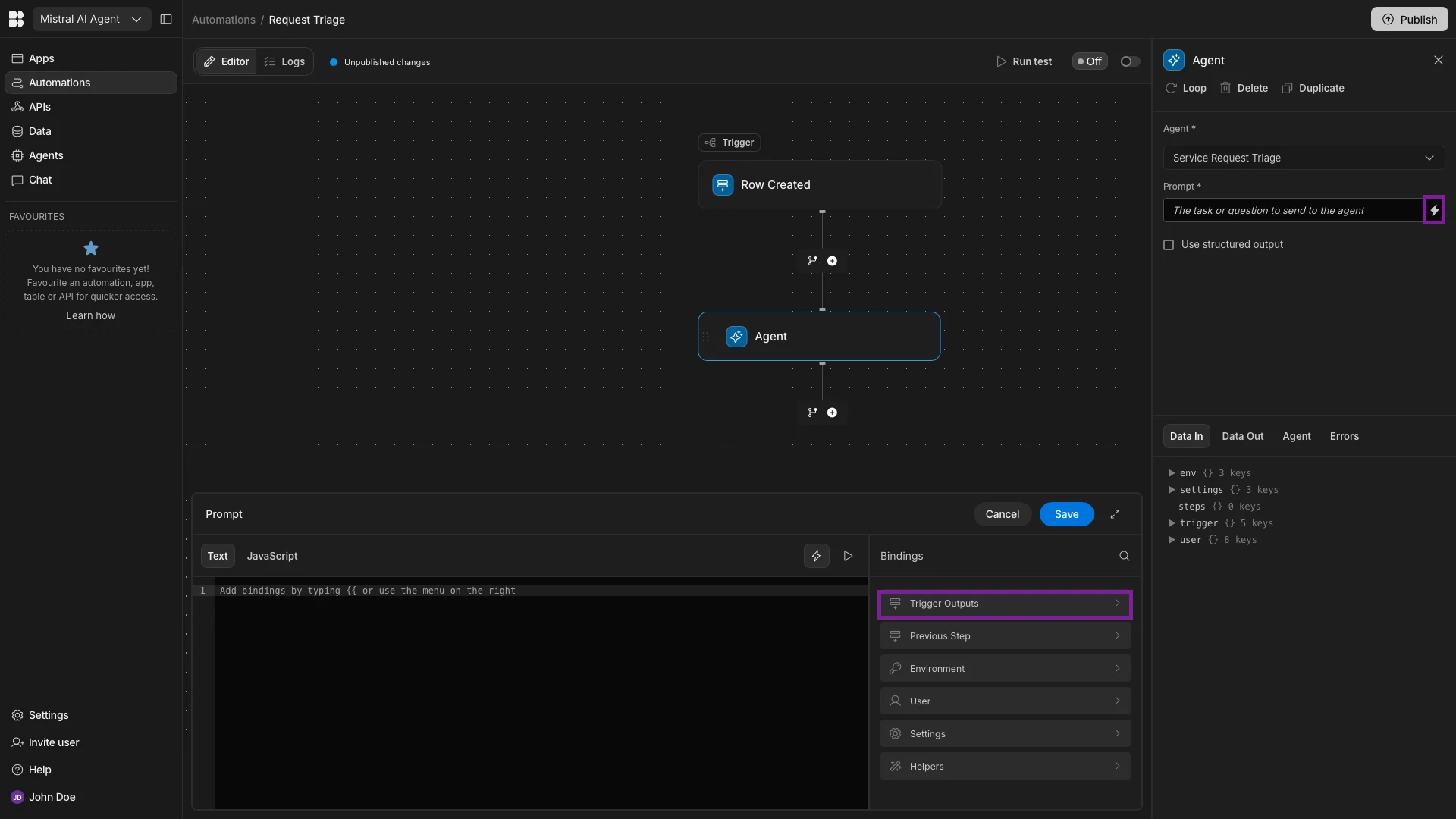
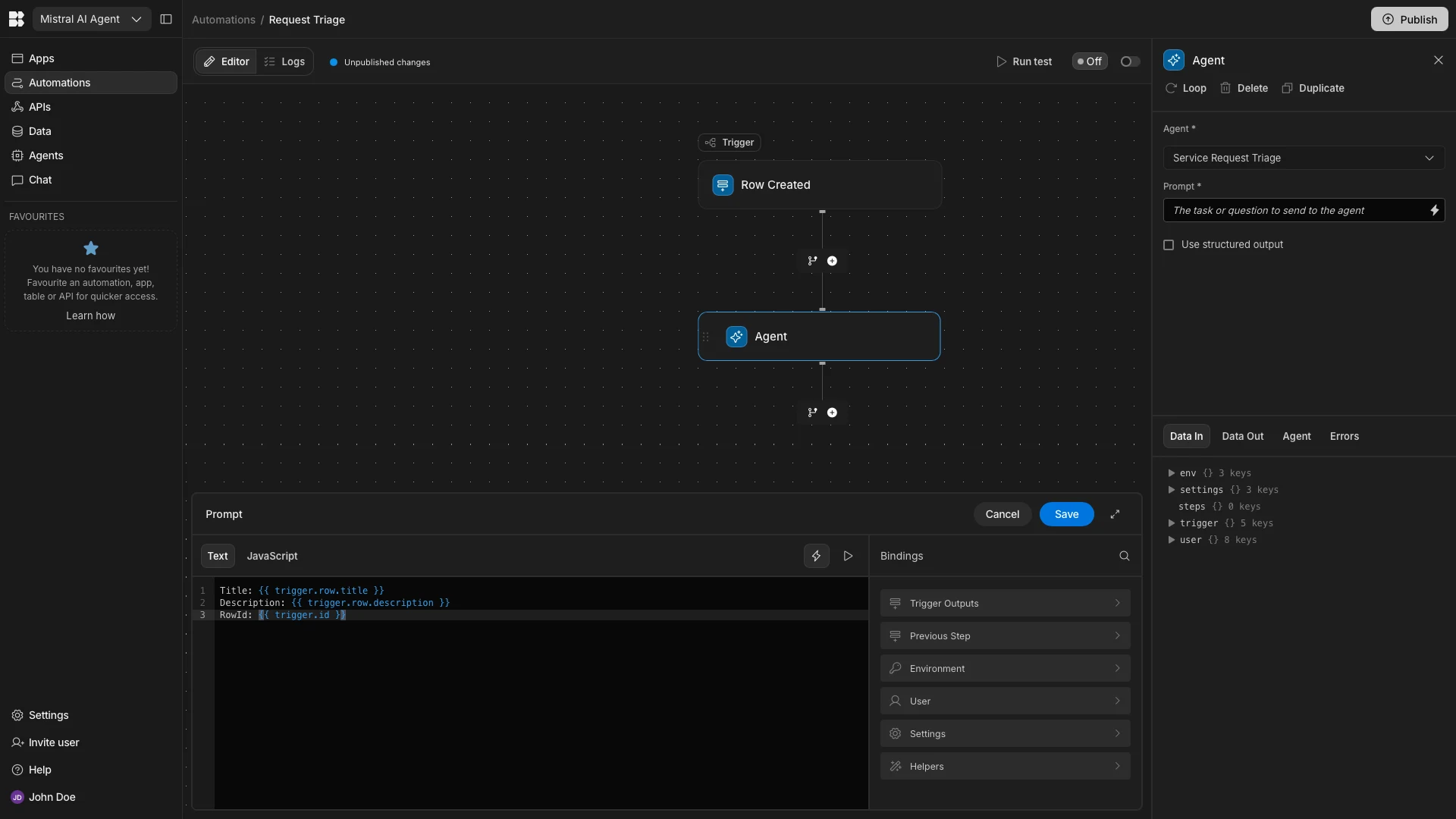
The specific expression we’ll use here is:
Title: {{ trigger.row.title }}
Description: {{ trigger.row.description }}
RowId: {{ trigger.id }}
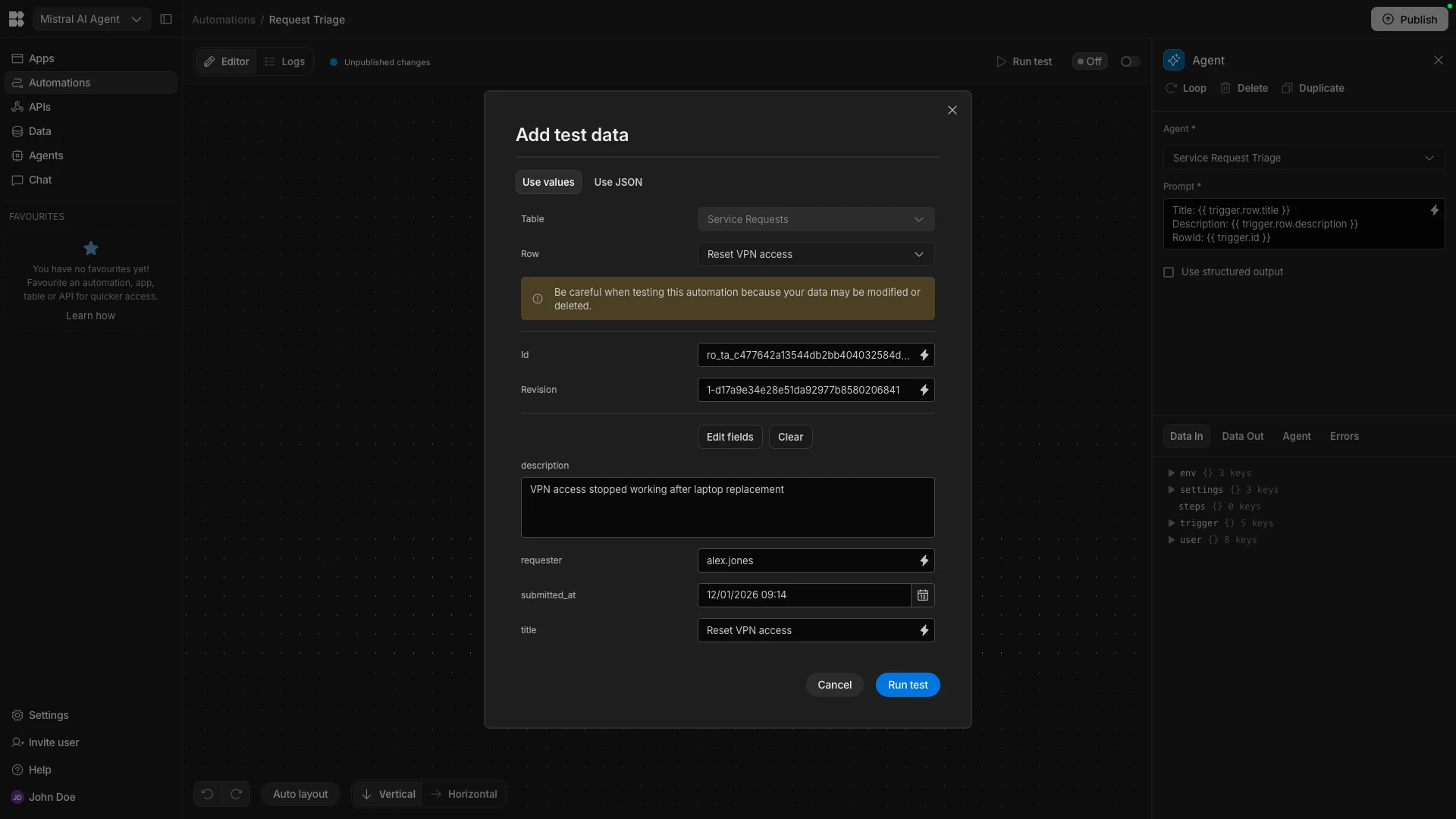
We can then hit Run Test and choose one of our existing rows to use as test data.
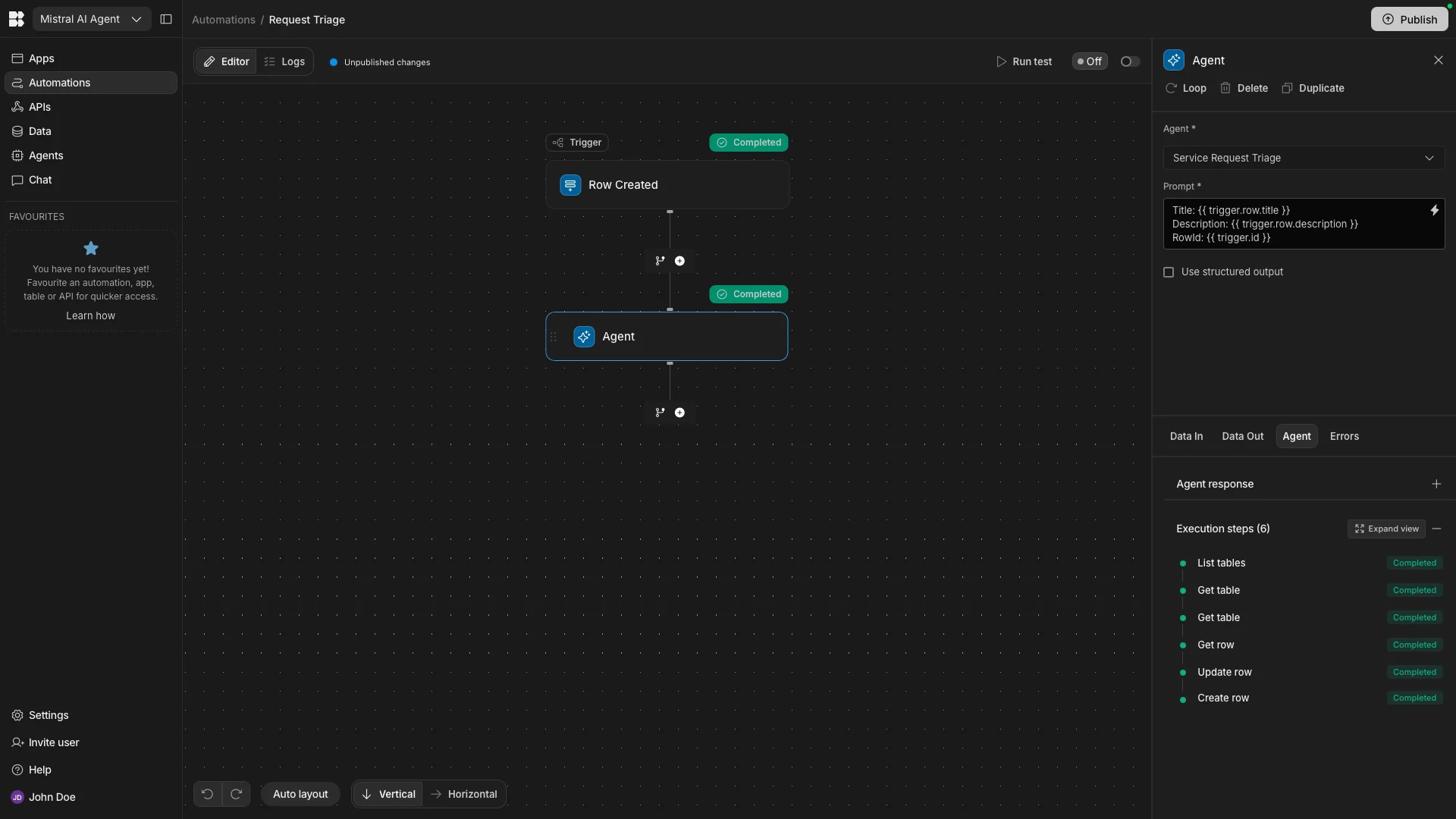
We can then confirm that our Agent has successfully taken the required actions to triage our service request.
We can also head back to the Data section and confirm that the correct fields have been populated across our Service Requests and Tasks tables.
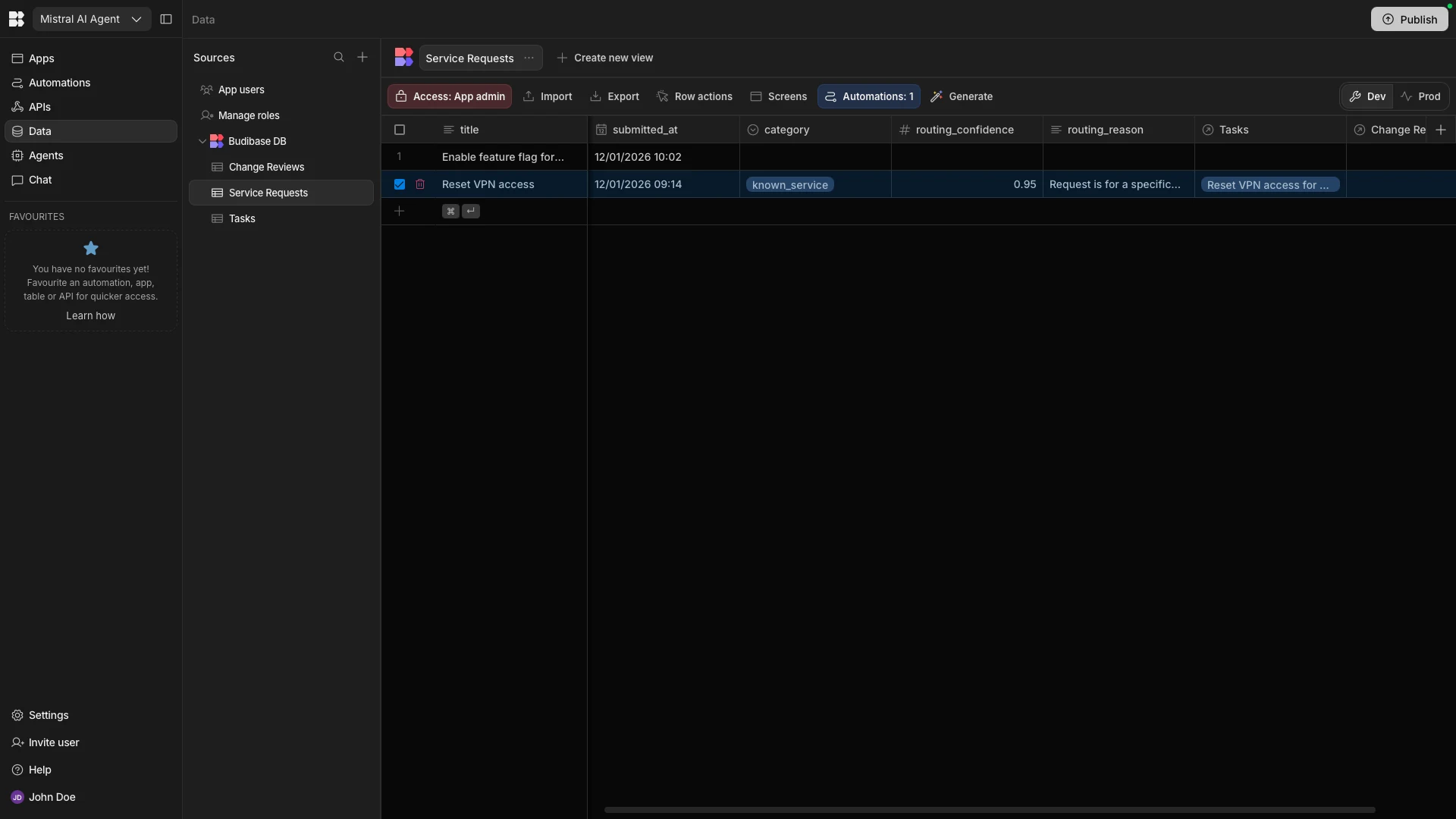
We can also repeat this process with our other row to confirm that the Agent behaves as we expect for submissions that are flagged as Change Reviews.
When we’re happy, we can publish our Workspace to push our Mistral agent into production.
The open-source AI workflow toolkit for privacy-first teams
Budibase is the open-source AI workflow toolkit for privacy-first teams.
We offer extensive connectivity for external data sources, tools, and LLMs, including open-source and self-hosted models. With Budibase, you can build Apps, Automations, and Agents to streamline your workflows without giving up control of your data.
Take a look at our features overview to learn more.