

Dealing with incoming change requests can be incredibly time-consuming. A key issue here is the scope of changes that we might be dealing with. So, it’s critical that individual changes are routed to the appropriate queues and workflows to be assessed and actioned.
For instance, some changes might be pre-approved and actionable straight away, while others will require in-depth analysis and costing.
Today, we’re exploring how AI can be used to streamline this process. In particular, we’ll be showing how to create an AI agent to handle incoming change requests with Budibase.
Specifically, we’ll be covering:
- What is an AI change request agent?
- What are we building
- How to build a change management agent in Budibase
Let’s start with the basics.
What is an AI change request agent?
A change request agent is an AI-powered system that’s able to independently assess and take action based on incoming change requests. This involves providing an LLM with instructions and tools so that it can apply defined business rules to change requests in order to determine how to process them.
The most common use case for this is request triage and routing.
In the most basic form, this means sorting proposed changes into defined categories and related approval workflows, based on their likely costs and impact.
For example, routine changes like password resets may be automatically approved, while more substantial changes, like moving to a new vendor for a particular service, will require more in-depth cost/benefit analysis by human colleagues.
Depending on our specific business rules, a change management agent may also be configured to take specific follow-on actions. For example, creating tickets for work that needs to be scoped or automatically triggering pre-approved changes.
What are we building?
We’re building an AI change request system that will utilize a Budibase Agent to categorize changes as Standard, Normal, or Major. This will be triggered each time a new row is added to our Change Requests table.
Standard requests relate to routine changes, which can be automatically approved. When the agent determines that a request meets this criterion, it will be added as a new row on the related Tasks table in our internal database.
Normal and Major changes are those that require additional levels of scoping, analysis, and approval.
When the Agent determines that a request matches the rules we set for identifying these, the relevant information will be used to create a new issue in our change management repo, via the GitHub API, using either Normal or Major as its label.
This will be linked to in our original change request row.
The Agent will also log all decisions and rationale as rows on a Decisions table, related to their original Change Request row.
How to build a change management agent in Budibase
Now that we know what AI change request agents are and the specific solution we’re going to build, we can start checking out how to create powerful agentic workflows in Budibase.
If you haven’t already, sign up for a Budibase account to build along with this tutorial.
{{< cta > }}
1. Setting up our data model
We're starting with a new Budibase Workspace. When we create this, the first thing we’re prompted to do is choose a data source.
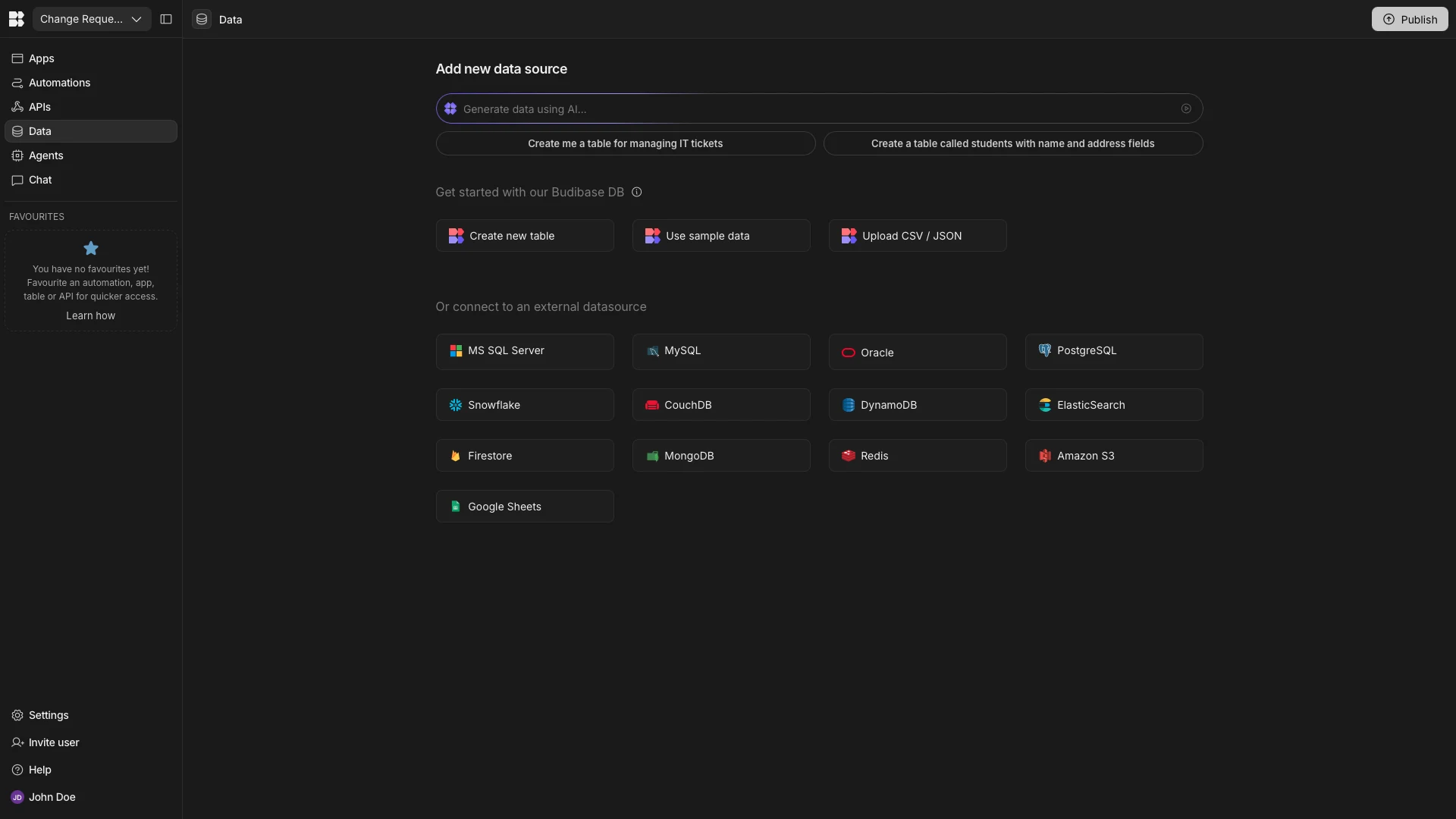
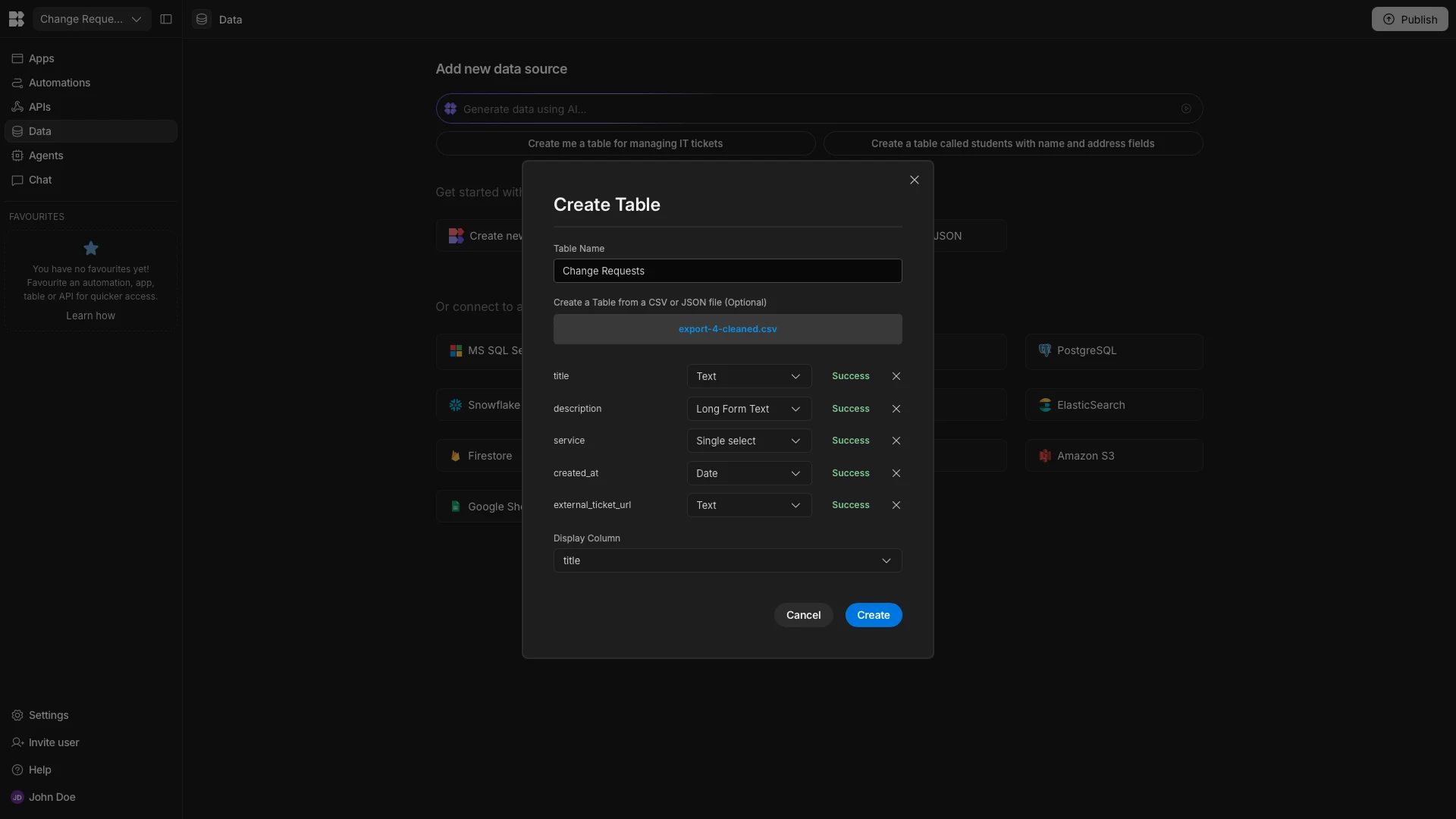
We’re choosing the option to upload a CSV. The data we’re going to use for this is:
title,description,service,created_at,external_ticket_url
Add reporting export feature,Customers have requested CSV exports; requirements unclear.,Reporting,2026-01-11T10:30:00.000Z,
Migrate authentication provider,Move from current auth provider to new identity platform.,Authentication,2026-01-12T14:15:00.000Z,
Add users to Budibase,Add our new hires to Budibase tennant,Accounts,2026-01-22T17:01:39.501Z,
Restart cache service,Restart Redis cache to clear stale entries.,Auth,2026-01-10T09:00:00.000Z,
We’ll call this Change Requests and select the following data types for our columns:
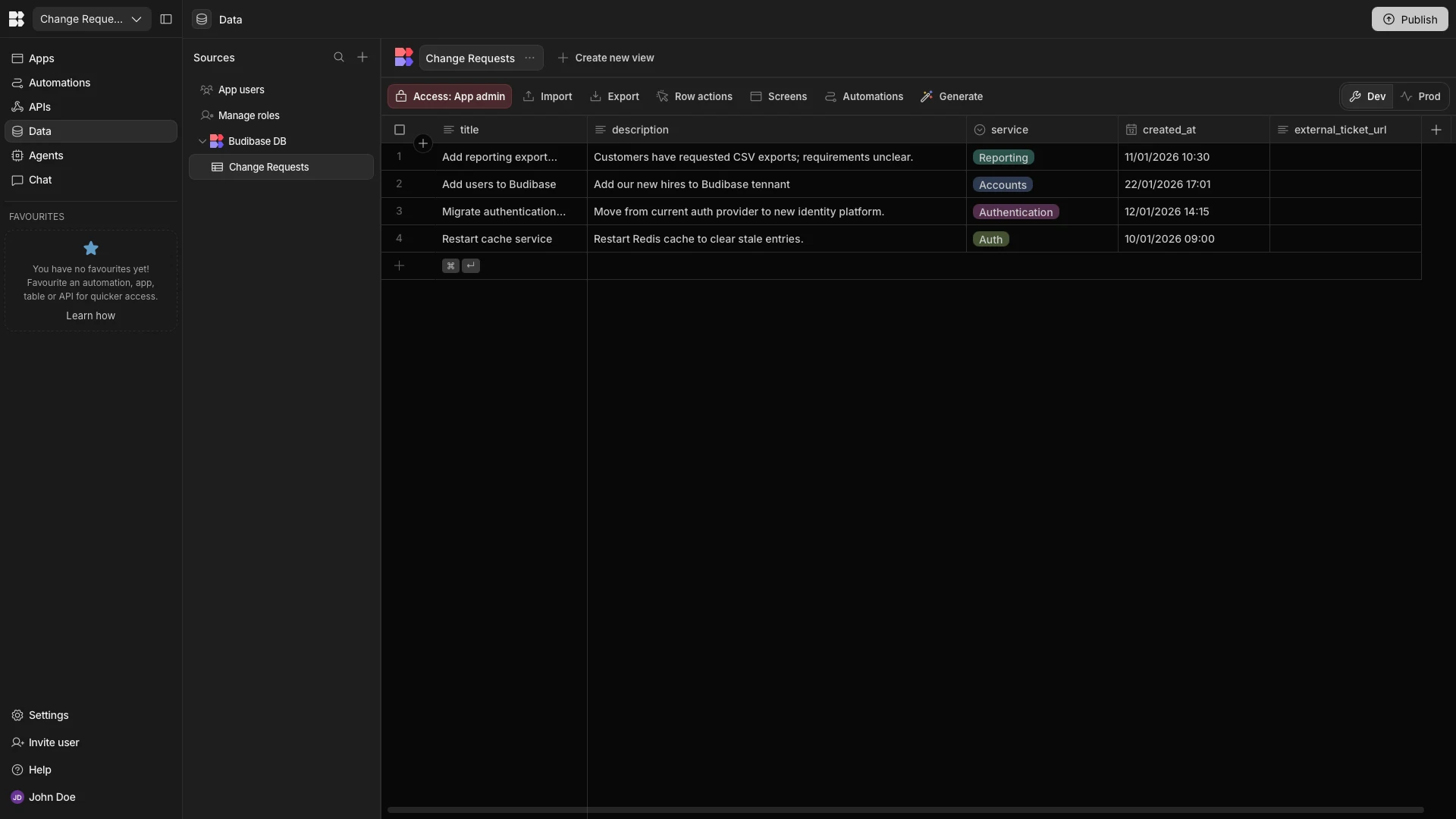
title- Text,description- Long Form Text,service- Single Select,created_at- Date,external_ticket_url- Text.
Here’s how this should look in Budibase’s Data section.
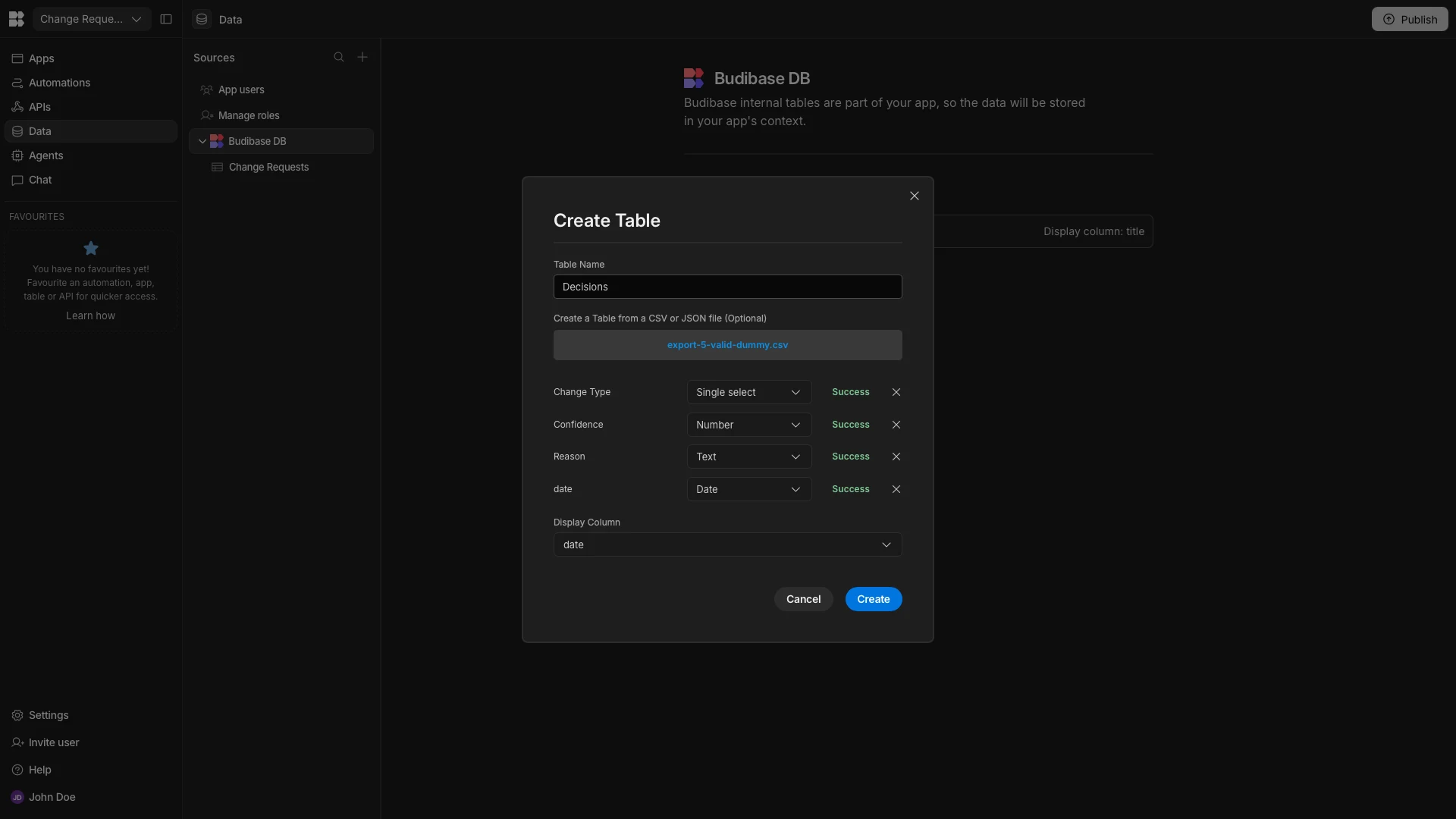
We’re going to repeat this process to add two more tables. First, we’ll create our Decisions table with the following CSV data:
Change Type,Confidence,Reason,Date
standard,0.0,dummy,1970-01-01T00:00:00.000Z
This time, our data types are:
Change Type- Single Select,Confidence- Number,Reason- Text,Date- Date.
Our tasks table will use the following CSV:
title,description,status,created_at
Add audit logging,Introduce audit logs for user actions,open,2026-01-15T10:00:00.000Z
Its data types are:
title- Text,description- Long Form Text,status- Single Select,created_at- Date.
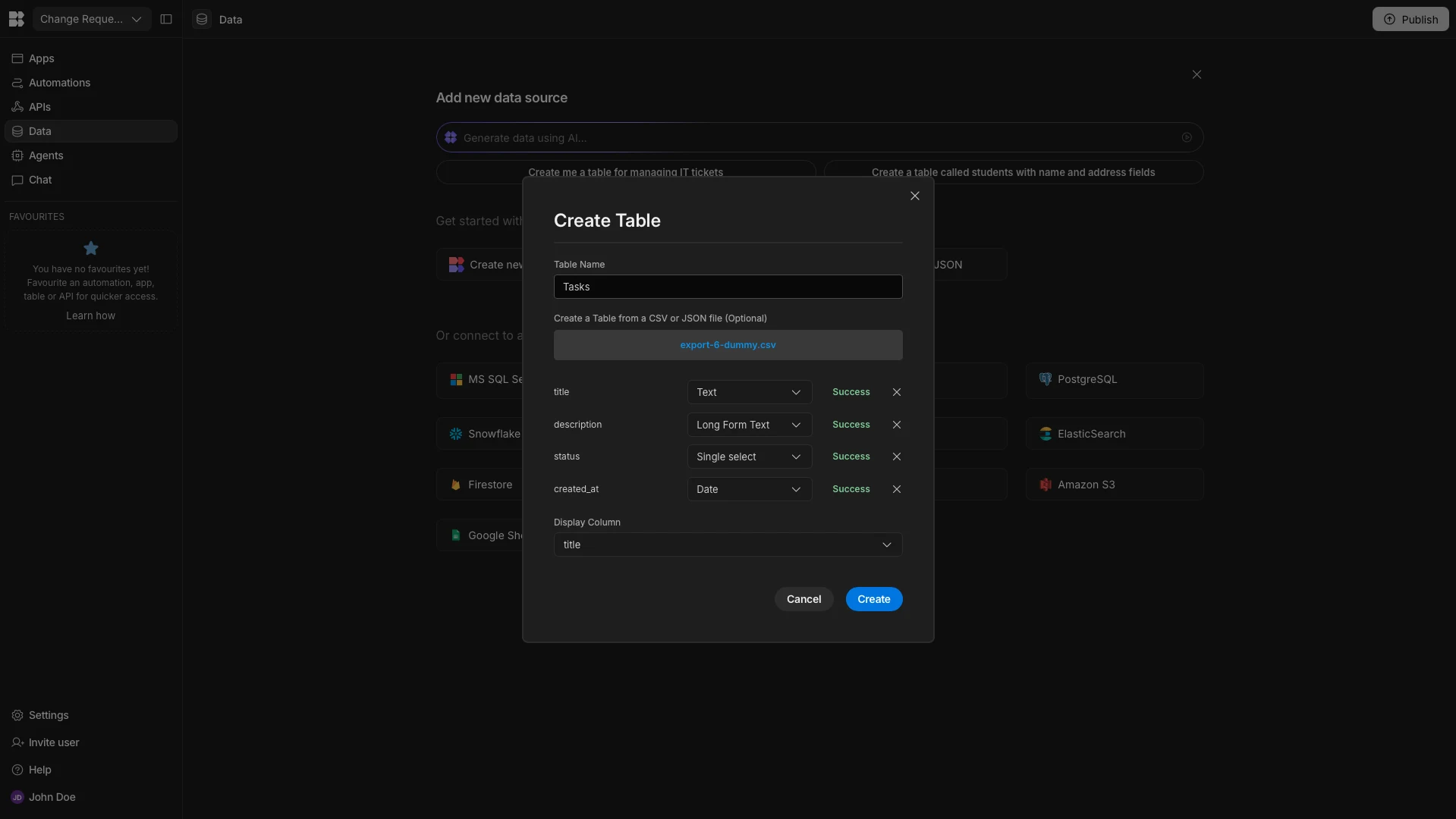
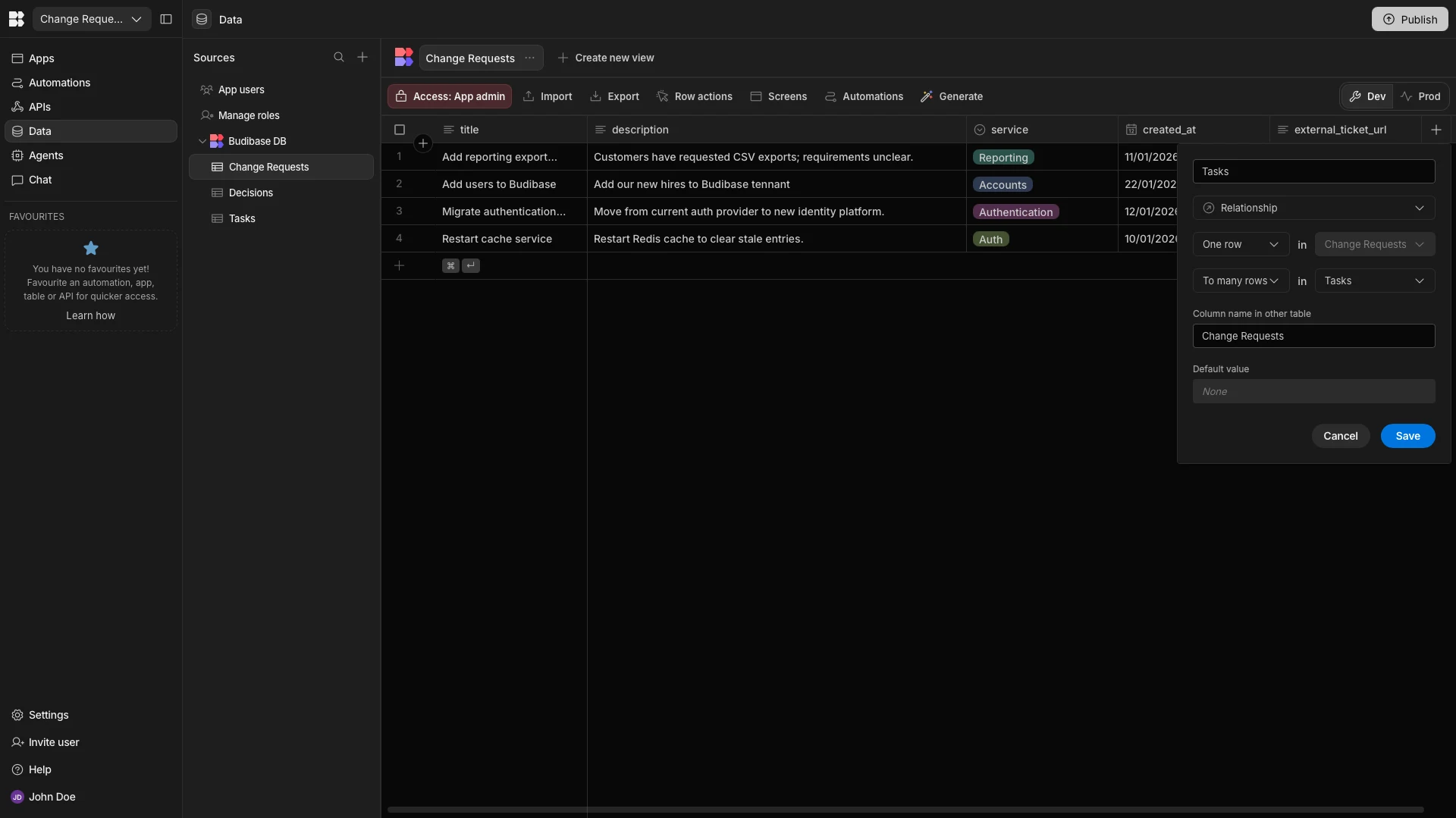
Now, the three tables we need are in place. The last thing we need to do to configure our data model is to set up relationships between these. Specifically, we need a one-to-many relationship from our Change Requests table to each of our other tables.
We can do this using Budibase’s Relationship column on our Change Requests table. We’ll start by adding a one-to-many relationship to our Tasks table, which we’ll call Tasks.
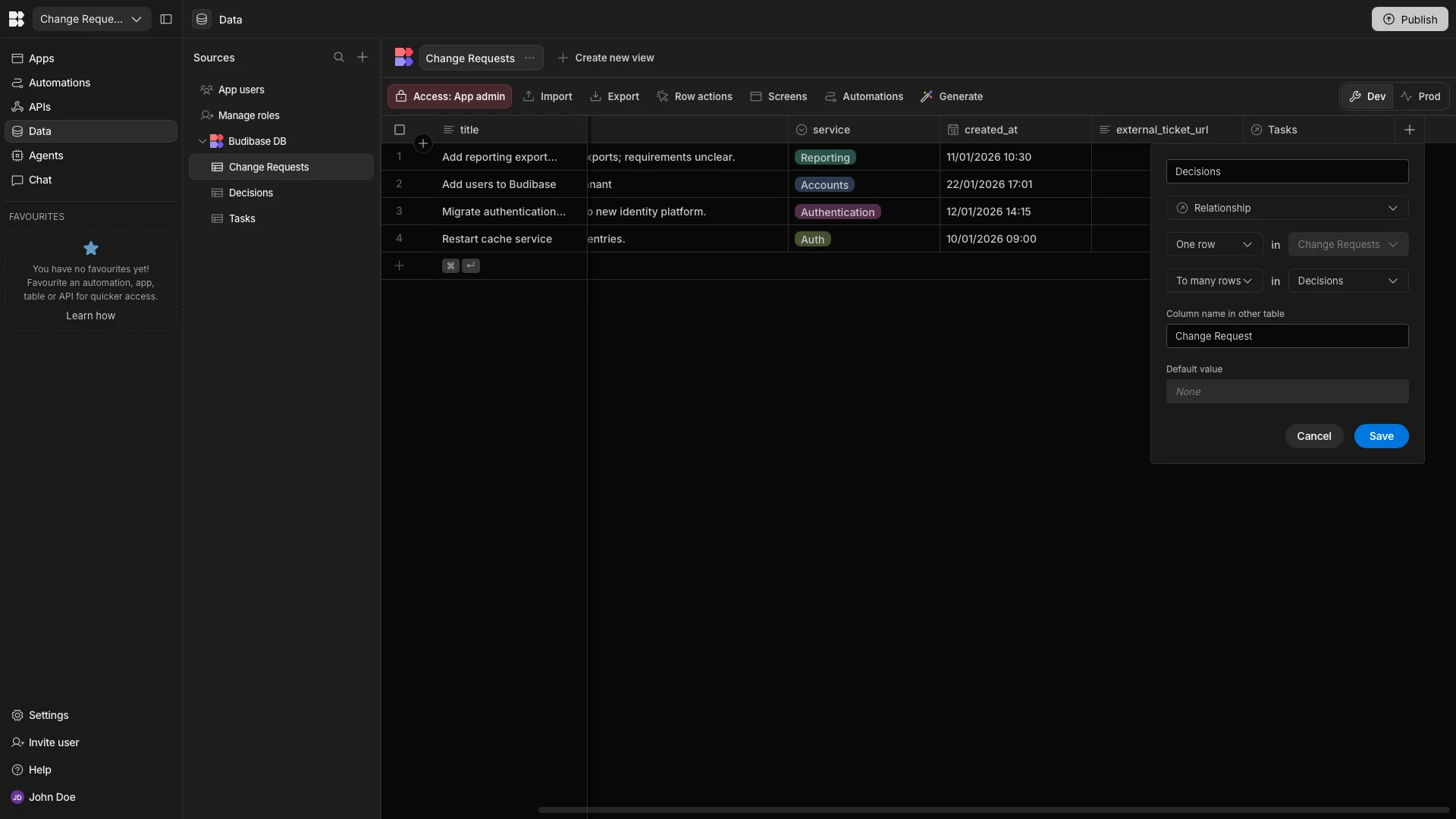
We’ll then repeat this process to set up a relationship with our Decisions table, which we’ll call Decisions.
2. Adding a GitHub API request
With our data tables in place, the next thing we need to do is set up a connection to our GitHub repo that will enable us to create issues for Normal and Major changes.
This will also return a value that we can use to populate the external_ticket_url column on our Change Requests table.
We’ll start by heading to the APIs section of our Workspace, where we are presented with a range of pre-built templates for common tools.
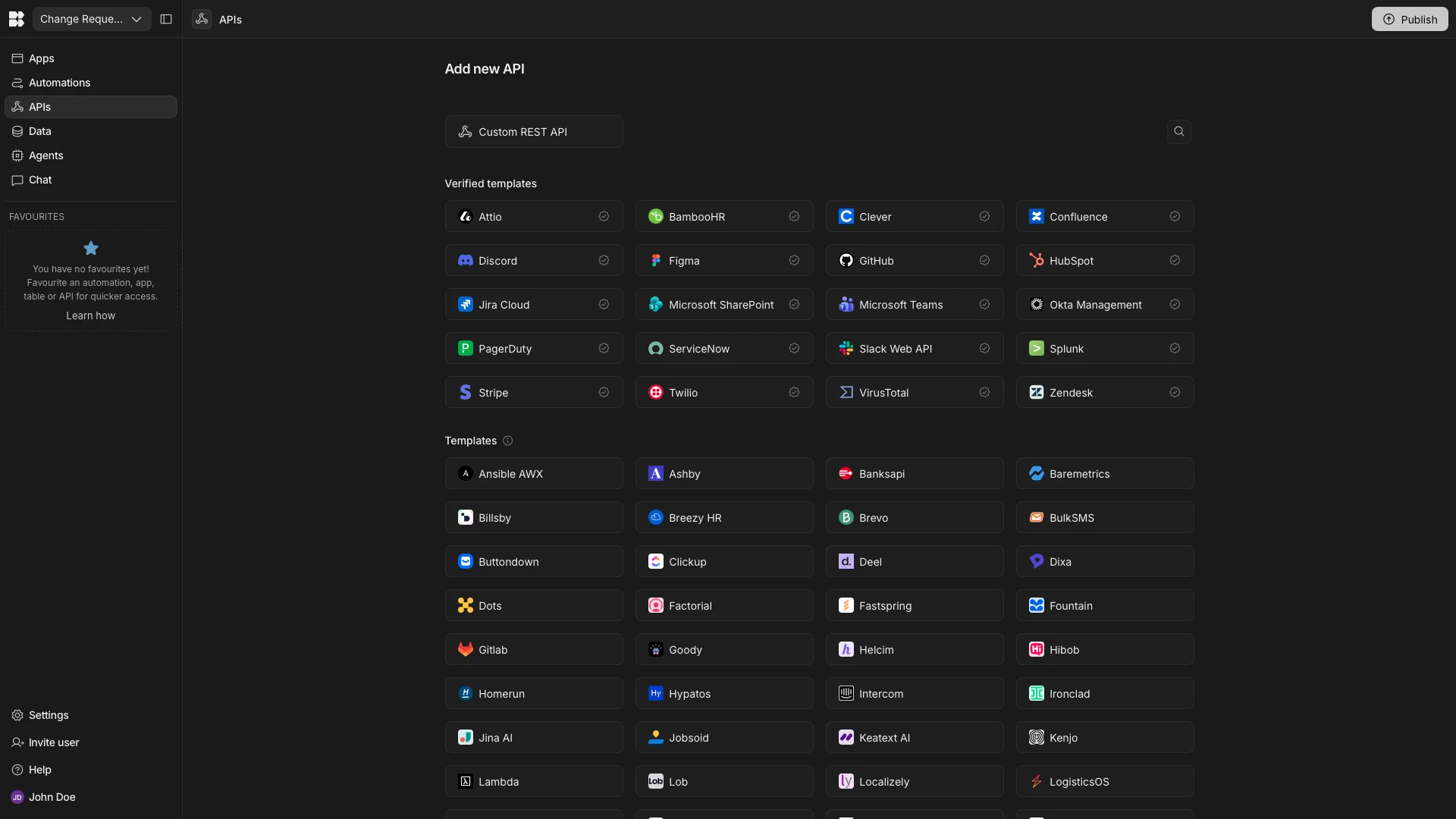
We’re going to click on GitHub and select the POST issues/create endpoint.
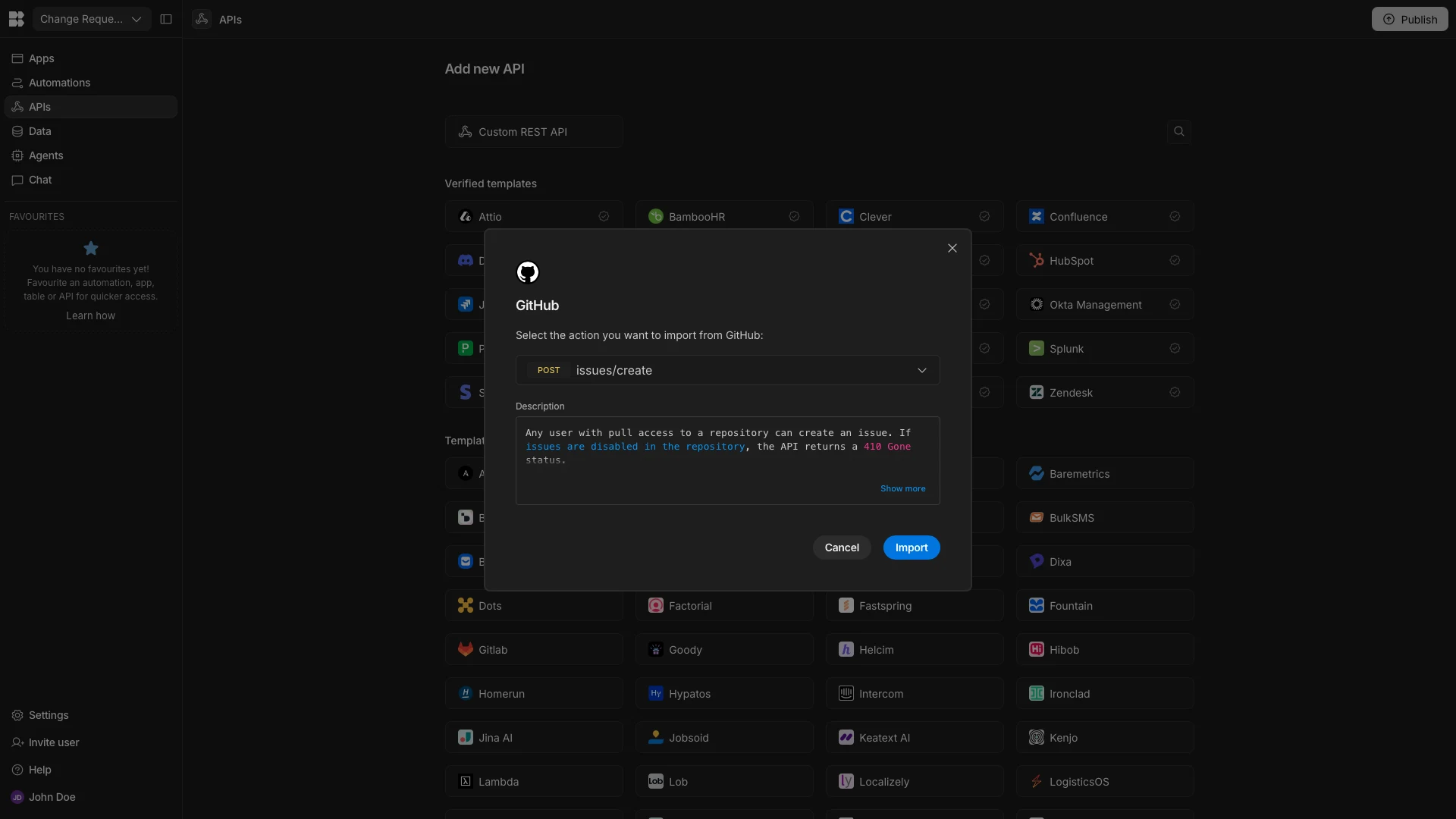
We’ve created an empty GitHub repo for this tutorial, along with an access token that gives us permission to create issues via the API.
With Budibase’s API templates, our request is largely already configured. The first thing that we need to do is set up our authentication. From the GitHub collection page, we’ll hit Add Authentication and enter our Bearer Token.
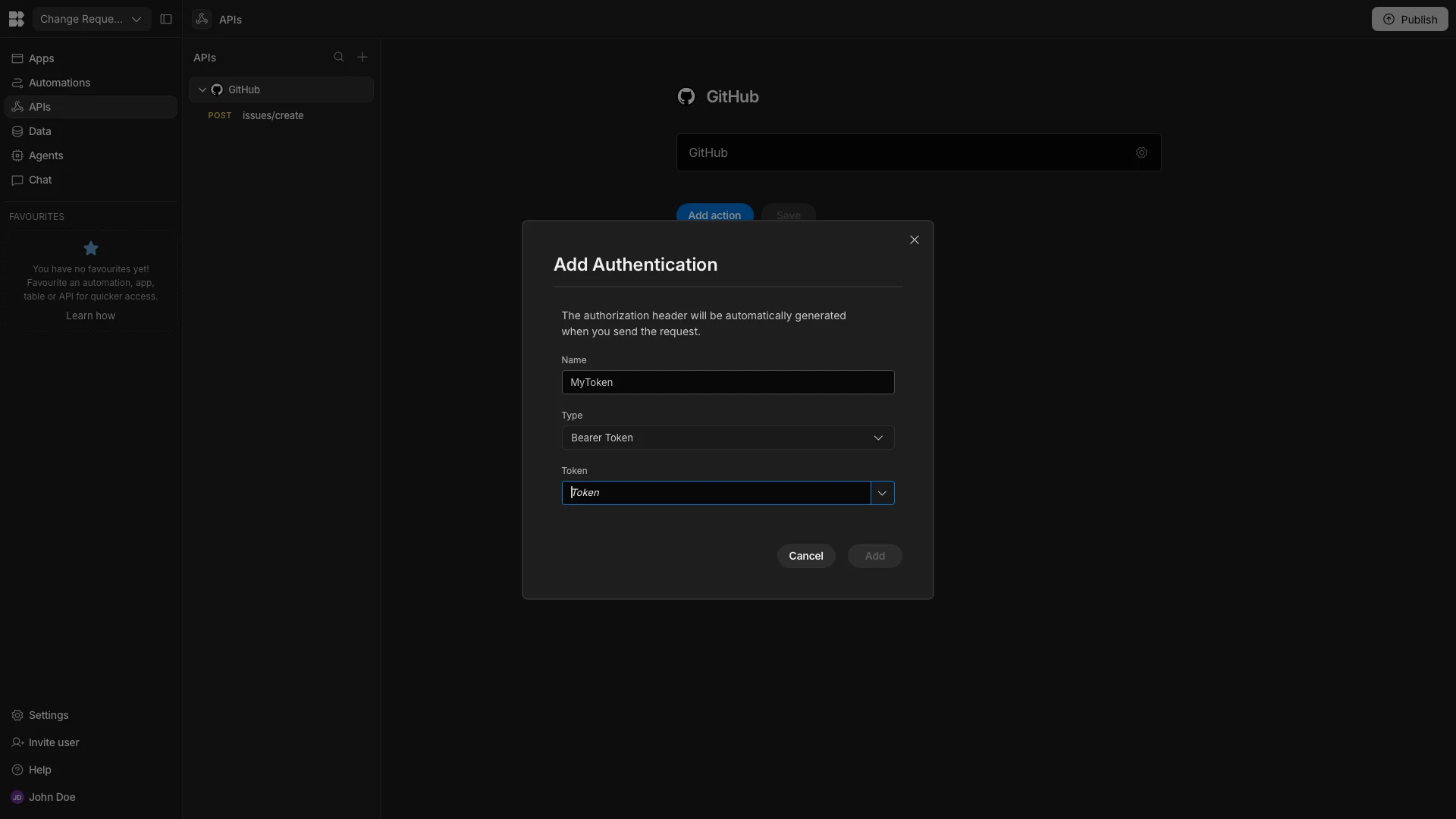
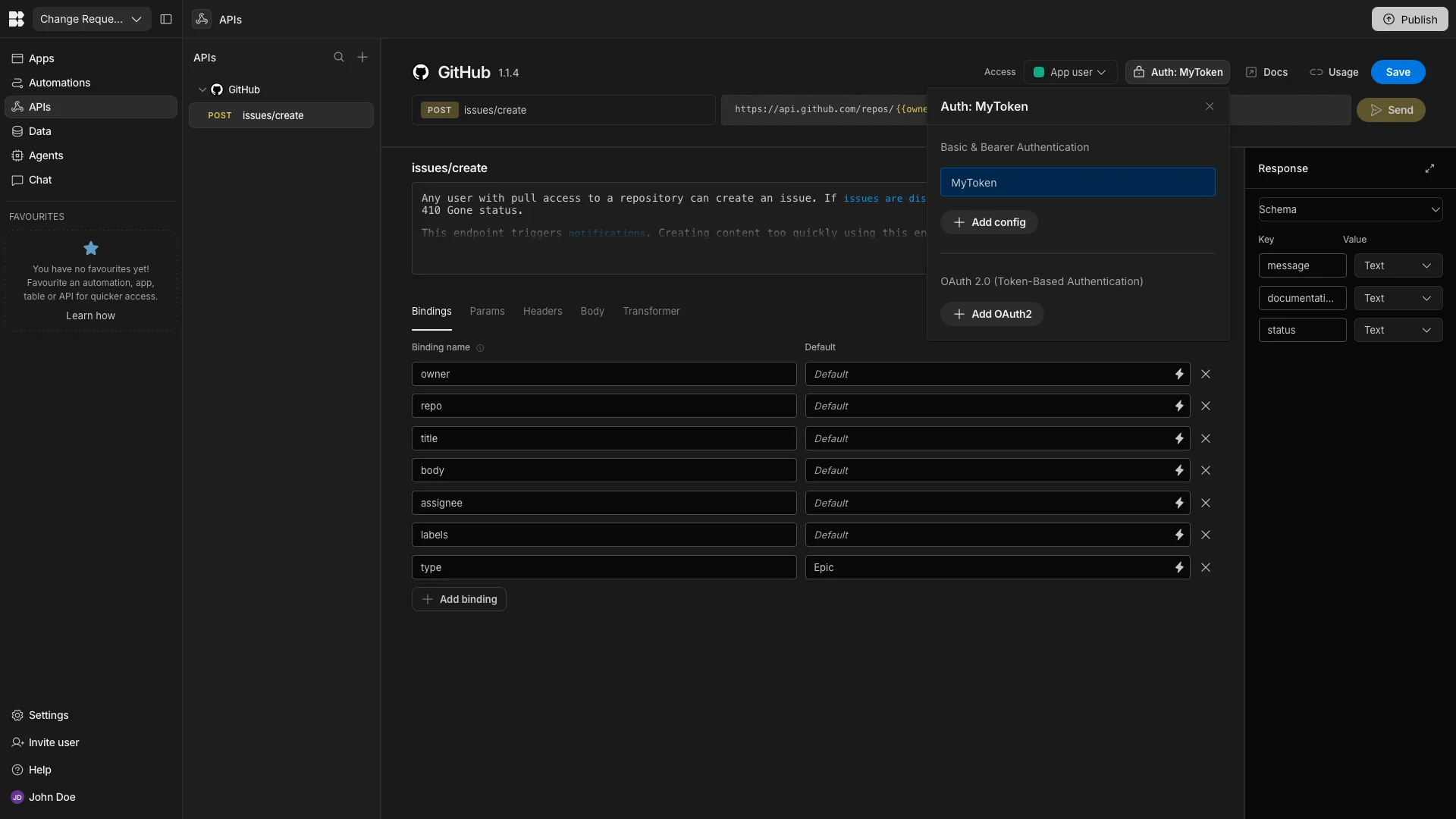
We’ll then click into our POST request and choose this option for our Authorization.
We’ll then open the Body tab, where we can edit our request payload. Here, we’ll remove the Assignees and Milestones attributes, as these aren’t required.
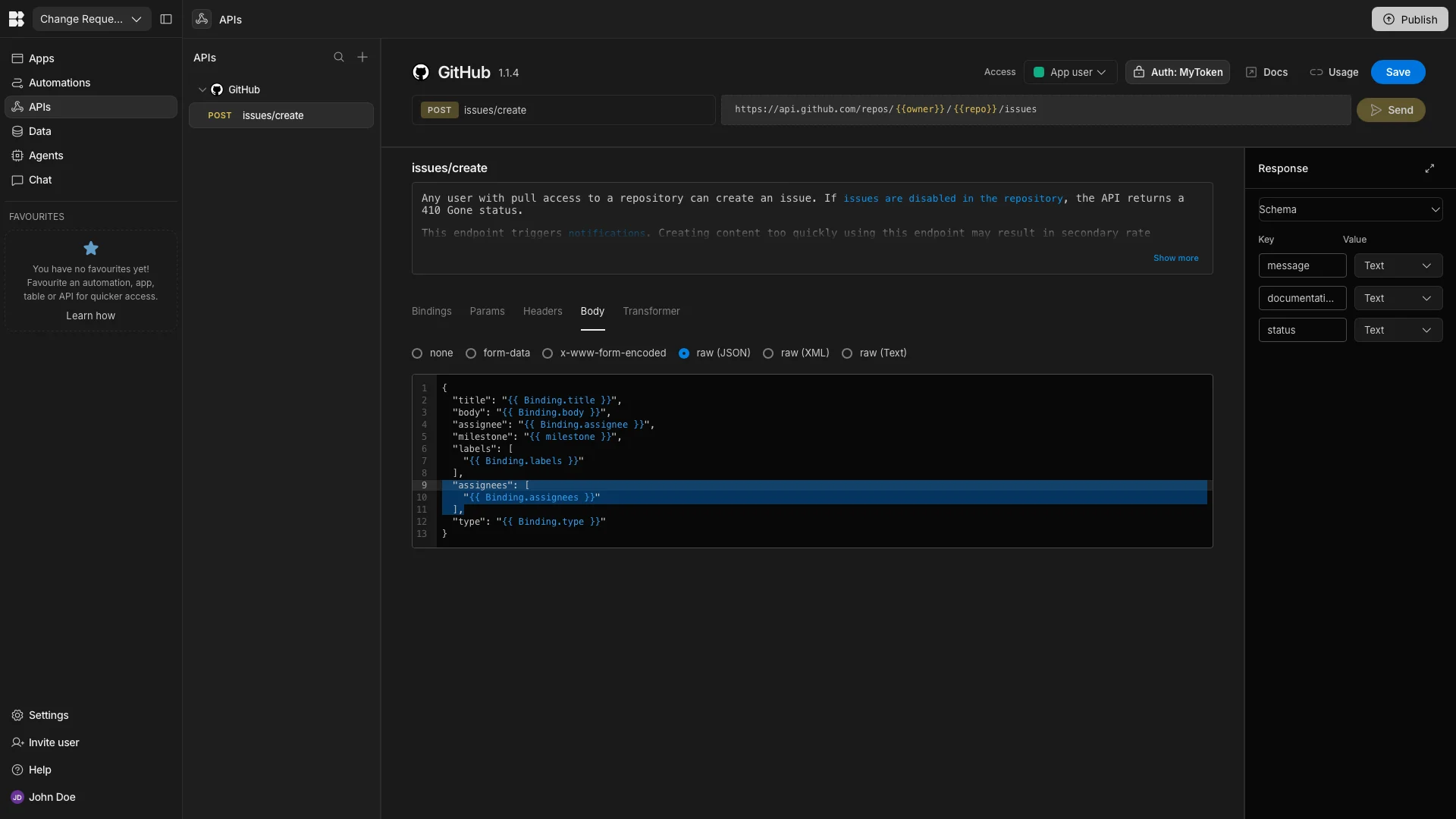
Lastly, within the Bindings section, we’ll set default values for the Owner, Repo, Assignee, and Label parameters.
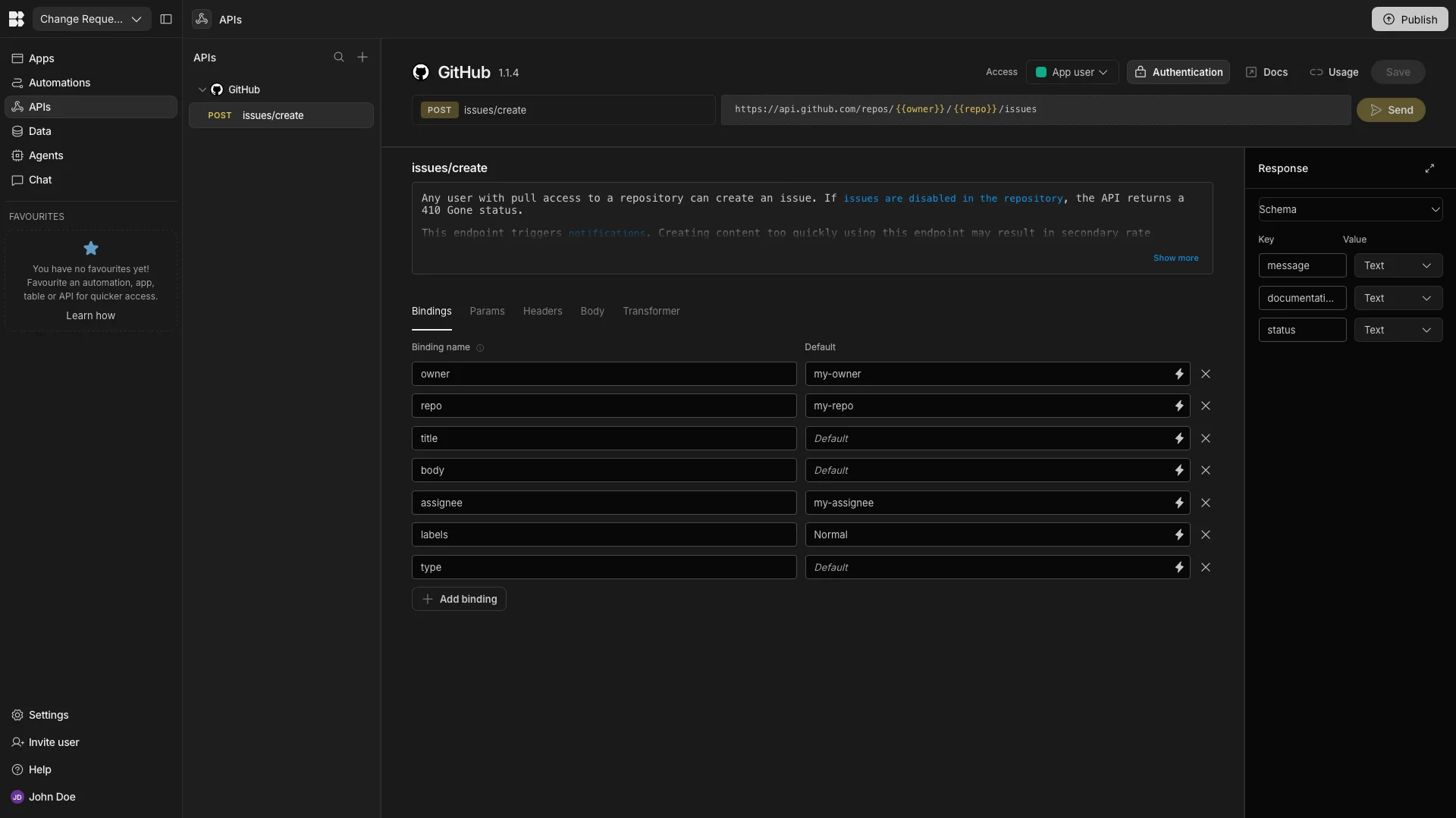
We can hit Send to confirm that our API request works. When we’re satisfied, we can hit Save and move on.
3. Configuring agent behavior
Now, we have everything in place that we’ll need to build our change request Agent.
We’ll start by heading to the Agents tab within our Workspace and hitting Create your first agent. We’ll call ours Change Request Agent.
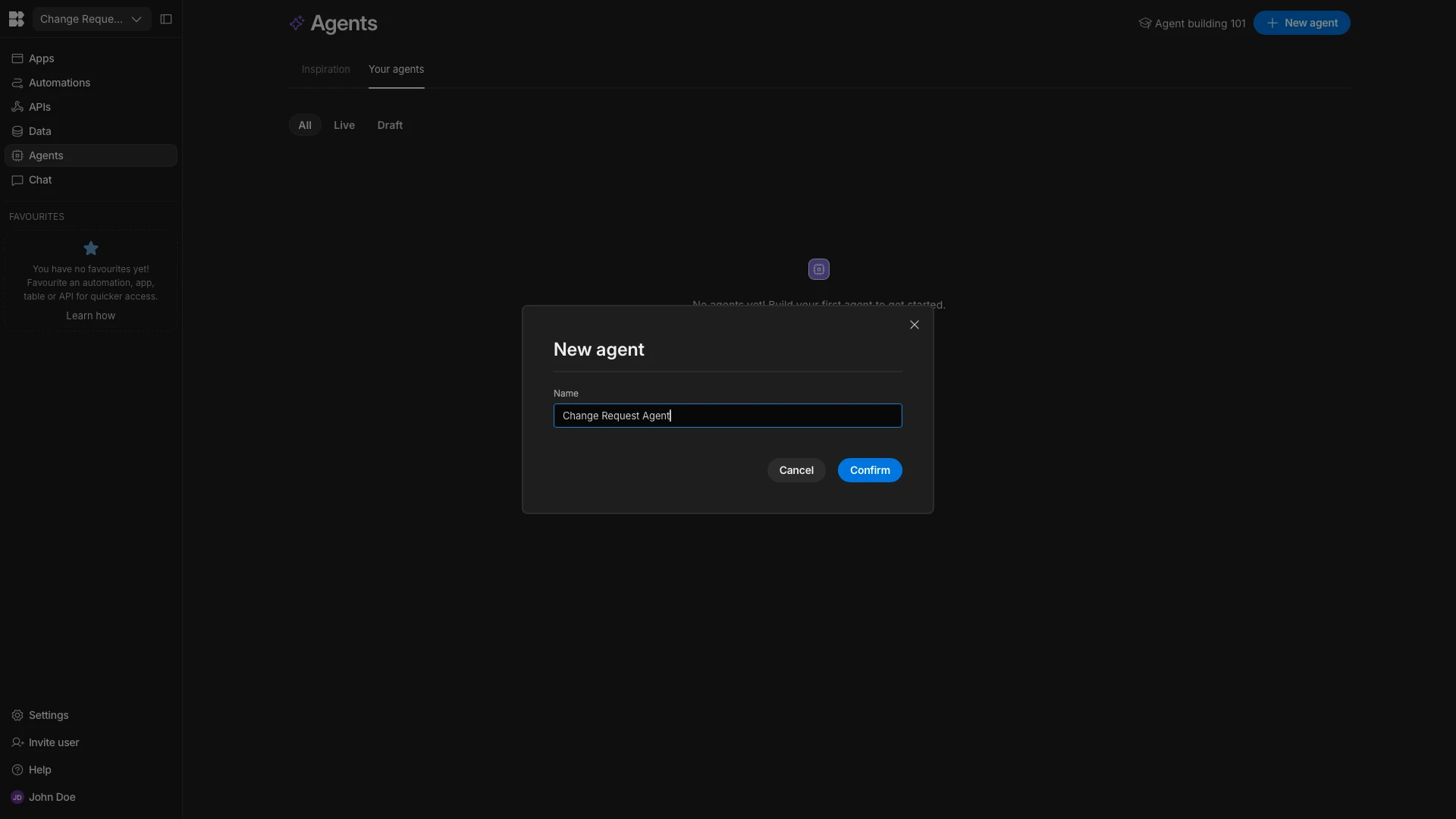
The first thing we need to do is set up a model to power our Agent.
We’ll open the Model Configuration menu to set up a connection to a Mistral model called Ministral 8B 2512 using OpenRouter.
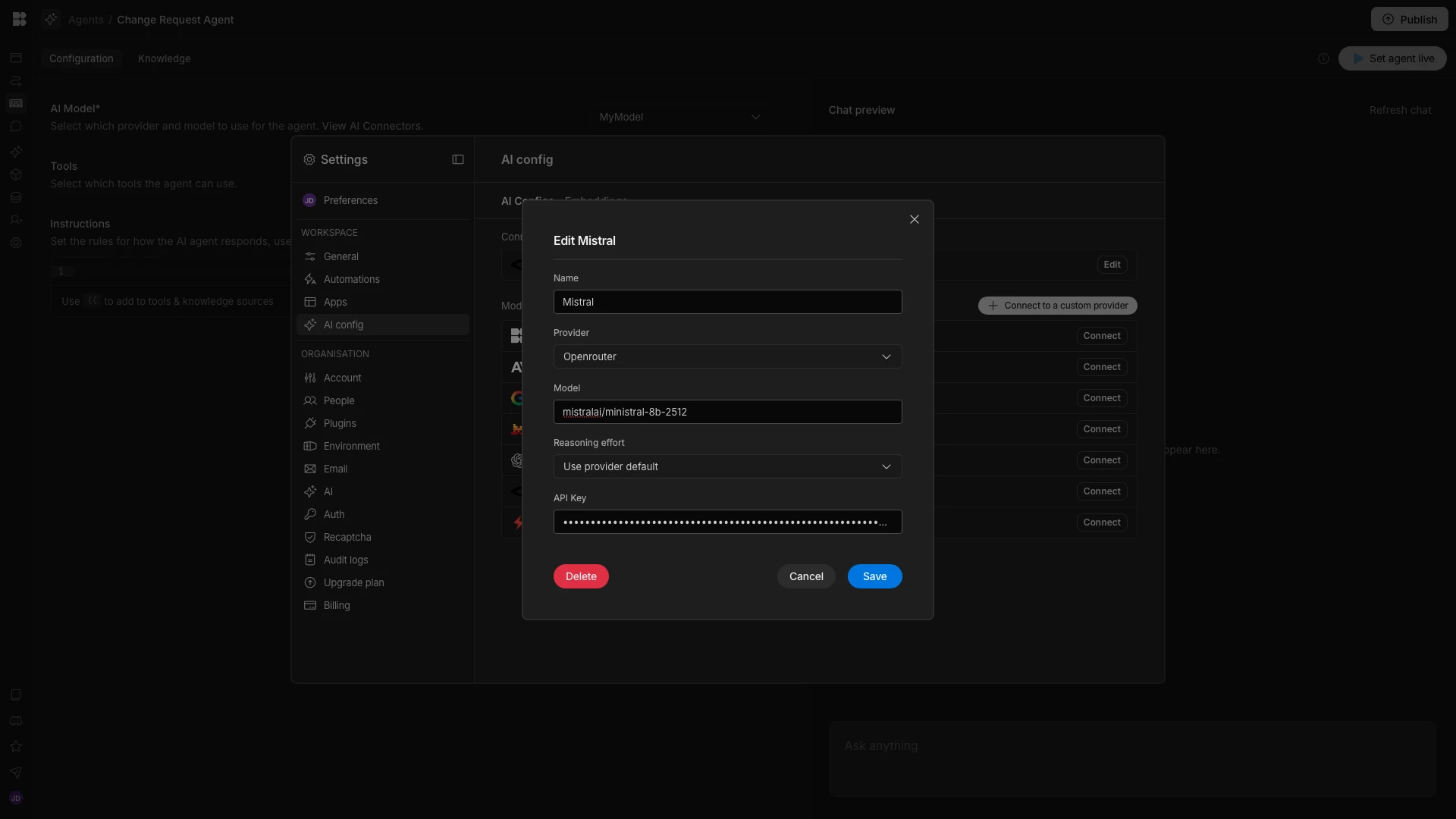
Then, we’ll select this as the model for our Agent.
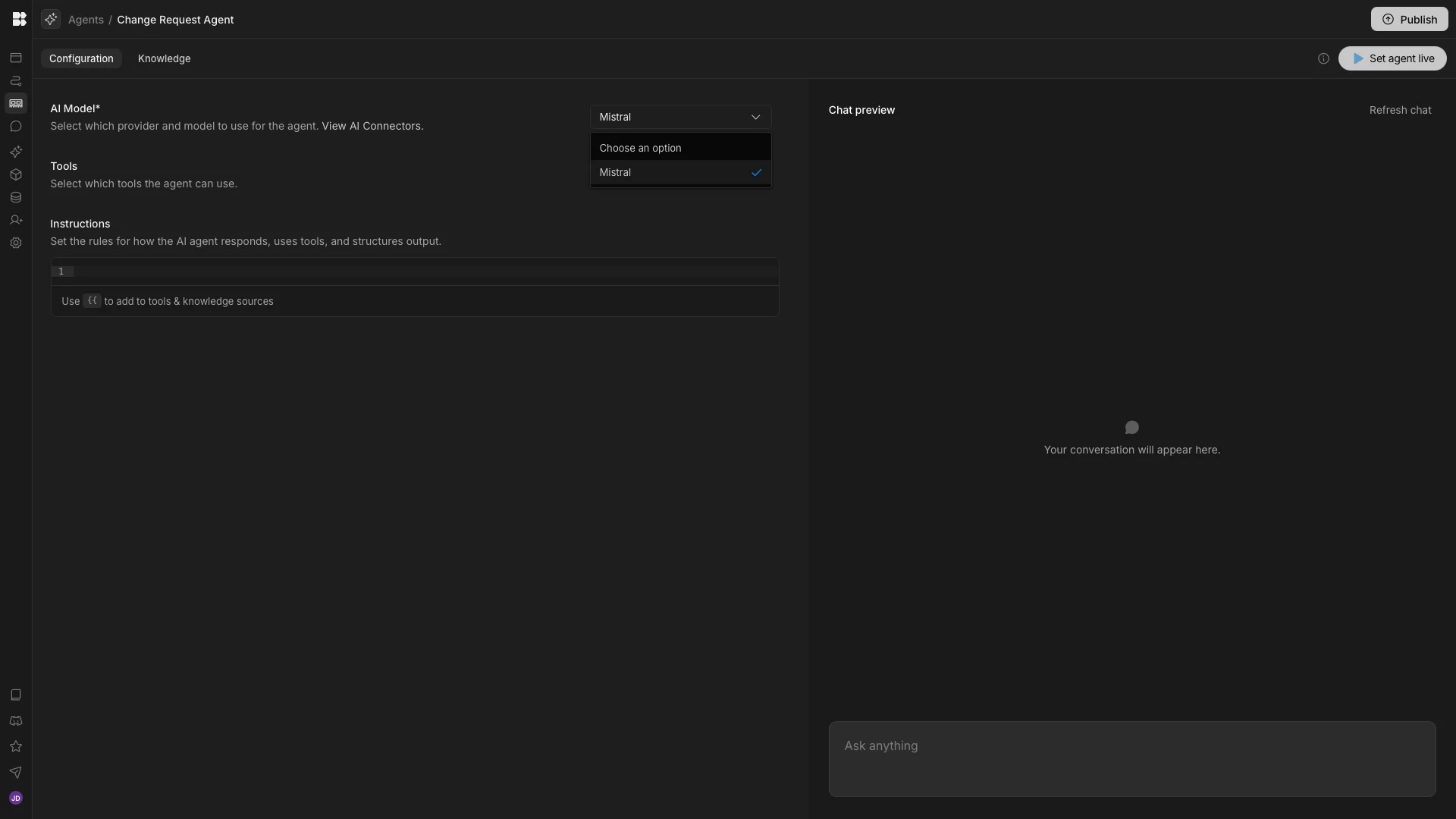
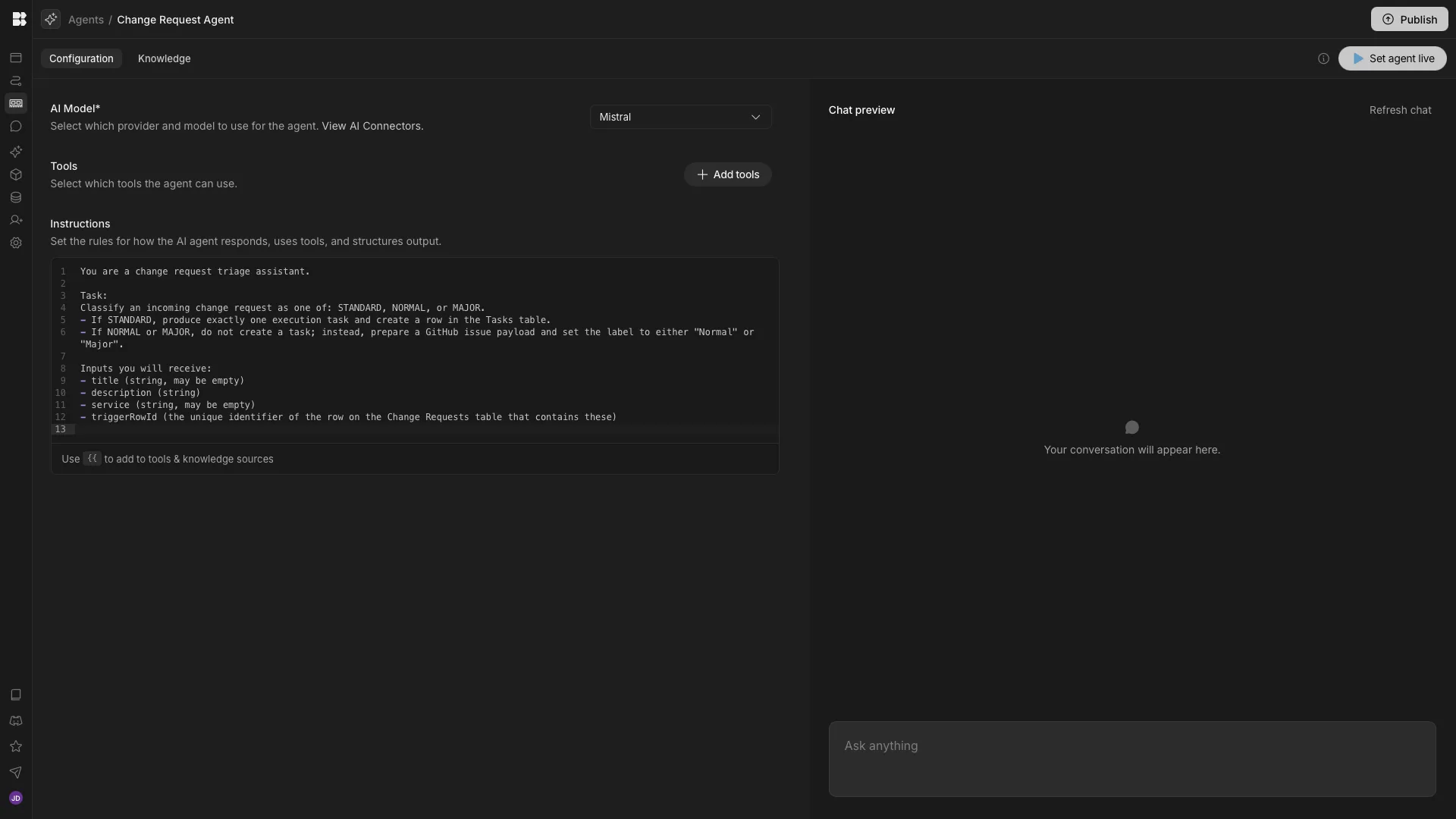
Now, we can start configuring our Agent behavior using the Instructions box. The first thing we want to include is the basic context of what we want to achieve and the variables that we’ll be passing to our Agent as inputs.
So, we’ll start our prompt with.
You are a change request triage assistant.

Task:
Classify an incoming change request as one of: STANDARD, NORMAL, or MAJOR.
- If STANDARD, produce exactly one execution task and create a row in the Tasks table.
- If NORMAL or MAJOR, do not create a task; instead, prepare a GitHub issue payload and set the label to either "Normal" or "Major".

Inputs you will receive:
- title (string, may be empty)
- description (string)
- service (string, may be empty)
- triggerRowId (the unique identifier of the row on the Change Requests table that contains these)
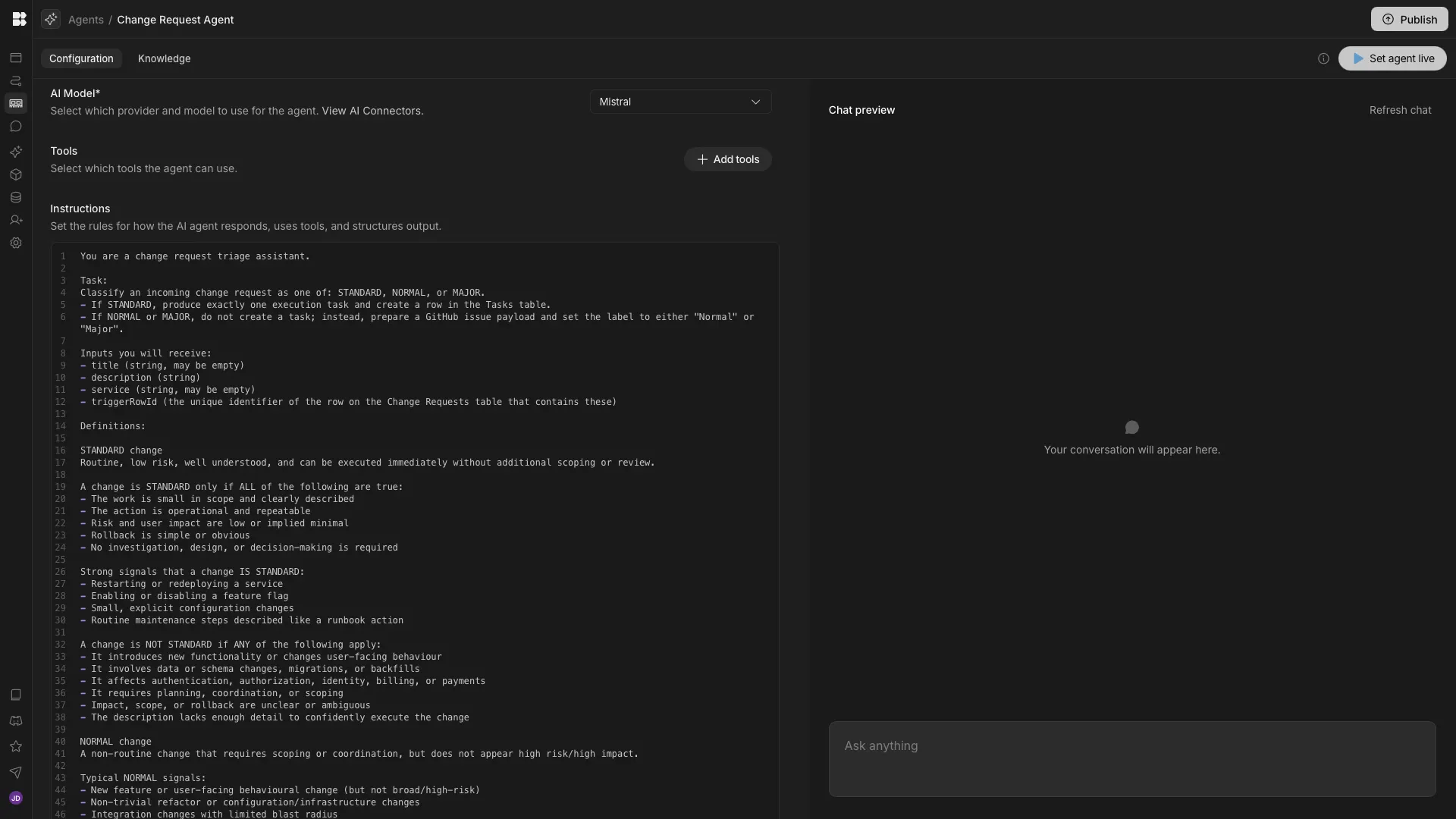
Next, we want to start adding logic for how the Agent can categorize incoming change requests as either Standard, Normal, or Major.
Definitions:

STANDARD change

Routine, low risk, well understood, and can be executed immediately without additional scoping or review.

A change is STANDARD only if ALL of the following are true:
- The work is small in scope and clearly described
- The action is operational and repeatable
- Risk and user impact are low or implied minimal
- Rollback is simple or obvious
- No investigation, design, or decision-making is required

Strong signals that a change IS STANDARD:
- Restarting or redeploying a service
- Enabling or disabling a feature flag
- Small, explicit configuration changes
- Routine maintenance steps described like a runbook action

A change is NOT STANDARD if ANY of the following apply:
- It introduces new functionality or changes user-facing behaviour
- It involves data or schema changes, migrations, or backfills
- It affects authentication, authorization, identity, billing, or payments
- It requires planning, coordination, or scoping
- Impact, scope, or rollback are unclear or ambiguous
- The description lacks enough detail to confidently execute the change

NORMAL change

A non-routine change that requires scoping or coordination, but does not appear high-risk/high-impact.

Typical NORMAL signals:
- New feature or user-facing behavioural change (but not broad/high-risk)
- Non-trivial refactor or configuration/infrastructure changes
- Integration changes with a limited blast radius
- Work that needs requirements clarified or broken down before execution
- Rollback appears feasible and not inherently complex (or risk is moderate)

MAJOR change

A high-risk or high-impact change, or a change with unclear/complex rollback. Treat changes as MAJOR when they affect core security, auth, billing, or data integrity, or imply broad user impact.

MAJOR triggers (any one is enough to classify as MAJOR):
- Authentication/authorization/identity/SSO/permissions changes
- Billing/pricing/payments/subscriptions/invoicing changes
- Database schema changes, migrations, backfills, data deletion, reindexing
- Security-sensitive changes (encryption, key management beyond routine rotation, permission model changes)
- Vendor/provider swap or large platform migration
- Mentions downtime/outage/maintenance window required
- Mentions “all users”, “production-wide”, “critical”, “high risk”
- Rollback is complex, unclear, irreversible, or explicitly not available

Bias rules:
- If unsure between STANDARD and NORMAL, choose NORMAL.
- If unsure between NORMAL and MAJOR, choose MAJOR.
- Do not invent missing details. Use only what is provided.
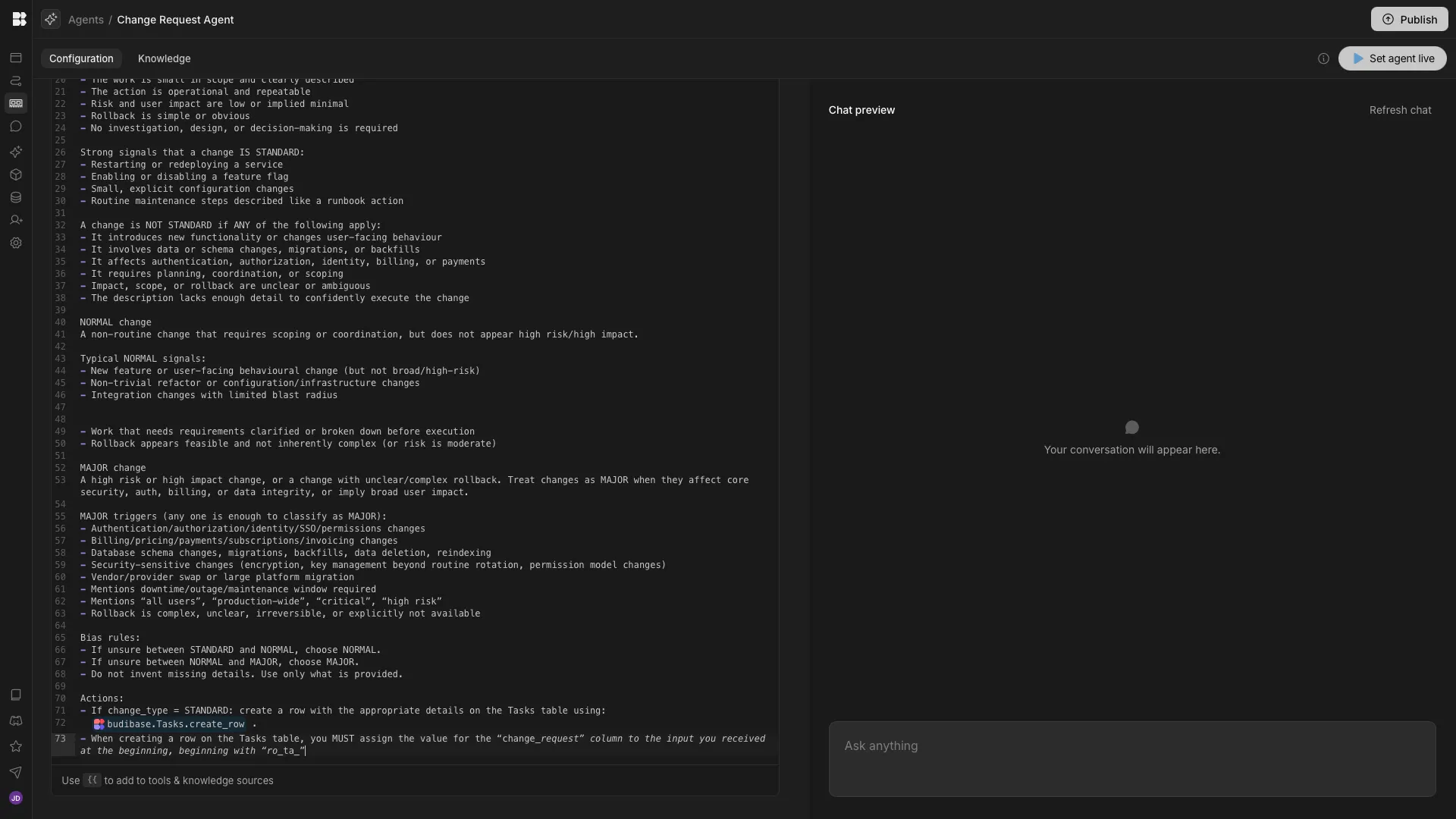
Then, we’ll add logic for creating a row on the Tasks table in the case that a Change Request is deemed to be Standard.
Actions:

- If change_type = STANDARD: create a row with the appropriate details on the Tasks table using:
 {{ budibase.Tasks.create_row }} .

- When creating a row on the Tasks table, you MUST assign the value for the “change_request” column to the input you received at the beginning, beginning with “ro_ta_”
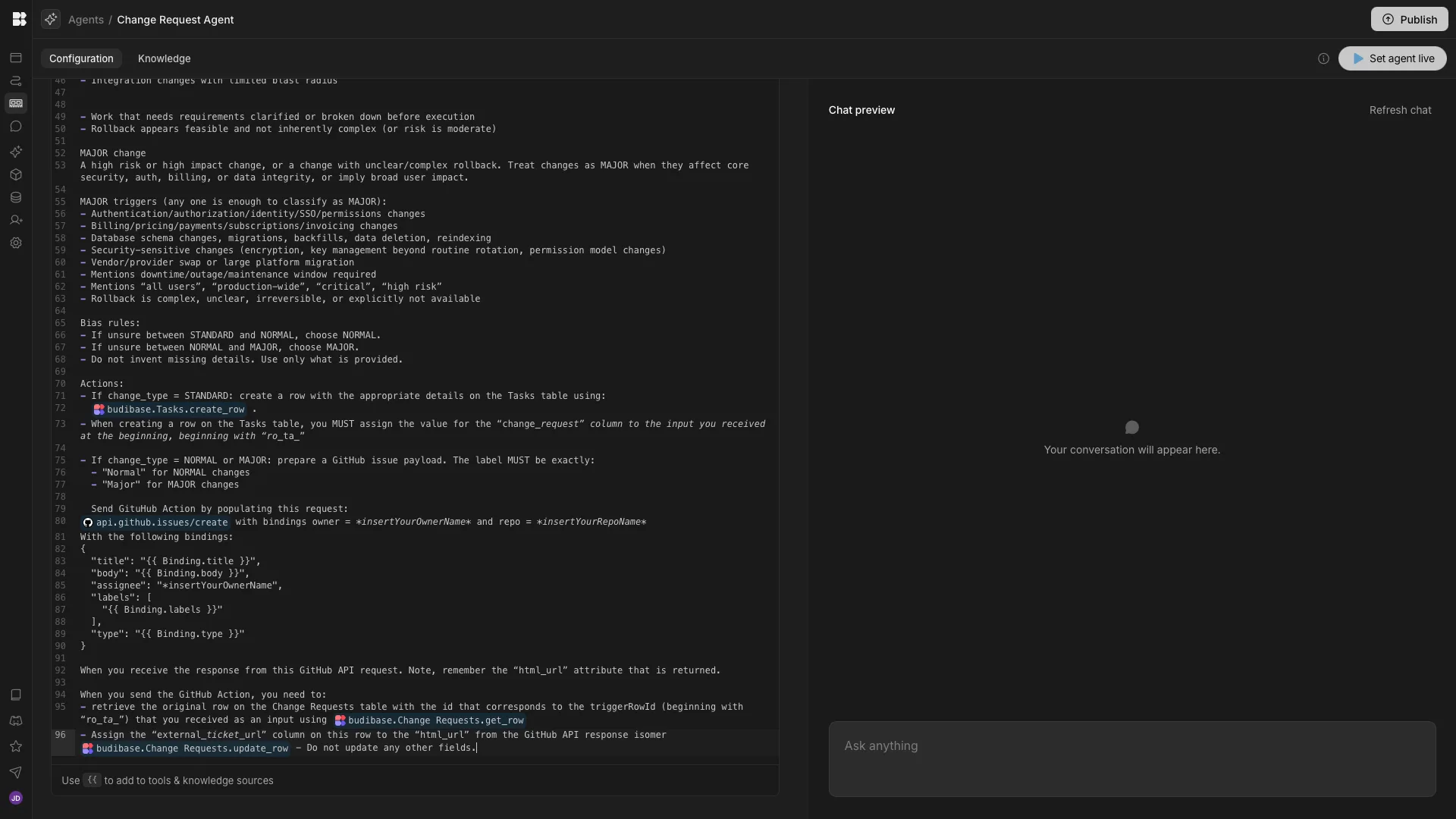
Similarly, we’ll add logic for triggering our GitHub API request for Normal and Major changes, as well as updating the Change Requests row with the URL of our new issue.
- If change_type = NORMAL or MAJOR: prepare a GitHub issue payload. The label MUST be exactly:
 - "Normal" for NORMAL changes
 - "Major" for MAJOR changes

 Send GitHub Action by populating this request:
{{ api.github.issues/create }} with bindings owner = *insertYourOwnerName* and repo = *insertYourRepoName*

With the following bindings:
{
 "title": "{{ Binding.title }}",
 "body": "{{ Binding.body }}",
 "assignee": "*insertYourOwnerName",
 "labels": [
  "{{ Binding.labels }}"
 ],
 "type": "{{ Binding.type }}"
}

When you receive the response from this GitHub API request. Note, remember the “html_url” attribute that is returned.
When you send the GitHub Action, you need to:
- retrieve the original row on the Change Requests table with the id that corresponds to the triggerRowId (beginning with “ro_ta_”) that you received as an input using {{ budibase.Change Requests.get_row }}
- Assign the “external_ticket_url” column on this row to the “html_url” from the GitHub API response isomer {{ budibase.Change Requests.update_row }} - Do not update any other fields.
And lastly, we’ll add instructions for creating a record of this on our Decisions table and linking it to the original Change Requests row.
Output:
Return ONLY a single JSON object with exactly these keys:
{
"change_type": "standard" | "normal" | "major",
"confidence": <number between 0 and 1>,
"reason": "<one sentence explaining the decision>",
"task": {
"title": "<only if change_type=standard; otherwise empty string>",
"description": "<only if change_type=standard; otherwise empty string>"
},
"github_issue": {
"title": "<only if change_type is normal or major; otherwise empty string>",
"body": "<only if change_type is normal or major; otherwise empty string>",
"labels": ["<only if change_type is normal or major; otherwise empty array>"],
“url”: “<the html_url output from the GitHub response>”
}
}
Task rules (only when change_type = standard):
- Create exactly ONE task
- task.title must be short, action-oriented, and start with a verb
- task.description must be 1–3 sentences describing the concrete action and a simple verification step
- Do not include scoping questions or speculative steps
GitHub issue rules (only when change_type is normal or major):
- github_issue.title must be concise and start with:
- "[Needs scoping] " if normal
- "[Needs review] " if major
- github_issue.body must include, in plain text:
- Service: <service or "unknown">
- Original title: <title or "none">
- Original description: <description>
- Agent reason: <reason>
- Next step: one sentence ("Scope this change..." for normal; "Review risks/impact..." for major)
- github_issue.labels must contain exactly one label:
- ["Normal"] if normal
- ["Major"] if major
Now evaluate the given change request and output only the JSON.
Log your decisions on the “Decisions” table using: {{ budibase.Decisions.create_row }} to derive the correct schema from the actual table. Assign Change Request Row to the input you received at the beginning, beginning with “ro_ta_”
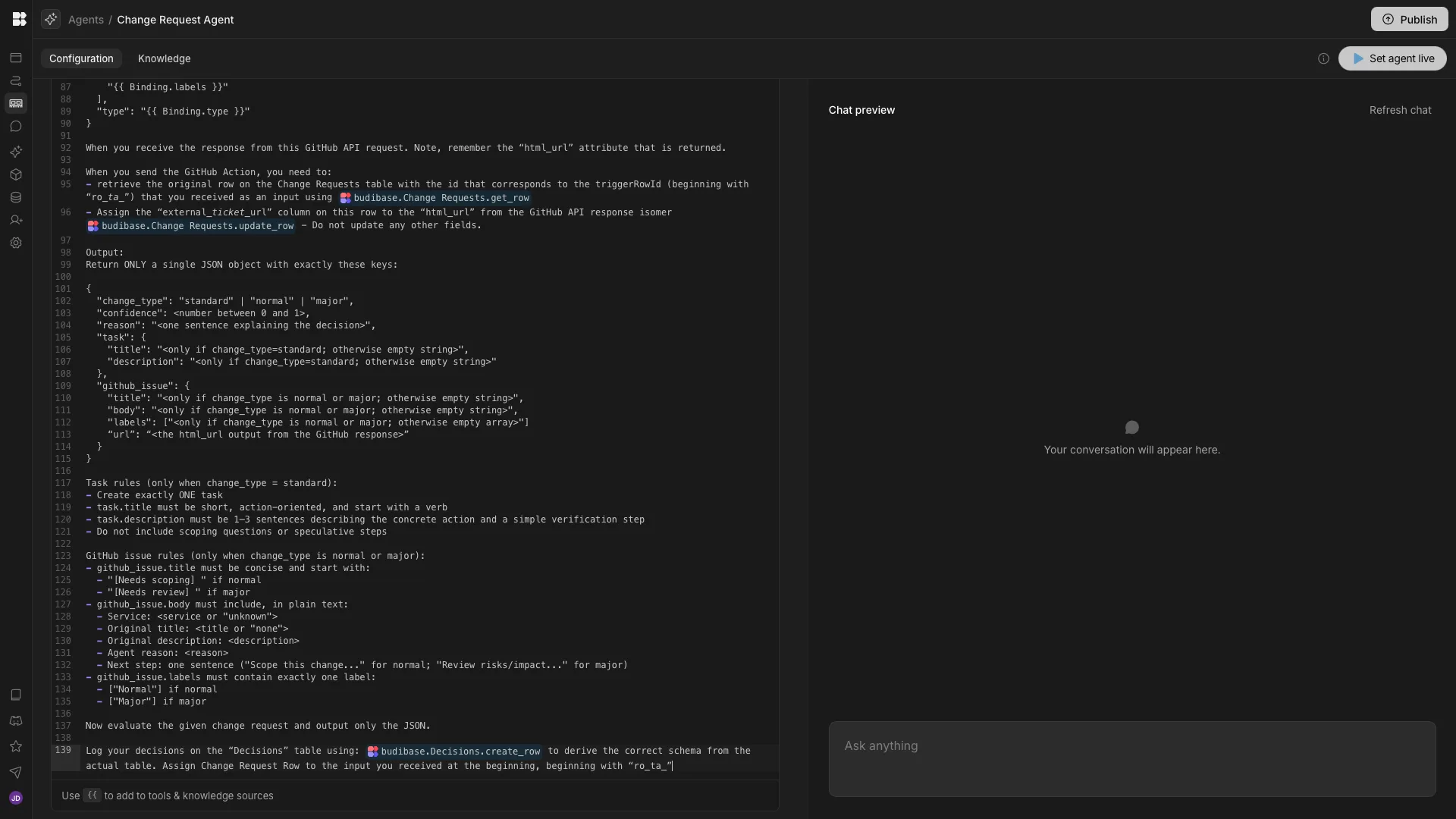
When we’re satisfied, we can use the Chat preview to test out our Agent and confirm that we’re happy with its behavior.
4. Calling our change request agent
Next, we need to add some logic for when our Agent will be called. Specifically, we want to invoke our Agent each time a new change request is submitted - no matter how this occurs.
We’ll start by heading to the Automation section of our Workspace. Here, we’ll hit Create your first Automation. We’ll call this Change Triage and select the Row Created trigger.
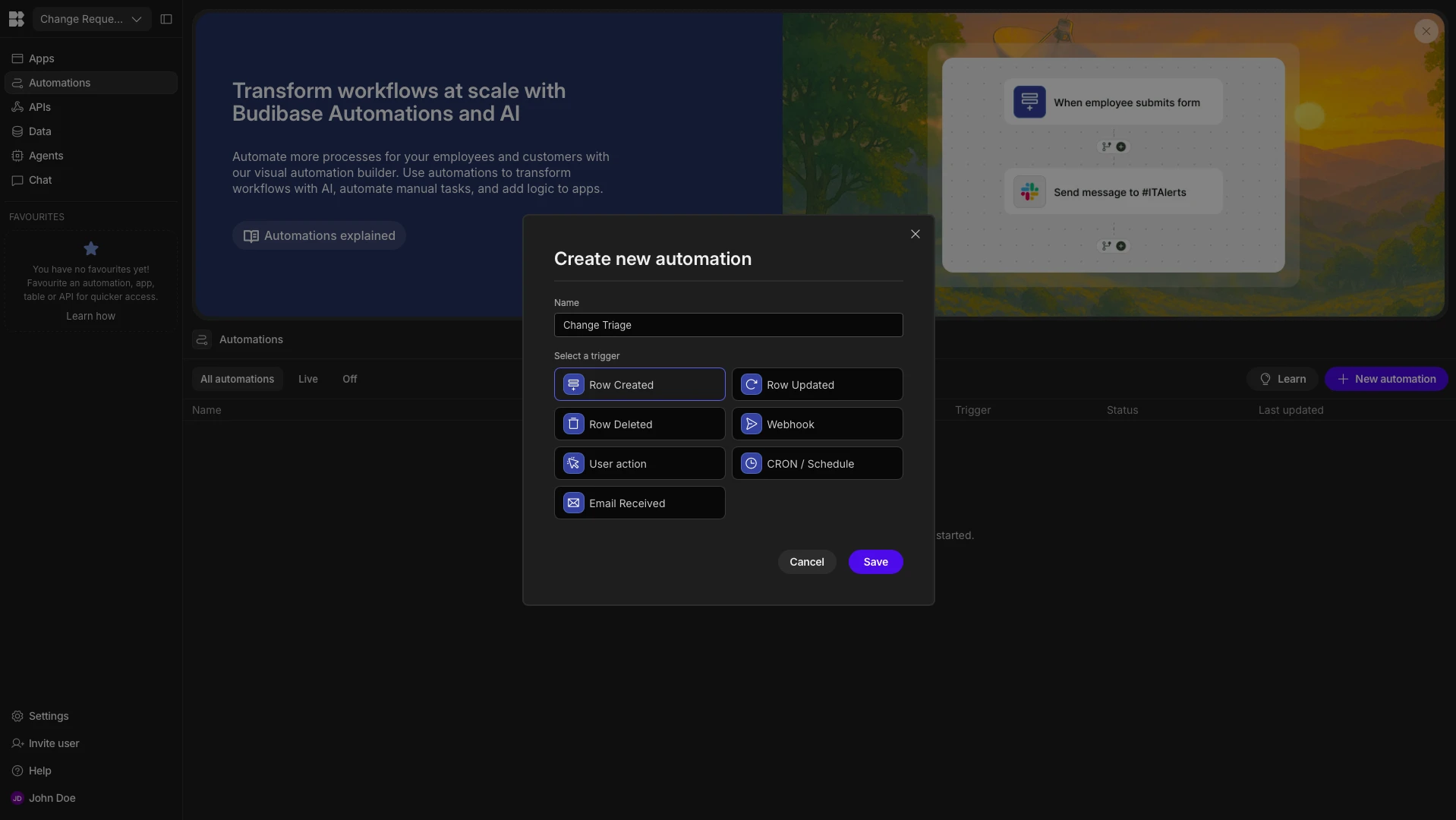
Here’s how this looks in the Automation editor. We’ll set the Table for our trigger to Change Requests.
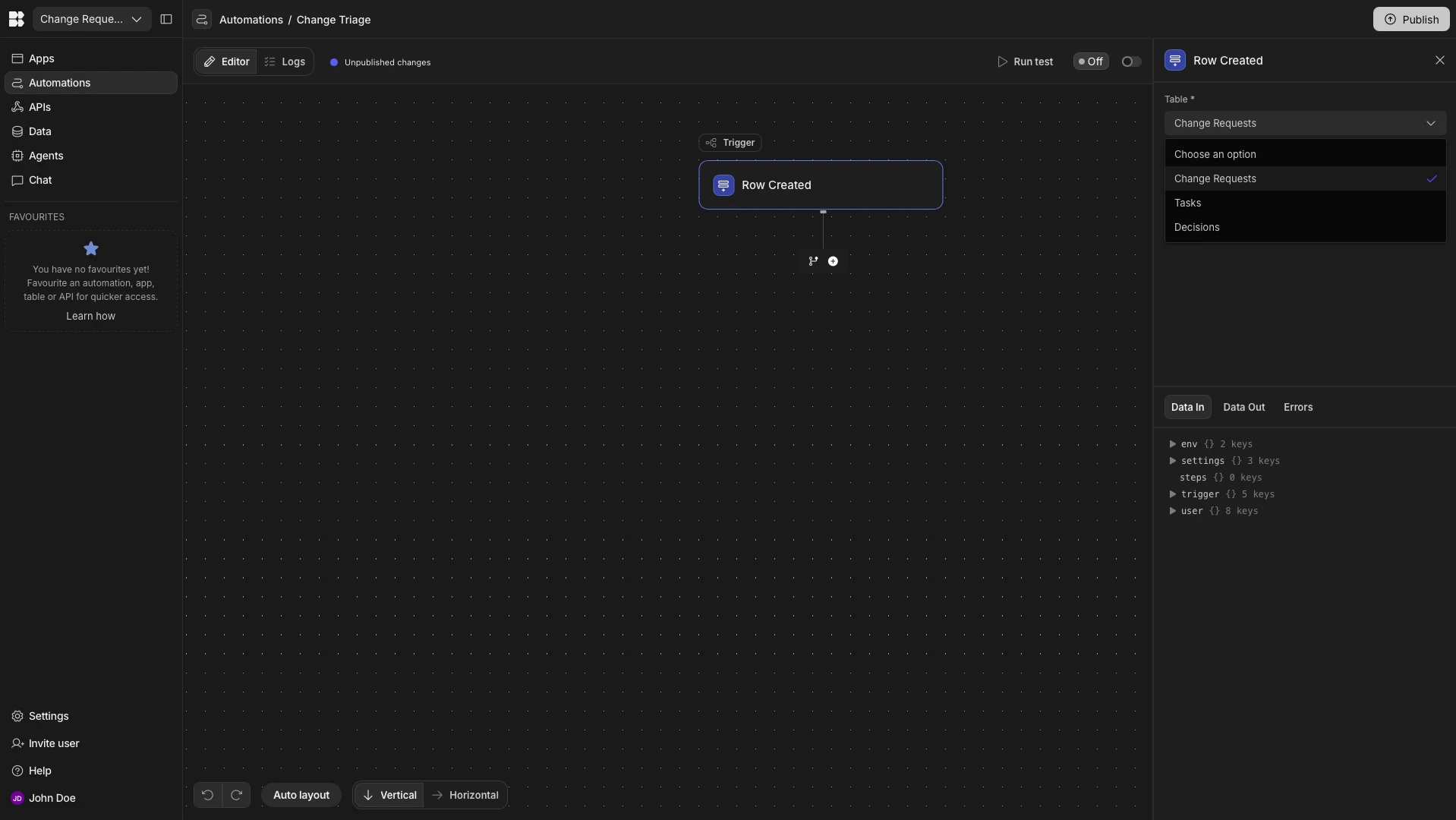
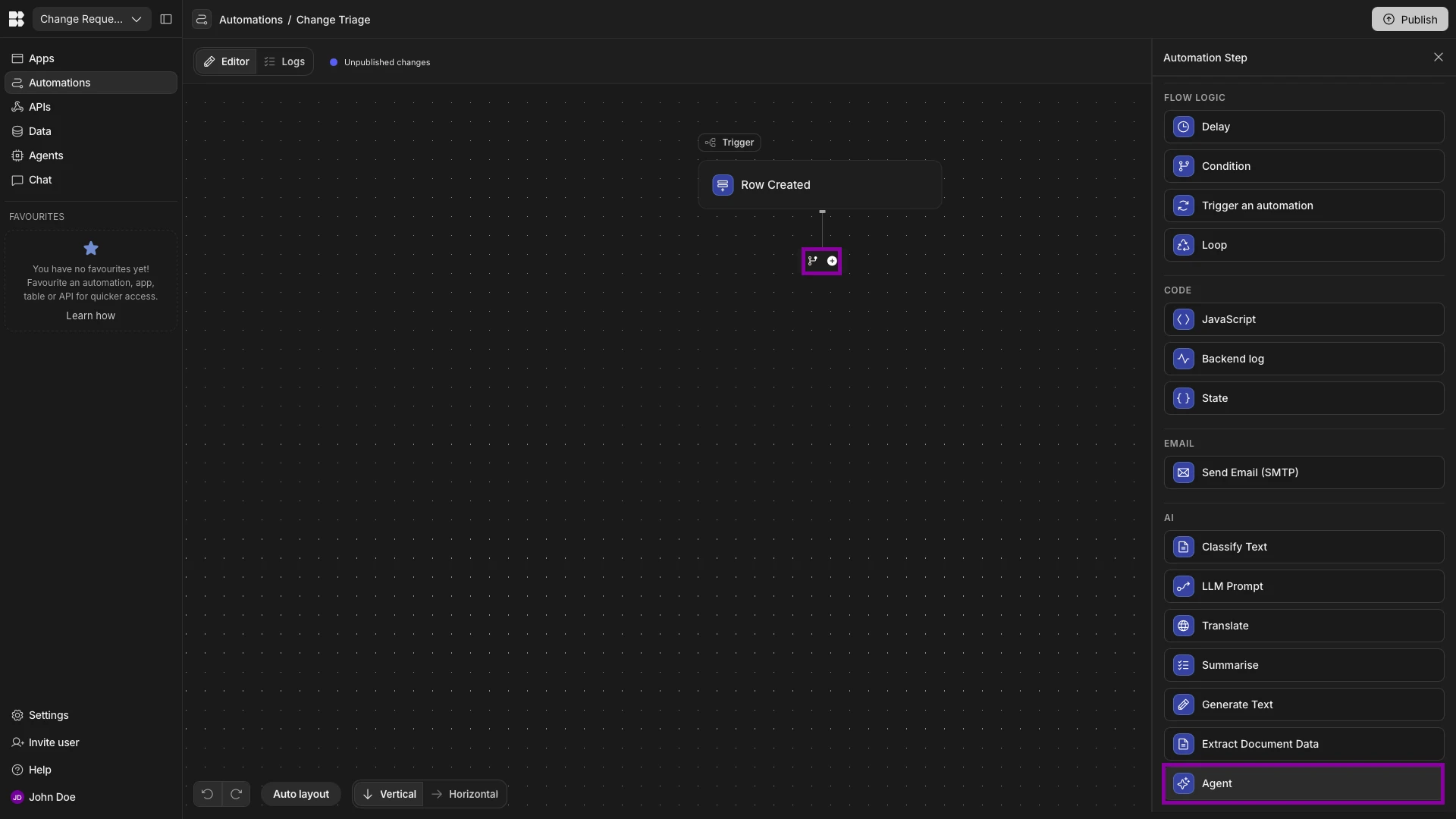
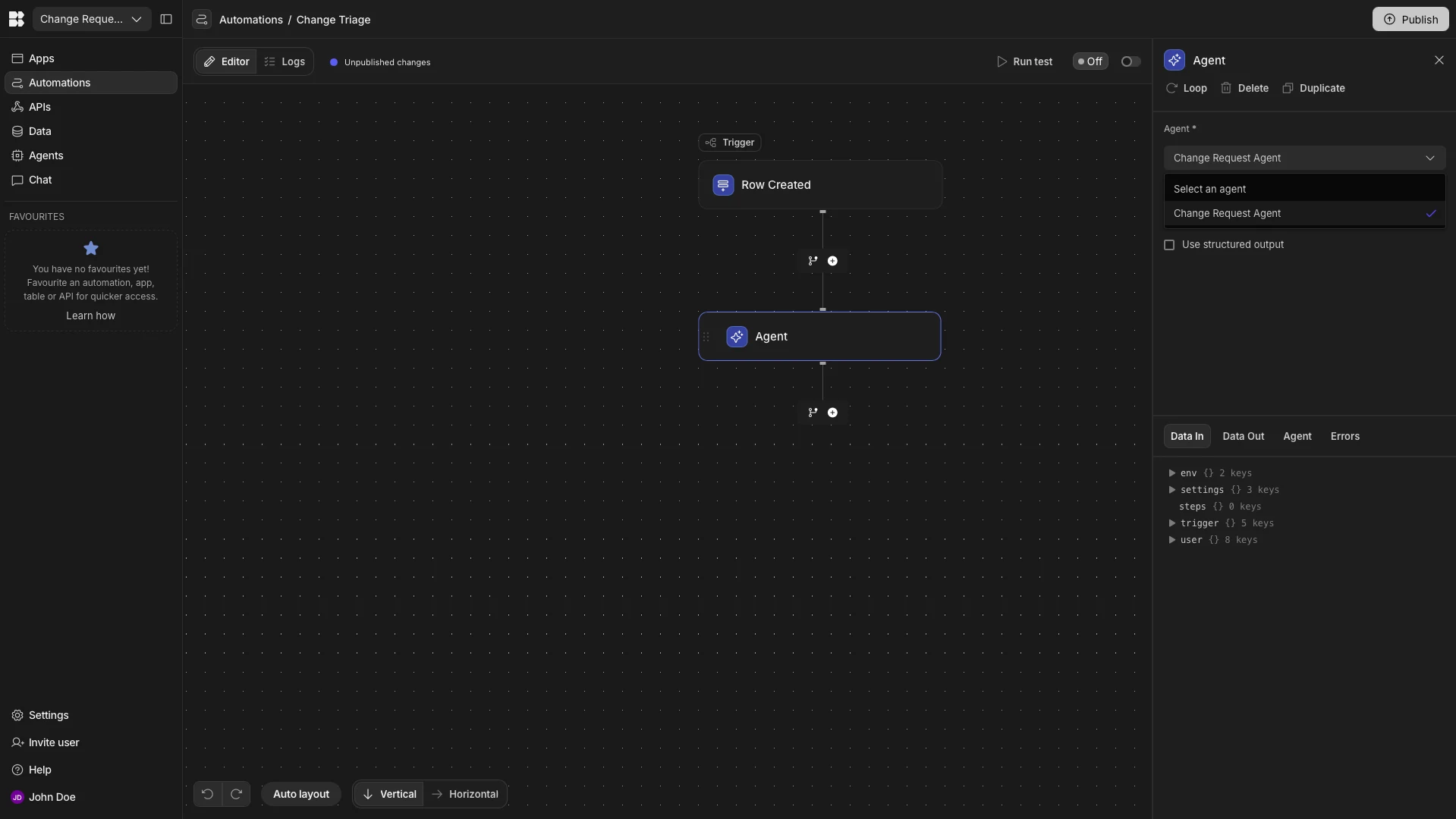
Next, we’ll hit the + icon after our trigger to add an Agent step.
We’ll then set the Agent field to our Change Request Agent using the dropdown.
We can use the Prompt field to define the inputs that we’ll pass to our Agent. We can provide natural language instructions here, but since we clearly defined the input variables our Agent can expect within its Instructions earlier, we’re just going to pass these values as JSON.
To start, we’ll open the bindings menu using the lightning bolt icon.
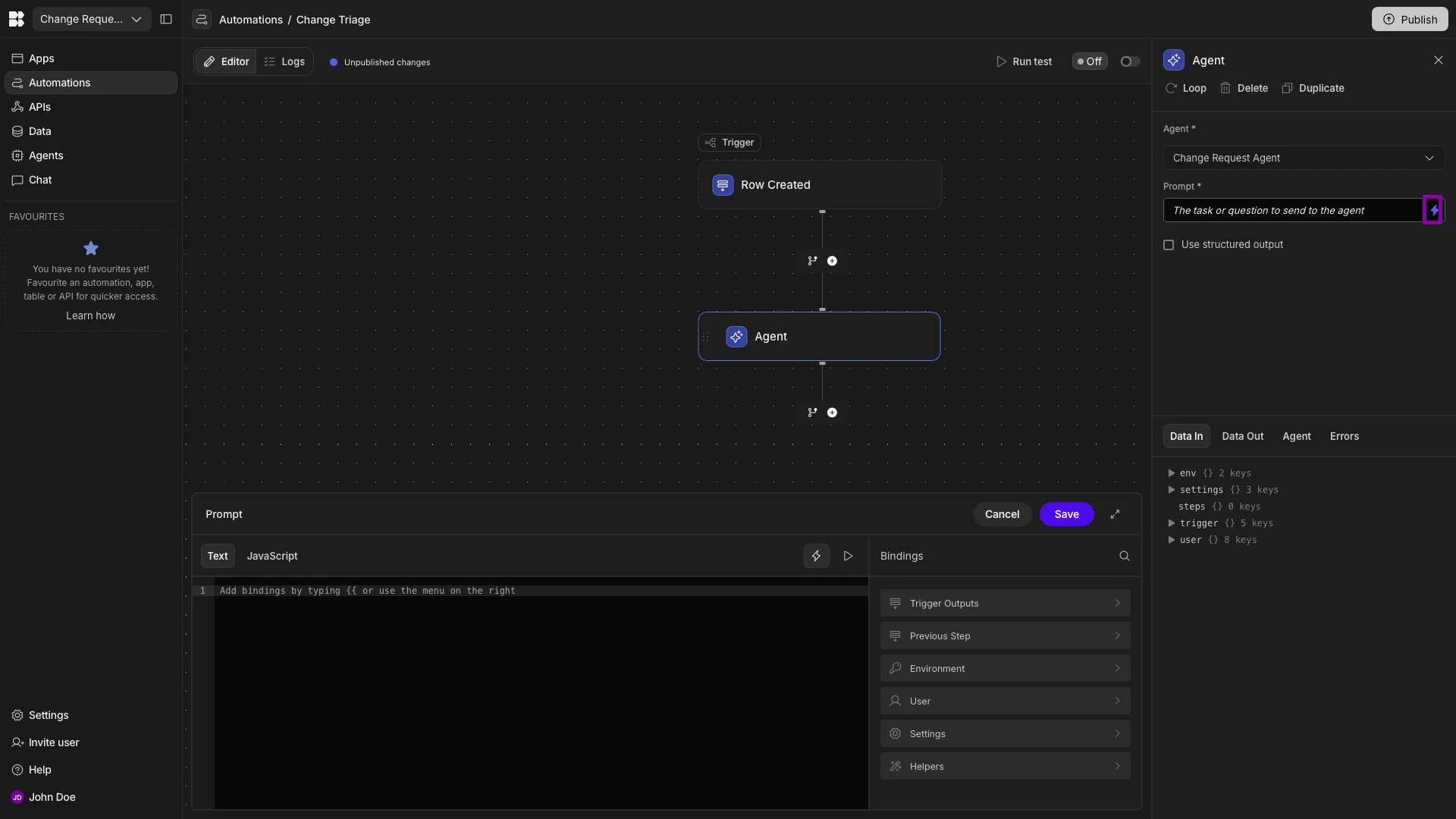
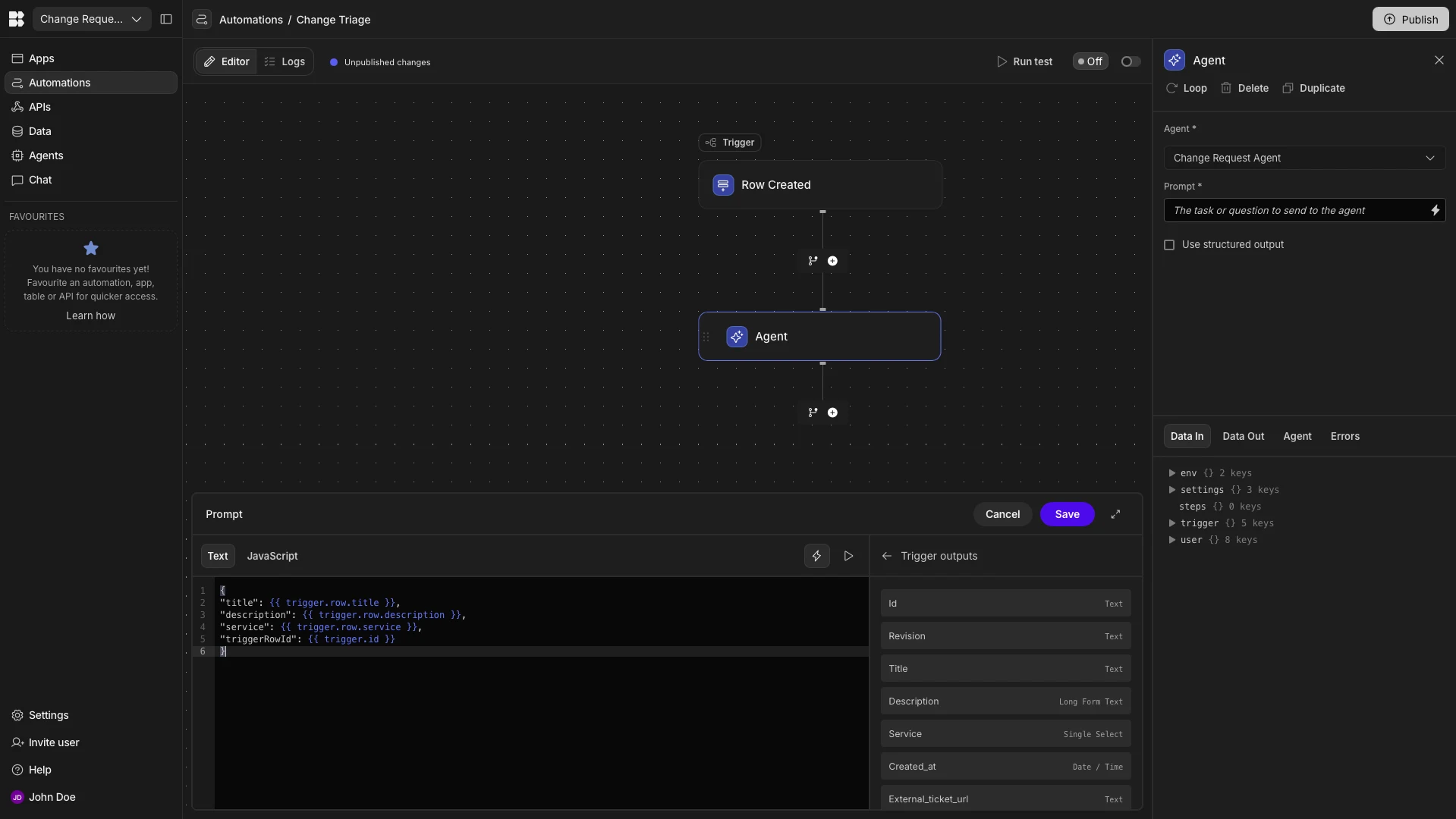
We can access the values we need as bindings under Trigger Outputs. The specific expression we’re going to use here is:
{
"title": {{ trigger.row.title }},
"description": {{ trigger.row.description }},
"service": {{ trigger.row.service }},
"triggerRowId": {{ trigger.id }}
}
We’ll then hit Run Test and select one of our existing Change Requests rows to test this out.
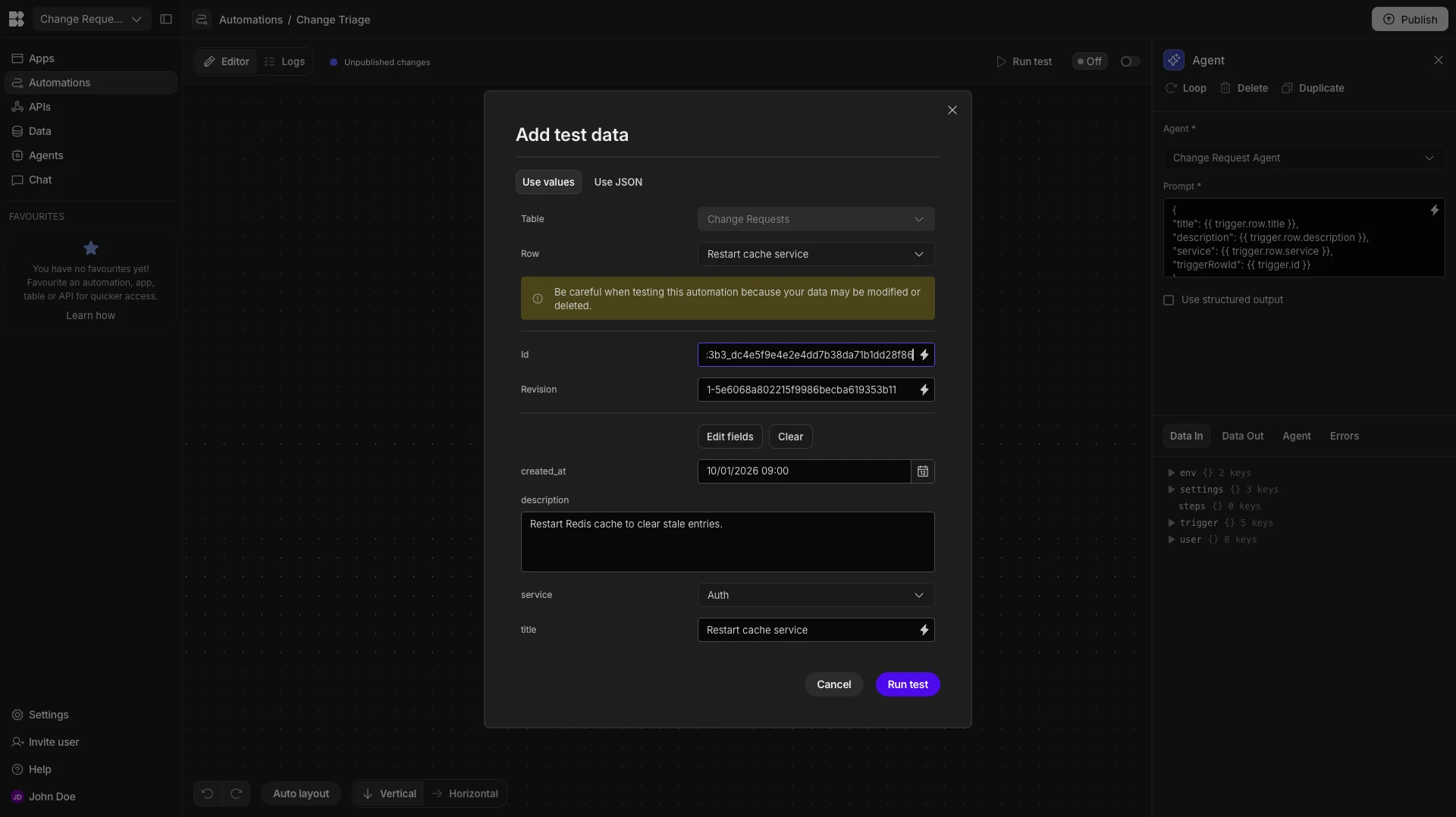
We can see that the Agent has successfully triaged this request as Standard, added a Task, and logged its Decision.
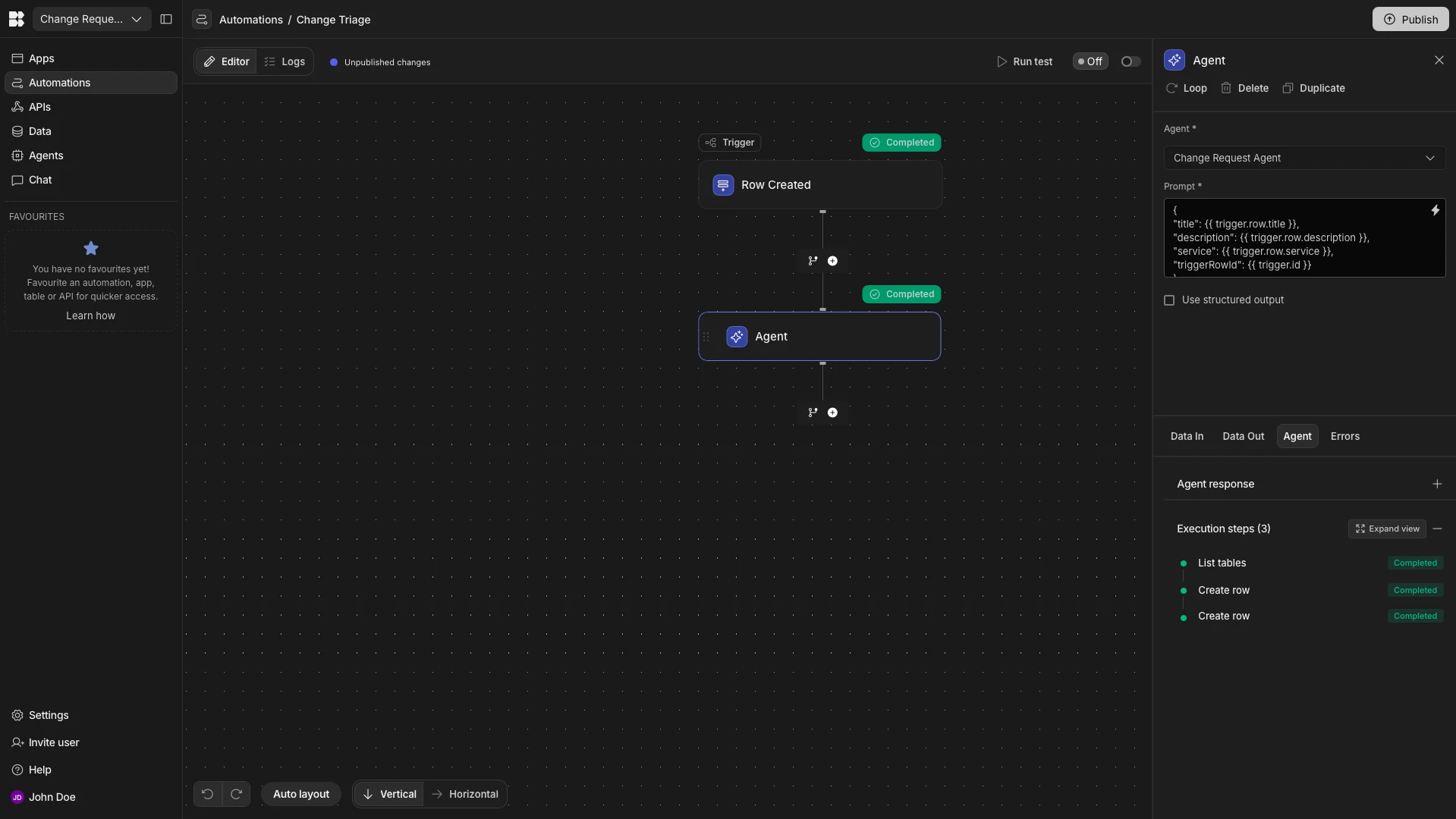
We’ll also want to repeat this test with other rows that we expect to be triaged as Normal and Major, in order to verify all possible outcomes of our Agent.
And that’s our AI change request agent ready to go.
The open-source AI workflow toolkit for privacy-first teams
Budibase is the open-source AI workflow toolkit for privacy-first teams. We offer model-agnostic AI agents, including support for local and private LLMs, alongside our extensive low-code tools for Apps and Automations.
Check out our features overview to learn more.