

Triaging incoming emails is a huge time sink for support teams. Determining the topic and importance of each email is a crucial step for deciding which inbox, colleague, or workflow it should be routed to.
Previously, this relied heavily on manual admin, often requiring human colleagues to read each incoming email, as it’s difficult to handle natural language with deterministic automations.
However, the rise of AI has completely changed this.
Today, we’re looking at how we can easily build an AI-powered email triage system using Budibase. Specifically, we’ll be covering:
- What is AI email triage
- How to build an email triage agent with Budibase
- Configuring our data model
- Setting up an email-received automation
- Configuring agent behavior
- Calling the triage agent from our automation rule
Let’s jump right in.
What is AI email triage?
AI email triage means using LLM-powered reasoning to categorize and prioritize incoming emails automatically. This relies on natural language processing, which involves an AI model analyzing the subject, intent, sentiment, and other factors within a piece of text.
The model can then apply defined business logic against this to trigger downstream actions, such as routing the email to an appropriate inbox, sending an automated response, creating a support ticket, or simply marking it as junk.
When dealing with emails, we generally have a limited number of text fields to base this on, including the sender, subject, email body, and, optionally, any attachments.
AI email triage systems are typically triggered by a new email being received by the relevant inbox, using either IMAP or a webhook from the mailbox provider.
The required data is then passed to an LLM with a system prompt, including the required logic for categorizing and prioritizing submissions.
The goal is to provide an automated system that’s capable of making the same triage decisions that would otherwise require human intervention, in accordance with defined business logic.
How to build an email triage agent with Budibase
Knowing what AI email triage is, we can move on to checking out how we can achieve this with Budibase Agents and Automations.
But first, it’s worth outlining what we’re building.
Our triage assistant will be initiated using a Budibase Automation, with the Email Received trigger, which connects to our mailbox via IMAP. When a new email is received in our inbox, we’ll first add it as a row in a BudibaseDB table called Emails.
We’ll then pass the relevant information to our agent, which includes logic for determining the Category and Priority of each email, as well as instructions for updating the relevant row to populate these, along with a field for its rationale.
If you haven’t already, sign up for Budibase to start building Agents and Automations.
Join 300,000 teams running operations on Budibase
Get started for free1. Configuring our data model
We’re starting with a new Budibase Workspace. This is a project where we can configure data and create Apps, Agents, or Automations that connect to this.
When we create our Workspace, we’ll be presented with the following screen, where we can start setting up our data layer.
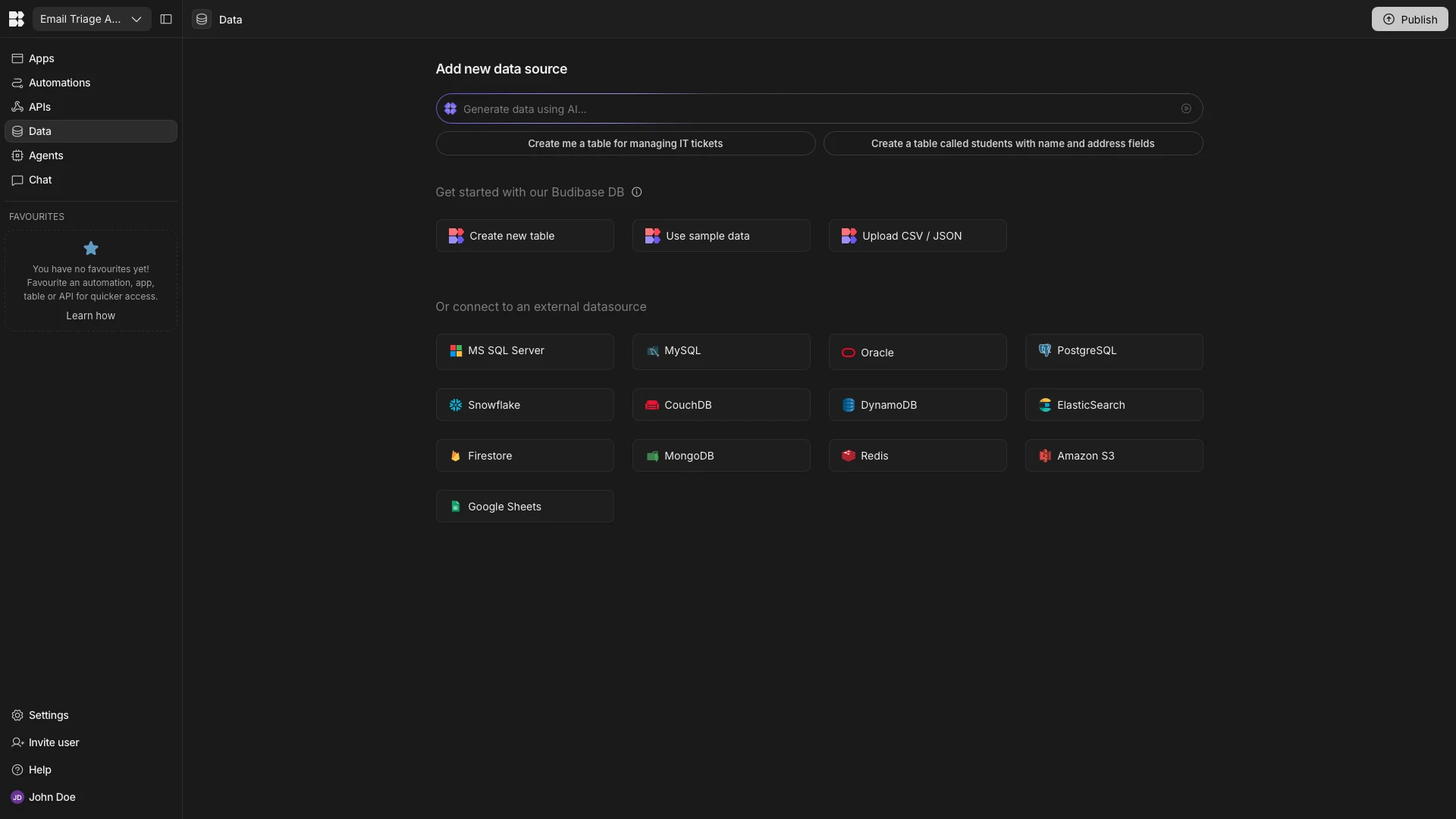
As we said earlier, we’re using a single table in Budibase’s internal database, BudibaseDB. We have the option of creating this from scratch, but today we’re selecting the option to upload a CSV.
Specifically, we’re going to upload a file containing the following data:
From,Subject,Received At,Body,Category,Priority,Agent Rationale
example,App Crashes on Login,2026-01-26T16:21:05.000Z,The app crashes every time I try to log in on my iPhone. Reinstalling didn't help.,,,
bob@lead.com,Pricing for 50 seats,2026-01-22T10:42:00.000Z,Could you share pricing for around 50 user licenses and any volume discounts?,,,
hr@partner.org,Contract renewal discussion,2026-01-22T10:05:00.000Z,Our current agreement expires next month and we’d like to discuss renewal terms.,,,
invoices@vendor.com,Invoice #48392 overdue,2026-01-22T09:14:00.000Z,Please let us know when invoice 48392 will be settled. It is now 14 days overdue.,,,
noreply@bank.com,Suspicious account activity,2026-01-22T11:10:00.000Z,We detected unusual activity on your account. Please review immediately.,,,
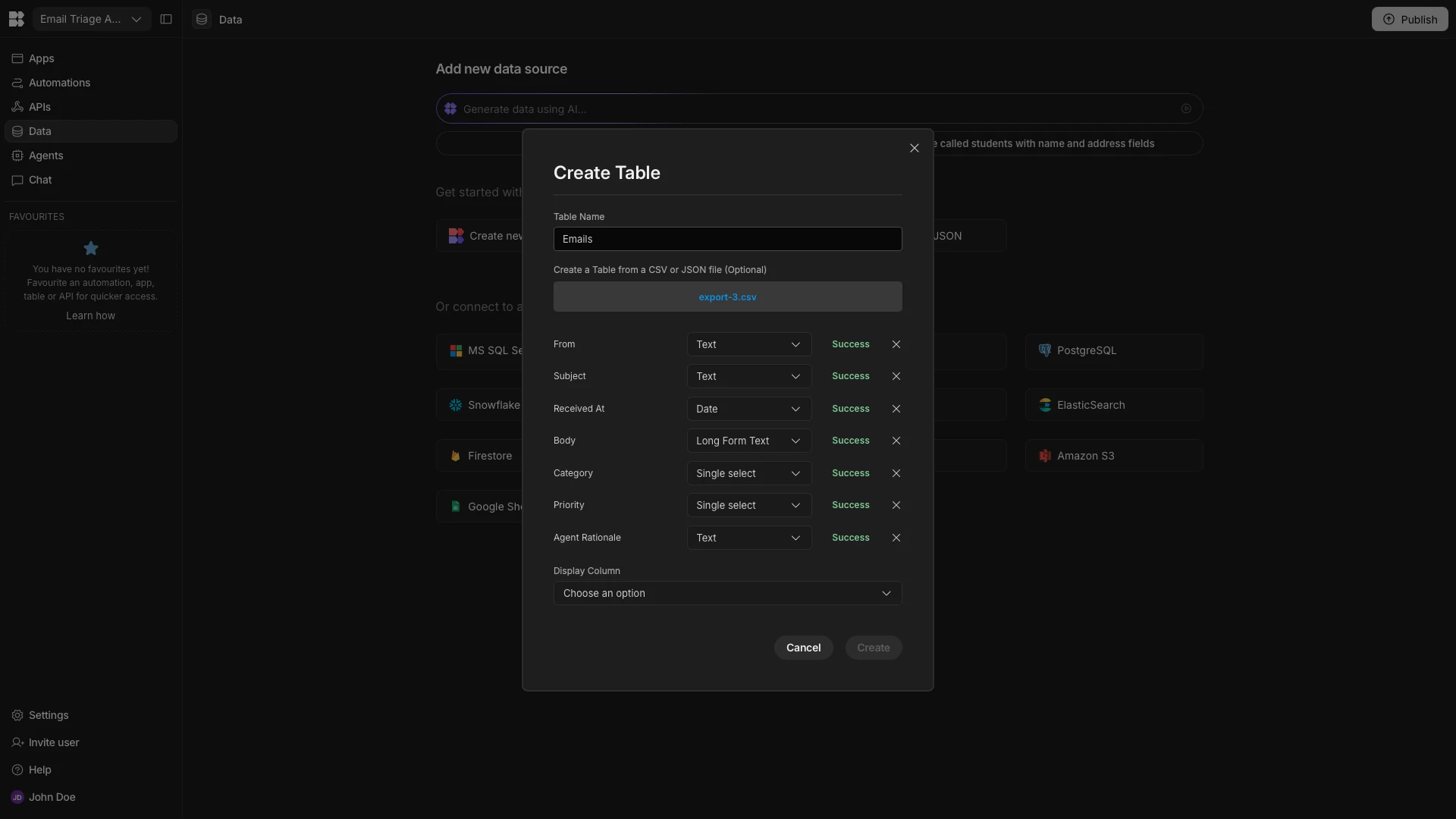
We’ll call our table Emails and select the following data types for our columns:
- From - Text,
- Subject - Text,
- Received At - Date,
- Body - Long-Form Text,
- Category - Single Select,
- Priority - Single Select,
- Agent Rationale - Long-Form Text.
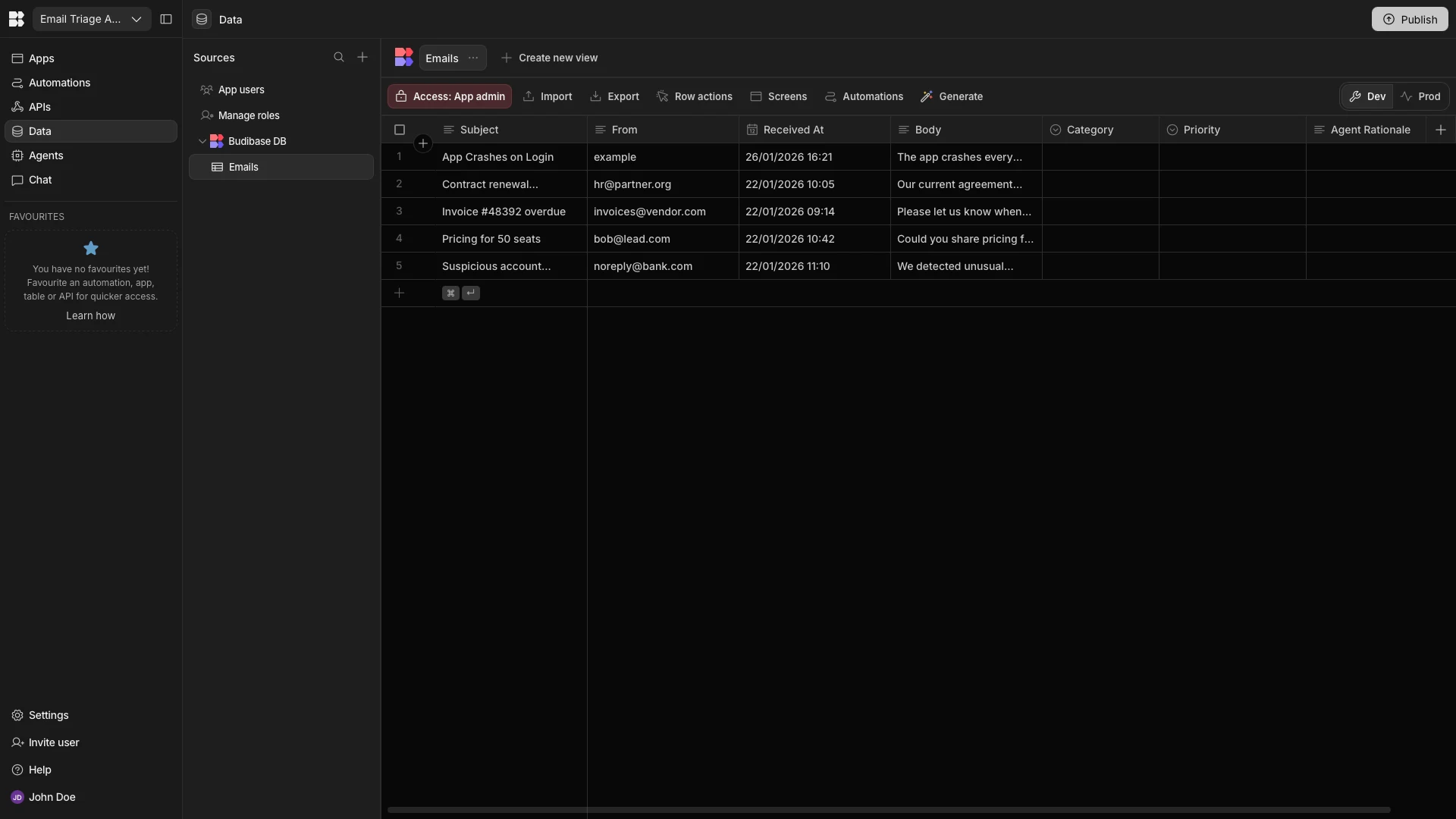
Here’s how this looks in the Data section of our Workspace. Not that the Category, Priority, and Agent Rationale columns are empty, as we’ll be using our Agent to populate these for new rows later.
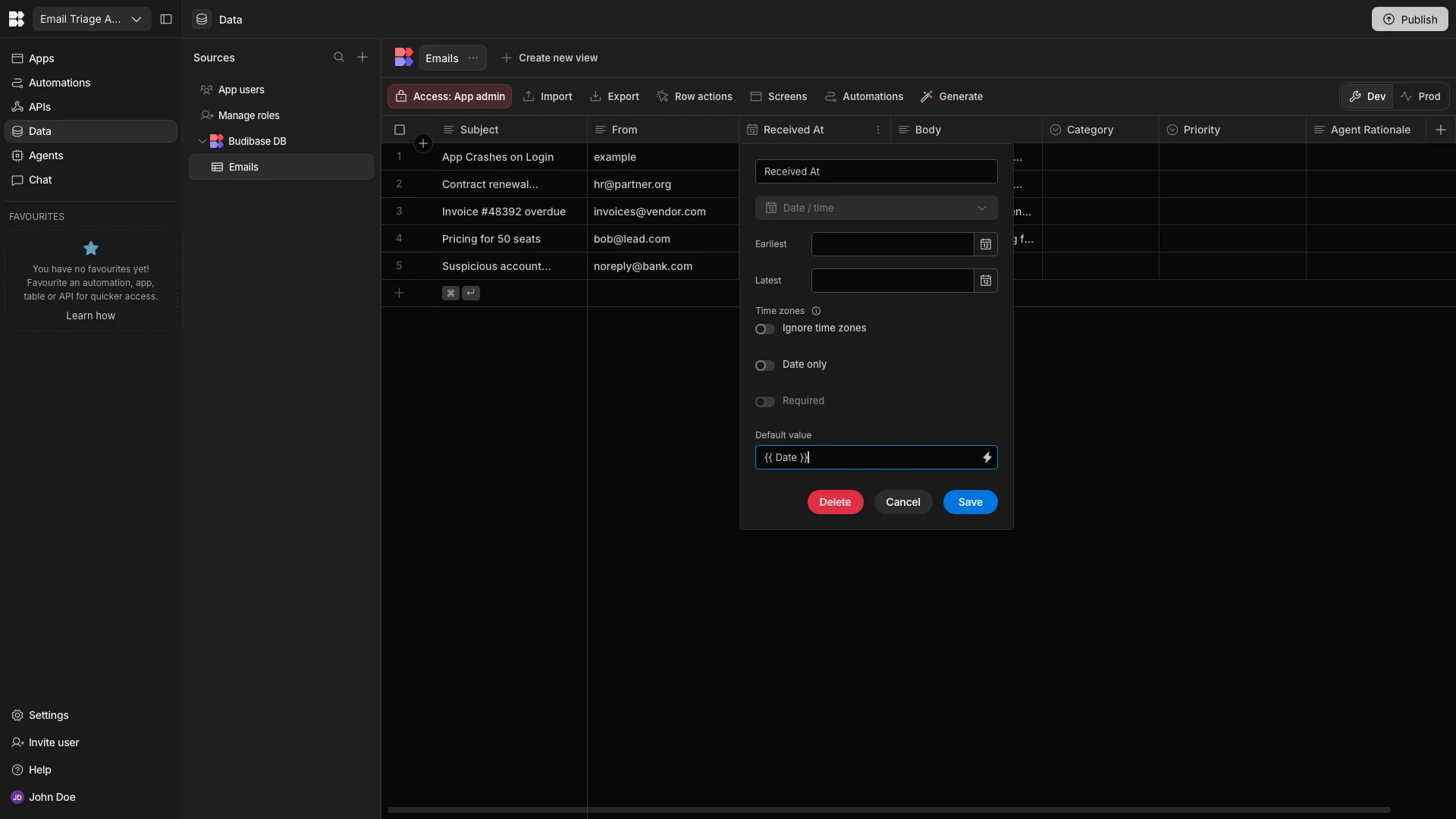
The one additional change we’ll make to our data model is providing a Default Value for the Received At column, using the handlebars expression {{ Date }}. This will automatically populate a timestamp when a new row is created.
And that’s our data model ready to go.
2. Setting up an email-received automation
Next, we need to create an Automation rule that’s capable of connecting to a mailbox and adding a new row to our database table when an email is received.
We’ll start by heading to the Automation section and adding a new automation. We’ll call this Email Triage and select the Email Received trigger.
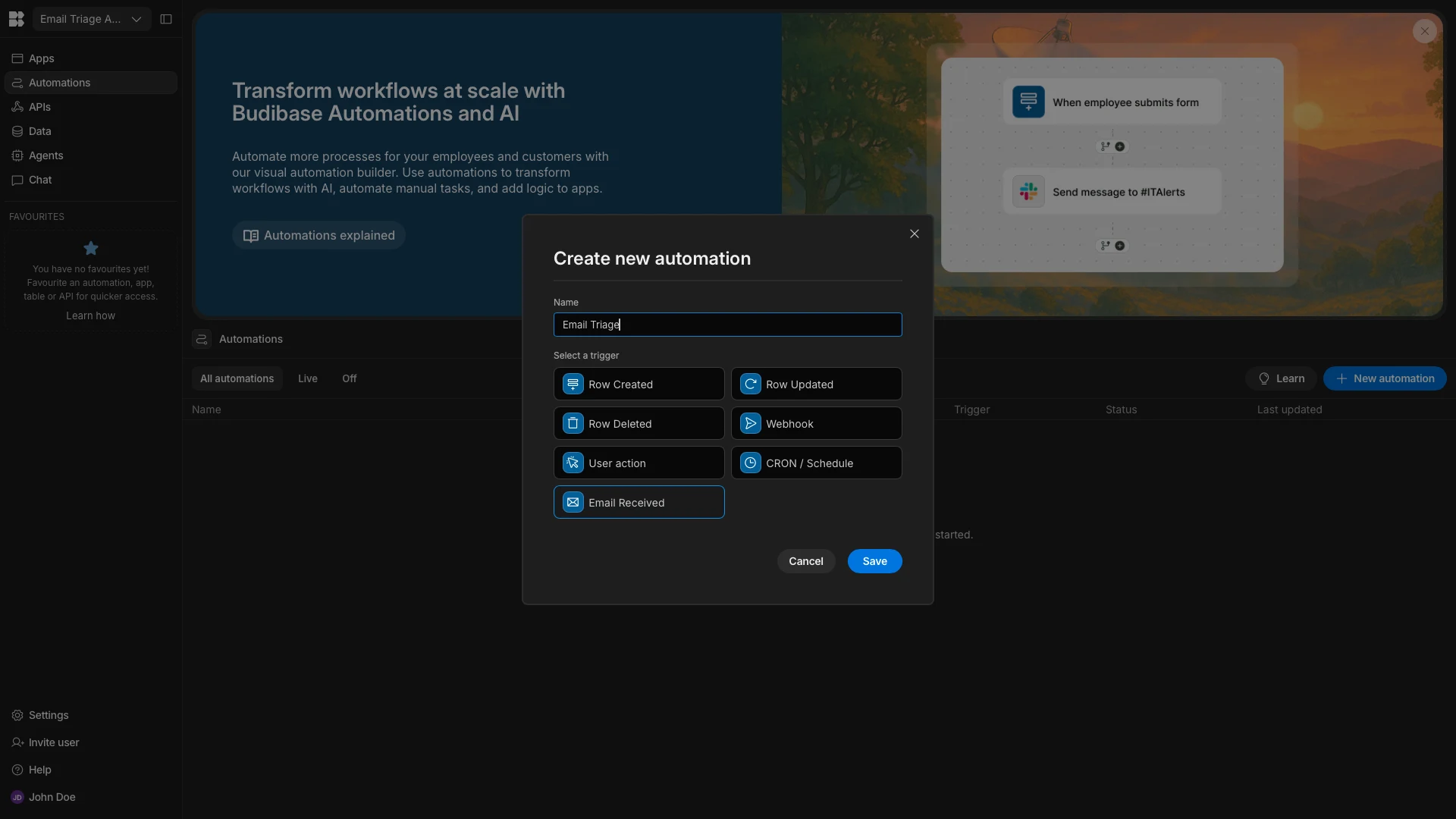
Here’s what this looks like in the Automation section. We simply need to populate our IMAP credentials on the right-hand side to start listening for emails.
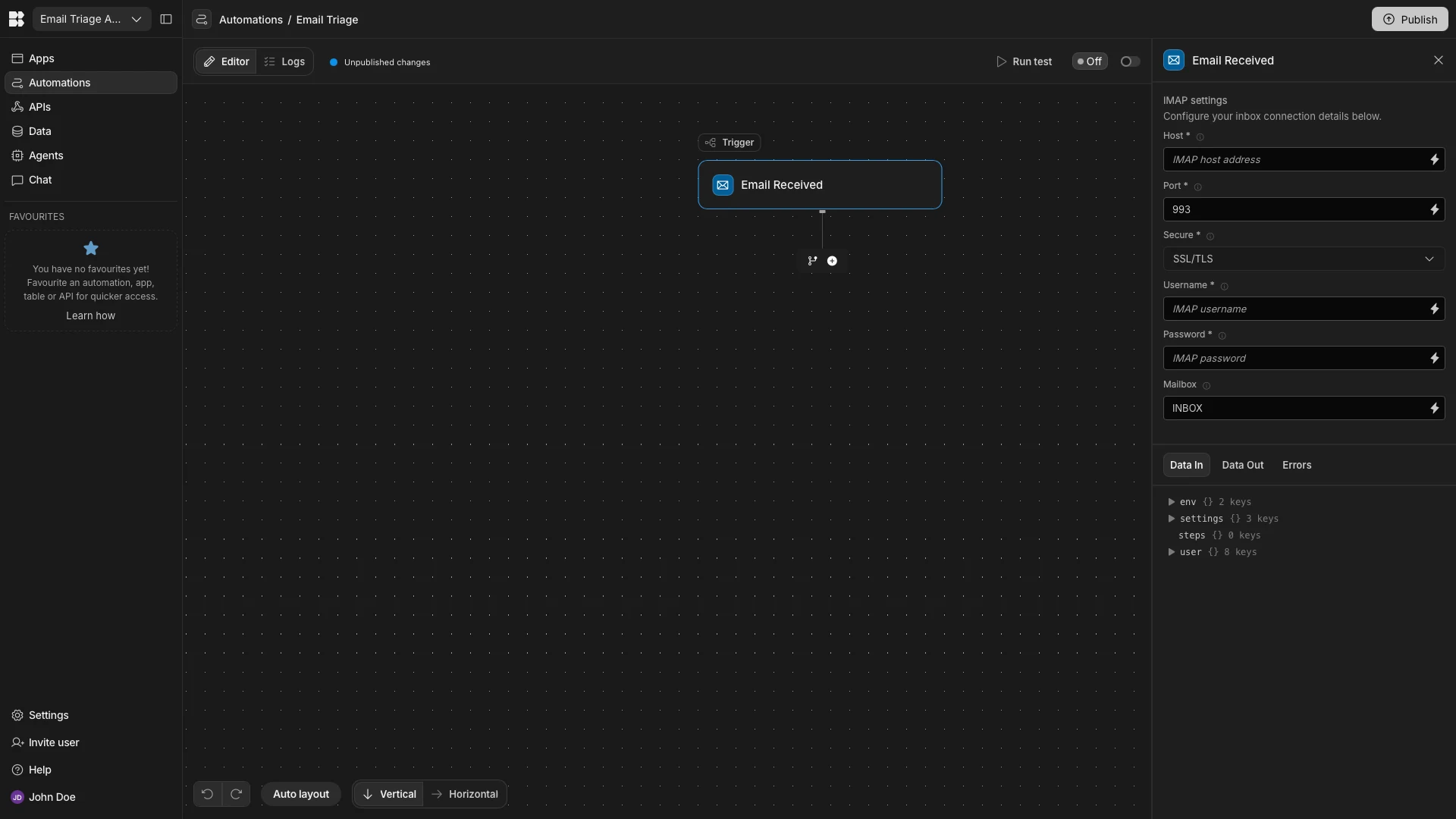
When we receive a new email, we want to add the relevant information to the Emails table that we created in the previous section.
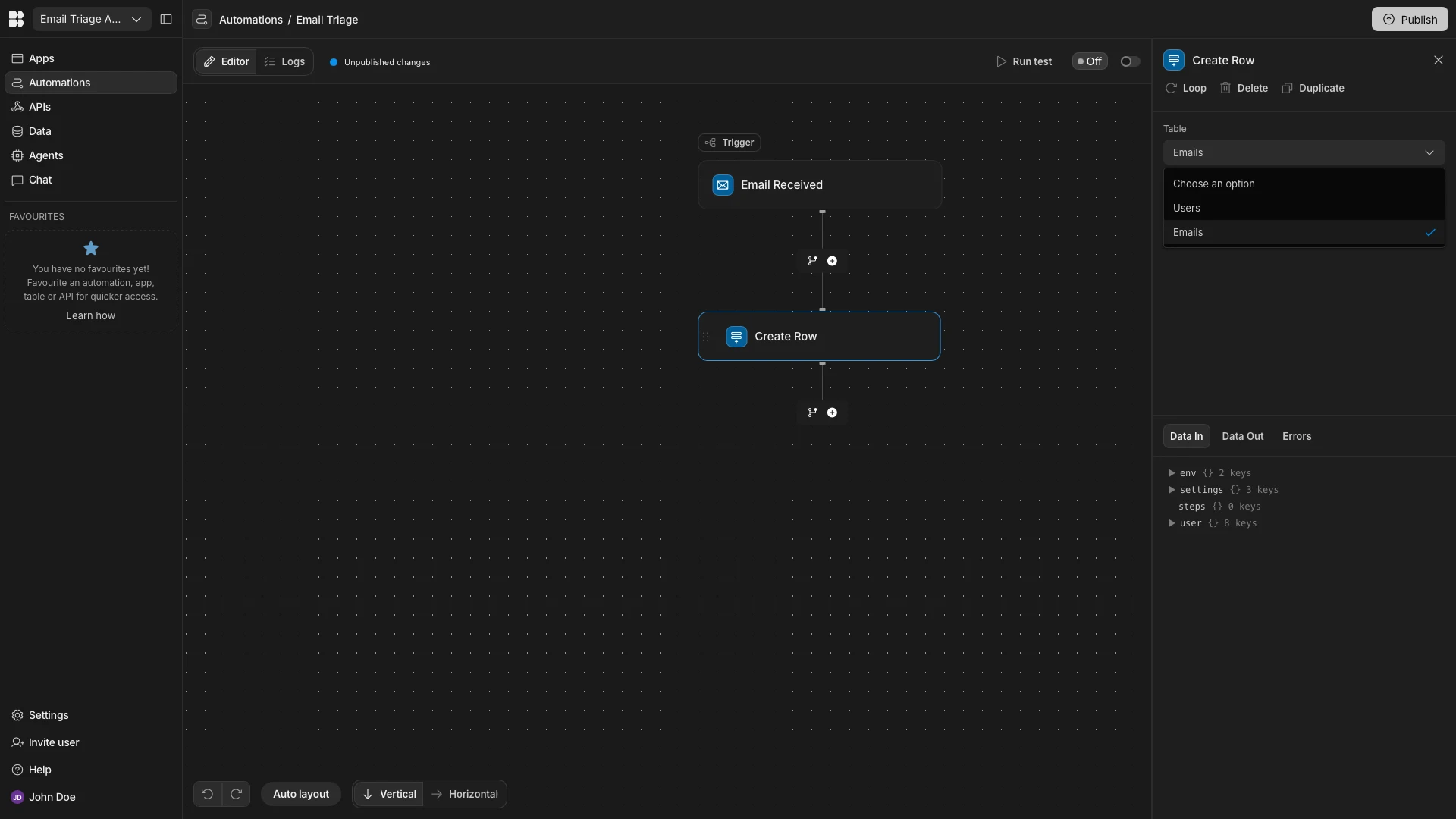
So, we’re going to add a Create Row action step after our trigger, setting the Table to Emails.
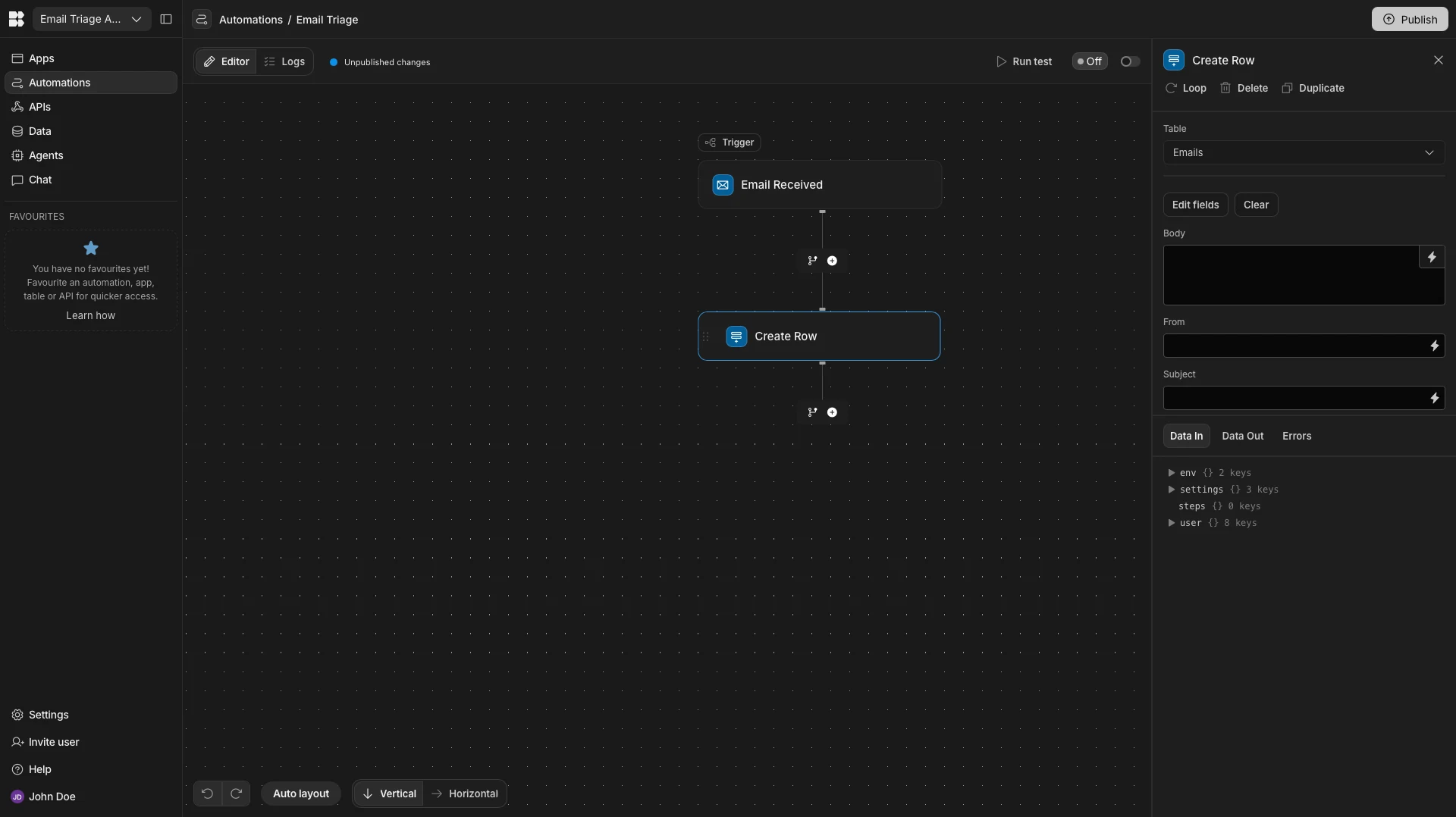
We’ll then hit Edit Fields, selecting Body, From, and Subject.
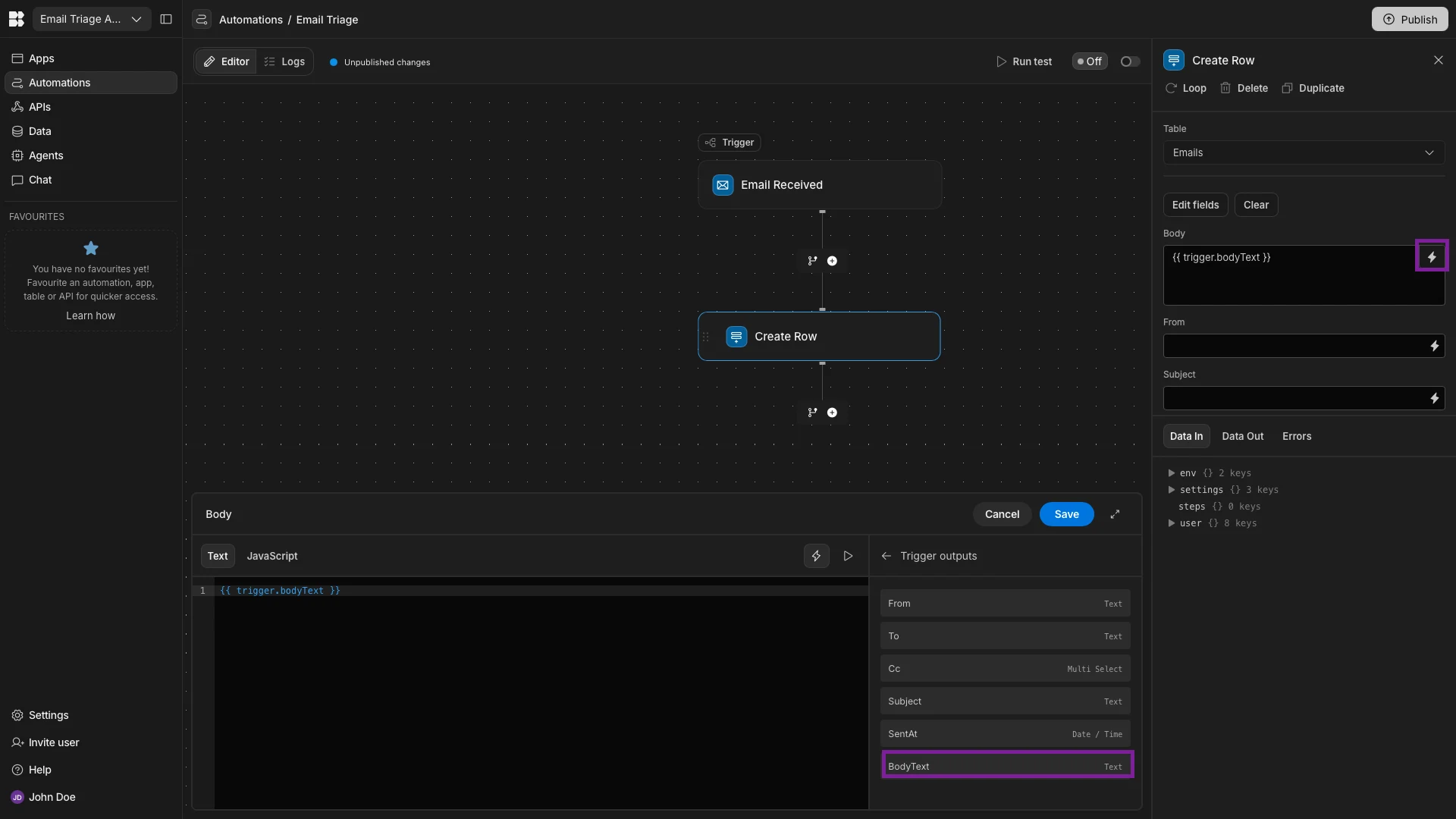
Next, we can hit the lightning bolt icon alongside the Body field to open the bindings drawer, where we can select BodyText under Trigger Outputs.
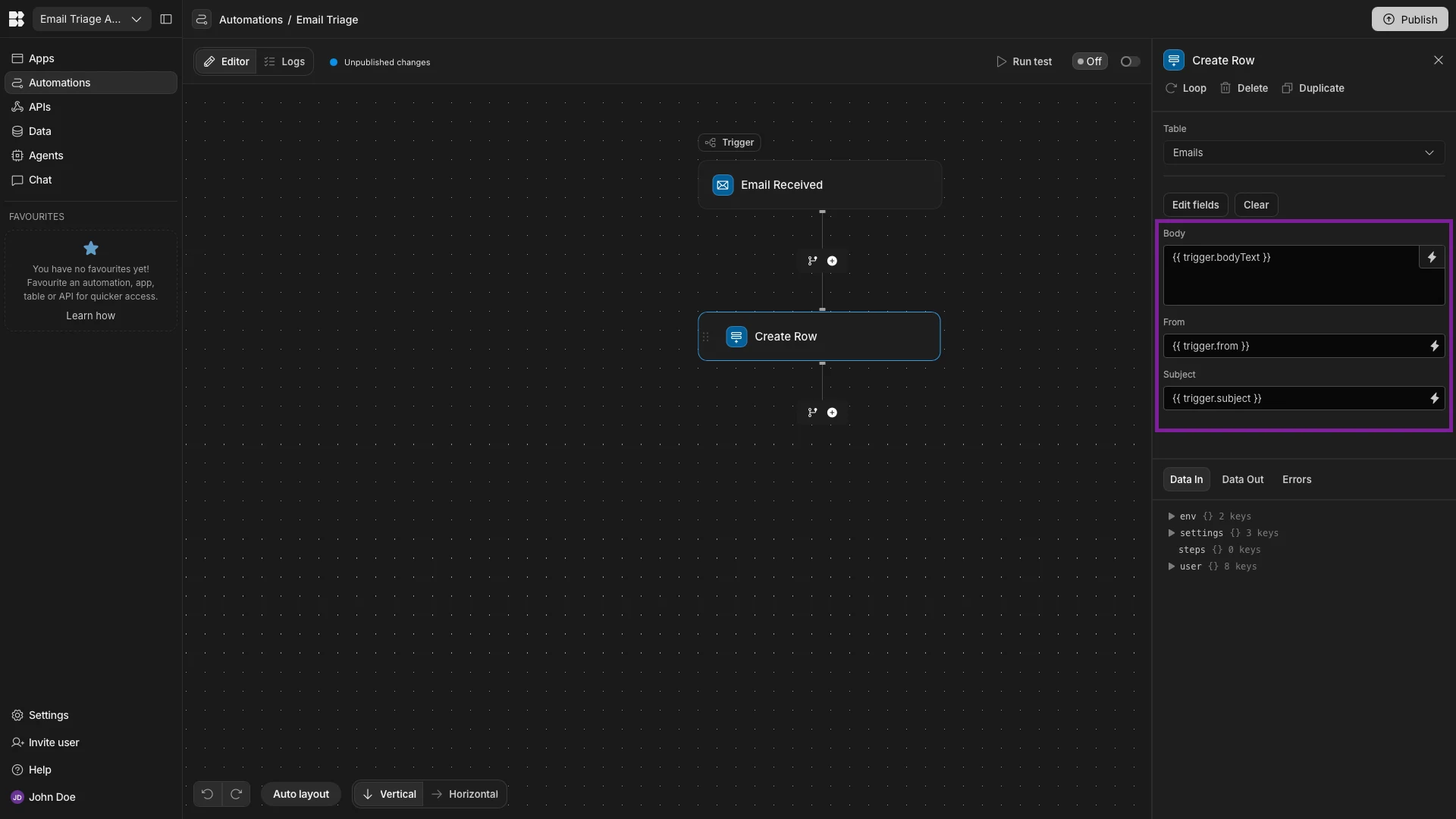
We’ll then repeat this process to bind our From and Subject fields to {{ trigger.from }} and {{ trigger.subject }} respectively.
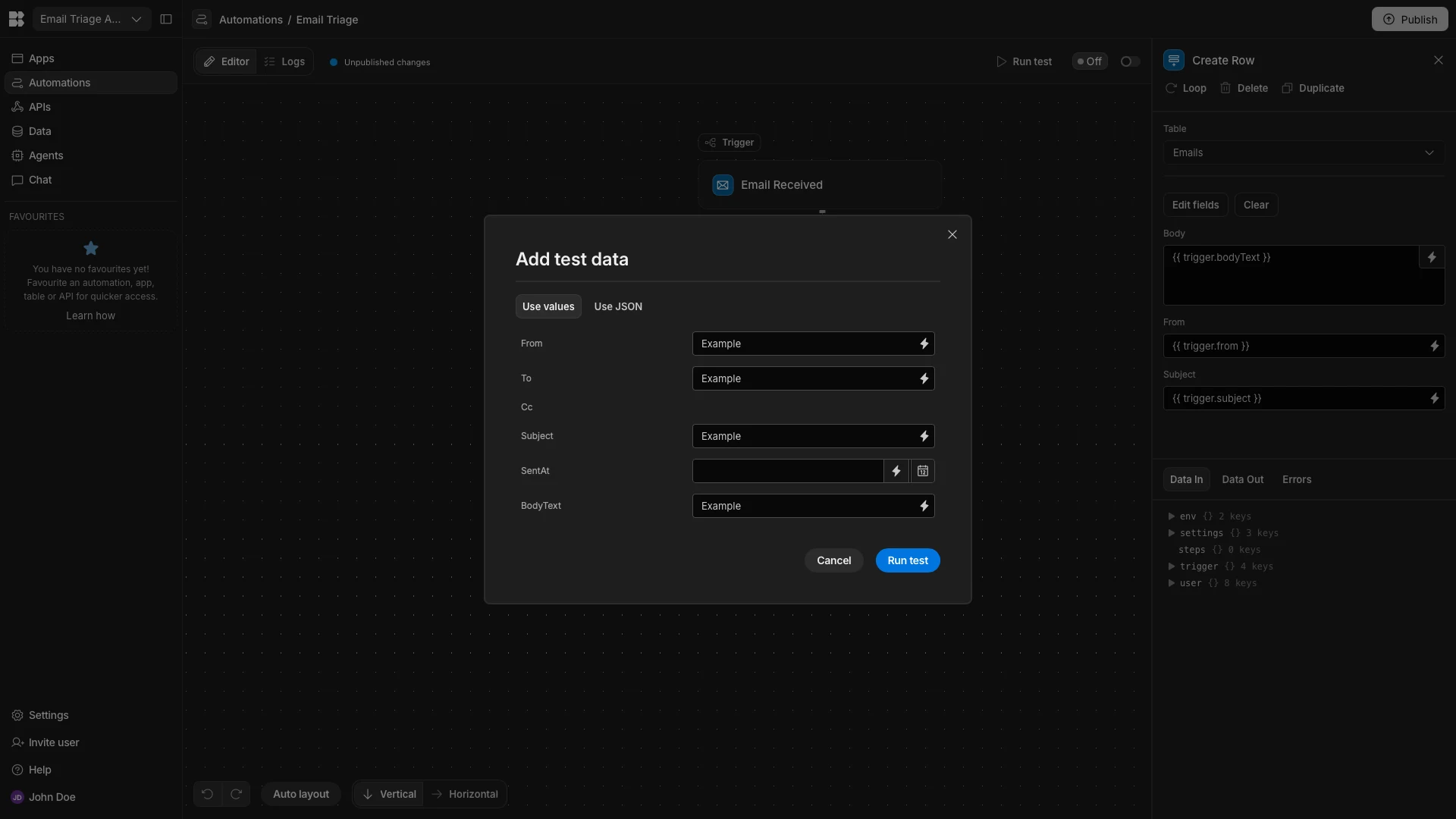
We can hit Run Test and add a dummy payload to confirm that this works.
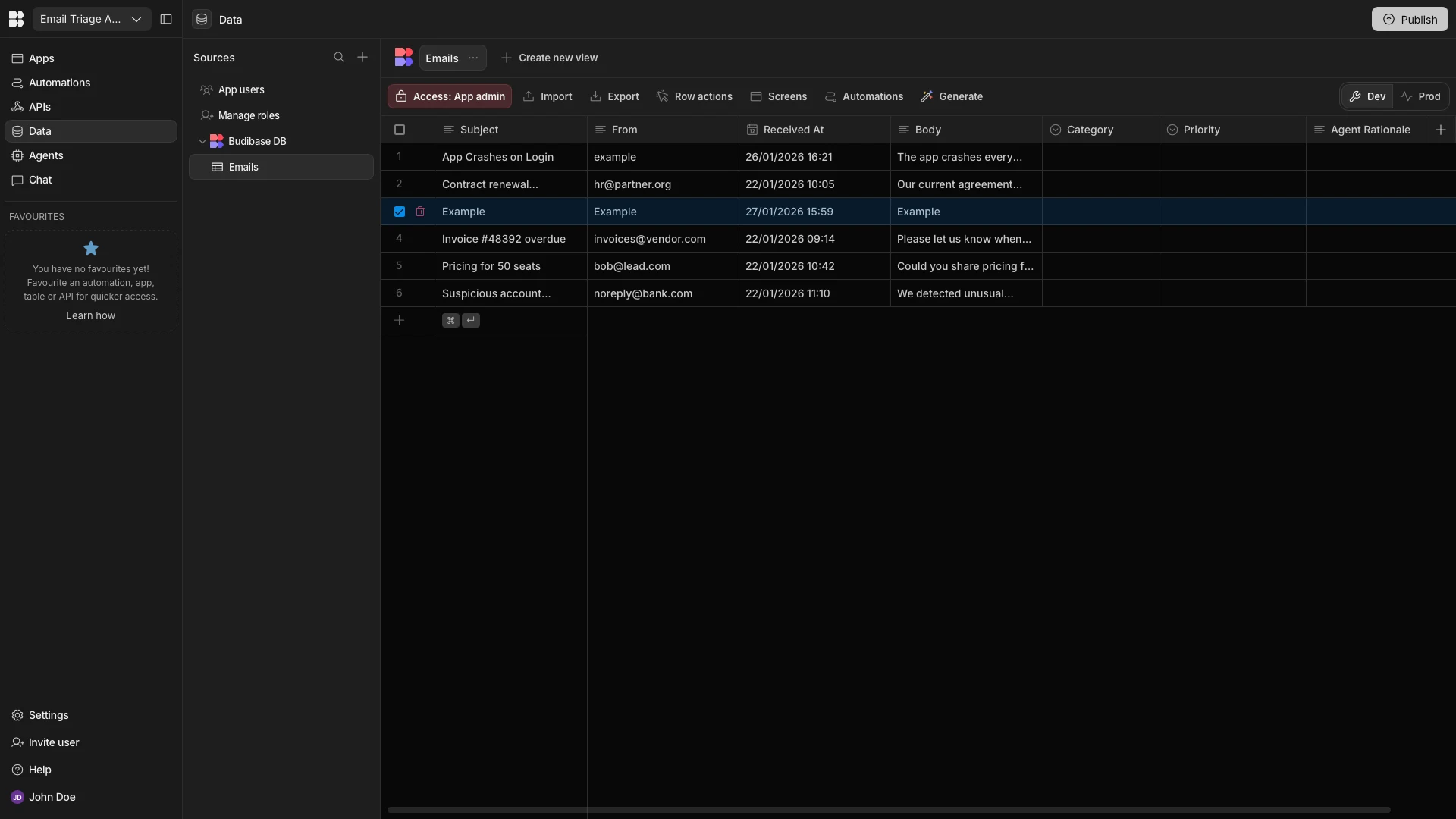
Back in the Data section, we can see that our row has been created successfully.
3. Configuring agent behavior
Now we have a basic automation that receives emails and records them in a database table. The next thing we want to do is create an AI agent that’s capable of assessing emails, applying triage logic, and populating the remaining fields in our table for each new row.
We recently launched Budibase Agents into Beta, enabling us to create intelligent, model-agnostic assistants that can interact with our tools and data.
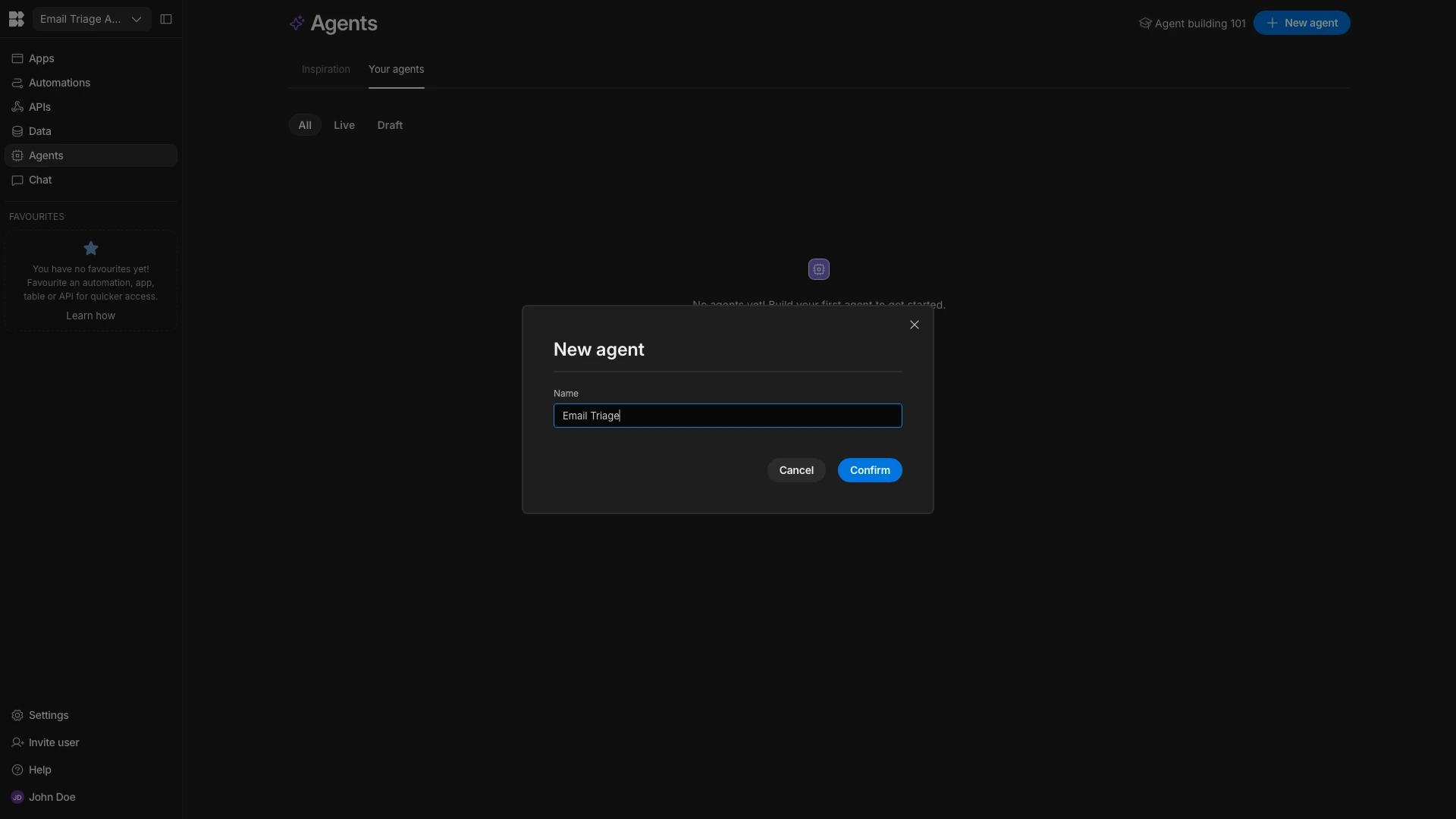
We’ll start by heading to the Agents section of our Workspace. Here, we’ll create a new Agent and call it Email Triage.
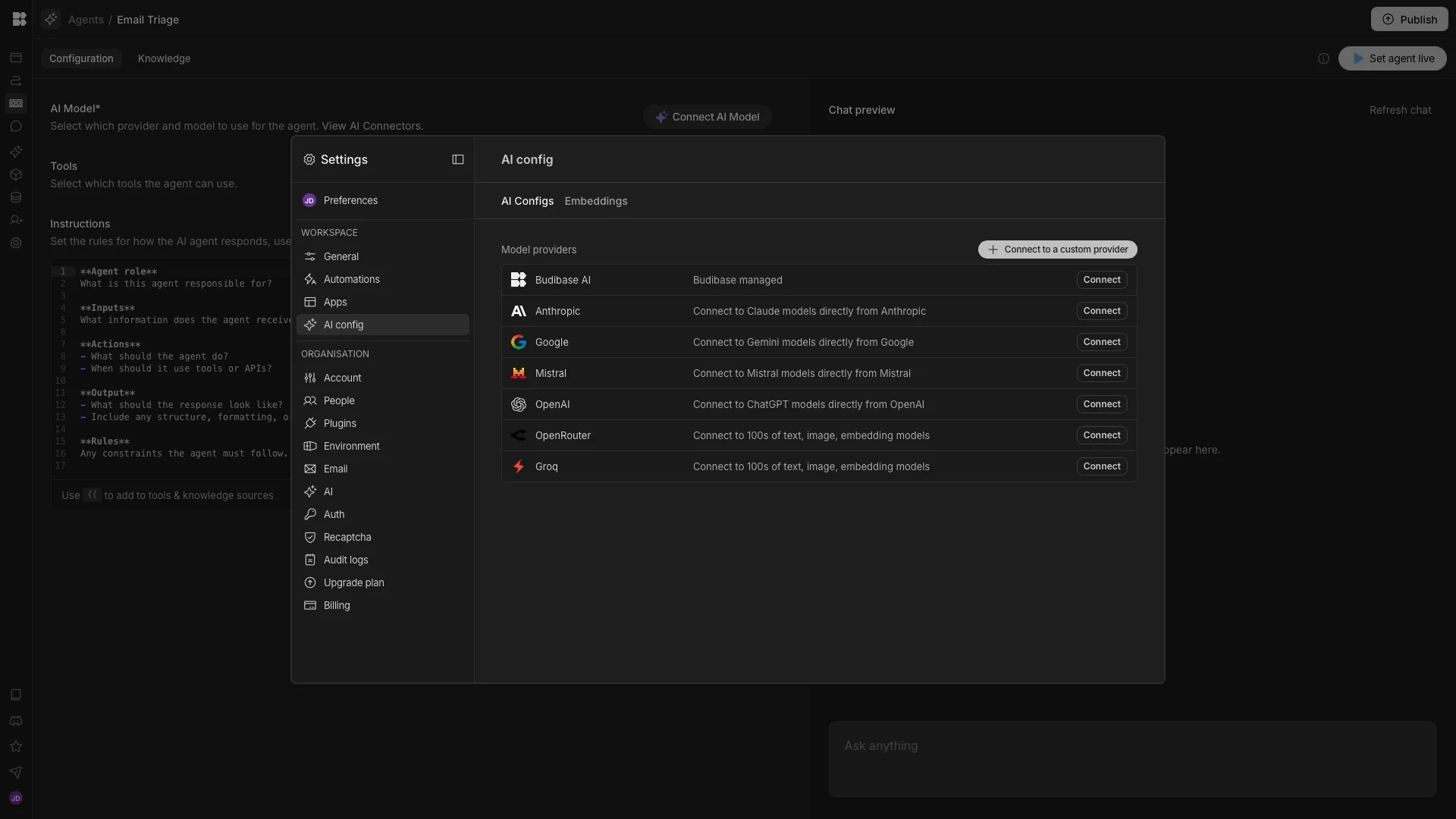
Before we can start telling our Agent what to do, we need to select a model to power it. We’ll start by heading to the AI Config tab in the settings modal for our Workspace.
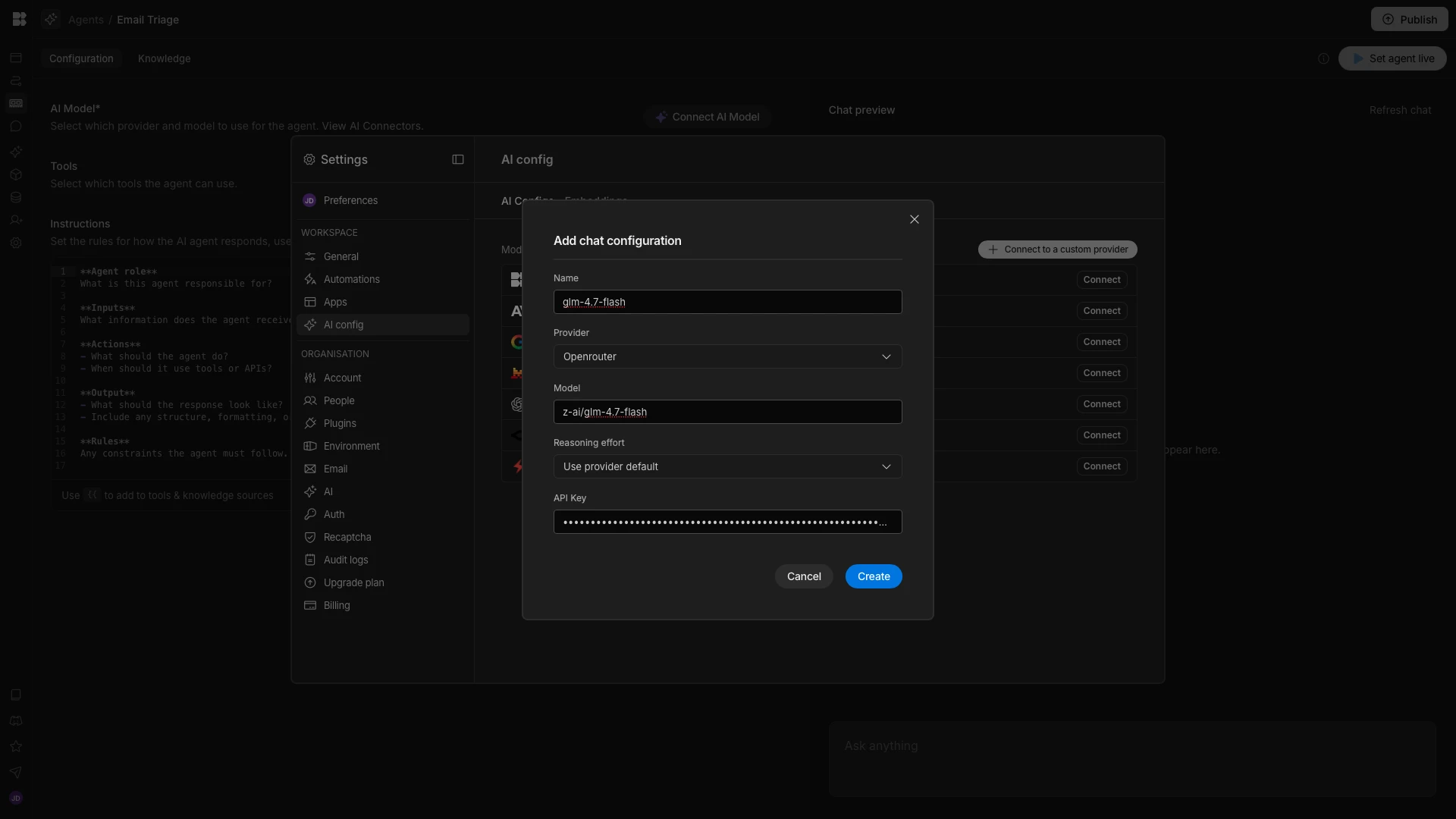
We’re inputting our credentials to connect to z-ai/glm-4.7-flash via OpenRouter.
Then, we can select this from the Model dropdown in Agent editor.
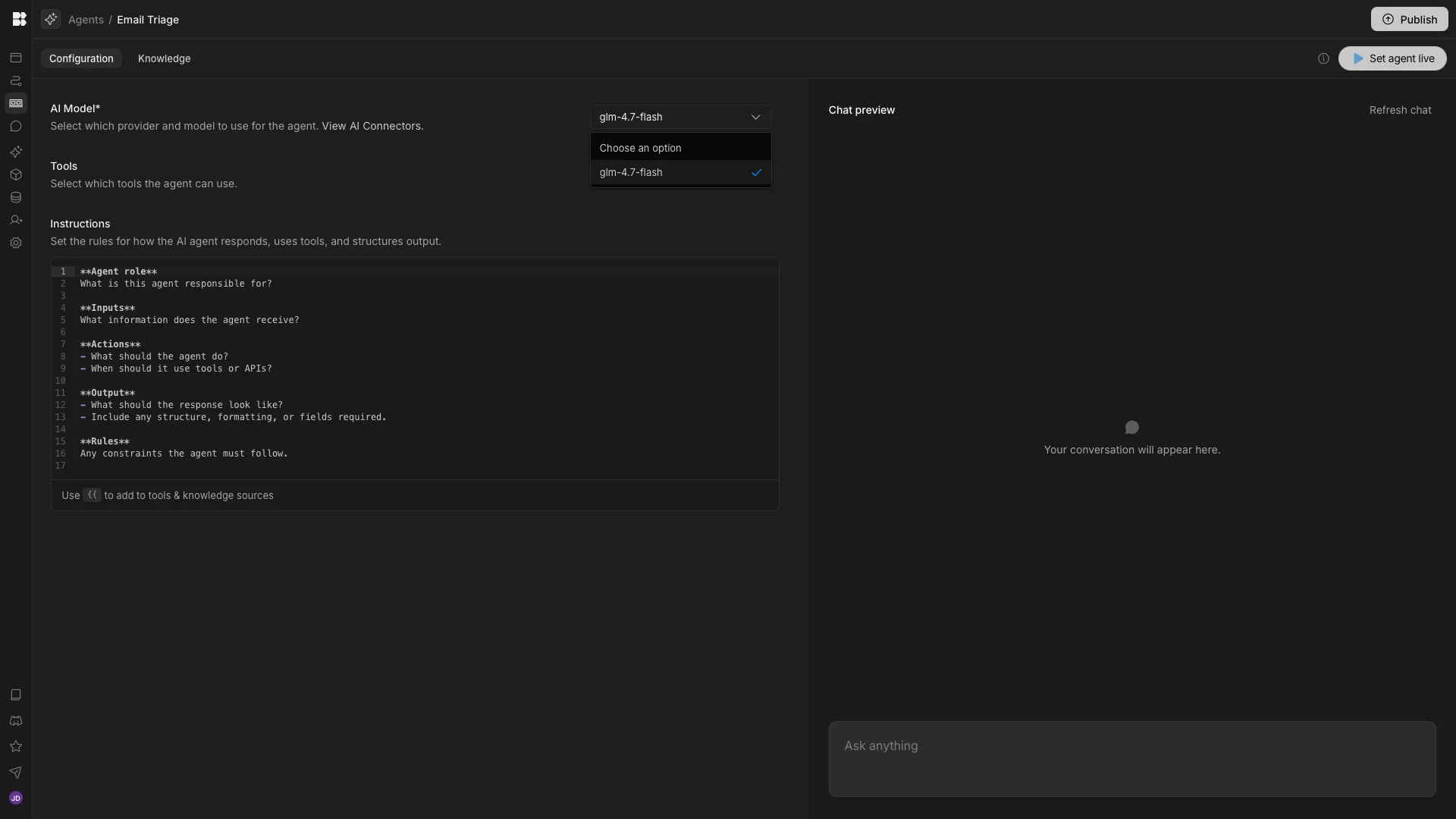
Now, we can start to configure Agent behavior in natural language using the Instructions field.
We’ll start by giving our Agent context for what we want to achieve and defining the variables it will need to handle.
So, the start of our prompt will be:
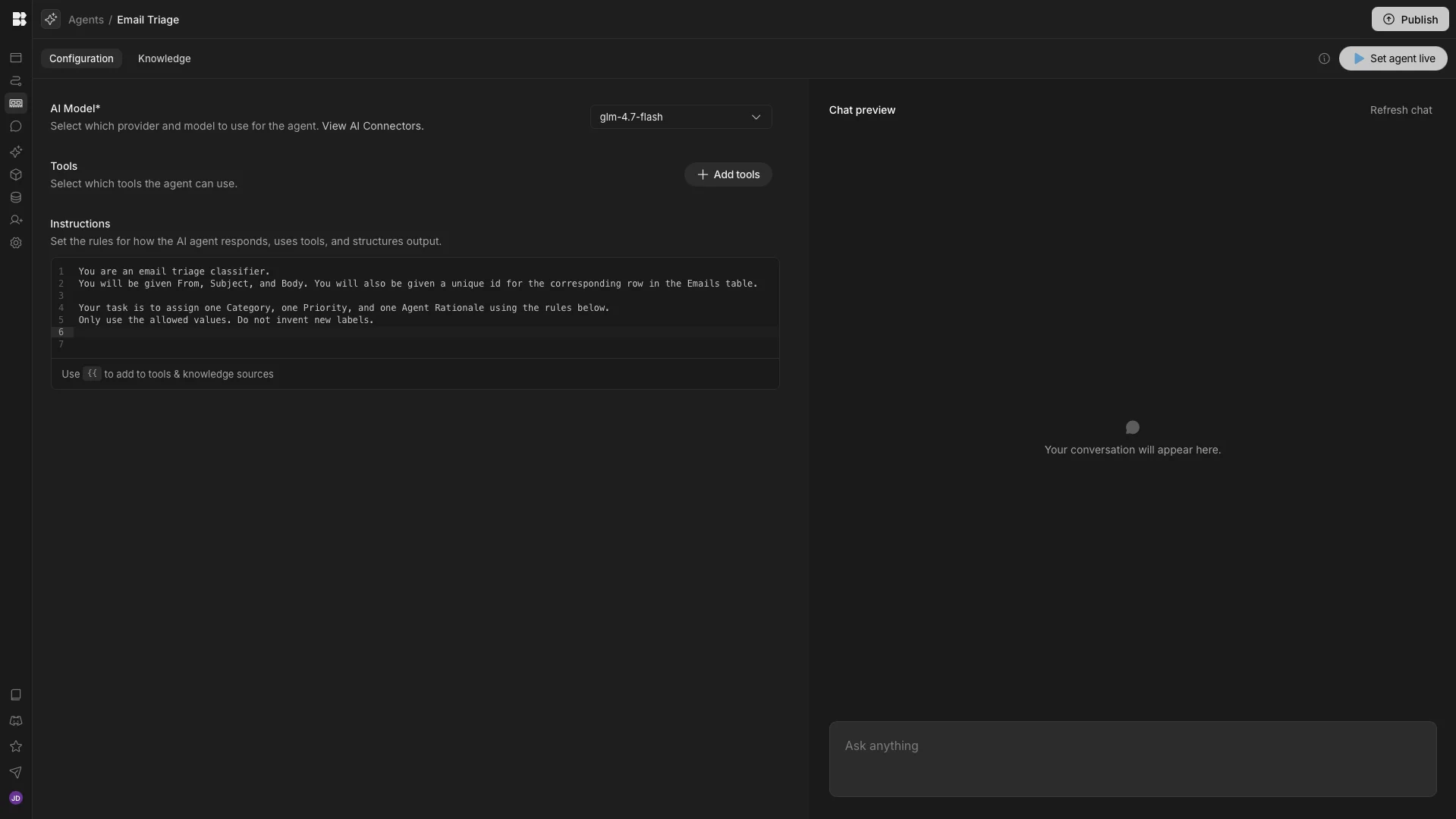
You are an email triage classifier.
You will be given From, Subject, and Body. You will also be given a unique id for the corresponding row in the Emails table. Your task is to assign one Category, one Priority, and one Agent Rationale using the rules below.
Only use the allowed values. Do not invent new labels.
Here’s what this looks like in the instructions editor.
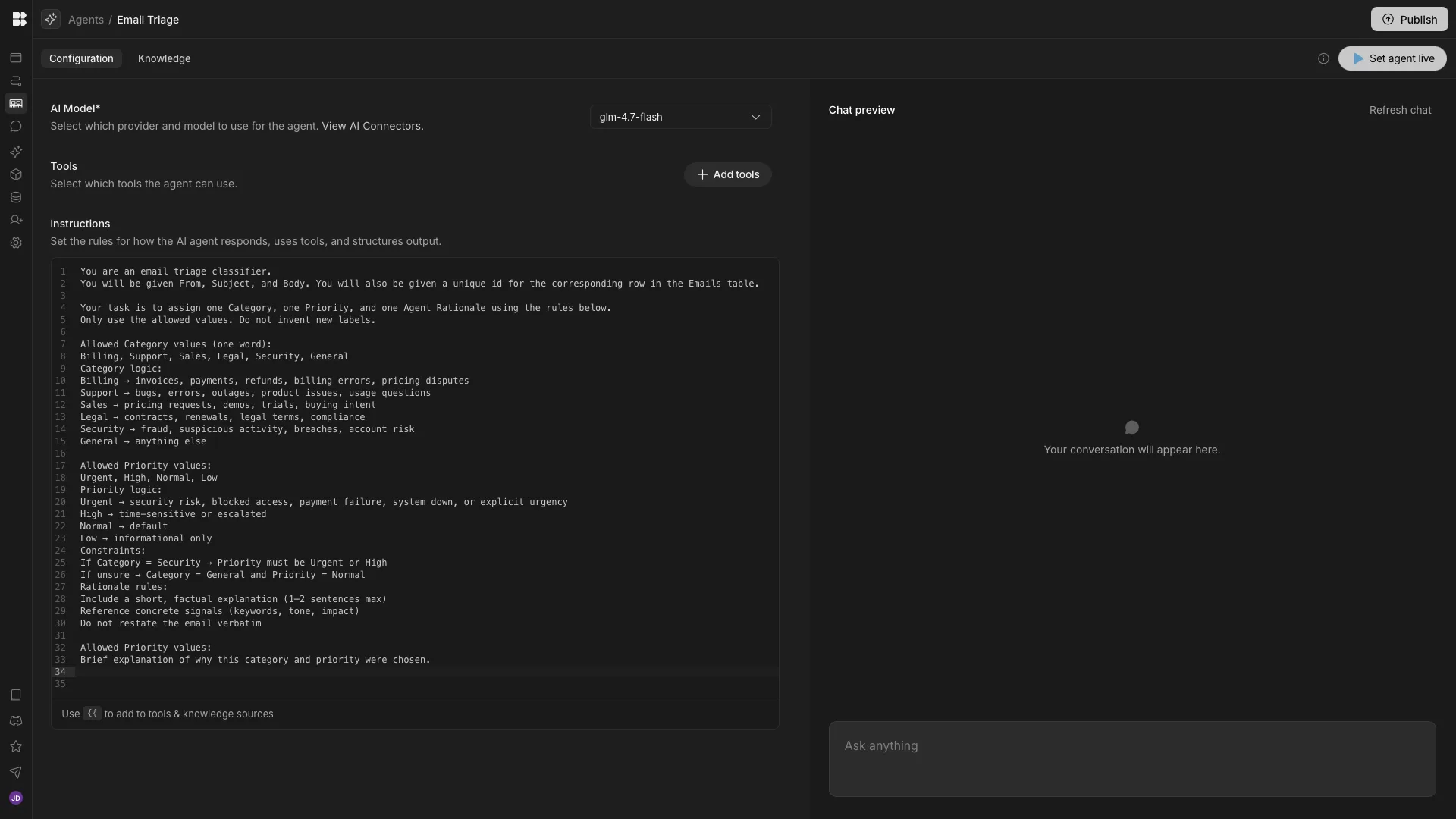
We then need to add the logic for determining which Priority and Category to assign the Email. To do this, we’ll add the following to our existing instructions:
Allowed Category values (one word):
Billing, Support, Sales, Legal, Security, General
Category logic:
Billing → invoices, payments, refunds, billing errors, pricing disputes
Support → bugs, errors, outages, product issues, usage questions
Sales → pricing requests, demos, trials, buying intent
Legal → contracts, renewals, legal terms, compliance
Security → fraud, suspicious activity, breaches, account risk
General → anything else
Allowed Priority values:
Urgent, High, Normal, Low
Priority logic:
Urgent → security risk, blocked access, payment failure, system down, or explicit urgency
High → time-sensitive or escalated
Normal → default
Low → informational only
Constraints:
If Category = Security → Priority must be Urgent or High
If unsure → Category = General and Priority = Normal
Rationale rules:
Include a short, factual explanation (1–2 sentences max)
Reference concrete signals (keywords, tone, impact)
Do not restate the email verbatimAllowed Rationale values:
Brief explanation of why this category and priority were chosen.
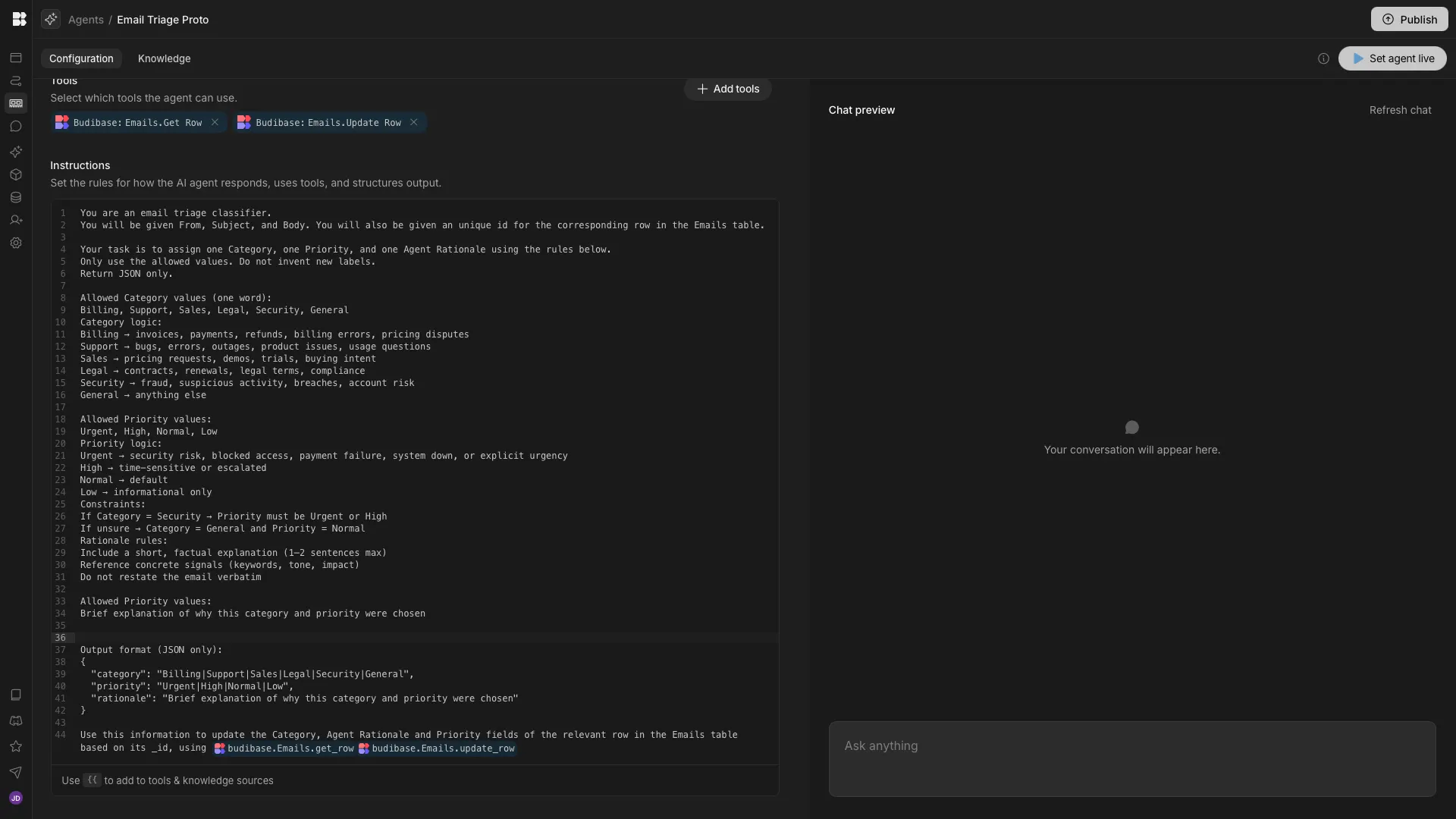
Lastly, we need to outline which tool it can use to actually update our target row. Budibase supports a wide range of external tool calls, but today we’re using our built-in actions within BudibaseDB.
We’ll add the following to our existing prompt to configure our Agent to update the relevant Emails row.
Output format (JSON only):
{
  "category": "Billing|Support|Sales|Legal|Security|General",
  "priority": "Urgent|High|Normal|Low",
  "rationale": "Brief explanation of why this category and priority were chosen."
}
Use this information to update the Category, Agent Rationale, and Priority fields of the relevant row in the Emails table based on its _id, using {{ budibase.Emails.get_row }}{{ budibase.Emails.update_row }}
Lastly, we can use the data from an existing row in our Chat preview to confirm that our agent works as intended.
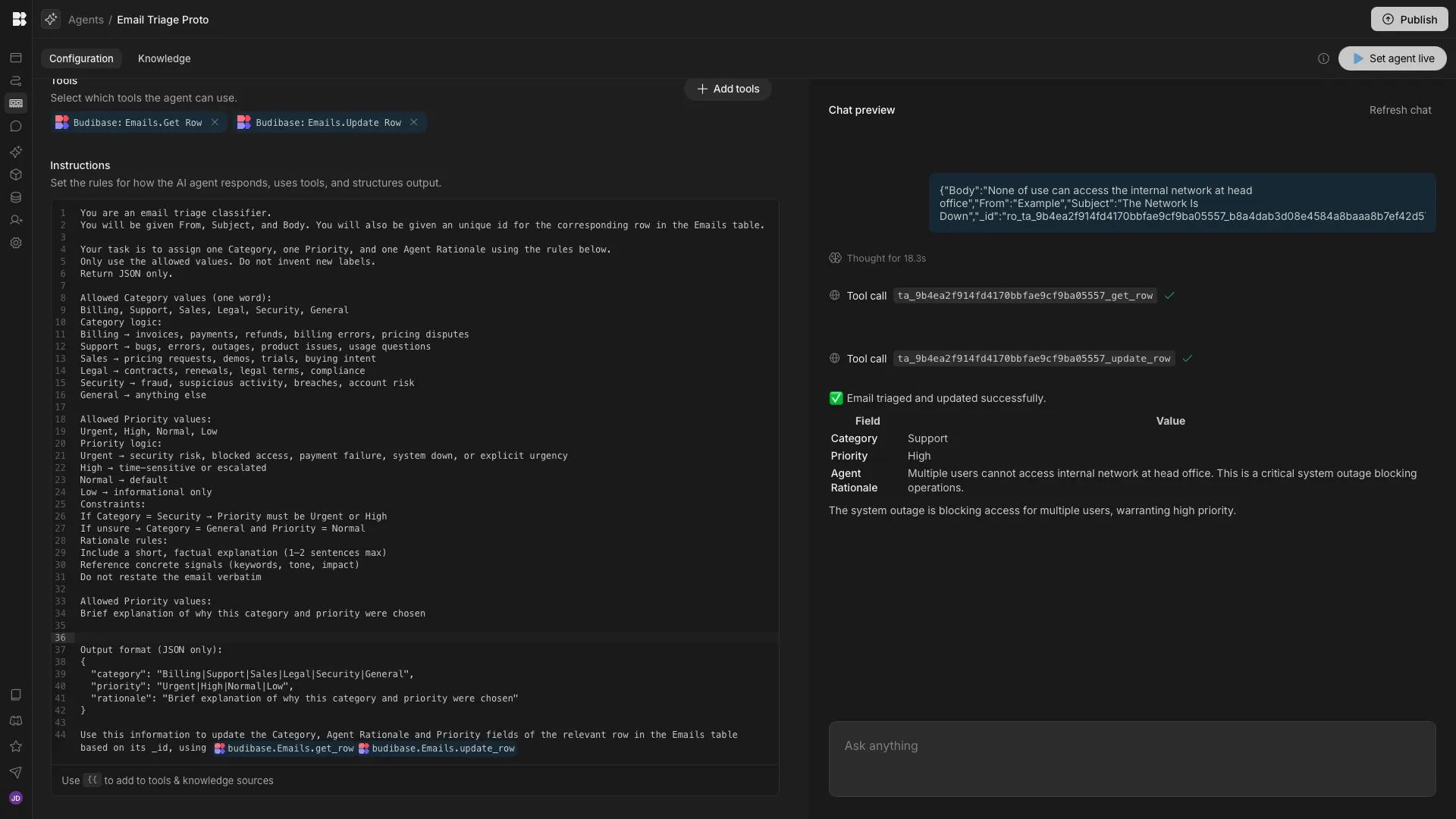
And that’s our Agent ready to go.
4. Calling the triage agent from our automation rule
Now that we have our Agent in place, we can connect this to our existing Automation, so that it will be triggered each time a row is added to our Emails table.
Back in the Automations section, we’ll add an Agent step after our existing Create Row action.
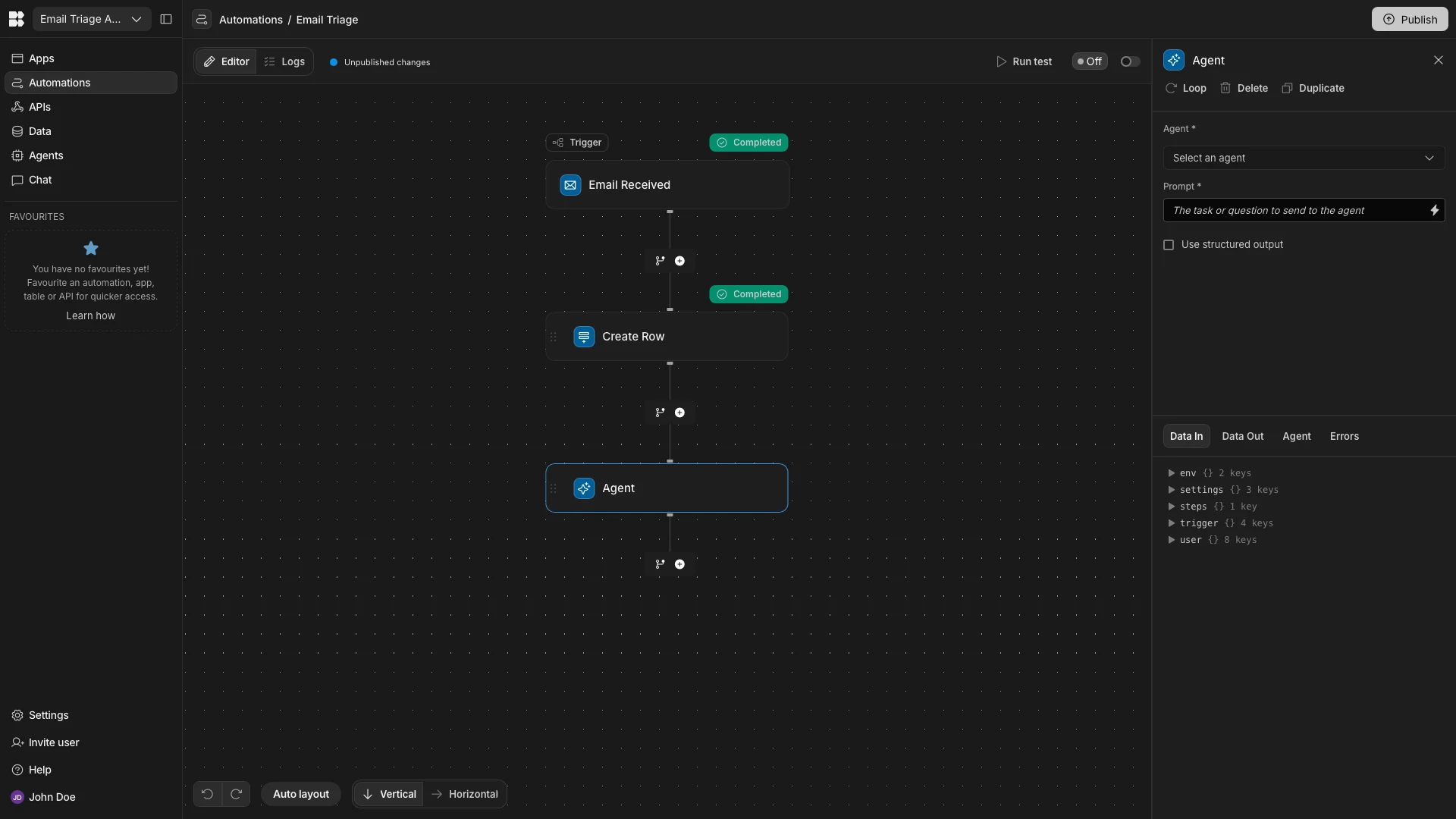
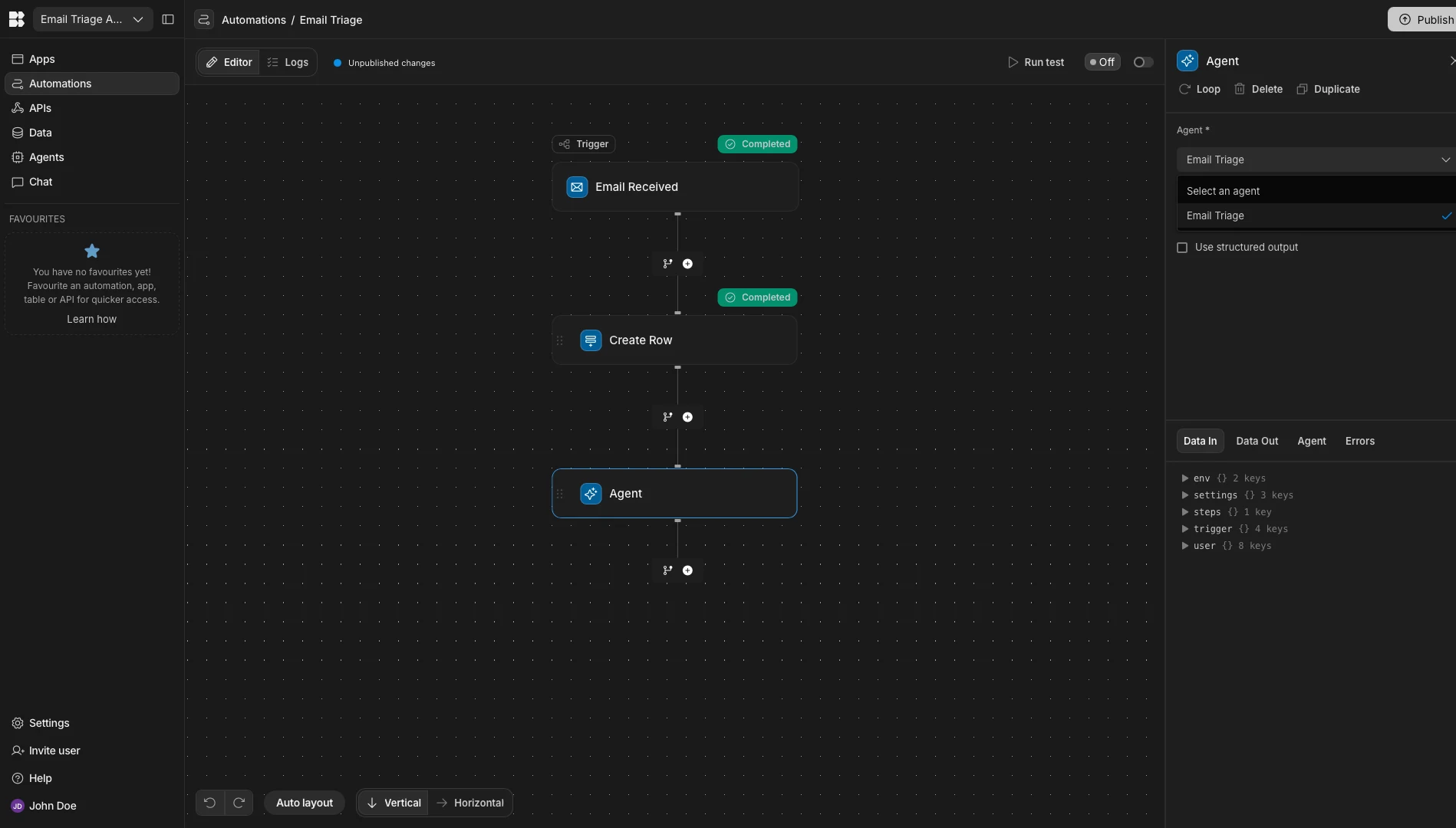
Then, we’ll select our Email Triage Agent under Agent.
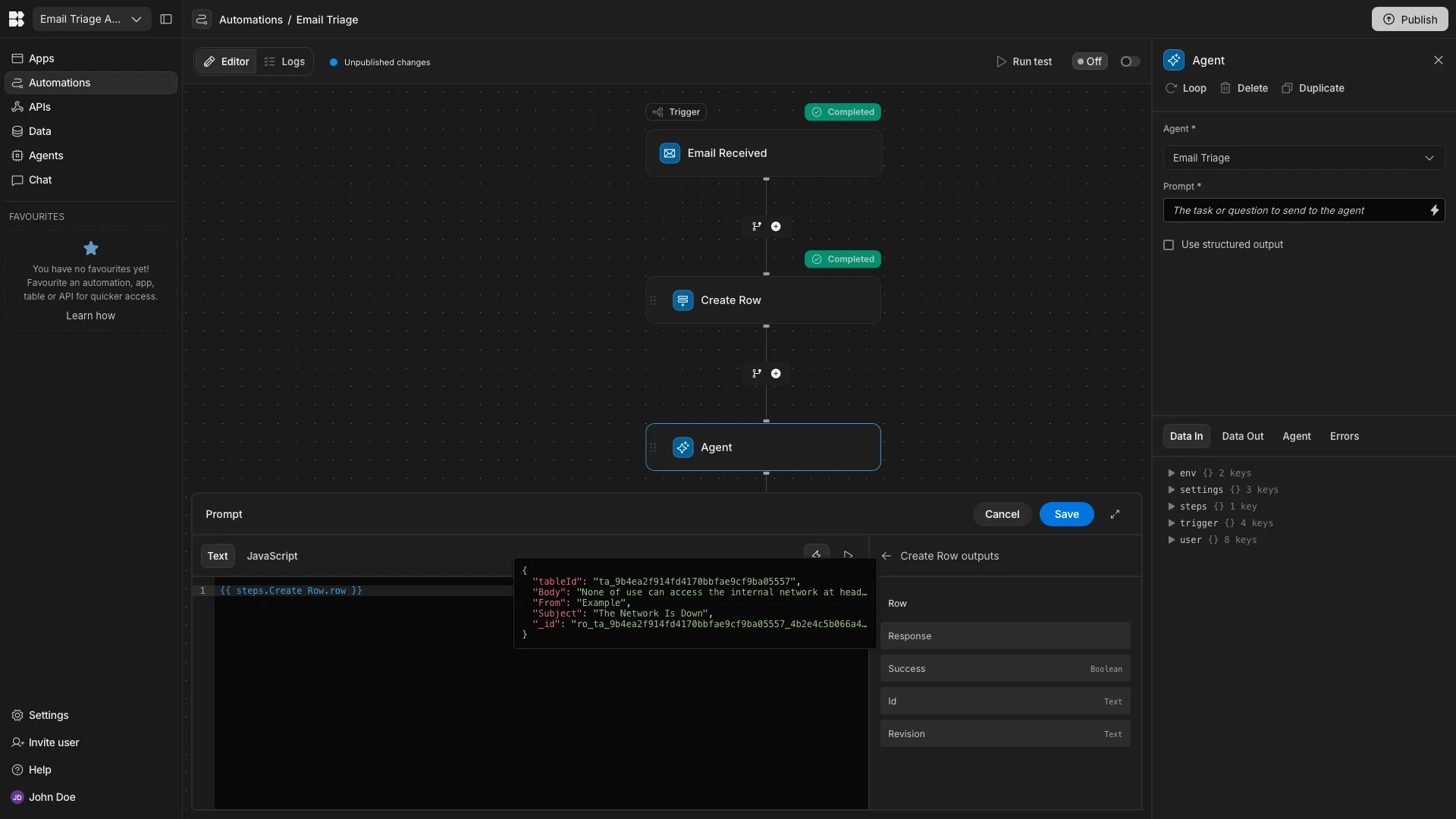
We can use the Prompt argument to pass inputs to our Agent. Remember, we set this up to expect four inputs - the Body, Subject, From, and _id fields from a row in our Emails database table.
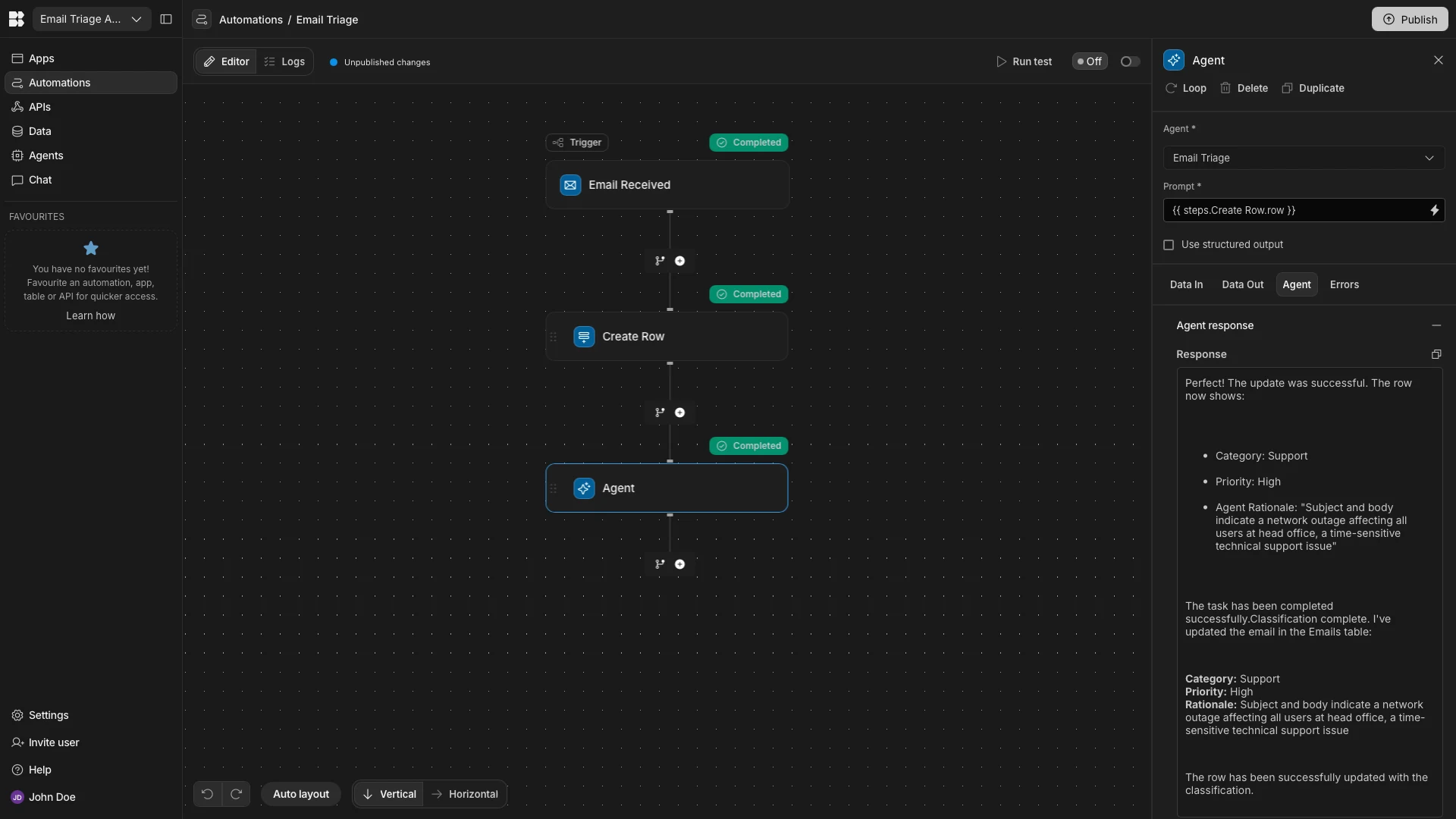
We’re going to hit the lightning bolt icon to open the bindings drawer, before selecting Row under Create Row Outputs, providing all of the information we need in key/value pairs.
Once again, we’ll hit Run Test to confirm that this works, this time using more relevant Body and Subject values.
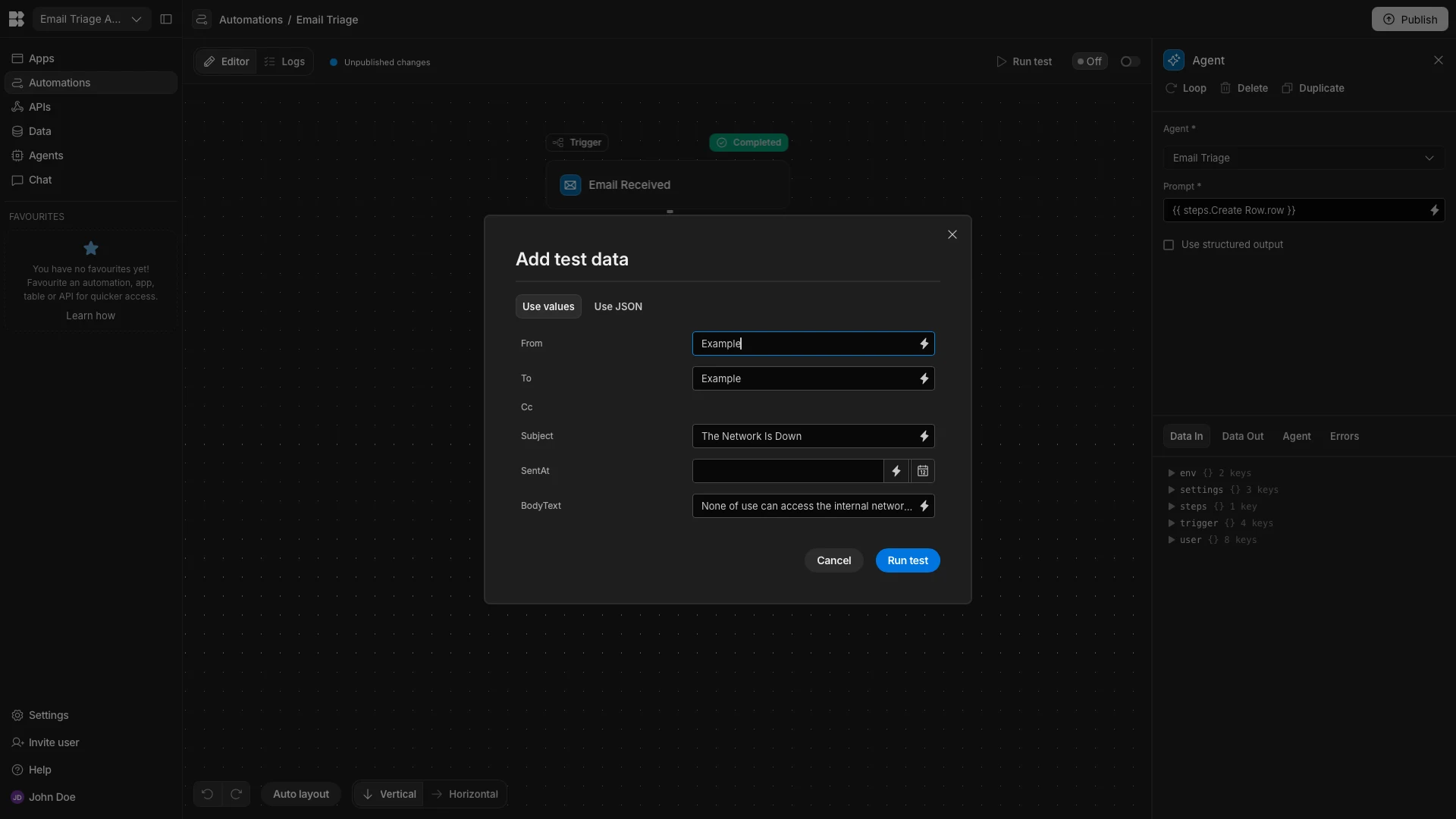
We can see our Agent’s output within the test data.
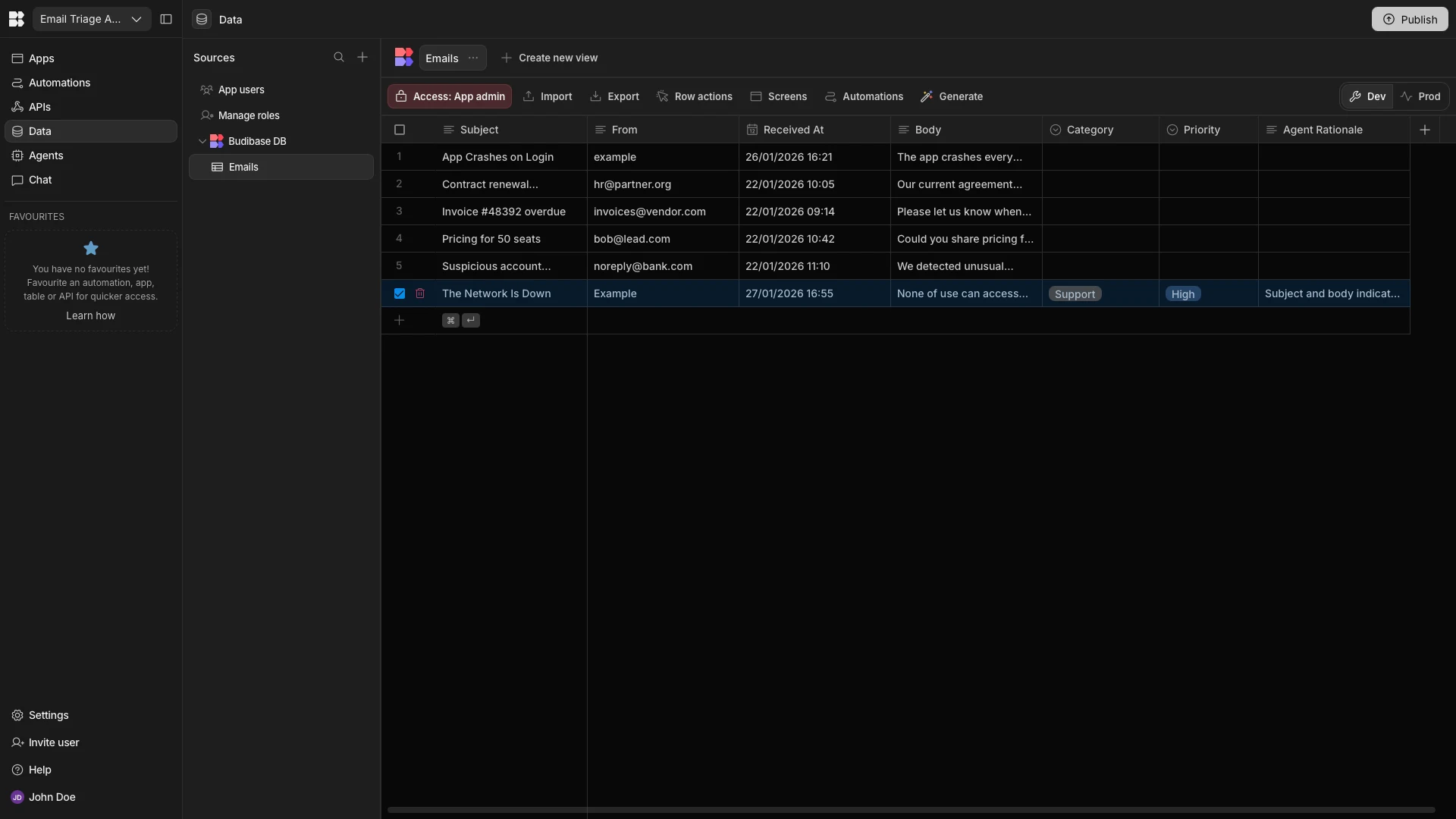
And, back in the Data section, we can see that our row has been successfully populated with all values.
And that’s our AI email triage system ready to go.
The open-source AI workflow toolkit for privacy-first teams
Budibase is the open-source AI workflow toolkit for privacy-first teams. There’s never been an easier way to build Apps, Agents, and Automations by connecting all kinds of AI models to your own tools and data.
Check out our features overview to learn more.