

When managing incidents, one of the most important and labor-intensive tasks is determining what has actually happened, what impact it could have, and which steps need to be taken to resolve the situation.
A key part of this is determining the severity and urgency of the incident, as well as which tools or other CIs and assets it relates to, and, ultimately, which response flow it should be routed to.
Today, we’re exploring one key strategy for optimizing this process by diving deep into AI incident triage.
Specifically, we’ll be covering:
- What is incident triage?
- Why utilize AI for triaging incidents
- How to perform AI incident triage with Budibase
Let’s start with the basics.
What is incident triage?
Incident triage is the process of analyzing incoming incident reports to determine their urgency and necessary response.
This will generally be governed by distinct logic across different businesses, but the broad factors that triage rules take account of are generally similar. This includes determining the incident’s type, affected assets, severity, impacted users, and potential risks and costs.
As an outcome of this, we may be able to route the incident to a pre-defined resolution workflow, or we may need to perform further analysis and investigation in the case of more severe or previously unseen incidents.
In both cases, triaging an incident should lead to it being assigned a priority level and category, as well as providing a summary of the associated risks, costs, and resources that will be required to respond.
Incident triage achieves a few key things, including:
- Expedited Responses - Accelerating how quickly incidents reach the right team.
- Risk Management - Surfacing serious issues early before they grow.
- Resource Optimisation - Ensuring effort goes where it’s most needed.
- Service Consistency - Improving how reliably incidents are handled.
- Downtime Reduction - Minimising disruption to users and services.
- Priority Setting - Ranking issues based on impact and urgency.
- Queue Management - Keeping incoming reports organised and flowing.
- Expectation Setting - Providing clear timelines and next steps.
- Quality Control - Increasing the accuracy of incident handling.
As such, this is a critical component of the wider incident management process, providing us with a repeatable approach to assessing incoming incidents and determining a response, whether these are flagged manually via an incident report form or automatically via monitoring tools.
Why utilize AI for triaging incidents?
With a better grasp of what incident triage is and what it achieves, we can move on to thinking about some of the ways that AI can provide value here.
One key aspect of this is that incident triage is typically a workflow that requires extensive human input. That is, it can be highly time-consuming to assess incoming incidents, which are often described in natural language.
After this, we’ll need to understand the context of the incident in order to determine its impact and required resolution steps.
As such, this is a use case that traditional deterministic automation tools typically struggle with. At the same time, these are tasks that AI-powered solutions are highly adept at handling.
To illustrate this, we can consider some of the key ways that AI can be leveraged to enhance ticket triage workflows.
Perhaps the most obvious is dealing with natural language inputs. AI-powered systems are capable of interpreting human language, including extracting key variables and applying business rules for incident triage.
Similarly, natural language processing can be used to summarize submissions, making it easier for human agents to quickly scan incident reports.
With the rise of agentic AI, we can even build systems that are able to independently reason and take action, including searching previous incident records for relevant information and taking action autonomously to provide resolutions.
Take a look at our guide to low-code AI agent platforms.
How to perform AI incident triage with Budibase
Next, we’re going to check out some of the key ways that Budibase can be used to implement AI within incident triage workflows.
Budibase offers a range of pre-built AI operations, powered by BudibaseAI, OpenAI, or Anthropic. These are available as a dedicated column within BudibaseDB or as action steps within automation rules.
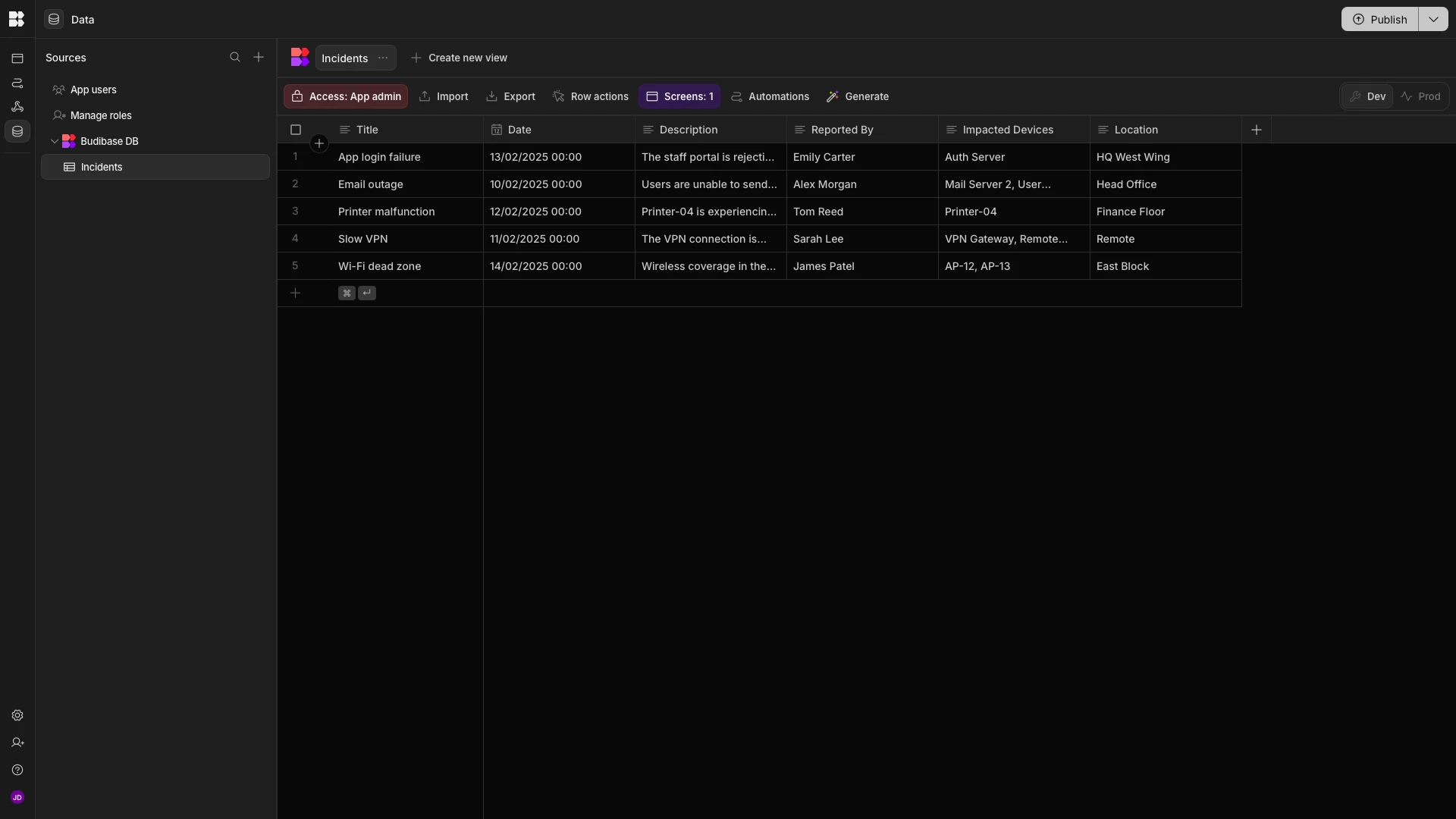
For our examples, we’re starting with a simple incident report form.

Here’s how the underlying table looks in BudibaseDB.
Summarization
For our first example, we’re going to use BudibaseDB’s AI column to provide a summary of the submitted information.
This will create a single text output that presents the key details from all relevant columns.
We’ll start by hitting the+ icon to create a new column.
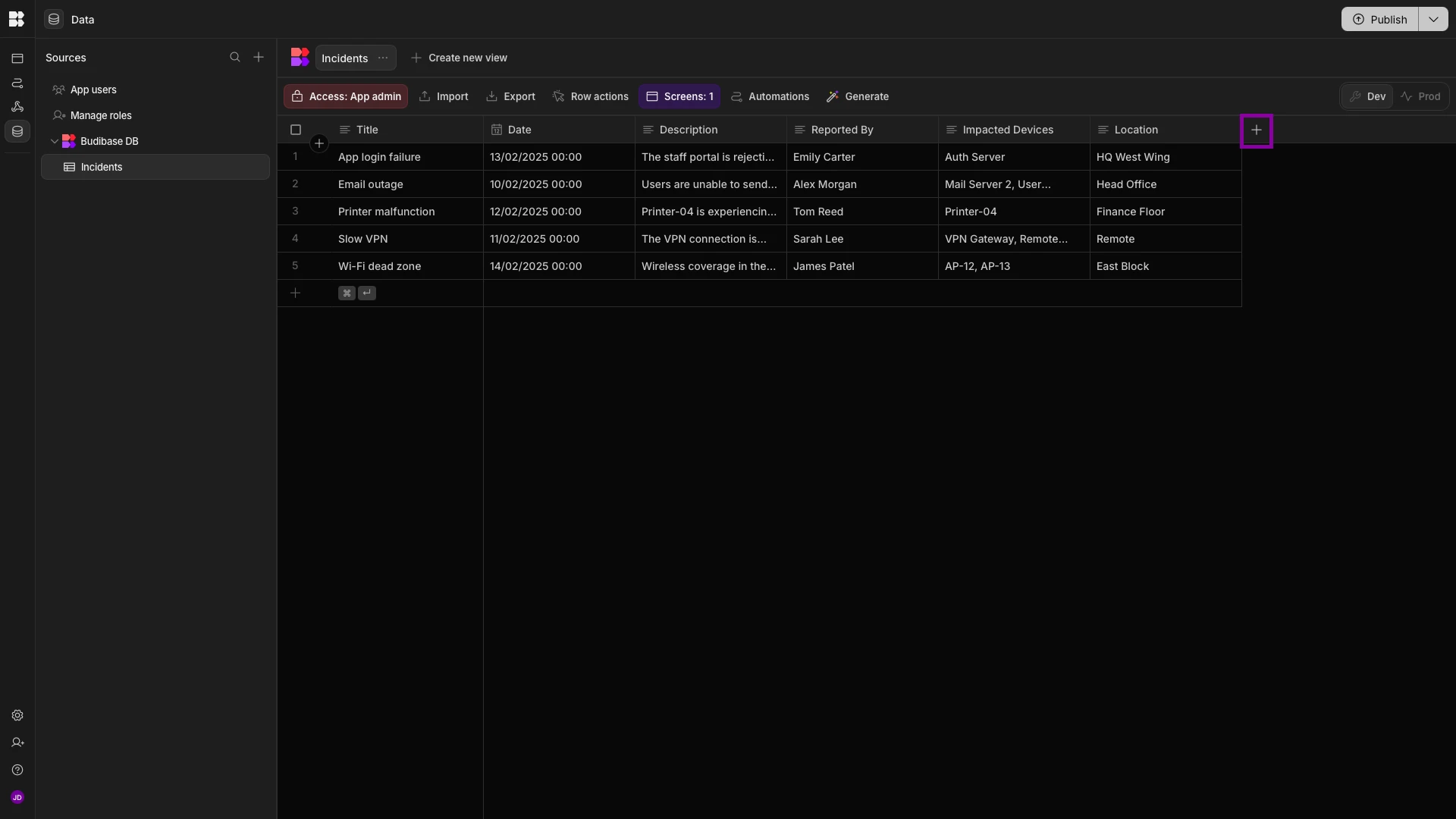
Here, we’ll call our new column Summary and choose the AI data type.
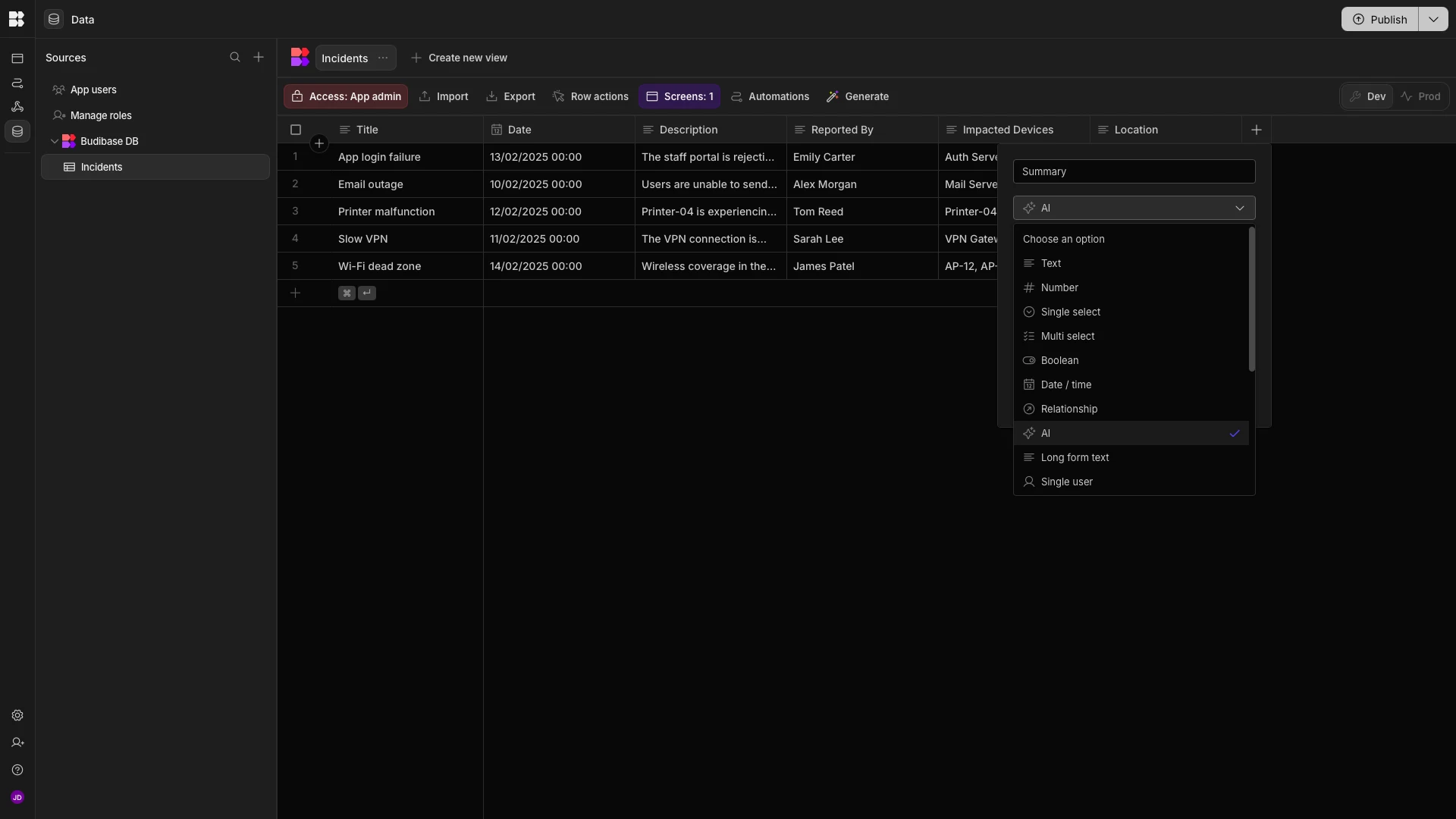
Next, we’ll choose Summarise Text as our operation.
Lastly, under columns, we’ll choose all of the available options.
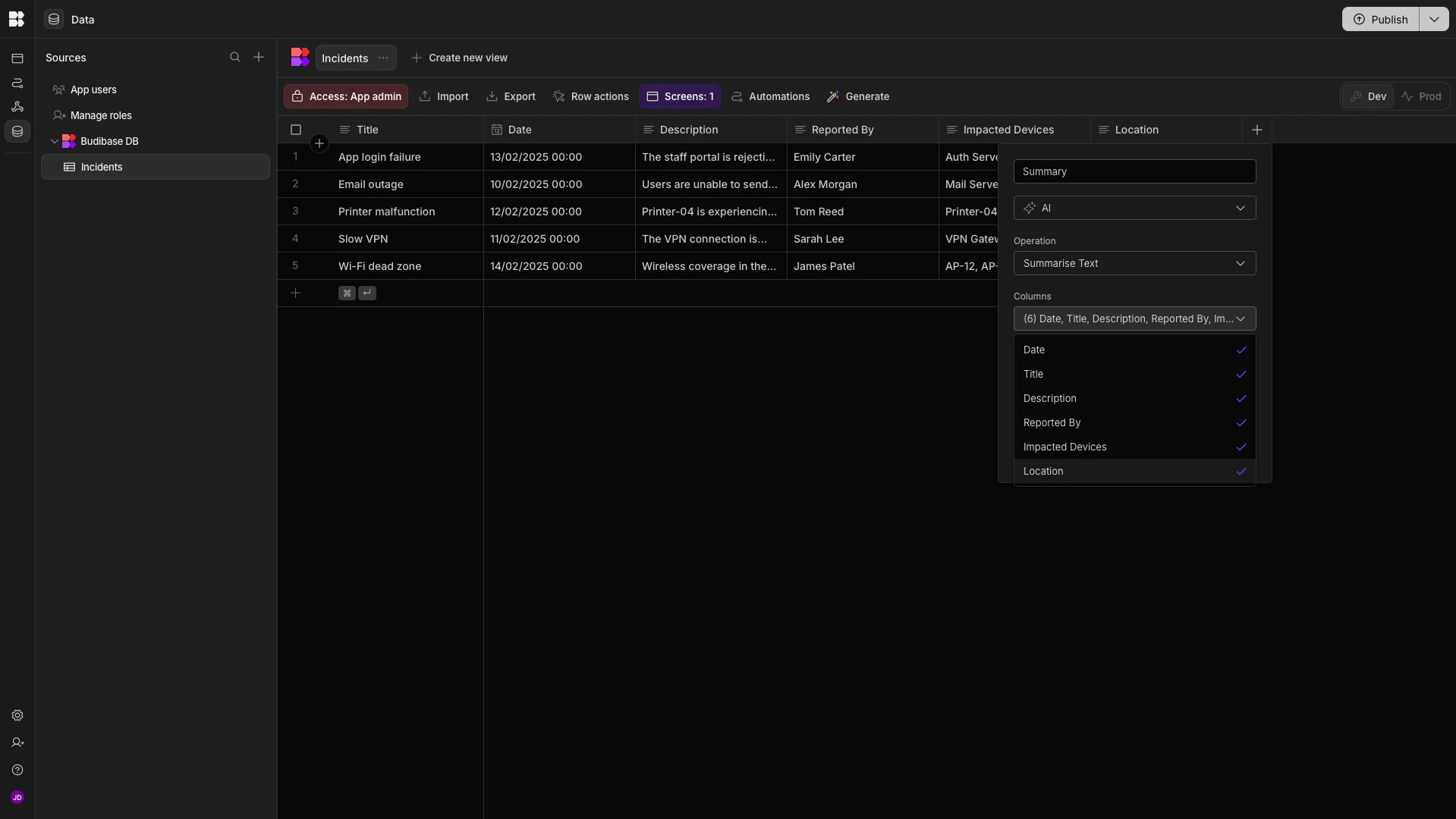
Now, each time a row is added or updated, a concise summary of the incident will be AI-generated.

Categorization
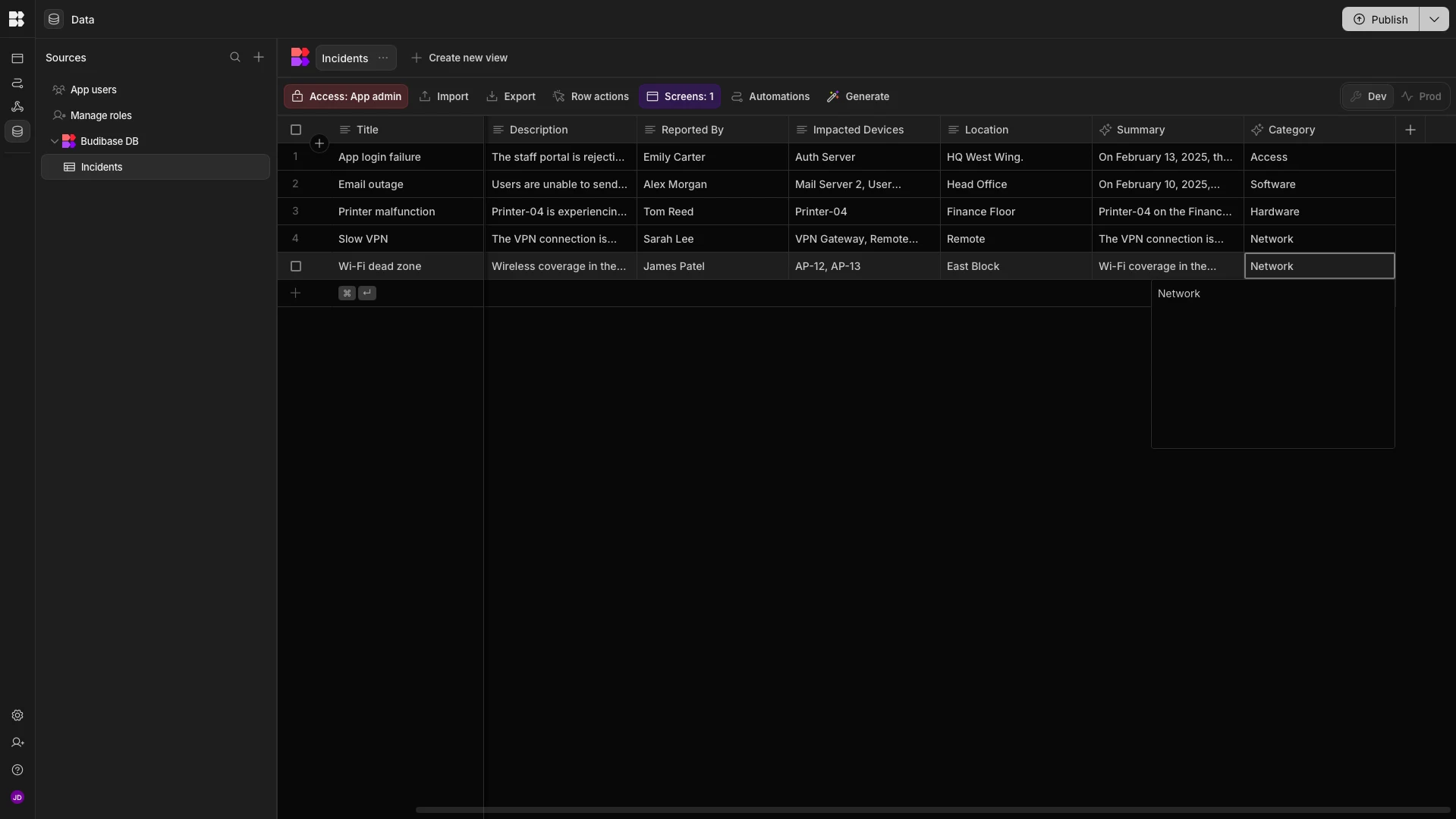
Next up, we’re going to use the AI column to categorize our incident reports. Budibase has a built-in AI operation for categorising text, but for greater control over the logic that we implement, we’re going to do this with a custom prompt.
Once again, we’re starting by adding a new column and choosing the AI data type. We’ll call this one category and choose Prompt as our operation.
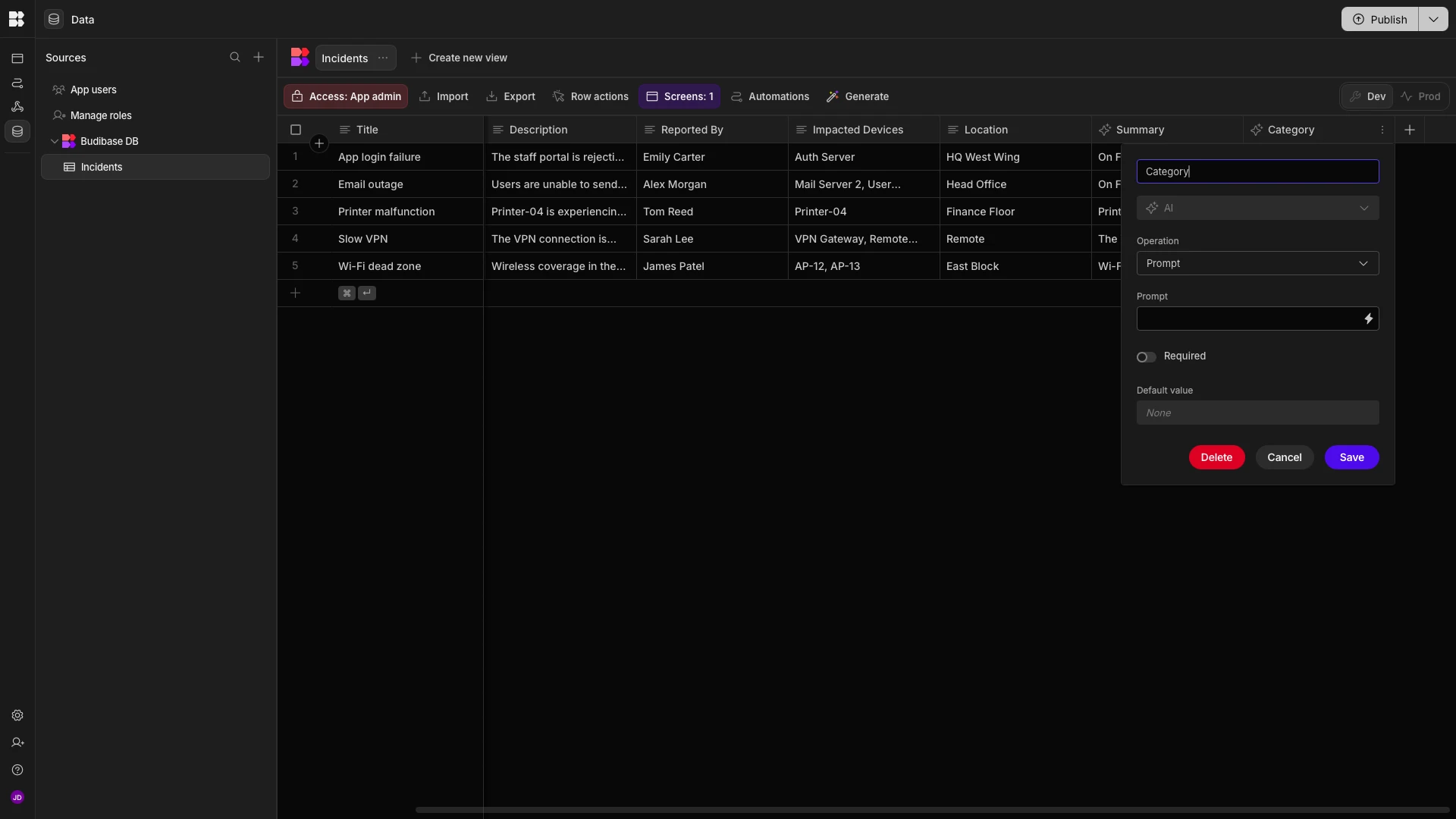
Next, we’ll hit the lightning bolt icon to open the bindings menu for our prompt. Here, we can write our instructions to the LLM, including dynamically passing existing values from our incident report rows using handlebars.
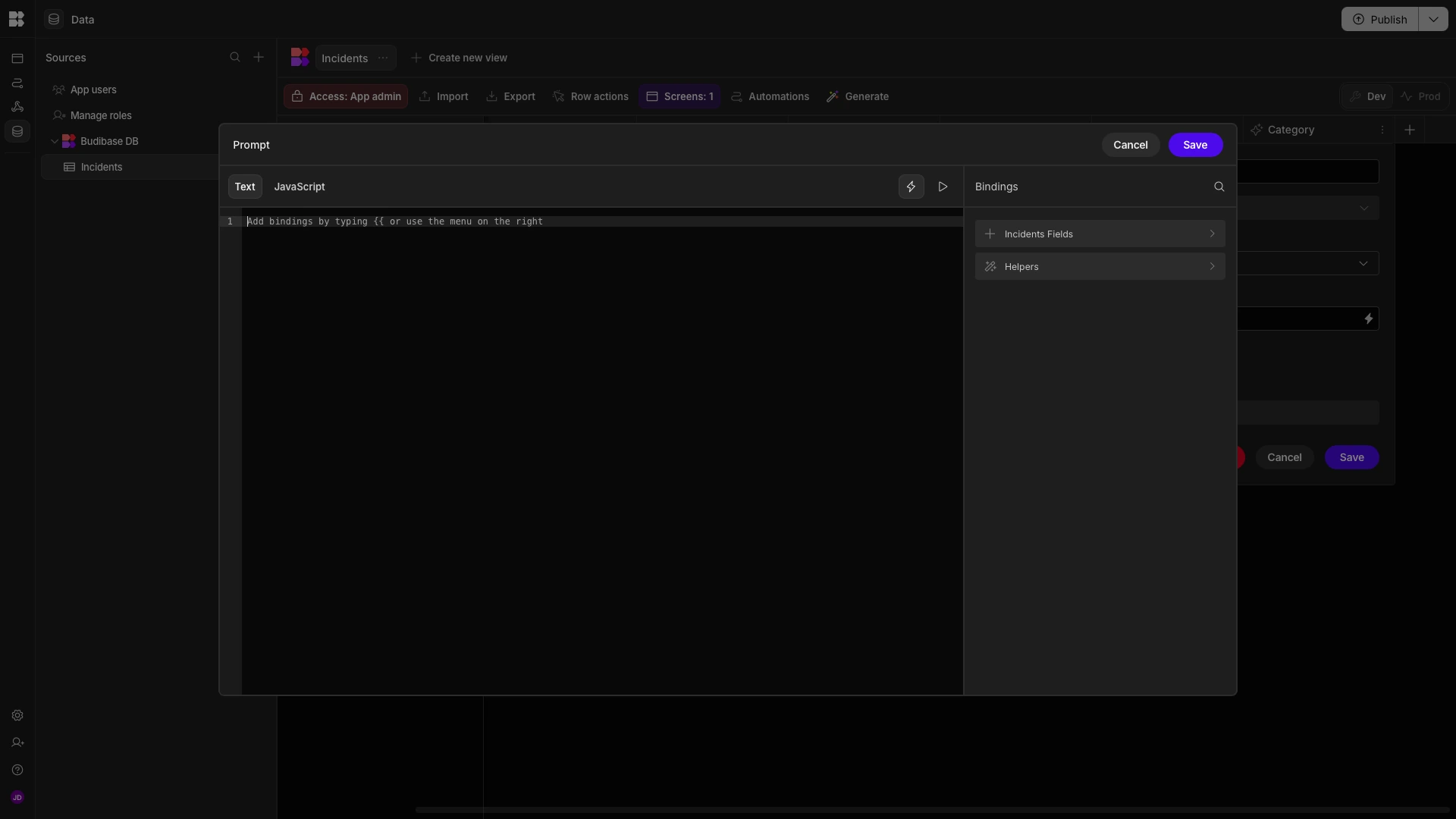
The specific prompt we’re going to use is:
You are an incident classification assistant. Your task is to read an IT incident report and return the most appropriate category as a single string.

Allowed categories (use exactly one of these):

Network

Hardware

Software

Access

Facilities

Other

Decision rules:

1. Read all fields together (title, description, reported_date, reported_by, impacted_devices, location) and base your decision on the overall context.
2. Classify as "Network" when the main issue concerns connectivity, Wi-Fi, VPN, bandwidth, routing, DNS, or similar network services.
3. Classify as "Hardware" when the main issue concerns physical devices such as laptops, desktops, printers, monitors, phones, or on-premise servers.
4. Classify as "Software" when the main issue concerns an application, operating system, email client, browser, or other software behaviour (bugs, crashes, errors, performance).
5. Classify as "Access" when the main issue is login, authentication, authorisation, password, account lockout, permission, SSO, or MFA problems.
6. Classify as "Facilities" when the main issue relates to the physical workplace environment (meeting rooms, cabling, power, racks, cooling, office space).
7. If the incident clearly fits more than one category, choose the category that best represents the primary root cause implied by the description.
8. If none of the categories clearly fit, or the information is too vague to decide, return "Other".

Output instructions:

Return only the category name (exactly one of: Network, Hardware, Software, Access, Facilities, Other)

Do not include any explanation, formatting, punctuation, or extra text.

Incident Report:

Reported Date: {{ Date }}

Title: {{ Title }}

Description: {{ Description }}

Reported By: {{ Reported By }}

Impacted Devices: {{ Impacted Devices }}

Location: {{ Location }}
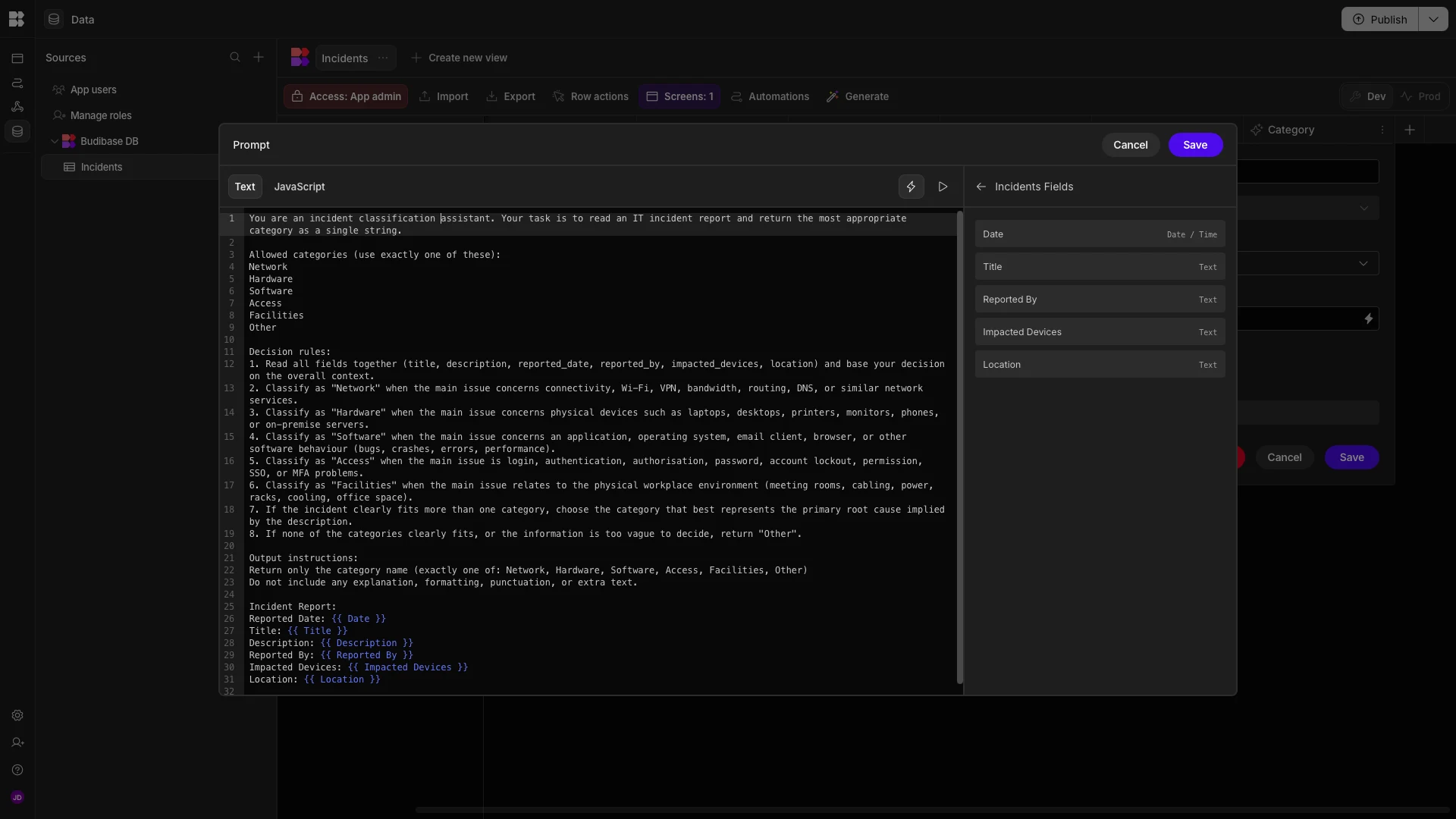
Again, when we save a row, our incident reports will have the appropriate category added automatically.
Severity
Lastly, we’re going to implement similar logic to give our incident reports a severity score.
This will be a numerical score out of five, with one being the least severe and five being the highest priority.
Once again, we’re going to start by adding an AI column and selecting the Prompt operation. We’re calling this one Severity.
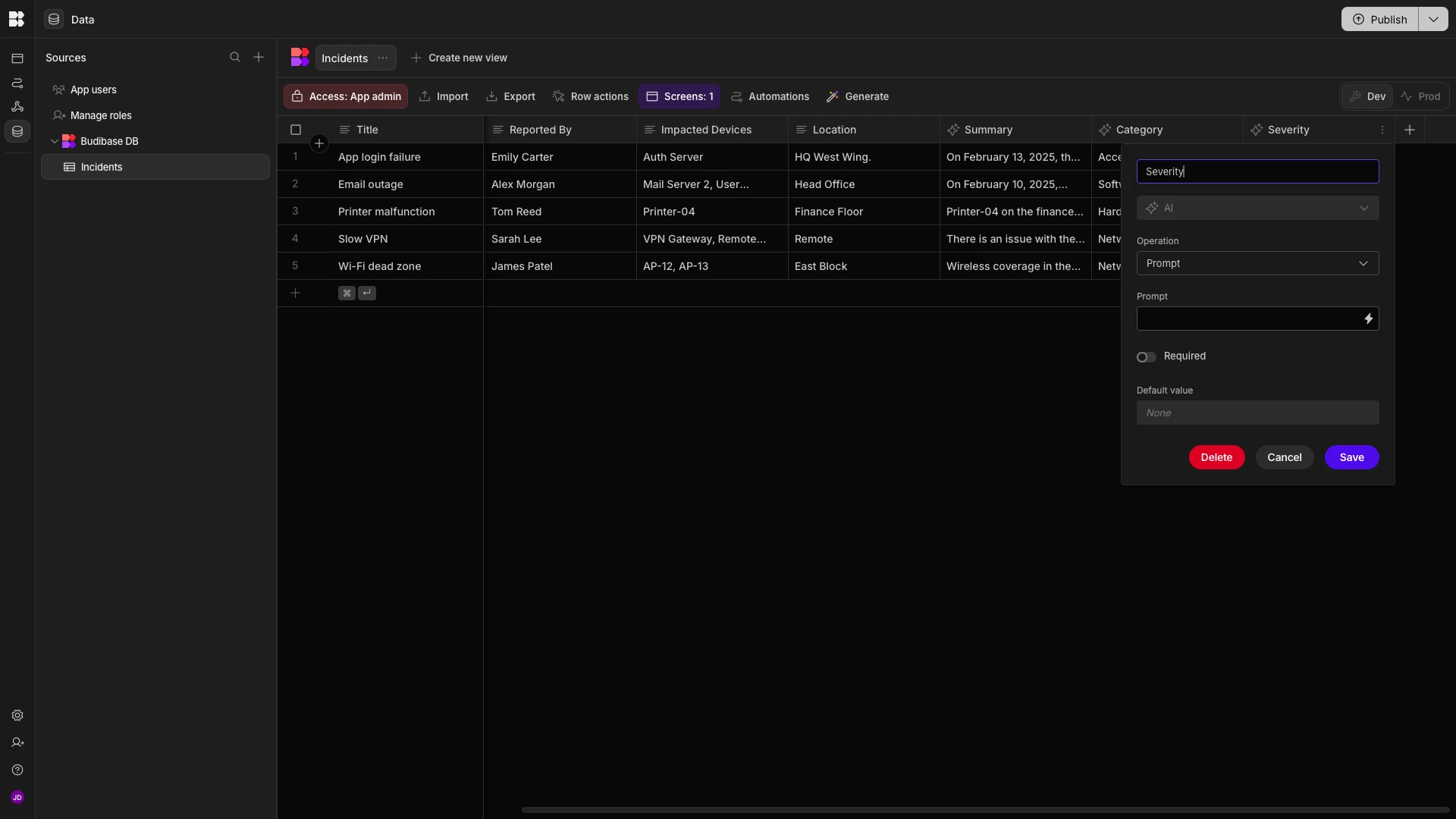
Again, we’ll hit the lightning bolt icon to open the bindings menu.
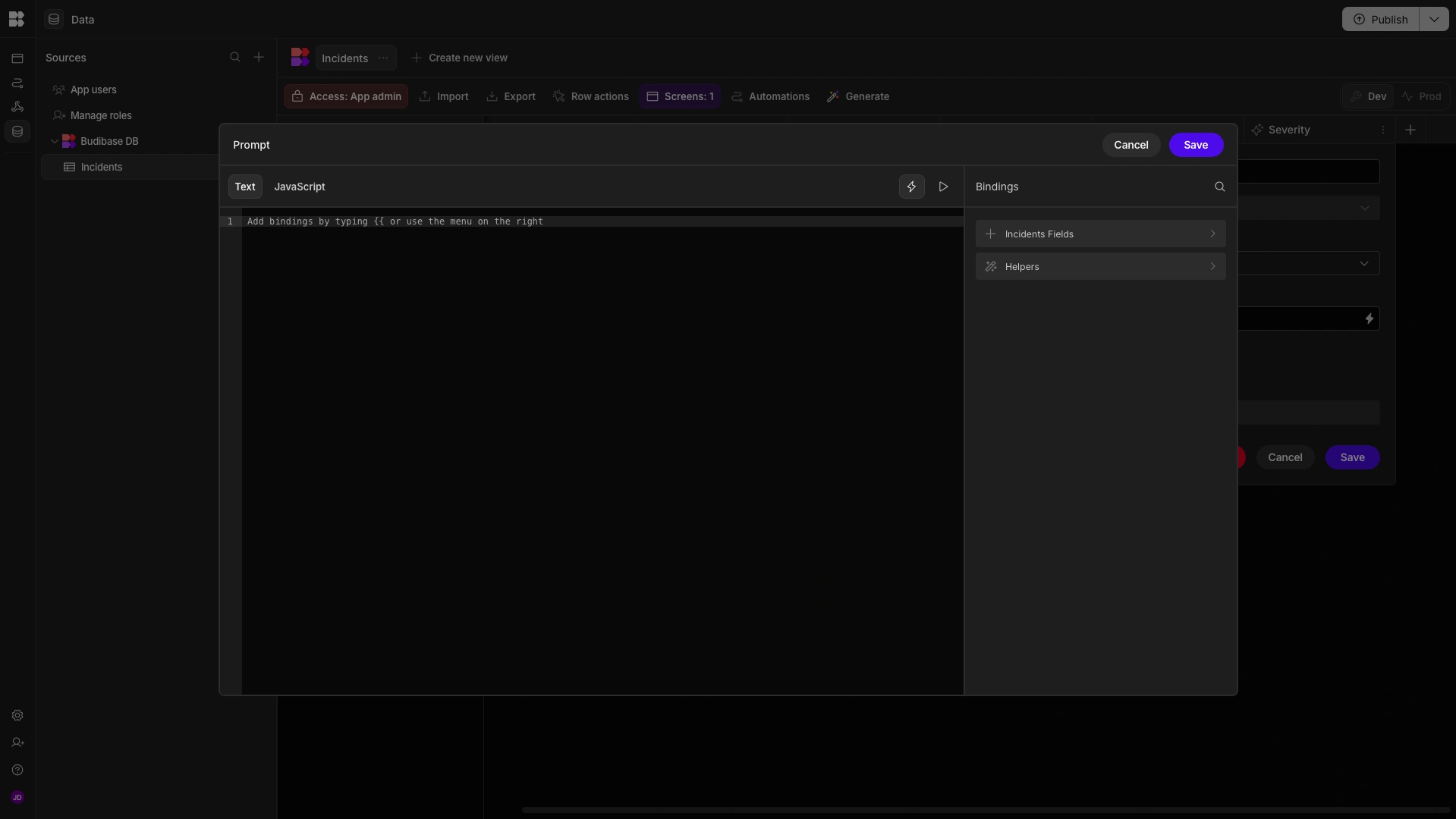
This time, our prompt for creating a severity score is:
You are an incident severity assessment assistant. Your task is to analyse an IT incident report and return a single severity score from 1 to 5.

Severity scale:

1 = Minimal impact (minor inconvenience, no real disruption)

2 = Low impact (affects a small number of users, limited disruption)

3 = Moderate impact (affects a noticeable number of users or a key team, some operational slowdown)

4 = High impact (affects many users or critical services, significant disruption)

5 = Critical impact (major outage, essential service offline, severe business impact)

Decision rules:

1. Use all provided fields together to determine severity, focusing on the description and impacted devices.
2. Increase severity when the incident affects many users, essential business functions, core systems, or shared infrastructure.
3. Increase severity when the description indicates outages, complete loss of functionality, or inability to perform key work.
4. Decrease severity when the issue is isolated to a single user or a non-critical device, with minimal disruption.
5. Consider references to user counts, locations, or device types as indicators of scope.
6. If the information is ambiguous, choose the score that best reflects the likely operational impact implied.
7. You must return only an integer from 1 to 5.

Output instructions:

Return only the severity score (1, 2, 3, 4, or 5).

Do not include any explanation or additional text.

Incident Report:

Reported Date: {{ Date }}

Title: {{ Title }}

Description: {{ Description }}

Reported By: {{ Reported By }}

Impacted Devices: {{ Impacted Devices }}

Location: {{ Location }}
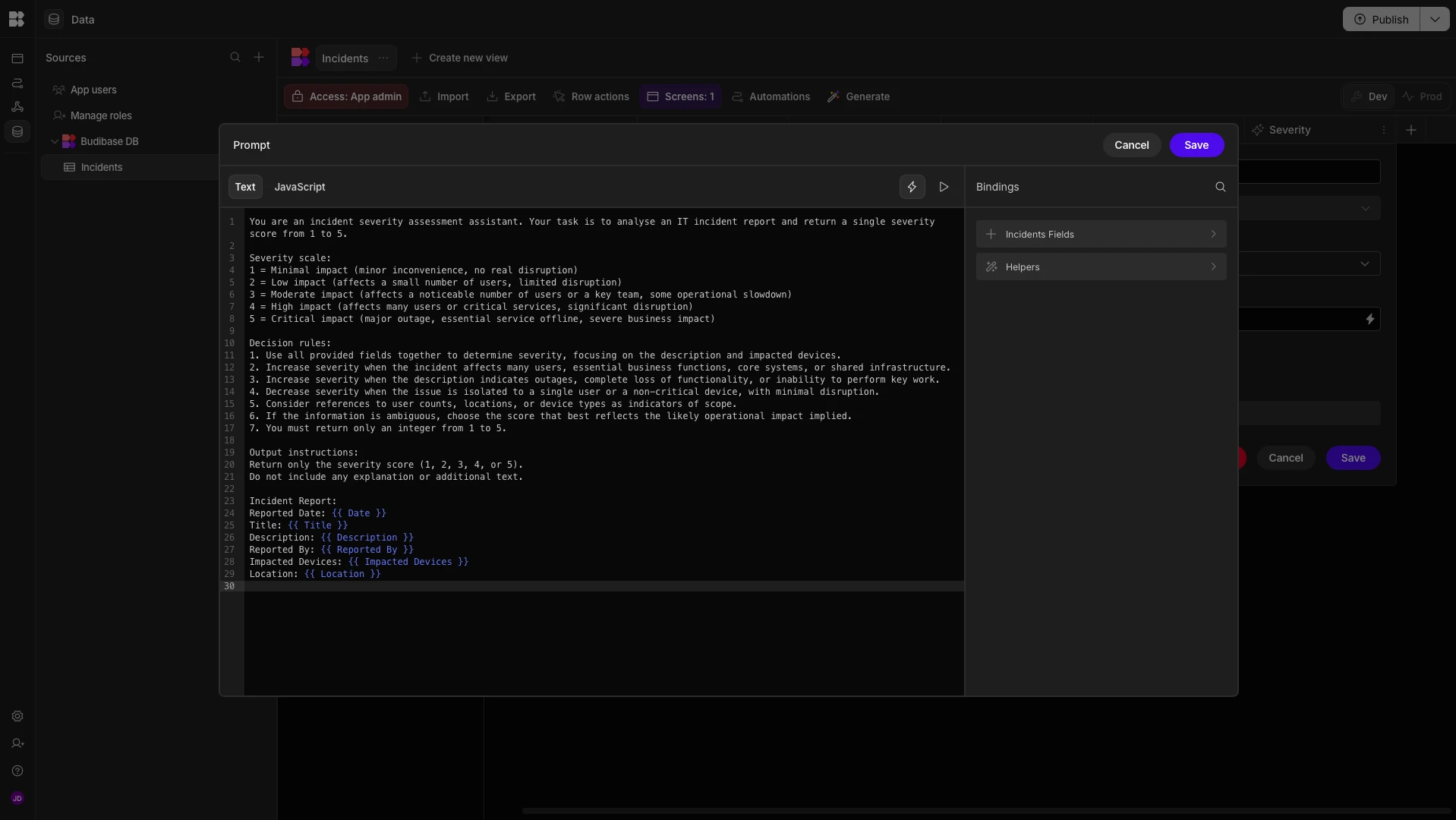
And once again, this will automatically be applied each time a row is added or updated on our incident reports table.
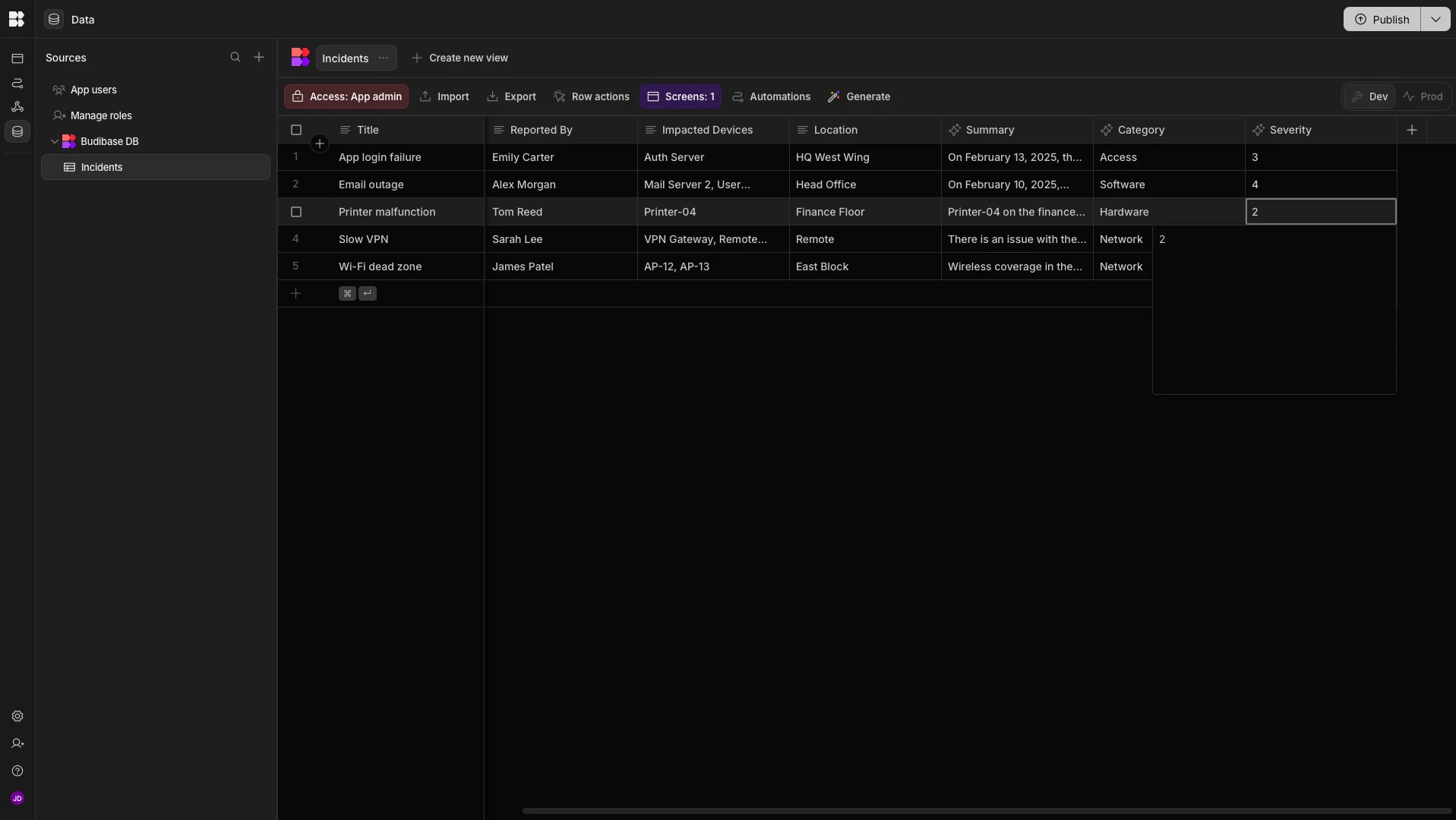
Now, we have an effective AI incident triage tool that performs summarization, categorization, and severity rating for all incoming submissions from our report form. This data can then be used by human service agents or for downstream automation processing.
Turn data into action with Budibase
Budibase is the open-source, low-code platform that empowers IT teams to turn data into action.
We offer extensive external data connectivity, autogenerated UIs, powerful AI-driven automations, optional self-hosting, custom RBAC, and much more.
Check out our features overview to learn more.